# Contextual Consent Setup Guide
> Set up contextual consent in Secure Privacy to block iframes and images until users consent. Customize templates, add the sp-consent attribute, and stay GDPR compliant — step-by-step guide.
- Canonical: https://support.secureprivacy.ai/article/formatting-and-utilizing-a-contextual-consent-page-template
- Product: Consent Management
- Category: Customization
- Published: 2026-03-06T12:43:00+00:00
- Updated: 2026-03-23T23:10:24.195+00:00
- Reading time: 6 minutes
---
**Summary:** **Contextual consent** gives users a fair, transparent way to understand and agree to the specific use of their personal data before content such as embedded videos, maps, or iframes is loaded. This guide walks through how to set up and customize a **Contextual Consent page in Secure Privacy** using the Templates feature — including enabling the feature, configuring message and button text, previewing across devices, and implementing the `sp-consent` attribute on your page.
## Who Is This Guide For?
- **Website administrators** managing GDPR and CCPA-compliant consent flows for embedded content
- **Developers** implementing the `sp-consent` attribute on `img` or `iframe` elements
- **Marketers and compliance managers** customizing contextual consent messaging and button text to reflect their brand
## What Is Contextual Consent?
**Contextual consent** is a privacy mechanism that blocks embedded third-party content — such as YouTube videos, Google Maps, or social media iframes — from loading until the user explicitly agrees to the data sharing that content involves. Rather than relying solely on a cookie banner, contextual consent presents a targeted, in-context prompt at the point where the content would appear, giving users a clear and informed choice.
This approach supports compliance with **GDPR, CCPA**, and other privacy regulations by ensuring personal data is only shared with third parties after active, specific user consent.
## How to Access the Contextual Consent Template in Secure Privacy
To locate and configure the Contextual Consent feature:
1. Log in to your **Secure Privacy account**
2. Click **Templates** in the main navigation bar
3. Select the template you want to modify
4. Switch to the **Contextual Consent** tab
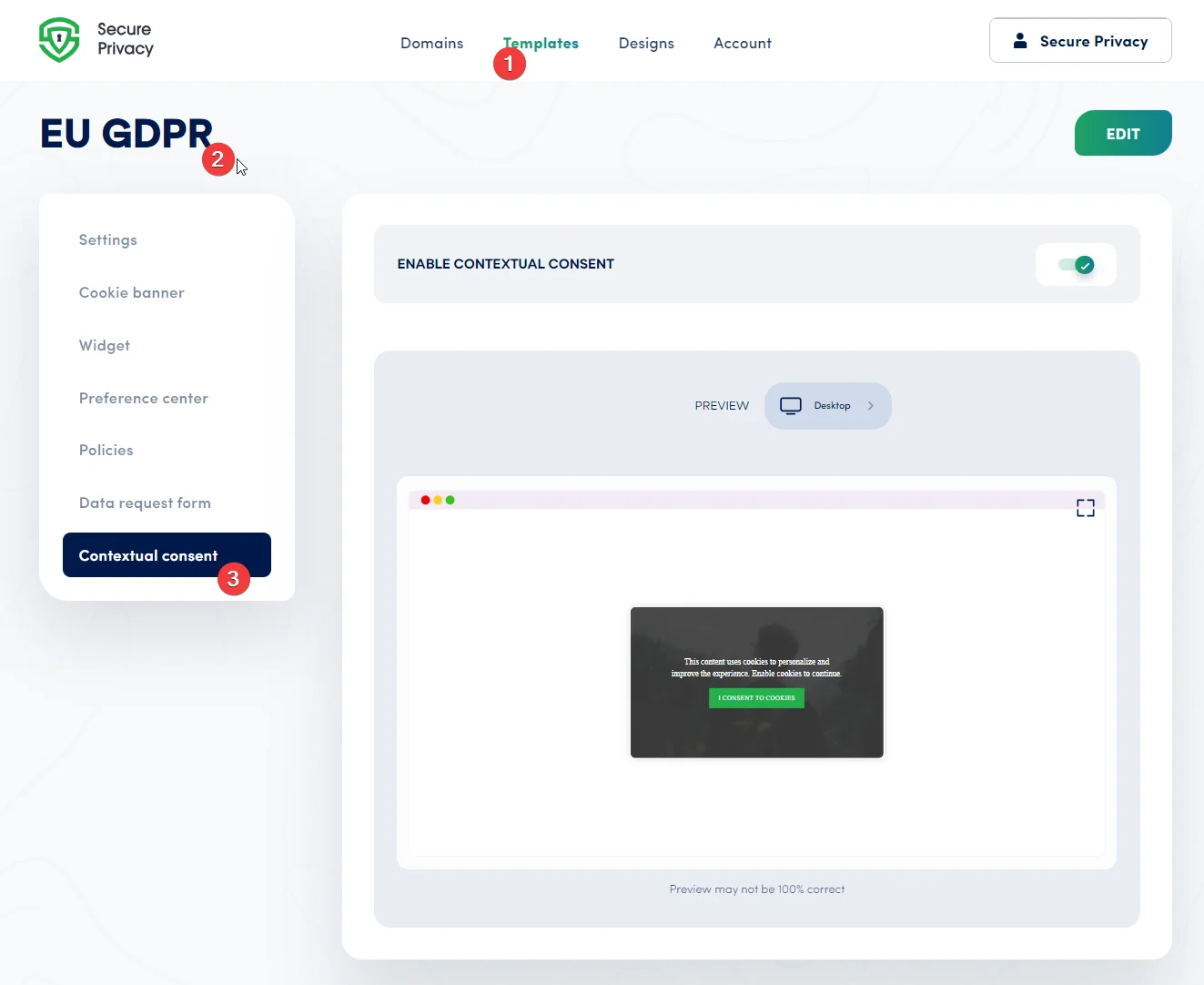
Navigate to Templates, select your template, and open the Contextual Consent tab in your Secure Privacy dashboard.
## Contextual Consent Template Features
### Enable Contextual Consent
The **Enable Contextual Consent** toggle activates the contextual consent functionality for your selected template. Once enabled, interactive consent buttons and overlay widgets will appear to your website users directly over any pixel or iframe service that requires consent before loading.
### Preview Your Contextual Consent Page
Secure Privacy's **three-way preview** simulates how your contextual consent overlay appears across different device types — **desktop, tablet, and mobile**. Note that the preview is an approximate indicator; for the most accurate representation, switch to **full-screen view** to see the page exactly as your users will.
Click the **EDIT** button at any time to switch to editing mode, where you can adjust text, button labels, and settings. This flexibility ensures your contextual consent page always accurately reflects your brand values and privacy commitment.
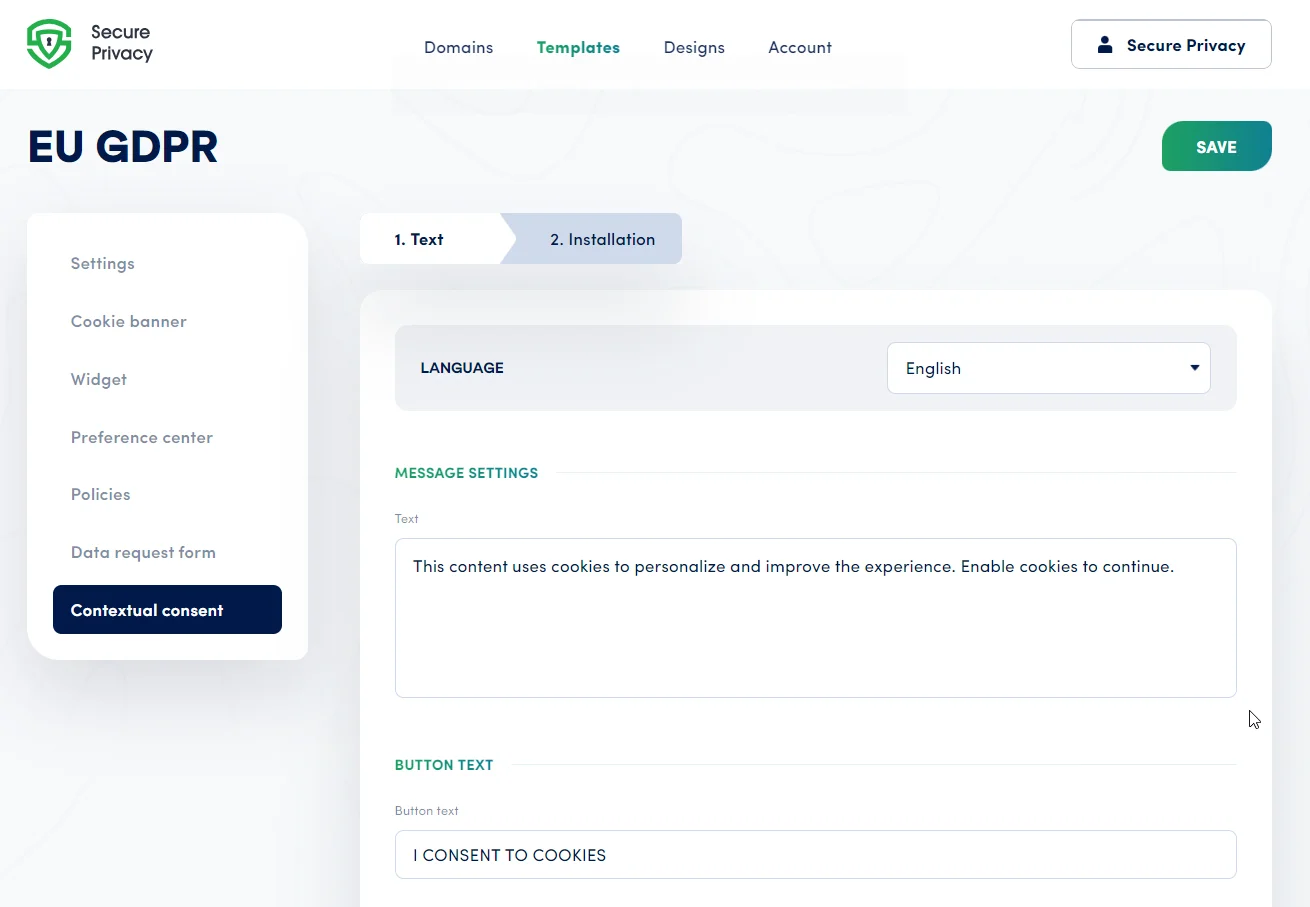
Use the three-way preview to check your contextual consent overlay across device sizes, then switch to full-screen for the most accurate view.
### Language Settings
All Secure Privacy templates are **preconfigured and pre-translated**, giving users a localized consent experience out of the box. To add or remove a supported language, navigate to **Templates > Settings**.
### Message Settings: Customizing Consent Text
Under **Text** in the **Message Settings** panel, you can fully customize the copy displayed on your contextual consent overlay. Write clear, concise, and informative text that explains what data is being shared and why — reinforcing your brand's commitment to data transparency and user privacy.
### Button Text: Call-to-Action Labels
**Button text** controls the labels shown on each consent action button — such as "Accept," "Decline," or "Learn More." These labels should be direct and action-oriented, clearly communicating what each choice means for the user's data. Under GDPR, consent and refusal options must be equally prominent and unambiguous.
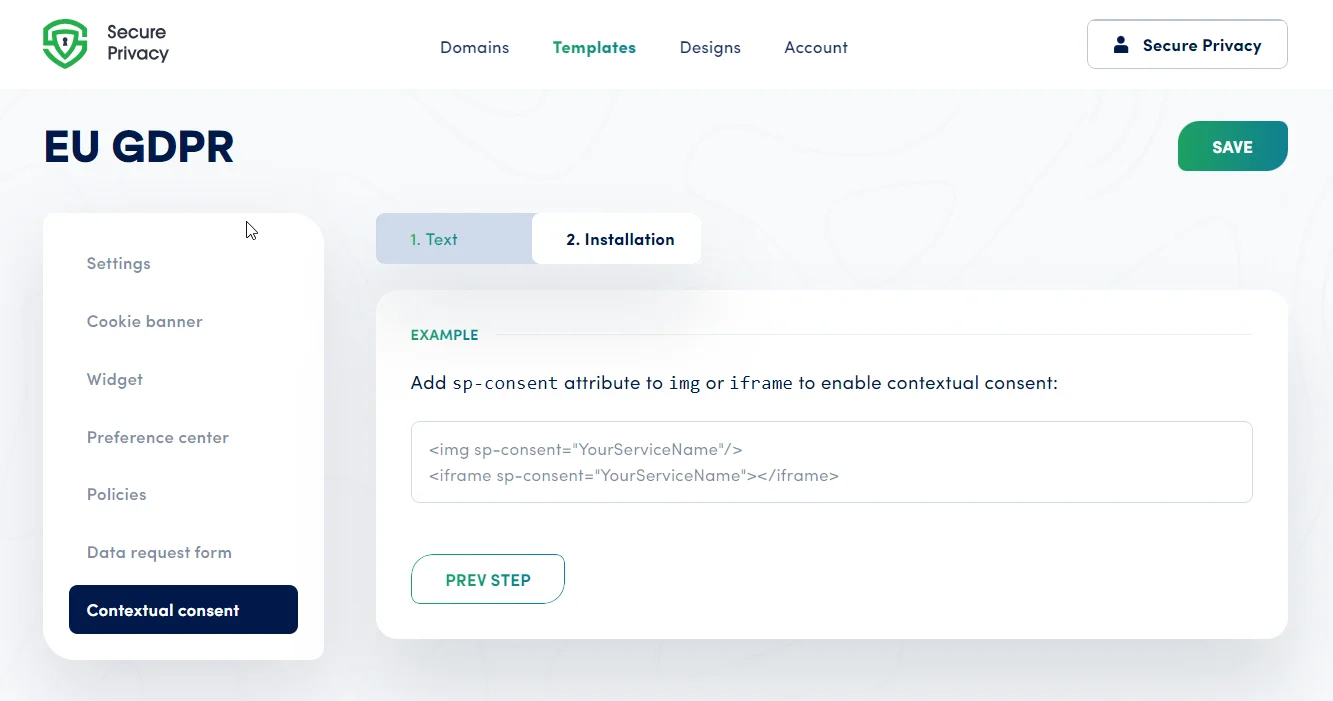
Customize your consent overlay message text and button labels in the Message Settings panel.
## How to Install Contextual Consent: Adding the sp-consent Attribute
To activate contextual consent blocking on a specific embedded element, add the `sp-consent` attribute to any `![]() ` or `
```
**Example — blocking an image pixel:**
```
` or `
```
**Example — blocking an image pixel:**
```
 ```
**Important:** The `sp-consent` attribute is required on every element you want contextual consent to govern. Do not skip this step — without it, the element will load without triggering the consent overlay.
### Update Cookie Classification for Contextual Consent Elements
After adding the `sp-consent` attribute to your tags, ensure that the corresponding `img` or `iframe` elements are correctly categorized in your **Domain Settings > Classification** tab. Proper classification ensures the contextual consent overlay is triggered by the correct consent category (e.g., marketing, functional) as defined in your template.
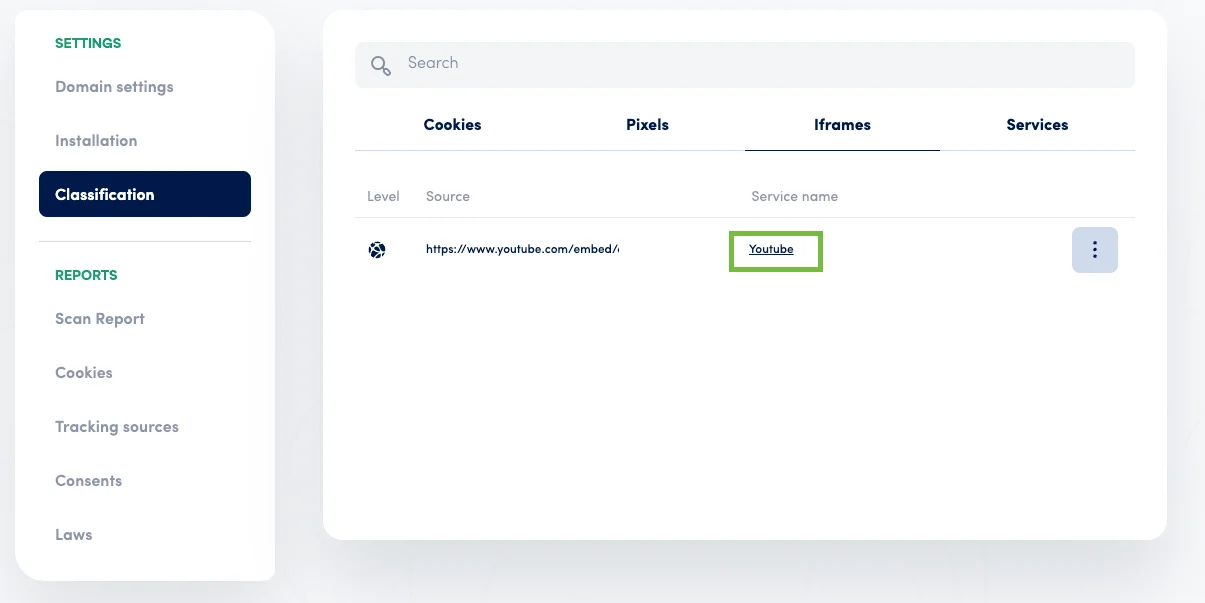
Categorize your `img` and `iframe` elements correctly under Domain Settings > Classification to ensure the right consent overlay is triggered.
## Frequently Asked Questions (FAQ)
### What is contextual consent and how is it different from a cookie banner?
A cookie banner asks for broad consent when a user first visits your site. **Contextual consent** works differently — it blocks specific embedded elements (like videos or maps) from loading and displays a targeted consent prompt directly where that content would appear. This gives users granular, in-context control over individual data-sharing events, which is particularly important under GDPR for third-party embeds.
### Which HTML elements does the sp-consent attribute work on?
The `sp-consent` attribute can be added to any `
```
**Important:** The `sp-consent` attribute is required on every element you want contextual consent to govern. Do not skip this step — without it, the element will load without triggering the consent overlay.
### Update Cookie Classification for Contextual Consent Elements
After adding the `sp-consent` attribute to your tags, ensure that the corresponding `img` or `iframe` elements are correctly categorized in your **Domain Settings > Classification** tab. Proper classification ensures the contextual consent overlay is triggered by the correct consent category (e.g., marketing, functional) as defined in your template.

Categorize your `img` and `iframe` elements correctly under Domain Settings > Classification to ensure the right consent overlay is triggered.
## Frequently Asked Questions (FAQ)
### What is contextual consent and how is it different from a cookie banner?
A cookie banner asks for broad consent when a user first visits your site. **Contextual consent** works differently — it blocks specific embedded elements (like videos or maps) from loading and displays a targeted consent prompt directly where that content would appear. This gives users granular, in-context control over individual data-sharing events, which is particularly important under GDPR for third-party embeds.
### Which HTML elements does the sp-consent attribute work on?
The `sp-consent` attribute can be added to any `![]() ` or `
` or `