
If you run a Shopify store and sell to customers in the EU, UK, California, or anywhere else with modern privacy laws, you are legally required to display a cookie consent banner before dropping tracking cookies. Ignore it and you risk fines under GDPR, the UK GDPR, CCPA, and the ePrivacy Directive — not to mention eroded customer trust.
Most cookie consent solutions for Shopify fall into one of two frustrating camps: too basic (a static bar that doesn't actually block scripts and won't satisfy a regulator) or too complex (enterprise platforms that require developer time and a legal team to configure). Neither is a good fit for a growing Shopify merchant who needs real, auditable compliance without the overhead.
Secure Privacy gives you a fully compliant, auto-blocking cookie consent banner that works natively with Shopify's theme system — no App Store subscription required, no ongoing per-pageview fees, and no custom development. One script tag in your theme.liquid file is all it takes. Secure Privacy then handles everything else: geo-targeted consent rules, automatic script blocking, and a timestamped audit log you can show to regulators.
By the end of this guide your Shopify storefront will display a GDPR- and CCPA-compliant cookie consent banner, and Secure Privacy will be recording consent events automatically.
Who Is This Guide For?
Shopify store owners who need to comply with GDPR, UK GDPR, CCPA, or ePrivacy regulations
Merchants already using Secure Privacy who need to connect it to their Shopify storefront
Developers managing a client's Shopify theme who want a clean, code-based installation
Important — Shopify checkout restriction: Shopify does not allow external scripts in the native checkout flow. Secure Privacy can be applied to your Storefront and the Order Confirmation page, but not to the checkout pages themselves.
Prerequisites
An active Secure Privacy account — sign up free if you don't have one yet
Your Secure Privacy installation script copied from the Installation page inside your dashboard
Admin access to your Shopify store
Access to your active theme's code (no coding experience required — just copy and paste)
How to Install Secure Privacy on Shopify — Step-by-Step
Step 1 — Log in to your Shopify admin
Go to your Shopify admin panel and sign in with your store credentials.
Step 2 — Open Online Store
In the left-hand sidebar, click Online Store.
Step 3 — Go to Themes
Select Themes from the Online Store submenu. You will see your currently active theme at the top of the page.
Step 4 — Open the theme code editor
Click the Actions button (top-right of your active theme card) and choose Edit code [HTML/CSS] from the dropdown.
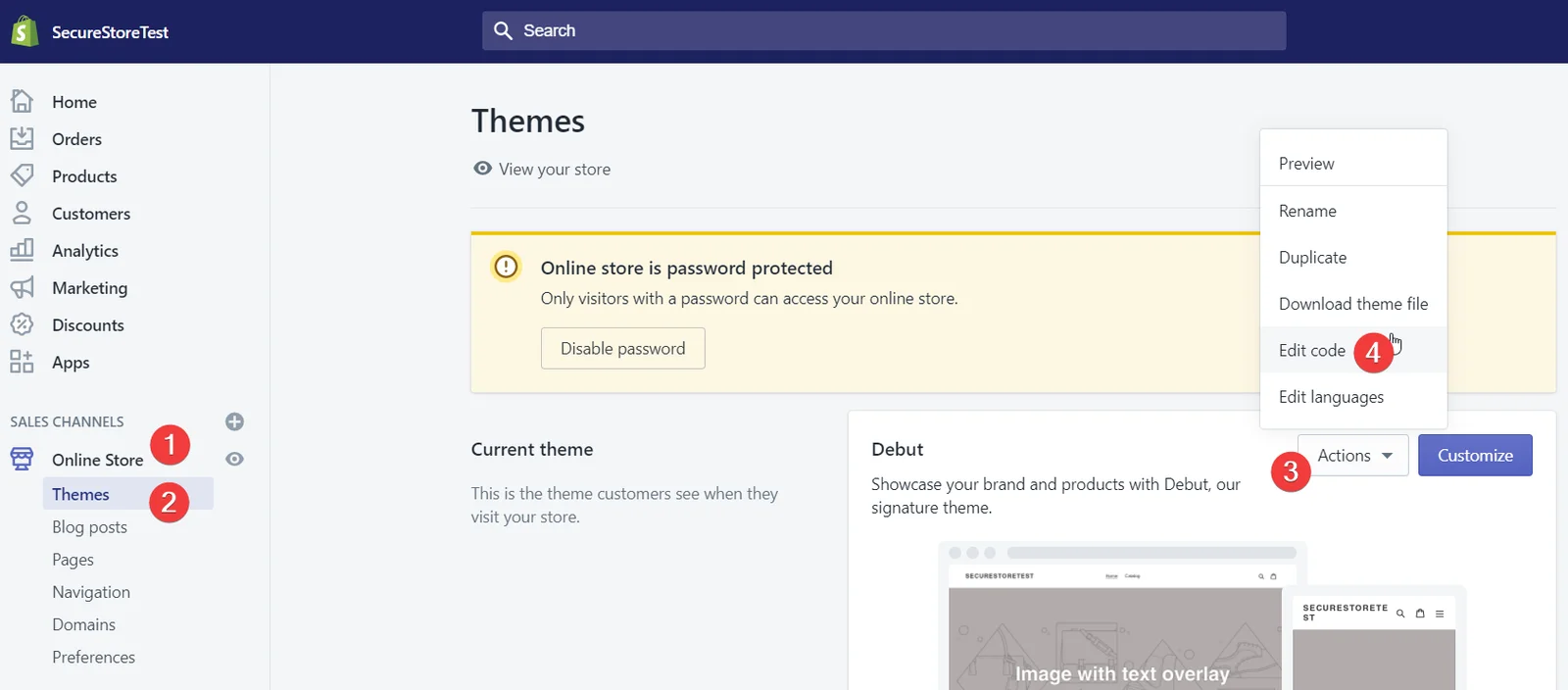
Shopify theme Actions menu — select "Edit code [HTML/CSS]"
Step 5 — Open theme.liquid
In the code editor's file tree, locate the Layout folder and click theme.liquid to open it.
Step 6 — Find the closing </head> tag
Use your browser's find function (Ctrl+F / Cmd+F) to search for </head>. Scroll to it in the file.
Tip: Depending on your theme, this tag may appear as {/head}, [/header], or a similar variation. All of these work the same way — paste the script just before whichever closing head tag your theme uses.
Step 7 — Paste your Secure Privacy script
Copy your Secure Privacy installation code (the <script> tag from the Installation page in your Secure Privacy dashboard) and paste it immediately before the closing </head> tag.
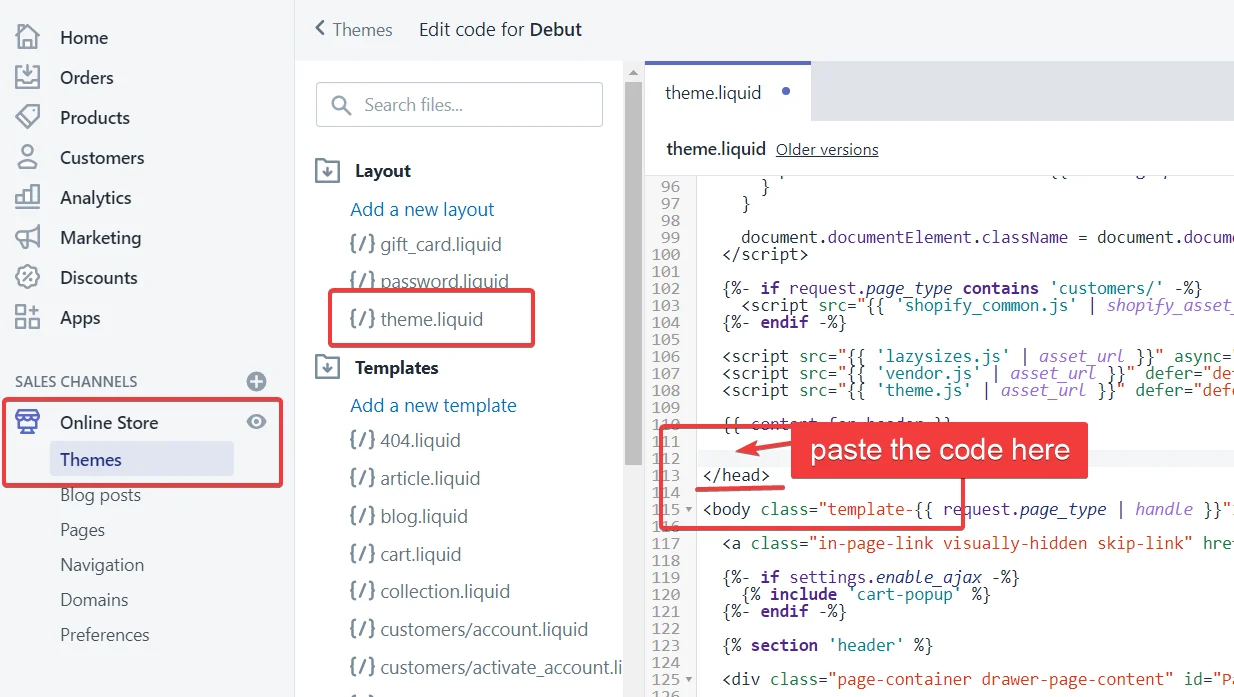
Paste your Secure Privacy <script> tag just before </head> in theme.liquid
Step 8 — Save the file
Click the Save button in the top-right corner of the code editor. Your Secure Privacy cookie consent script is now live on your Shopify store.
What Happens After Installation?
Once the script is saved, visit your storefront in a private/incognito browser window. You should see your Secure Privacy cookie consent banner appear within a few seconds. From this point Secure Privacy will:
Display your consent banner to new visitors based on your configured geo-rules
Block non-essential cookies until explicit consent is given
Log every consent event with a timestamped audit trail
Respect returning visitors' saved preferences on subsequent visits
If you don't see the banner immediately, allow up to two minutes for Shopify's CDN cache to refresh, then hard-reload the page (Ctrl+Shift+R / Cmd+Shift+R).
Troubleshooting Common Shopify Cookie Banner Issues
The cookie consent banner is not showing on my storefront
Double-check that the script was pasted in theme.liquid (not checkout.liquid or another layout file) and that you clicked Save after pasting. Also confirm the script tag from your Secure Privacy dashboard is assigned to the correct domain.
I can't find a </head> tag in my Shopify theme
Some Shopify themes use Liquid-syntax alternatives such as {/head} or [/header]. Search for head in the editor's find bar and look for the closing variant. If your theme still has no identifiable head closing tag, contact Secure Privacy support for theme-specific guidance.
The banner appears but does not block cookies
Script auto-blocking is configured inside your Secure Privacy dashboard under Cookie Scanner > Auto-blocking. Ensure auto-blocking is enabled for your domain and that a full cookie scan has been completed at least once.
Changes aren't visible after saving
Shopify caches theme assets aggressively. Wait 1–2 minutes, then open your storefront in a new private/incognito window to bypass your local browser cache.
Frequently Asked Questions
Do I legally need a cookie consent banner on my Shopify store?
Yes, if you have visitors from the EU, UK, or California (among other regions). GDPR and the ePrivacy Directive require explicit, informed consent before placing non-essential cookies on a user's device. CCPA requires a clear opt-out mechanism for the sale of personal data. Failure to comply can result in significant fines and reputational damage.
What is the best cookie consent solution for Shopify?
The best option depends on your compliance needs. Secure Privacy is a strong choice for merchants who need genuine script auto-blocking, geo-targeted consent rules, and a regulator-ready audit log — without paying per-pageview fees or needing a developer. It installs via a single script tag in theme.liquid and covers GDPR, UK GDPR, CCPA, and ePrivacy in one platform.
Can Secure Privacy be used on Shopify's checkout pages?
No. Shopify does not permit third-party scripts in its native checkout flow. Secure Privacy works on your storefront and the Order Confirmation page, but not within the checkout itself. This is a Shopify platform restriction, not a Secure Privacy limitation.
Will adding a cookie consent banner slow down my Shopify store?
Secure Privacy's script is lightweight and loads asynchronously, meaning it does not block your page from rendering. The impact on Core Web Vitals and overall page speed is negligible for most stores.
Will Secure Privacy work with all Shopify themes?
Yes. Any Shopify theme that uses a theme.liquid layout file — which includes all official Shopify themes and the vast majority of third-party themes — supports this installation method.
Do I need to reinstall Secure Privacy when I update or change my Shopify theme?
Yes. If you switch to a new theme or duplicate your theme for a major redesign, you will need to add the Secure Privacy script to the new theme's theme.liquid file, as theme code is not carried over between themes automatically.
Related Articles
Secure Privacy WooCommerce Integration Guide[?]
Running Your First Cookie Scan with Secure Privacy[?]
Setting Up Geo-Targeted Consent Rules (GDPR vs CCPA)[?]