
Who is this for? This guide is intended for website owners, developers, and digital marketers who use Microsoft Clarity for behavioral analytics and need to ensure their implementation complies with GDPR and other data privacy regulations through Secure Privacy.
Microsoft Clarity Consent Mode: Overview
Microsoft Clarity enables businesses to prioritize user privacy while collecting valuable behavioral analytics for website optimization. Its built-in Consent Mode is designed to comply with data protection regulations such as GDPR, ensuring responsible, regulation-ready data handling at all times.
Key Features of Microsoft Clarity Consent Mode
- Tailoring data collection: Adjust how Clarity tracks user interactions based on each visitor's consent preferences.
- Controlling cookie access: Manage cookie usage to ensure compliance with user permissions using straightforward consent controls.
- Collecting limited anonymized data: When full consent is not provided, Clarity can still gather anonymized, cookieless data to provide behavioral insights without compromising visitor privacy.
Technical Implementation of Microsoft Clarity Consent Mode
How Clarity Consent Mode Works
Consent Mode in Microsoft Clarity is managed through direct JavaScript commands that enable or disable tracking and cookie usage. The two primary commands are:
| Command | Description |
|---|---|
window.clarity("consent") |
Enables Clarity to read and write first- and third-party cookies for analytics purposes. This is the default behavior if no consent setting is specified. |
window.clarity("stop") |
Disables Clarity from reading or writing first-party cookies. Third-party cookies are not written and are read-only for fraud detection purposes only — not analytics. |
Clarity uses a JavaScript function called clarity on the window object. Unlike Microsoft UET consent mode, it does not rely on a property like ad_storage — instead, it uses the consent and stop keywords to control tracking behavior directly.
A default consent state should be set on each page load before capturing user consent:
- GDPR-regulated regions (e.g., EU/EEA): Use
stopas the default to block cookies until consent is granted. - Non-GDPR regions (e.g., most U.S. states): Use
consentas the default to allow analytics tracking.
Cookie Blocking in Microsoft Clarity Consent Mode
Clarity manages cookies by enabling or restricting them based on the active consent state. When the Clarity framework is enabled but consent is denied, Microsoft cookies are not blocked outright — they are restricted. The affected cookies include:
_clck_clskCLIDMR
How to Enable Microsoft Clarity Consent Mode via Secure Privacy
To start using Microsoft Clarity with Secure Privacy's cookie consent management, follow these steps:
-
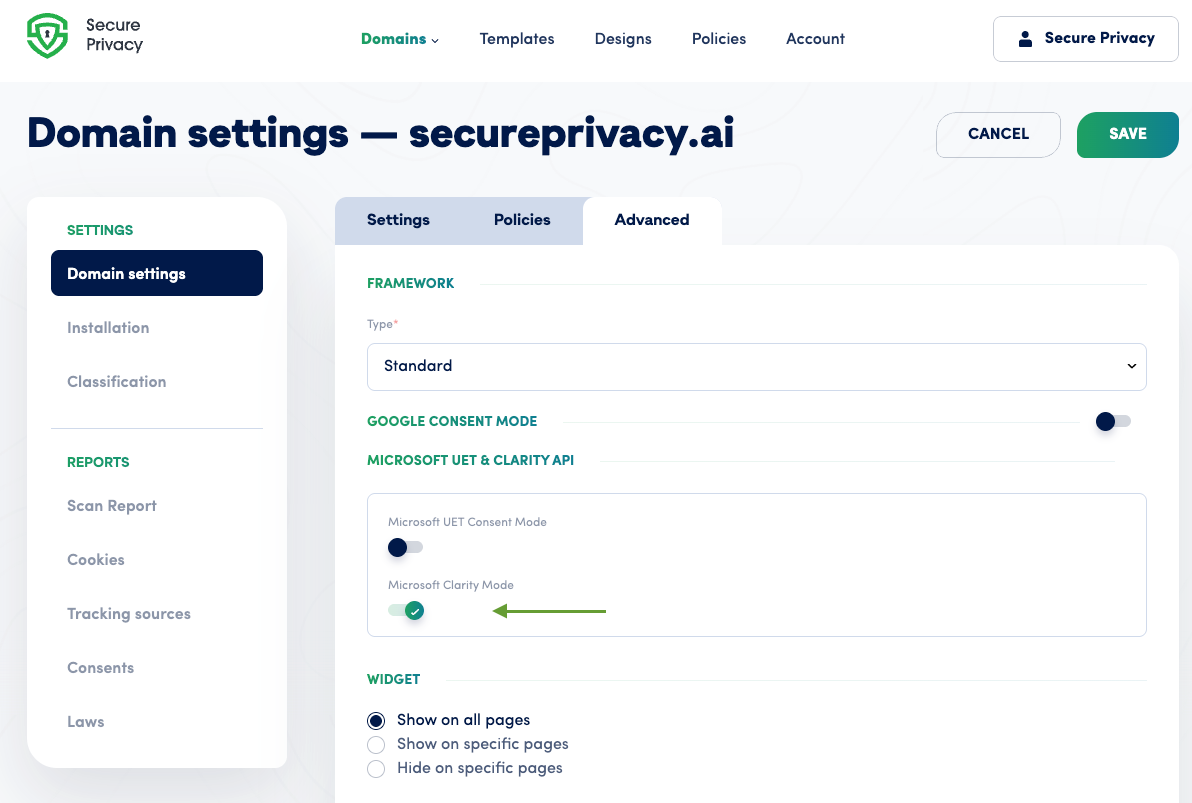
Navigate to Domain Settings:
Log in to your Secure Privacy dashboard and go to Domain Settings.
-
Access the Advanced Tab:
Within Domain Settings, click on the Advanced tab.
-
Enable the Microsoft Clarity Toggle:
Inside the Advanced tab, locate the toggle for Microsoft Clarity Consent Mode and enable it.
Test Your Microsoft Clarity Consent Mode Implementation
After enabling the toggle, verify your setup using browser developer tools or Secure Privacy's built-in debug mode. Confirm that:
- The Clarity script loads only when appropriate consent has been granted.
- Consent-based commands (
stoporconsent) are correctly executed in response to user choices.
Secure Privacy automatically handles consent storage and synchronization. Once a user grants or denies consent, Microsoft Clarity will behave accordingly — with no additional manual coding required on your part.
Frequently Asked Questions: Microsoft Clarity Consent Mode
- Does Microsoft Clarity collect any data when consent is denied?
- When
window.clarity("stop")is active, Clarity does not read or write first-party analytics cookies. However, it may still collect limited, anonymized and cookieless behavioral data to support basic insights without identifying individual users. - Is Microsoft Clarity Consent Mode compatible with GDPR?
- Yes. Clarity's Consent Mode is designed with GDPR compliance in mind. By defaulting to
stopfor EU/EEA visitors and only activating full tracking upon explicit user consent, it aligns with GDPR's requirements for lawful data processing. - Do I need to write custom code to integrate Clarity with Secure Privacy?
- No. Secure Privacy's native Microsoft Clarity integration handles all consent signaling automatically. Simply enable the toggle in your Domain Settings — no additional JavaScript coding is needed.