
Under the GDPR, an IP address is considered personal data — which means every visit to your website quietly creates a compliance liability if those addresses are stored in full. Many organizations discover this only after an audit, scrambling to retrofit privacy controls onto analytics pipelines and log files that were never designed with data minimization in mind. Generic workarounds — disabling logging entirely, manually scrubbing databases, or relying on each third-party tool to handle it separately — are time-consuming, error-prone, and hard to document for regulators.
Secure Privacy solves this at the account level. Its built-in IP address anonymization feature lets you mask visitor IP data at a configurable byte depth before it is ever stored — giving you a single, auditable control point that applies across your entire account, not just one tool or one page.
By the end of this guide you will have selected the right masking level for your compliance needs, saved it account-wide, and understood exactly what each setting does to your visitors' data.
Who Is This For?
This article is for website owners, privacy officers, and developers who need to bring their site into GDPR compliance by anonymizing visitor IP addresses — and who manage that site through a Secure Privacy account.
Prerequisites
An active Secure Privacy account with admin or account-owner permissions
Access to the Account section in the Secure Privacy dashboard
Configuring GDPR-Compliant IP Address Anonymization
Step 1 — Log In and Open the Anonymize Data Settings
Log in to your Secure Privacy account using your credentials.
Navigate to the "Account" page using the top navigation bar.
Select the "Anonymize Data" tab from the left-side menu. This tab contains all settings related to visitor IP address anonymization.
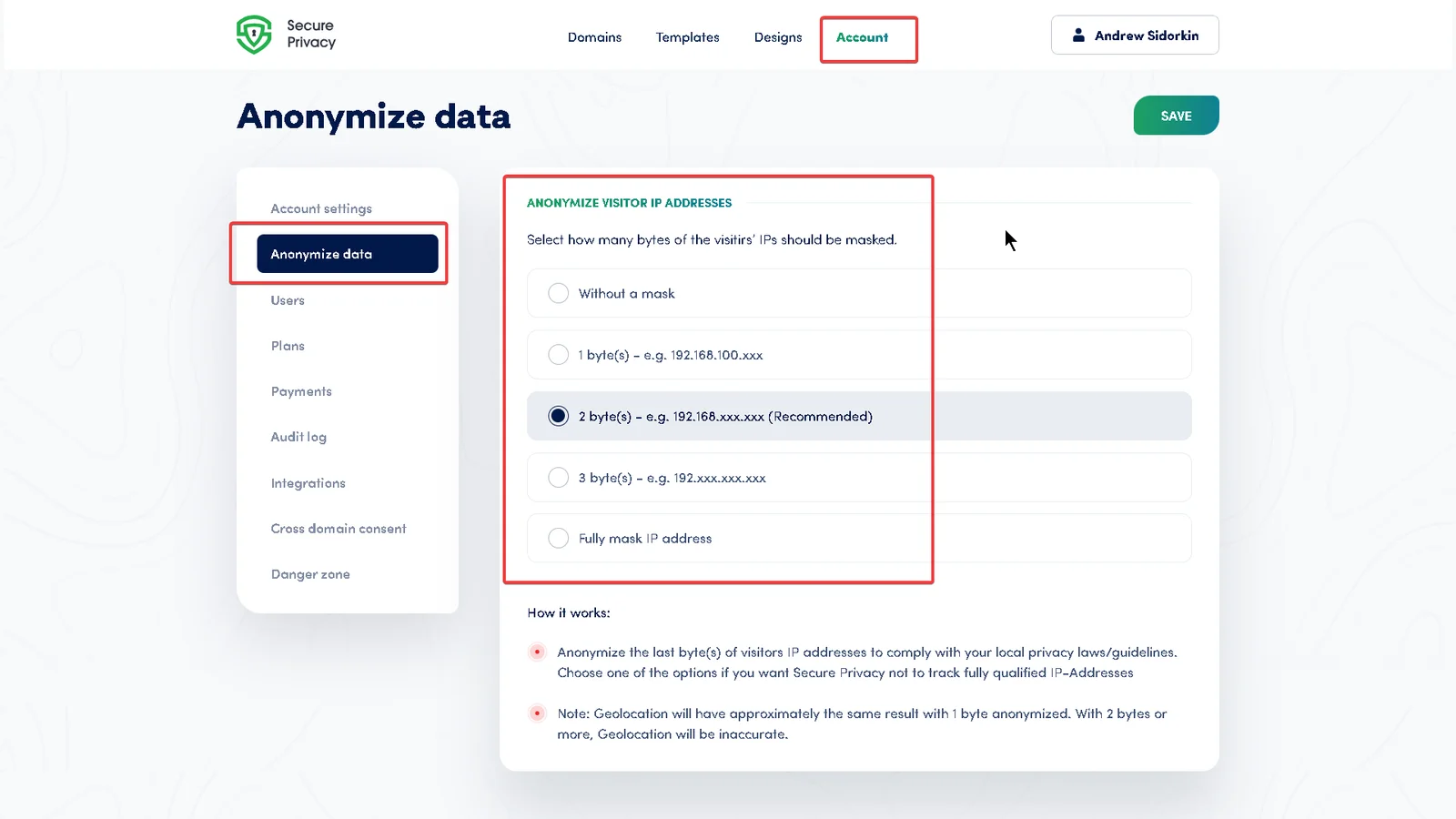
The Anonymize Data tab inside the Secure Privacy Account settings.
Step 2 — Choose Your IP Address Masking Level
Under "Anonymize Visitor IP Addresses", select the masking depth that matches your compliance requirements:
Without a mask
No masking is applied. Full IP addresses are stored as-is. Not recommended for GDPR compliance.
1 byte
The last octet is masked.
Example: 192.168.100.xxx
2 bytes (Recommended)
The last two octets are masked.
Example: 192.168.xxx.xxx
This option balances GDPR data-minimization requirements with reasonable geolocation accuracy for analytics.
3 bytes
The last three octets are masked.
Example: 192.xxx.xxx.xxx
Fully mask IP address
The entire IP address is masked. Maximum privacy protection; no geolocation data will be available.
Select your preferred masking level.
Click "Save" to apply the setting account-wide.
How IP Address Anonymization Works
When IP anonymization is enabled, Secure Privacy masks the configured number of trailing bytes in each visitor's IP address before the data is stored. This means a full, identifiable IP address never reaches your logs or analytics — satisfying the GDPR's data minimization and purpose limitation principles without requiring changes to your existing tracking setup.
Note: Selecting a higher masking level (2 bytes or more) reduces geolocation accuracy, because less of the IP address is available for location lookups. For most GDPR use cases, 2-byte masking provides the best balance between compliance and analytics utility.
What Happens After You Save
Your chosen masking level is applied immediately and account-wide. All subsequent visitor sessions will have their IP addresses stored only up to the depth you selected. Previously recorded full IP addresses are not retroactively modified — if you need historical data scrubbing, contact Secure Privacy support.
You can return to the Anonymize Data tab at any time to adjust the masking level as your compliance requirements evolve.
Troubleshooting
I can't see the "Anonymize Data" tab.
This tab is visible only to users with admin or account-owner permissions. Ask your account owner to grant you the appropriate role, or ask them to configure the setting on your behalf.
The "Save" button is greyed out.
Make sure you have selected a masking option that differs from the currently active setting. If the issue persists, try refreshing the page and repeating the steps.
Geolocation data disappeared after enabling anonymization.
Higher masking levels (3 bytes or full mask) remove enough IP information to prevent accurate geolocation. Switch to 2-byte masking to restore country- or region-level accuracy while remaining GDPR-compliant.
Frequently Asked Questions
Is an IP address considered personal data under GDPR?
Yes. The GDPR treats IP addresses as personal data when they can — even indirectly — be used to identify a natural person. This means collecting or storing full IP addresses without a lawful basis or appropriate safeguards creates a compliance risk. Anonymizing IP addresses before storage is one of the most straightforward ways to reduce that risk.
Does GDPR require me to anonymize visitor IP addresses?
The GDPR does not mandate a specific technical method, but it requires data minimization — you should only collect personal data that is necessary for your stated purpose. Anonymizing or pseudonymizing IP addresses is a widely recognized best practice to satisfy this requirement and reduce the scope of your GDPR obligations.
What is the best IP masking level for GDPR compliance?
For most websites, 2-byte masking (e.g. 192.168.xxx.xxx) is recommended. It removes enough of the IP address to make individual identification impractical while preserving country- and region-level geolocation for analytics. If your use case has no need for any geolocation data, a 3-byte or full mask offers the strongest privacy protection.
Does IP anonymization in Secure Privacy apply to all my websites?
Yes. The IP anonymization setting in Secure Privacy is configured at the account level, so it applies automatically to all websites and properties connected to that account. You do not need to configure it separately for each site.
Will enabling IP anonymization affect my analytics or reporting?
It depends on the masking level you choose. A 1-byte mask has minimal impact on analytics. A 2-byte mask may slightly reduce the precision of city-level geolocation but leaves country and region data intact. A full mask removes all IP-based location data. Choose the level that matches your balance of privacy and analytics requirements.