
If you've ever opened your browser's DevTools on a website — even one with a cookie consent banner — and watched analytics and advertising cookies land before you clicked anything, you've witnessed one of the most widespread GDPR violations on the web today. Non-essential cookies, from Google Analytics to the Facebook Pixel to LinkedIn's Insight Tag, are routinely set the moment a page loads, long before the consent banner has finished rendering — let alone before a visitor has responded to it. That's not a grey area: it's a direct violation of the ePrivacy Directive and GDPR Article 6, and it's one of the most frequently cited findings in enforcement actions by data protection authorities across the EU.
The instinct is to reach for a simple solution — a free cookie plugin, a manually coded delay, a "just add a banner" approach. These typically fail in one of three ways: they display a notice while tracking runs freely underneath, they block nothing but show a compliant-looking UI, or they break when a caching plugin reorders scripts and silently removes the consent gate. Getting genuine prior-consent cookie blocking right requires understanding four interlocking technical layers: automatic script interception, script load order, Google Tag Manager consent configuration, and Google Consent Mode v2 — each of which can independently undermine compliance if misconfigured.
This guide covers all four layers as implemented through Secure Privacy, a consent management platform built specifically for GDPR and ePrivacy compliance. By the end, you'll understand exactly how Secure Privacy intercepts non-essential scripts before they execute, why script load order is the single most overlooked compliance detail, how to configure Google Tag Manager so every tag respects consent status, how to implement and verify Google Consent Mode v2 for EU/EEA visitors, and how to maintain compliance as your site evolves.
Who Is This Guide For?
This guide is written for:
Website owners and marketing teams who need to achieve GDPR cookie compliance and understand why a banner alone is not enough
Developers and technical leads responsible for implementing or auditing a consent management platform, configuring GTM, or diagnosing pre-consent cookie firing
DPOs and compliance managers who need a technical reference to evaluate whether an existing CMP implementation is genuinely blocking non-essential cookies before consent
Anyone already using Secure Privacy who wants to understand how the blocking engine works, how to resolve gaps found in scan reports, and how to configure Google Consent Mode v2
If you are evaluating consent management platforms and want to understand what full technical compliance actually requires, this guide covers the complete picture — not just banner display, but script interception, load order, and platform-level consent signals.
Contents
How Secure Privacy Automatic Blocking Works — and Its Limits
Script Load Order: The Most Overlooked GDPR Compliance Detail
1. Why Prior Consent Is Non-Negotiable Under GDPR
GDPR Recitals 30 and 32, Article 6, and ePrivacy Directive Recital 25 are collectively unambiguous: any cookie or tracking technology that is not strictly necessary for a service explicitly requested by the user requires prior, freely given, specific, informed, and unambiguous consent before it may be set on a visitor's device.
"Strictly necessary" is a narrow category. It covers session authentication, shopping cart persistence, security tokens, and load-balancer cookies. It does not cover:
Cookie | Service | Category | Prior consent required? |
|---|---|---|---|
| Google Analytics | Analytics | Yes |
| Facebook / Meta Pixel | Advertising | Yes |
| Google Ads / DoubleClick | Advertising | Yes |
| YouTube | Analytics | Yes |
LinkedIn Insight Tag cookies | Advertising | Yes |
A consent banner that warns visitors while the scripts still run in the background is not compliant. The cookie must not be set until consent is recorded. This is not a technicality regulators overlook — pre-consent cookie loading is one of the most frequently cited findings in DPA enforcement actions across Germany, France, Italy, and Ireland.
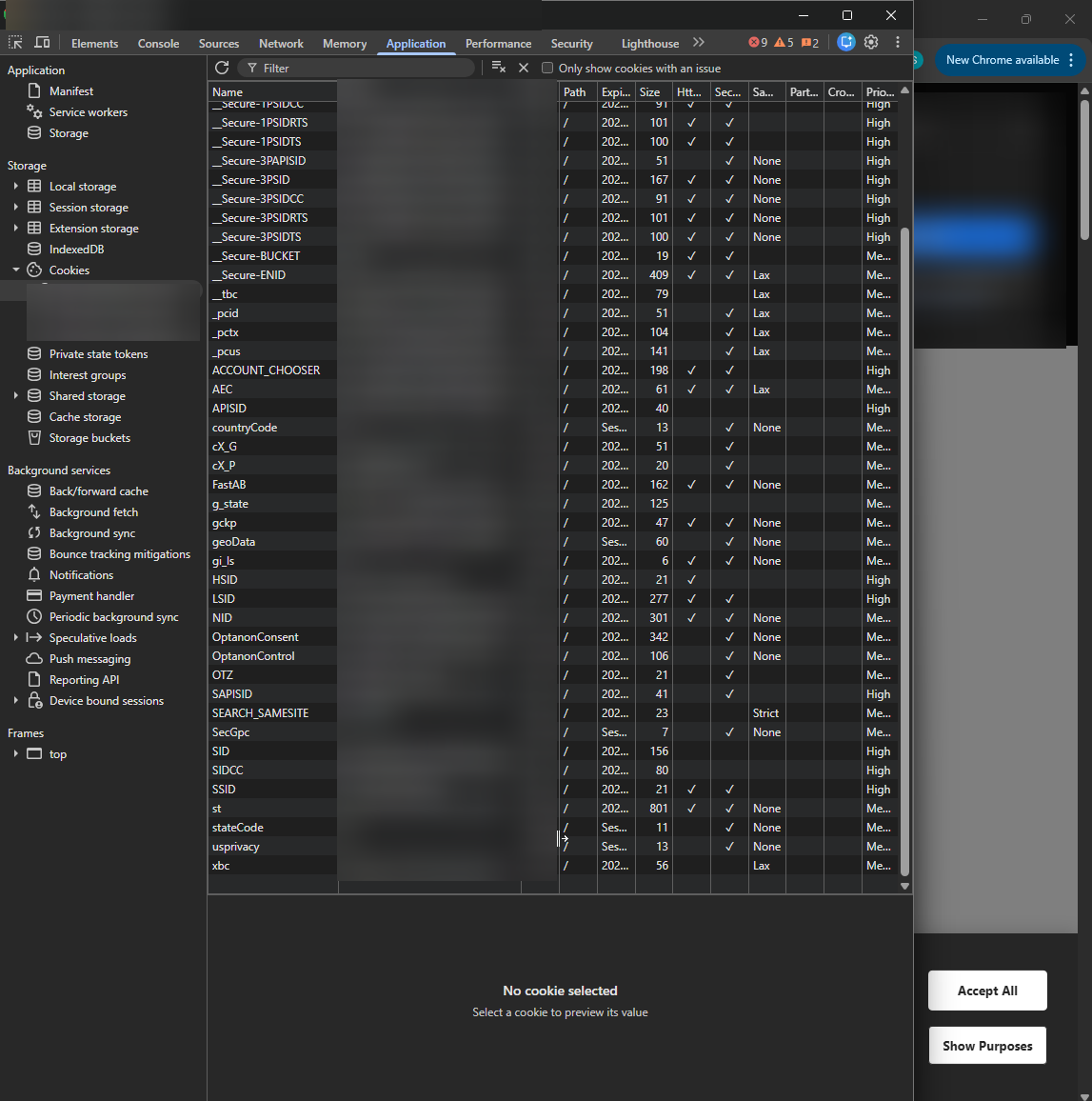
Deep dive: Cookies Loading Before Consent? How to Fix Pre-Consent Cookie Loading and Achieve GDPR Compliance — covers how to identify non-compliant services in your scan report, step-by-step remediation, and a GDPR compliance checklist.
2. How Secure Privacy Automatic Blocking Works — and Its Limits
Secure Privacy generates a unique JavaScript blocking file for each domain based on its scan results. This file uses the MutationObserver API (compatible with all major browsers including IE11) to intercept scripts, pixels, and dynamically injected iframes in real time, holding them until the visitor grants the appropriate consent category.
The three blocking modes
Mode | Behaviour | Use when |
|---|---|---|
v2 Blocking (current, recommended) | Intercepts all non-essential scripts, pixels, and dynamically injected iframes before they execute. Releases them as soon as the matching consent signal is received. | All new and existing installations — this is the default. |
v1 Blocking (legacy) | Older interception mechanism. Less robust; maintained for backward compatibility only. | Existing v1 sites that have not yet migrated. Plan migration to v2. |
Disabled | No automatic blocking. All scripts load freely unless you have manually gated every one. | Only for fully manual configurations — not recommended for general use. |
Critical limitation: the scan boundary
Auto-blocking covers both the most recent scan detected and categorised and previously detected cookies via so called "aggregated scan" report". Any script, pixel, or tag added to your site after the last scan, or using a non-standard implementation that the crawler did not recognise, will not be blocked automatically. This is the single most common source of ongoing GDPR violations on sites that believe they are compliant.
Rule of thumb: Trigger a new scan every time a third-party script, marketing pixel, or analytics integration is added or updated — and at minimum once per quarter. Make sure these services and cookies ARE present in the scan report, correctly categorized and configured with a proper pixel/script/iframe source.
Deep dive: Automatic Cookie Blocking Explained – How Secure Privacy Blocks Scripts, Pixels, and Iframes — covers the MutationObserver mechanism, all three blocking modes, prerequisites, and how to manually extend the blocking configuration. Note: this article is from the legacy CMP v1 documentation. The step-by-step logic and concepts remain fully applicable to the current platform; however, the dashboard screenshots shown reflect the older interface.
3. Identifying & Manually Blocking Undetected Cookies
When automatic blocking has gaps, your scan report will show them inside "Prior consent to other than strictly necessary cookies" section inside the scan report.
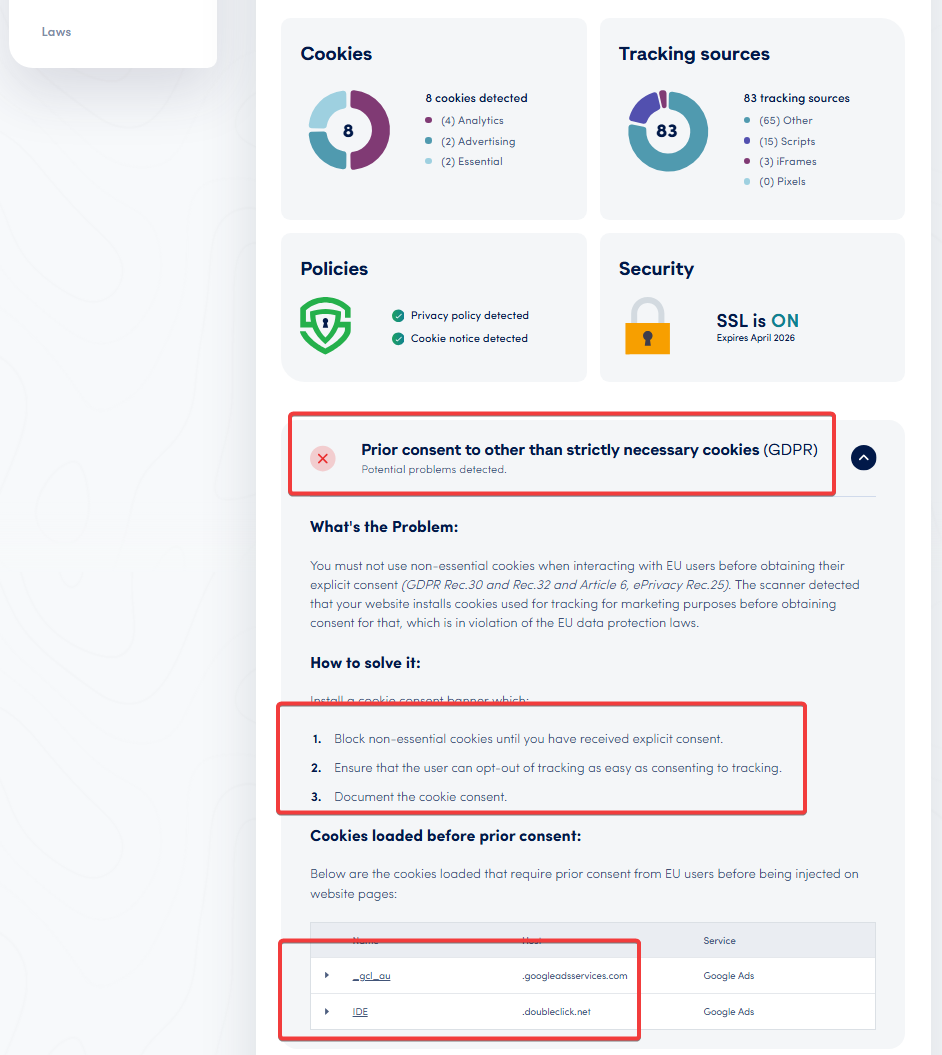
Resolving this "usually" requires four steps:
Step 1 — Open the Scan Report
In your Secure Privacy dashboard, select the domain to work with, click the "Scan report" scroll down to the Prior consent to other than strictly necessary cookies (GDPR) → Cookies loaded before prior consent section. Note the cookie name and related service for each flagged item in the list.
Step 2 — Identify the source
Work with your development team to find the script URL, pixel endpoint, or iframe source responsible for the unblocked cookie. Browser DevTools (Network tab, filtered by the cookie name) will surface the originating request. Alternatively, directly searching the source code of the page (Ctrl+U or Command+U) could also help here.
Step 3 — Add the source to Service
In the dashboard, navigate to Classification → Services. Locate the service that is associated with the cookie in question - click the "three-dot" menu -> Edit. Check the entry, make sure to adjust/specify:
Service name
Category
Instalaltion scripts got to:
Scriptfield, whileIframe, orPixelsources also matches (if any)Privacy policy link (if avilable)
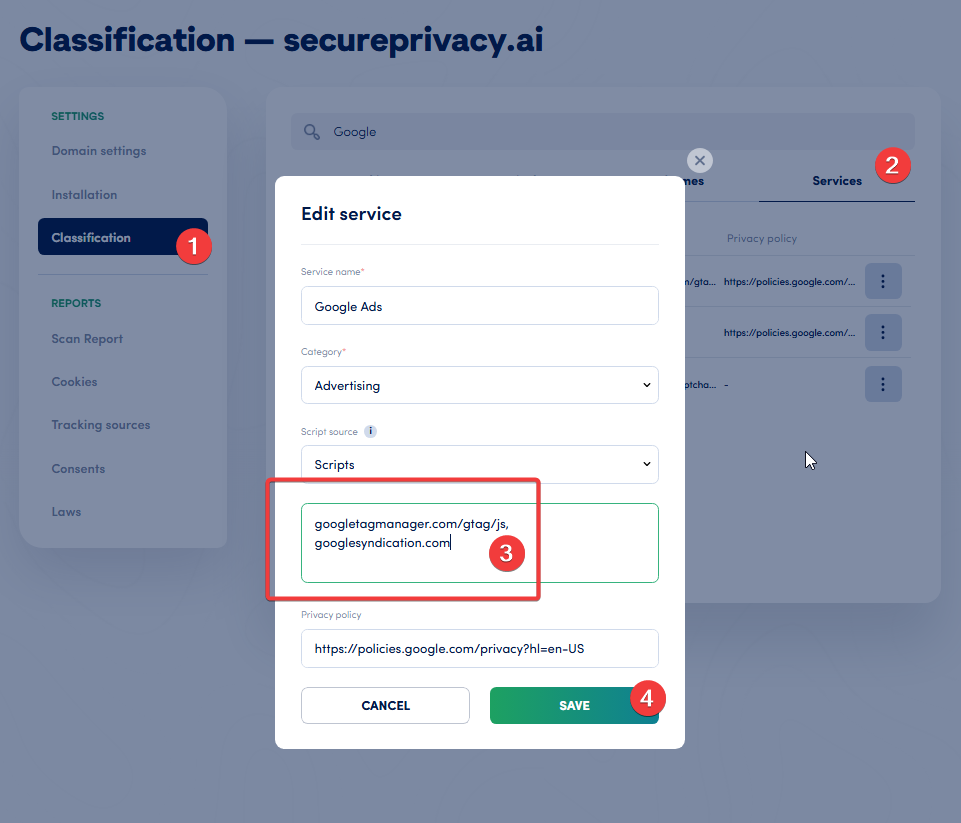
The script source URL must be best possbile match/pattern to cover different URLs and yes, partial URLs will work and usually are more useful, when used as a bare base domain name.
For example, instead of this full URL -
https://pagead2.googlesyndication.com/ccm/collect?frm=0&en=page_view&dl=https%3A%2F%2%2F&scrsrc=www.googletagmanager.com&rnd=39847927.1774647075&navt=n&npa=1&did=&gdid&_tu=CA>m=&gcs=G100&gcd=13p3p3p2p5l1&dma_cps=-&dma=1&tag_exp=0~115938465~115938468~116133312~117484252&apve=1&apvf=f&apvc=0&tids=AW-123123123123&tid=AW-123123123123&tft=1774647075154&tfd=123123you would want to simply add
googlesyndication.comStep 4 — Rescan to verify
Run a new scan from the Scan Report page. Confirm that the previously flagged service now shows as blocked.
Deep dive: How to Manually Block Cookies Not Blocked Automatically in Secure Privacy — full walkthrough of the Tag Blocking configuration screen, common causes of auto-blocking gaps, and troubleshooting exact-match URL issues.
Note 1: all 4 required steps are covered above.
Note 2: the link is a legacy CMP v1 documentation — steps still apply; screenshots reflect the older interface.
4. Script Load Order: The Most Overlooked GDPR Compliance Detail
Even a perfectly configured Secure Privacy CMP will fail to block cookies if it loads after the scripts it is supposed to intercept. Script load order is the most frequently overlooked compliance detail, and it is the root cause of many "but I installed the CMP!" GDPR violations.
Understanding async vs defer
Attribute | Download | Execution timing | Execution order | Good for compliance? |
|---|---|---|---|---|
none (synchronous) | Blocks HTML parsing | Immediately, inline | Guaranteed DOM order | Yes — recommended, |
| Parallel (non-blocking) | After HTML is fully parsed | Guaranteed DOM order | Yes — recommended, non-blocking if the execution order is correct |
| Parallel (non-blocking) | As soon as the file is downloaded — could be mid-parse | Not guaranteed — race condition | No !!! — compliance risk here !!! even if it "works in my browser" |
async offers a performance benefit, but at a compliance cost: whichever script downloads fastest executes first. If Google Analytics or Facebook Pixel loads faster than Secure Privacy on that page request, the tracker fires before the CMP has initialised. Never use async on the Secure Privacy script.
defer is the correct choice. Deferred scripts download in parallel (fast, no render-blocking) but execute in DOM order after HTML parsing completes. Therefore, this would only if Secure Privacy is the first deferred script in <head>, so that it will always execute before any other deferred (but, again, not "asynced") script.
Non-GTM installation: placement rules
For sites that embed the Secure Privacy script directly (not via GTM), follow these rules precisely:
Rule 1 — Place Secure Privacy first in <head>
Position the Secure Privacy script in <head> as high as possible — ideally immediately after the opening <head> tag and any <meta charset> / <meta viewport> tags. It must appear before any other third-party script tag.
Rule 2 — Use defer on the Secure Privacy script, not async
The async attribute creates a race condition that can allow tracking scripts to fire before the CMP initialises. Always use defer. (again, make sure Secure Privacy is the first in the <head>)
Rule 3 — All other third-party scripts must also use defer
Because deferred scripts execute in DOM order, any script placed after Secure Privacy in the source will execute after it — preserving the consent gate. Do not allow any third-party script to use async.
Rule 4 — Synchronous legacy scripts must appear below Secure Privacy in source order
If a third-party script absolutely cannot use defer, it must still be placed below the Secure Privacy script in the source, so that Secure Privacy's synchronous initialisation completes first.
Correct example:
<head>
  <meta charset="UTF-8">
  <meta name="viewport" content="width=device-width, initial-scale=1">

  <!-- ✅ Secure Privacy first, with defer -->
  <script src="https://cdn.cookie-script.com/s/YOUR-DOMAIN-ID.js" defer></script>

  <!-- ✅ All other services also deferred — they execute AFTER SP due to DOM order -->
  <script src="https://www.googletagmanager.com/gtag/js?id=G-XXXXXXX" defer></script>
  <script src="https://connect.facebook.net/en_US/fbevents.js" defer></script>

</head>
Incorrect example (compliance risk):
<head>
  <!-- ❌ Google Analytics loads async — could fire before SP is initialised -->
  <script src="https://www.googletagmanager.com/gtag/js?id=G-XXXXXXX" async></script>

  <!-- ❌ SP placed after GA, and also async — too late and wrong attribute -->
  <script src="https://cdn.cookie-script.com/s/YOUR-DOMAIN-ID.js" async></script>
</head>
CMS script optimisation plugins — a hidden compliance trap
Many popular CMS caching and performance plugins include a feature that consolidates, minifies, or defers all scripts on a page automatically. This process frequently breaks the load order that compliance depends on by:
Reordering scripts into a single concatenated bundle (Secure Privacy may end up in the middle or at the end)
Changing
deferattributes toasyncacross all scriptsMoving
<head>scripts to the footer
A pretty bright example here — WP Rocket (WordPress) — disable script optimisation for the Secure Privacy script !!!. As WP Rocket's "Delay JavaScript Execution" and "Load JavaScript Deferred" features can silently reorder or re-attribute the Secure Privacy initialisation script, breaking prior-consent blocking for every visitor. In WP Rocket settings, add the Secure Privacy script URL to the Excluded files list under File Optimization. The same applies to Autoptimize, LiteSpeed Cache's JS optimisation, and any other plugin that touches script attributes or order.
After installing or updating any caching or performance plugin, make sure (1) to reset / rebuild cache of these plugins and (2) always re-run our compliance "website scan" to verify that none of the non-essential cookies appear in the "loaded before prior consent" section of the report.
5. Blocking Iframes, Pixels & Embedded Content
Scripts are only part of the tracking surface. Iframes (video embeds, social widgets, map embeds) and tracking pixels also set cookies and must be blocked until the correct consent category is granted.
Every pixel and iframe must be associated with a service
Secure Privacy's blocking engine operates on a service-to-category mapping. For a pixel or iframe to be held behind consent, it must be:
Step 1 — Attach a service to iframe / pixel under Classification
Every pixel and iframe source must appear in your Secure Privacy dashboard under Classification → Pixels or Classification → Iframes with a correct Service entity attached.
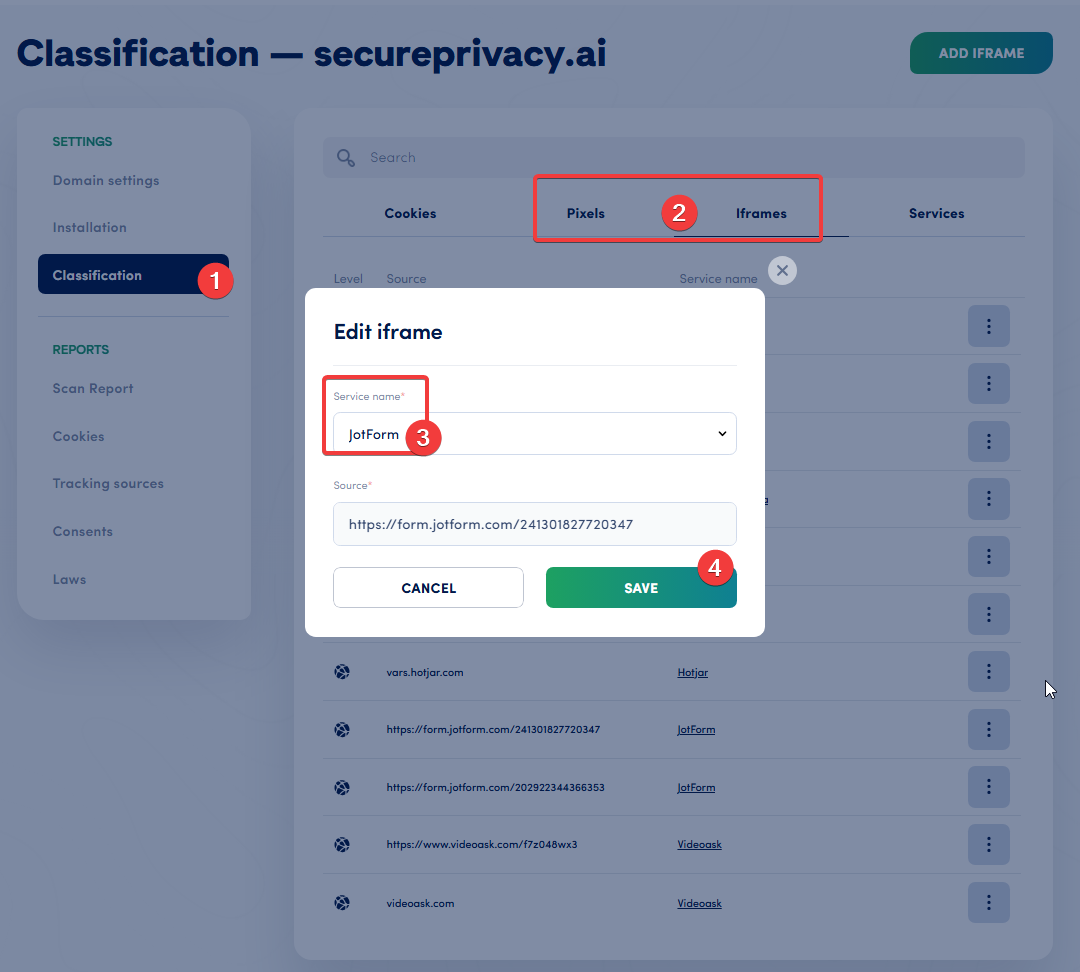
Note: If a pixel or iframe was not auto-detected during the scan, create a service entry manually.
Step 2 — Confirm a Service is connected to a consent category
Each Service must be assigned a consent category (Analytics, Advertising, Social Media, Customer Interaction) — none of the Services may be left uncategorised. Services without a category will not be gated by the consent banner.
Step 3 — Link the source URL or domain
The Service must be linked to its source URL or domain so the blocking engine can match and intercept it at load time. See example above, under "Step 3 — Add the source to Tag Blocking".
Manual blocking: sp-consent and data-src
Sometimes, for iframes embedded directly in page HTML (as opposed to being injected by a script), auto-blocking may not apply due to the wat iframe is added to the DOM / <body>. Therefore, you must modify the HTML attributes directly:
Step 1 — Add the sp-consent attribute
Add sp-consent="SERVICE NAME" to the iframe tag. The service name must exactly match the name shown in your Secure Privacy Scan Report — including capitalisation and spacing. Copy it directly from the dashboard rather than typing it manually, make sure no spaces before after the name (in both parts 😅).
Step 2 — Rename src to data-src
Rename the src attribute to data-src. This prevents the browser from loading the iframe until Secure Privacy releases it after consent is received.
Before:
<iframe src="https://www.youtube.com/embed/VIDEO_ID"
        width="560" height="315" allowfullscreen></iframe>
After (GDPR-compliant):
<iframe data-src="https://www.youtube.com/embed/VIDEO_ID"
        sp-consent="Youtube"
        width="560" height="315" allowfullscreen></iframe>
(Optional) the same transformation may be applied to tracking pixels (image tags):
<!-- Before -->
<img src="https://www.facebook.com/tr?id=PIXEL_ID&ev=PageView" width="1" height="1">

<!-- After -->
<img data-src="https://www.facebook.com/tr?id=PIXEL_ID&ev=PageView"
     sp-consent="Facebook Pixel" width="1" height="1">
The youtube-nocookie.com trap. Using www.youtube-nocookie.com as the embed domain does not eliminate the consent requirement. While this domain avoids HTTP cookies, it stores persistent tracking data in the browser's HTML5 localStorage — which constitutes tracking under the ePrivacy Directive and requires prior consent in the same way. Apply the data-src + sp-consent transformation regardless of which YouTube embed domain is used.
Deep dive: How to Set Up Manual Script and iframe Blocking in Secure Privacy — full instructions for script type rewriting, iframe attribute modification, and the YouTube/Vimeo blocking pattern.
Note 1: all the required steps are provided above.
Note 2: the Deep dive" links to the legacy CMP v1 documentation — the implementation logic and attribute syntax are unchanged in the current platform; dashboard screenshots reflect the older interface.
6. GTM Installation: Consent-First Configuration
Google Tag Manager introduces additional compliance complexity because it manages multiple tags that may fire independently of each other. The following three configuration requirements are all mandatory — omitting any one of them creates a compliance gap. A bit more is covered here - How to Block Cookies in GTM Triggers Using User Consent Conditions.
6.1 Consent Initialization trigger — for Secure Privacy only
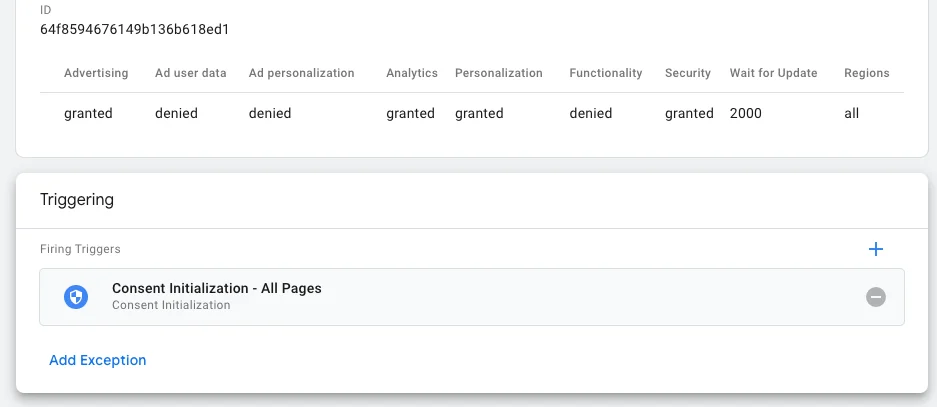
When Secure Privacy is deployed through GTM, it must use the "Consent Initialization — All Pages" trigger. This is a special GTM system trigger developed to be used only for Consent Management Platforms (like Secure Privacy) that fires before all other triggers on the page — it is the earliest possible execution point within the GTM lifecycle. Can't stress enough - no other tag should use this trigger.
Step 1 — Create a new tag using the Secure Privacy CMP template
In GTM, go to Tags → New. Under Tag Configuration, open the Community Template Gallery and search for Secure Privacy CMP. Select the template and enter your Secure Privacy Domain ID (found in the dashboard under Installation).
<script src="https://app.secureprivacy.ai/script/123123123123123123123.js"></script>in the code snippet above 123123123123123123123 would be your Domain ID.
Step 2 — Assign the Consent Initialization trigger
Under Triggering, select Consent Initialization — All Pages. Save and publish.
If you previously installed the Secure Privacy script directly in your site's <head>, remove it before activating the GTM template. Running both simultaneously causes a double-initialisation conflict and unpredictable consent behaviour (!!!).
6.2 Consent-based triggers for all non-essential services
Every tag (read my lips - each and every) that sets a non-essential cookie — analytics, advertising, personalisation — must be configured to fire only after the user has consented to the relevant category. GTM provides two patterns for this. Use the one that fits your trigger architecture.
Pattern A — Custom JavaScript variable (recommended for complex trigger logic)
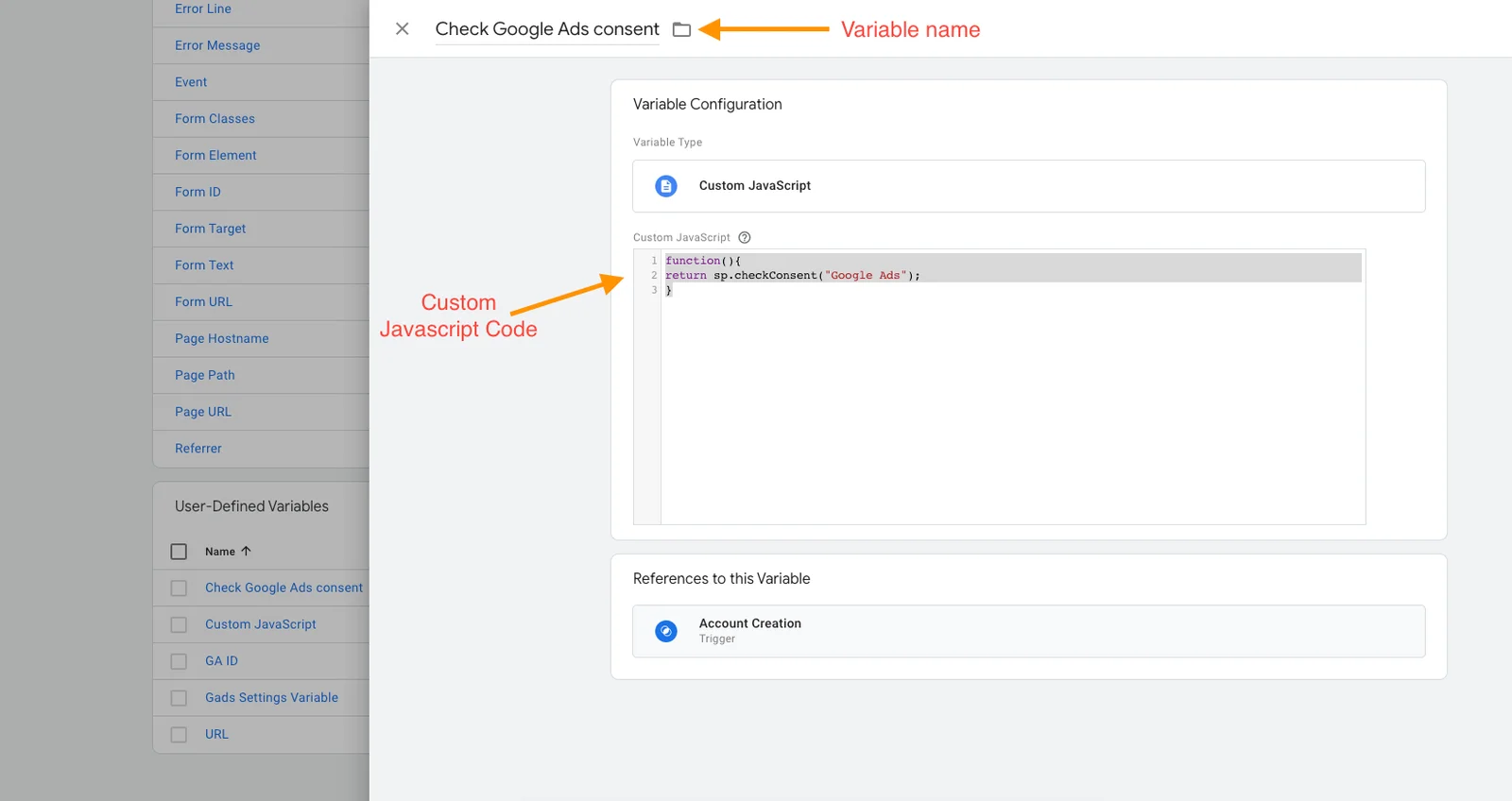
Create a User-Defined Variable of type Custom JavaScript. This variable returns true if the visitor has consented to a specific service, or false otherwise. Add it as a condition to any trigger that should be consent-gated.
// Variable name: "Check Google Analytics consent"
function() {
  return sp.checkConsent("Google Analytics");
}
Then, in the trigger that fires your Google Analytics tag, add a condition:
Check Google Analytics consent | equals | trueThe service name passed to sp.checkConsent() is case-sensitive and must exactly match the service name in your Secure Privacy Classification tab. Copy it directly from the dashboard. A mismatch causes the function to always return false, silently blocking the tag regardless of consent status.
Create one variable per service. Repeat for every non-essential tag in your container.
Deep dive: How to Block Cookies in GTM Triggers Using User Consent Conditions — step-by-step setup with GTM Preview Mode verification instructions.
Pattern B — sp-consent custom event trigger (recommended for simpler setups)
Secure Privacy pushes a custom event to the GTM dataLayer when a visitor grants consent for a service. You can listen for this event as a GTM Custom Event trigger and use it to fire the corresponding tag.
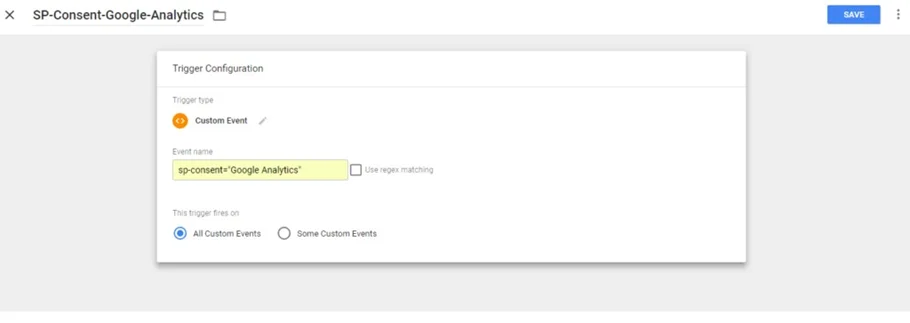
Step 1 — Create a Custom Event trigger in GTM
In GTM, go to Triggers → New → Custom Event. In the Event Name field, enter: sp-consent="Google Analytics" — replacing the service name with the exact name from your Classification tab.
Step 2 — Name and attach the trigger
Name the trigger descriptively — for example: SP-Consent-Google-Analytics. Attach it to the Google Analytics tag. The tag will fire when Secure Privacy signals consent. Repeat for each additional service, creating one trigger per service.
Deep dive: How to Block Cookies in Google Tag Manager Using Secure Privacy Consent Event Triggers — full walkthrough of the custom event trigger pattern, including the multi-trigger edge case.
Multiple triggers on one tag? If a tag uses more than one trigger (e.g. it fires on Page View AND on a custom event), additional configuration is required to ensure consent gates apply to all firing paths. See the linked article for details.
7. Google Consent Mode v2 for EU/EEA Visitors
If you run Google Ads, Google Analytics, or any other Google advertising product and serve EEA visitors, Google Consent Mode v2 (GCM v2) is mandatory as of March 2024 under Google's EU User Consent Policy. It is not a replacement for a CMP — it is an additional signal layer that tells Google tags how to behave based on the consent your CMP collects. Full comparison article is here - Google Consent Mode: Basic vs Advanced — Complete Guide for GDPR & CCPA Compliance
Basic Mode vs Advanced Mode
Basic Mode | Advanced Mode | |
|---|---|---|
Tags before consent | Completely blocked — no data sent to Google | Tags fire but send only anonymous, cookieless pings |
Conversion modelling | Limited | Enhanced — Google can model unobserved conversions |
Data gaps | Significant before consent | Minimal — cookieless pings partially fill the gap |
GDPR risk | Lower (nothing fires pre-consent) | Acceptable if cookieless pings do not constitute personal data processing |
Recommended for | Strict DPAs (Germany, France) or very conservative legal advice | Most EU/EEA use cases |
The seven GCM v2 consent parameters
Parameter | Controls | New in v2? | EEA default (best practice) | |
|---|---|---|---|---|
| Advertising cookies | No | denied | |
| Analytics cookies | No | denied | |
| Functional cookies (not used often) | No | denied (non-essential) | |
| Personalisation cookies (not used often) | No | denied | |
| Security cookies (not used often) | No | granted (essential) | |
| Sending user data for advertising | Yes | denied | |
| Personalised advertising | Yes | denied |
Secure Privacy automatically maps its consent categories to all seven GCM v2 parameters — no manual mapping is needed.
Configuring default consent states by region
GCM v2 supports per-region default states using ISO 3166-2 country codes (e.g. DE for Germany, FR for France, US-CA for California). This allows you to set stricter defaults for EEA visitors while using different defaults elsewhere.
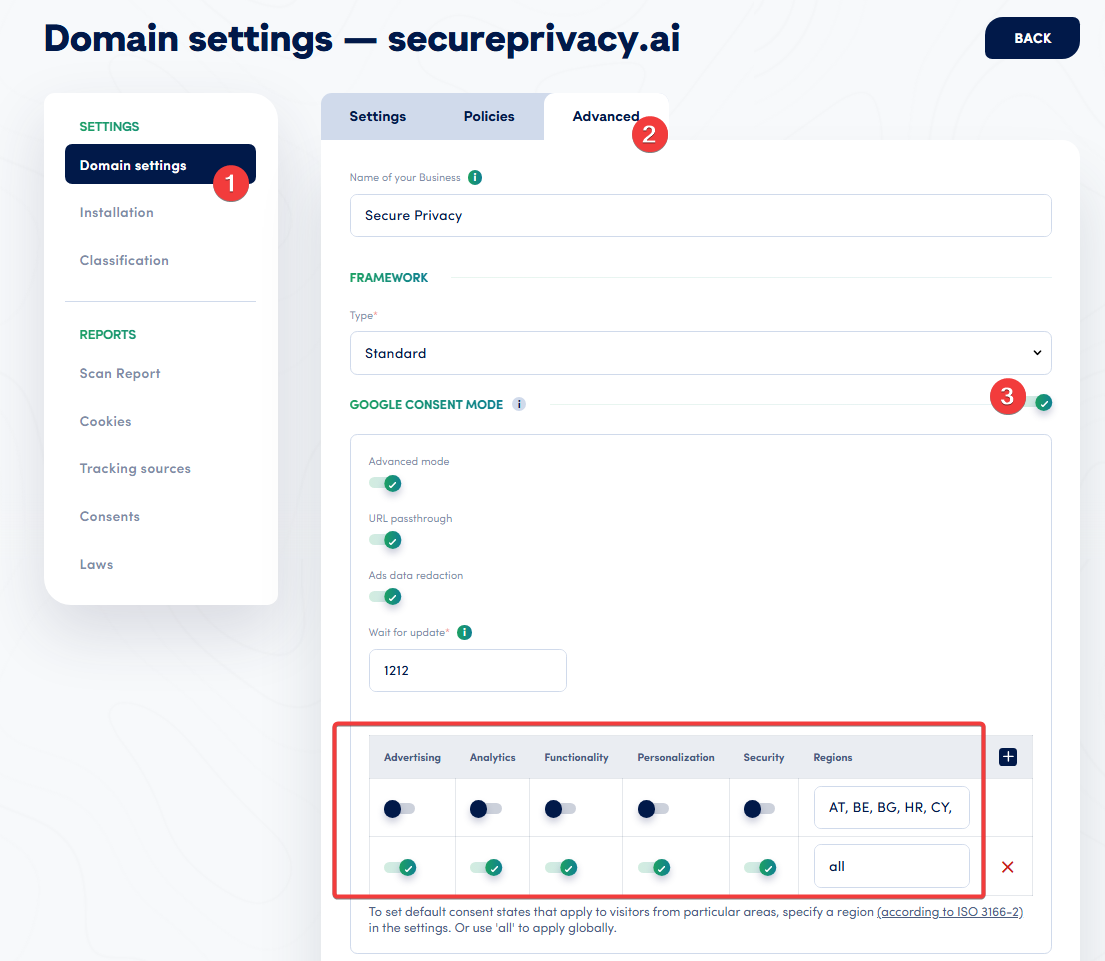
In the Secure Privacy GTM template, add a setting for each region under Default Consent Settings:
Region: DE  →  ad_storage: denied | analytics_storage: denied | ad_user_data: denied | ad_personalization: denied
Region: FR  →  ad_storage: denied | analytics_storage: denied | ad_user_data: denied | ad_personalization: denied
Region: all →  ad_storage: denied | analytics_storage: denied | ad_user_data: denied | ad_personalization: denied
Approach by DPA strictness level
Not all EU regulators apply the same standard. Adjust your GCM v2 configuration to match the strictness of the DPA(s) most likely to investigate your processing:
Standard EU/EEA (most countries)
Use Advanced Mode. Set all non-essential parameters to denied by default. Google tags fire pre-consent but send only cookieless aggregate pings — no personal identifiers stored. Consent updates are passed to Google when the visitor interacts with the banner.
Strict DPAs — Germany (BfDI / state DPAs), France (CNIL), Netherlands (AP)
These authorities have historically taken the most aggressive stance on analytics consent requirements and, in some decisions, have questioned whether even cookieless pings constitute personal data processing. For these jurisdictions, consider:
Basic Mode: Google tags do not fire at all until consent is granted. Eliminates any pre-consent data transfer to Google entirely. Significant analytics data loss until the visitor accepts.
Alternatively, in Advanced Mode, configure
analytics_storageandad_storagewith "Additional Consent Required" signalling and apply regional overrides scoped toDEandFRso that tags are fully suppressed in those markets only.
Consulting your DPO or legal counsel for a final determination is a must!! — the right choice depends on your advertising spend, risk appetite, and whether you have a local establishment in those jurisdictions.
How to verify GCM v2 is working
After deployment, verify the consent signal using browser DevTools:
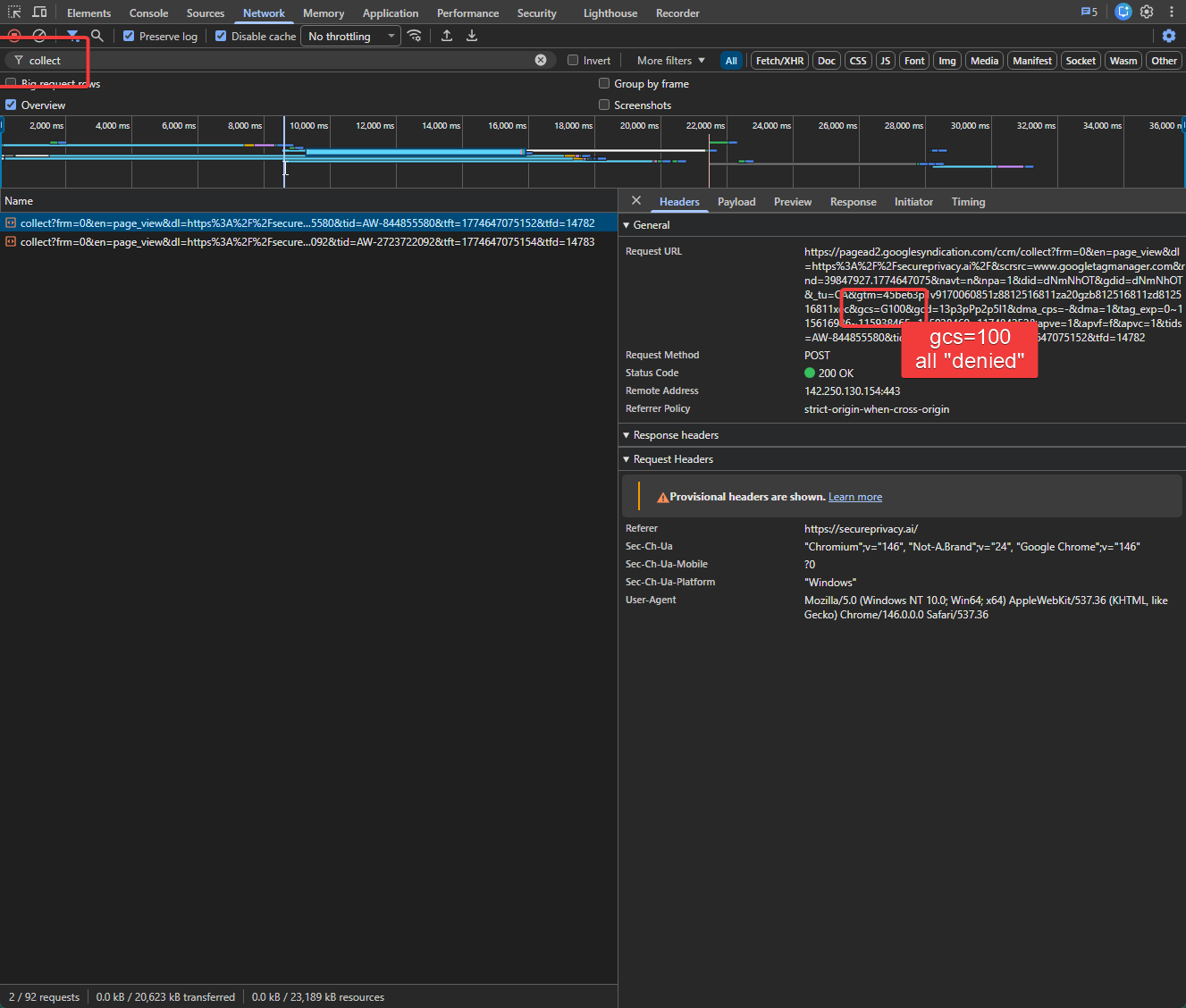
Step 1 — Check the pre-consent gcs parameter
Open DevTools, go to the Network tab, and filter by collect. Clear all cookies and reload the page without interacting with the banner. Inspect the outbound collect request — the gcs parameter should show G100 (all denied).
Step 2 — Confirm the post-consent update
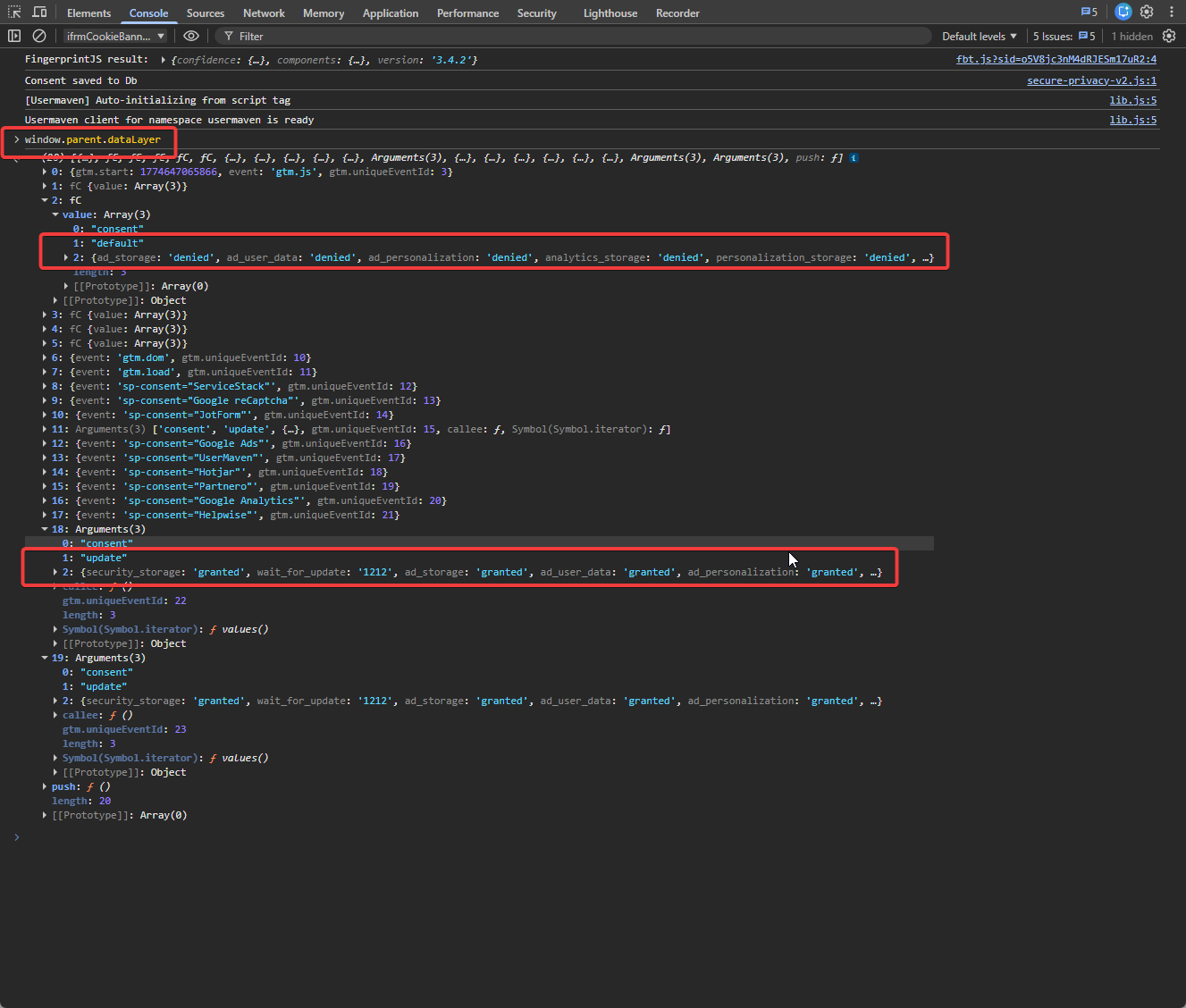
Accept the banner and confirm gcs updates to G101 (analytics granted) or G111 (all granted).
You can also inspect the dataLayer in the browser console:
window.parent.dataLayerLook for consent events to confirm default states were set at initialisation and that updates are recorded after visitor interaction.
8. Ongoing GDPR Cookie Audits & Maintenance
A cookie compliance configuration is not a one-time task. Marketing teams add pixels, developers integrate new analytics tools, and CMS plugins update themselves — all without triggering a compliance review. The following cadence is the minimum required to maintain defensible GDPR compliance:
After every third-party script, pixel, or integration change — trigger a fresh scan immediately and verify blocking status before releasing to production
After any CMS, plugin, or theme update — re-verify that script load order has not been altered, especially if caching or performance plugins were involved
Quarterly — full scan even if no changes are known; shadow IT additions are common
After GTM container changes — verify all new tags are attached to consent-based triggers, not the generic All Pages trigger
For a complete ongoing compliance checklist, see Ongoing Checkups & Best Practices for Compliance.
9. Additional Compliance Considerations
The preceding sections cover the core cookie-blocking workflow. The following areas sit outside that workflow but are equally capable of creating GDPR exposure. Each deserves a deliberate decision, not a default.
9.1 Meta Consent Mode & Microsoft Consent Mode
Google Consent Mode is not the only platform-level consent API that requires explicit configuration. Both Meta (Facebook/Instagram) and Microsoft (Bing Ads, Microsoft Advertising, Clarity) have introduced their own consent mode mechanisms that govern how their tags and pixels behave in the absence of user consent. If you run advertising or analytics on either platform, enabling the corresponding consent mode is a separate requirement — configuring Google Consent Mode alone does not cover Meta or Microsoft signals.
Without Meta Consent Mode enabled, the Meta Pixel and Conversions API continue to send data to Meta regardless of the consent state recorded by your CMP. Without Microsoft UET Consent Mode, the Universal Event Tracking tag defaults to active tracking even when a visitor has declined advertising cookies. Microsoft now requires explicit consent from EU/EEA users before using first- and third-party cookies for advertising — making UET Consent Mode mandatory, not optional, for advertisers serving those markets.
Secure Privacy enables both modes from the dashboard, without custom code.
Meta Consent Mode: How It Works & How to Enable It with Secure Privacy — covers Meta Pixel and Conversions API consent integration, regional configuration, and verification steps.
How to Enable Microsoft UET Consent Mode with Secure Privacy — covers Microsoft Advertising UET tag consent integration; defaults
ad_storagetodeniedfor EU/GDPR regions automatically.How to Set Up Microsoft Clarity Consent Mode with Secure Privacy — covers Microsoft Clarity's separate consent commands; recommends the
stopdefault state for EU/EEA regions.
9.2 IAB Transparency & Consent Framework (TCF 2.2)
If your website uses programmatic advertising — ad exchanges, SSPs, or DSPs that rely on standardised consent signals to decide whether to serve personalised ads — your CMP may need to support the IAB Transparency & Consent Framework (TCF). TCF defines a structured consent string format that is passed between your CMP, publishers, and the ad tech ecosystem so that every participant in the ad-serving chain can act on the visitor's consent choices.
TCF is not required for direct-tag setups (e.g. a single Google Ads tag managed in GTM) — it is relevant when you have a header bidding stack, an ad server, or third-party demand partners that read IAB consent strings. Be aware that several DPAs, including the Belgian DPA, have found specific aspects of TCF's implementation to be in breach of GDPR. If you operate under TCF, monitor DPA guidance actively and ensure your vendor list is kept current.
IAB Transparency and Consent Framework (TCF) Explained – GDPR Compliance Risks and Secure Privacy's Alternative Approach — covers what TCF is, how it interacts with Google Consent Mode, known DPA enforcement concerns, and when Secure Privacy's GCM-based approach is a simpler, lower-risk alternative.
9.3 Consent Re-collection & Validity Periods
Consent is not permanent. GDPR requires that consent be renewed whenever the purposes for which cookies are used change materially — for example, adding a new advertising network, switching analytics providers, or expanding cookie use to cover new categories. A visitor who consented to Google Analytics six months ago has not consented to a LinkedIn Insight Tag you added last week.
Regulatory guidance on maximum consent duration varies by authority. The CNIL (France) sets a ceiling of 13 months before re-consent must be sought; Irish DPC guidance for analytics cookies suggests a practical maximum closer to 6 months. As a baseline: any consent record older than 12 months should be treated as expired and visitors should be prompted again on their next session.
Practically, this means your implementation should:
Store the timestamp of each consent decision alongside the decision itself
Re-present the banner to returning visitors once their consent record has aged past your configured renewal threshold
Re-present the banner any time you add a new cookie category or materially new service that was not disclosed at the time the original consent was collected
Secure Privacy logs a timestamped record of every consent decision in the Consent Dashboard. Defaults are correlated to the Template configuration, where most of the templates are set to 12 months, some 6 and most of the US to "Do not store". More information in this article here -
How to Change the Data Retention Period for a Legal Template in Secure Privacy
For guidance on how long to retain those records for your configuration — please consult your DPO or legal team — as this is an area where your legal or DPO team should set the threshold based on your processing activities and the DPAs most likely to scrutinise your site.
9.4 The "Consent Wall" — When Your Banner Becomes Invalid
A consent wall is any design that conditions access to website content on the visitor accepting non-essential cookies — "accept tracking or leave." The EDPB's Guidelines 05/2020 on consent are explicit: consent is not freely given if refusal results in a significant detriment to the user, and blocking access to a website constitutes exactly that detriment. A consent wall therefore produces invalid consent under GDPR, regardless of how well the underlying blocking and auditing is configured.
The same principle applies to subtler designs: pre-ticked boxes, dark patterns that make "Reject All" harder to reach than "Accept All," and banners that frame declining as an error or interruption all risk invalidating consent. The EDPB and national DPAs — particularly the CNIL, the Italian Garante, and the Irish DPC — have issued specific enforcement decisions on banner design and treat these patterns as violations independent of whether cookies are technically blocked correctly.
Practically: ensure your banner presents accept and reject options with equal visual prominence and equal number of clicks. There is no dedicated Secure Privacy support article on this topic; refer to EDPB Guidelines 05/2020 on Consent and your DPO for banner design review.
Frequently Asked Questions
Do I need to block cookies before the consent banner appears under GDPR?
Yes. GDPR Article 6 and the ePrivacy Directive require that non-essential cookies — including analytics and advertising cookies — must not be set until a visitor has given explicit prior consent. A banner that appears while tracking scripts are already running in the background is not compliant. The cookie must not be written to the visitor's device until consent is actively recorded.
Which cookies require prior consent under GDPR?
Any cookie that is not strictly necessary for a service explicitly requested by the user requires prior consent. This includes any of the mentioned cookie before, like Google Analytics (_ga, _gid), Facebook/Meta Pixel (_fbp, fr), Google Ads/DoubleClick (IDE, NID), YouTube (VISITOR_INFO1_LIVE), and LinkedIn Insight Tag cookies. Strictly necessary cookies — session authentication, shopping cart, security tokens — are exempt, because without these services - the very basic functionality of any website will be broken and it becomes unuable.
Why are my cookies still loading before the consent banner appears?
The most common causes are: (1) the Secure Privacy script is loading after the third-party scripts it is supposed to block — script load order is the most overlooked compliance detail; (2) the Secure Privacy script is using the async attribute instead of defer, creating a race condition; (3) a caching or performance plugin (such as WP Rocket) has reordered or re-attributed the scripts; or (4) a new script or pixel was added to the site after the last Secure Privacy scan, so it was never detected and added to the blocking configuration.
What is the difference between async and defer for cookie consent compliance?
Scripts with the async attribute execute as soon as they finish downloading — in no guaranteed order. If a Google Analytics script downloads faster than your CMP, it fires before consent is checked: a compliance violation. Scripts with defer download in parallel but execute in DOM order after HTML parsing completes. If Secure Privacy is the first deferred script in <head>, it always executes first. Always use defer on the Secure Privacy script — never async.
Does Google Consent Mode v2 replace the need for a cookie consent banner or CMP?
No. Google Consent Mode v2 is an additional signal layer that tells Google tags how to behave based on consent your CMP collects — it does not itself collect or record consent from the visitor. A compliant CMP (such as Secure Privacy) is still required to present the banner, record the visitor's choice, and block non-essential cookies until that choice is made. GCM v2 and a CMP work together; neither replaces the other.
How often should I rescan my website for GDPR cookie compliance?
At minimum: immediately after every third-party script, pixel, or integration change; after any CMS, plugin, or theme update; after any Google Tag Manager container change; and at least once per quarter even if no known changes occurred. Automatic blocking only covers what the most recent scan detected — any script added after the last scan will not be blocked.
Quick Reference: All Related Guides
Guide | What it covers |
|---|---|
Cookies Loading Before Consent? How to Fix Pre-Consent Cookie Loading | Identifying cookies that fire before consent; scan report walkthrough; GDPR compliance checklist |
Automatic Cookie Blocking Explained (CMP v1 — steps apply, screenshots outdated) | How the MutationObserver blocking engine works; blocking modes; adding scripts to the blocking configuration |
How to Manually Block Cookies Not Blocked Automatically (CMP v1 — steps apply, screenshots outdated) | Reading the red ✗ indicators in scan reports; Tag Blocking configuration; rescan verification |
How to Set Up Manual Script and iframe Blocking (CMP v1 — steps apply, screenshots outdated) | Script type rewriting; |
How to Block Cookies in GTM Triggers Using Consent Conditions | Custom JavaScript variable pattern; |
How to Block Cookies in GTM Using Secure Privacy Consent Event Triggers |
|
Meta Consent Mode: How It Works & How to Enable It with Secure Privacy | Meta Pixel and Conversions API consent integration; regional configuration; verification steps |
How to Enable Microsoft UET Consent Mode with Secure Privacy | Microsoft Advertising UET tag consent; EU |
How to Set Up Microsoft Clarity Consent Mode with Secure Privacy | Clarity consent commands; |
IAB TCF Explained – GDPR Compliance Risks and Secure Privacy's Alternative Approach | TCF overview; DPA enforcement concerns; when GCM-based approach is the lower-risk alternative |