
California's wiretapping law — the California Invasion of Privacy Act (CIPA) — is creating a new wave of legal scrutiny for websites that use session replay tools, chat widgets, form analytics, and third-party tracking scripts. If your site serves California visitors, and those tools activate before a user has knowingly agreed to them, you may be exposed to CIPA liability under Penal Code sections 631 and 632 — even if you already have a CCPA-compliant consent banner in place.
That is the gap many website and legal teams are discovering right now. A standard CCPA opt-out consent model was designed for privacy rights and data disclosures. It was not necessarily designed with CIPA's interception standard in mind — and updating it often means revisiting whether an implicit opt-out approach is still appropriate for every technology on your site.
The instinct is to buy a new platform. In practice, the fix is almost always simpler: review and update the California template you already have in your consent management platform (CMP). If you use Secure Privacy, all four of the controls you need already exist — they just need to be checked against your current website stack and legal position.
By the end of this article, you will know exactly which four settings to review in Secure Privacy, what to look for in each one, and how to bring your California consent banner into alignment with both CCPA privacy requirements and the higher consent standard that CIPA questions are raising.
Who Is This Article For?
This guide is written for website managers, legal ops teams, and privacy engineers who already have a California consent banner live on their site — and who want to review whether that setup still reflects the tools running on the site, the current legal landscape in California, and their company's privacy disclosures. You do not need to replace your CMP. You need to know which settings to check.
CIPA vs. CCPA: What Website Teams Actually Need to Know
Many companies already use a California CCPA template in their CMP and assume the setup is complete. In practice, website teams are now revisiting those configurations as they compare CCPA privacy requirements with CIPA-related website risk questions.
That review usually does not mean replacing your CMP. It means checking whether the existing template in Secure Privacy is configured the right way for the tools running on the site.
At a high level:
The CCPA focuses on privacy rights and disclosures, including notice at collection and the right to opt out of the sale or sharing of personal information. See California Civil Code sections 1798.100, 1798.120, and 1798.135.
The California Invasion of Privacy Act (CIPA) raises separate questions under California Penal Code sections 631 and 632, which address interception and recording of communications.
For website teams, the practical question is:
Does your California banner setup still reflect what your site actually loads, tracks, and shares?
In Secure Privacy, there are four settings areas worth reviewing first.
Four Consent Banner Settings to Review in Secure Privacy
Step 1 - Review the Consent Type: Opt-In vs. Opt-Out for Your California Template
If your current California template was built mainly for CCPA rights management, the first setting to revisit is Consent Type.
In Secure Privacy, the California template supports:
Explicit [Opt-in] — no tracking until the user actively accepts
Implicit [Opt-out] — tracking proceeds by default until the user declines
If the template is currently set to Implicit [Opt-out], website teams may want to re-check whether that still fits all technologies running on the site — especially tools that go beyond basic analytics. That review is especially relevant for services such as:
session replay tools
chat widgets
form analytics
call tracking or call recording tools
advertising or conversion pixels
embedded third-party tools
The point is not that every service should automatically be moved to the same model. The point is that tools previously allowed under a broad opt-out setup may now need a more deliberate review — particularly any tool that could be characterised as intercepting or recording communications under CIPA.
Where to update this in Secure Privacy: Template → Settings → Consent Type
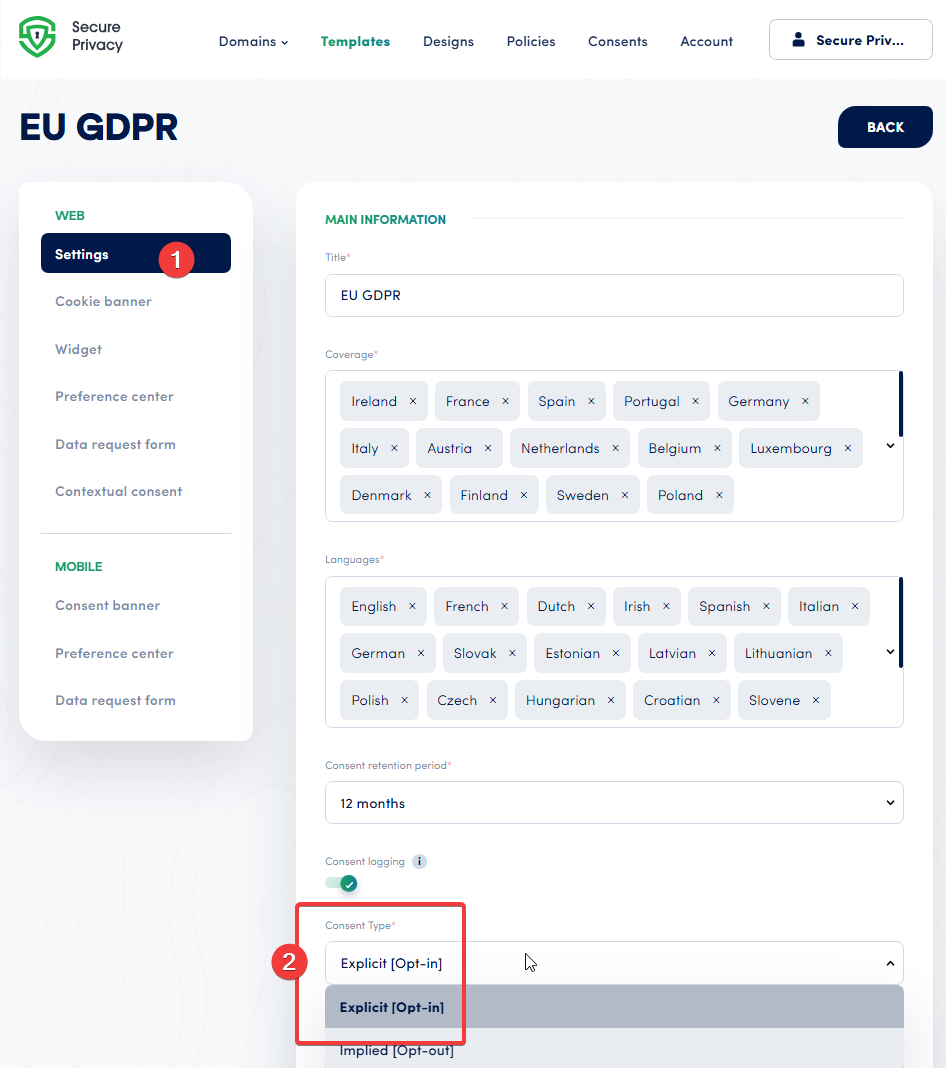
In Secure Privacy, website teams can review the California template's Consent Type and switch between Implicit [Opt-out] and Explicit [Opt-in] to match their current legal position.
Step 2 - Google Analytics, Google Ads, Google Tag Manager, and Consent Mode
CIPA does not prescribe a product-by-product blocking rule. The question is whether a particular implementation sends visitor communications or data to a third party before any consent your legal review requires.
Do not treat Google Tag Manager (GTM) as identical to Google Analytics or Google Ads. GTM is the container used to deploy tags, but loading it is still a request to Google. Start by configuring GTM so GA, Google Ads, and every other third-party tag identified in your review do not fire before the applicable affirmative consent. If your policy is that no request to Google may occur before consent, or the container cannot be tested to prevent all pre-consent tag activity, delay GTM itself as well.
Google Consent Mode does not, by itself, answer the CIPA question. Google states that Basic Consent Mode blocks Google tags and sends no data to Google before the user consents. Advanced Consent Mode loads the tags with denied defaults and sends cookieless measurement pings. Where your CIPA position is “no Google data before affirmative consent,” use tag-level blocking or Basic Consent Mode for GA and Google Ads rather than Advanced Consent Mode, then verify the live network requests.
Step 3 - Update the Cookie Banner to Eliminate Dark Patterns and Surface a Clear First-Layer Choice
Once the Consent Type is reviewed, the next place to look is the Cookie banner tab.
If your team wants users to make a clearer privacy choice, the first layer should be reviewed for:
banner text
accept button text
decline button text
customize button text
category visibility
The California Privacy Protection Agency regulations state that agreement obtained through dark patterns does not constitute valid consent. The full regulations are published at CPPA Regulations — cppa.ca.gov. That makes button setup important: if the site is relying on consent for any category or service, website teams should review whether users can actually see and use the available choices.
What to review in the banner
Is the Accept button text still too generic — for example, just "Okay"?
Is the Decline button text enabled and visible?
Is the Customize button text enabled so users can open the preference center?
Are advanced categories turned on if you want users to make more granular selections?
Where to update this in Secure Privacy: Template → Cookie banner
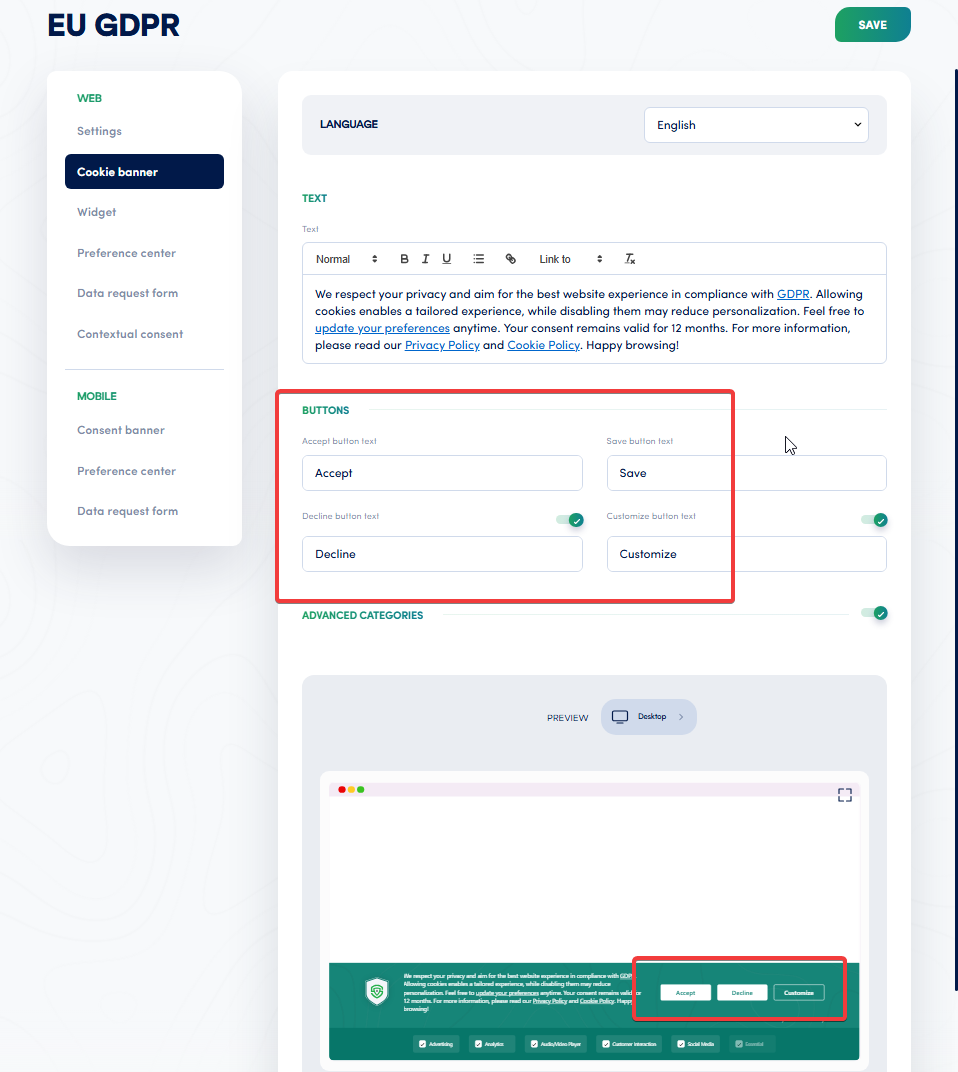
Use the Cookie banner settings in Secure Privacy to surface Accept, Decline, and Customize options more clearly — and avoid CPPA dark-pattern concerns.
Suggested implementation review
If your current CCPA template uses an accept button labeled "Okay," no visible decline text, and no visible customize text, the setup likely deserves a second look. A practical update is to make the available user actions more explicit in the banner itself.
Step 4 - Update the Cookie Widget to Surface "Do Not Sell or Share" or "Your Privacy Choices" for California Users
After the banner is dismissed, many teams rely on the floating cookie widget as the persistent re-entry point for users who want to revisit their privacy choices. In Secure Privacy, this is controlled in the Cookie widget section of the Template.
The widget label often becomes the ongoing California privacy entry point for users. If the current widget text is too generic, website teams may want to review whether it should be more specific. Common labels teams evaluate include:
Do Not Sell
Do Not Sell or Share
Your Privacy Choices
Cookie Settings
Which text is appropriate depends on how the company is presenting its California privacy choices and how the preference center is configured. "Do Not Sell or Share" reflects the CCPA/CPRA language introduced by Proposition 24; "Your Privacy Choices" is a broader option accepted by CPPA guidance.
Where to update this in Secure Privacy: Template → Widget → Button text / Widget text
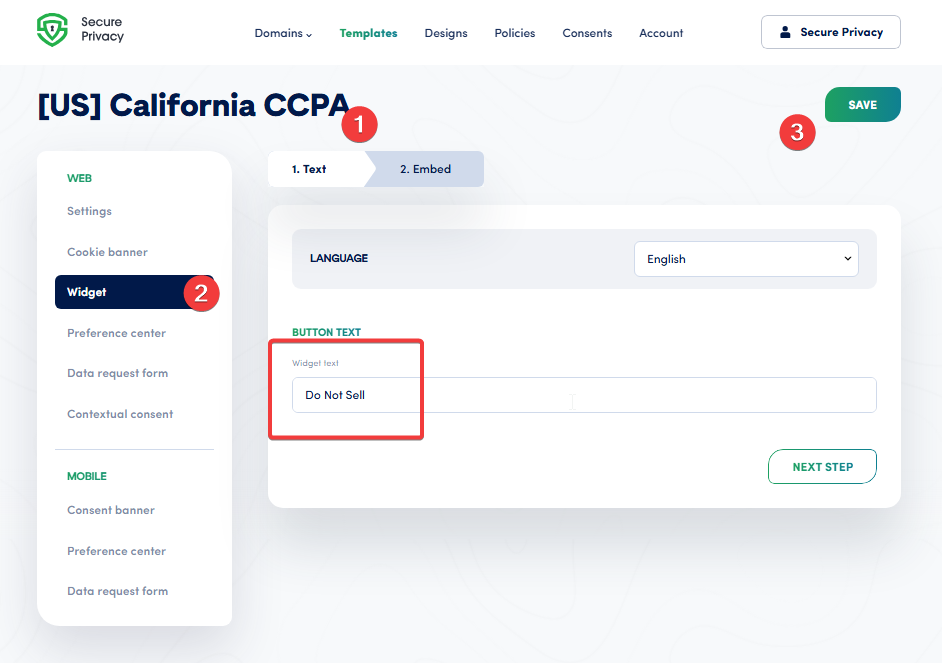
The Cookie widget text in Secure Privacy can be updated to reflect the California privacy choice you want to surface — such as "Do Not Sell or Share" or "Your Privacy Choices" — after the banner is closed.
This is one of the simplest changes to make, and one of the most visible to California users.
Step 5 - Review the Preference Center Labels and Descriptions to Match Your Actual Website Stack
If the banner points users into a preference center, the content of that experience should also be reviewed. In Secure Privacy, the Preference center lets you edit the tab names and descriptive copy shown to users — giving teams a place to align the consent experience with their actual privacy disclosures.
What to review in the Preference Center
tab names
descriptions
privacy policy references
category labels
whether the wording still matches the services enabled on the site
For example, if your template language says only that the site uses cookies, but the site also uses chat, replay, or form-related tools, teams may want to review whether the wording remains accurate for users who are making a consent decision.
Where to update this in Secure Privacy: Template → Preference center
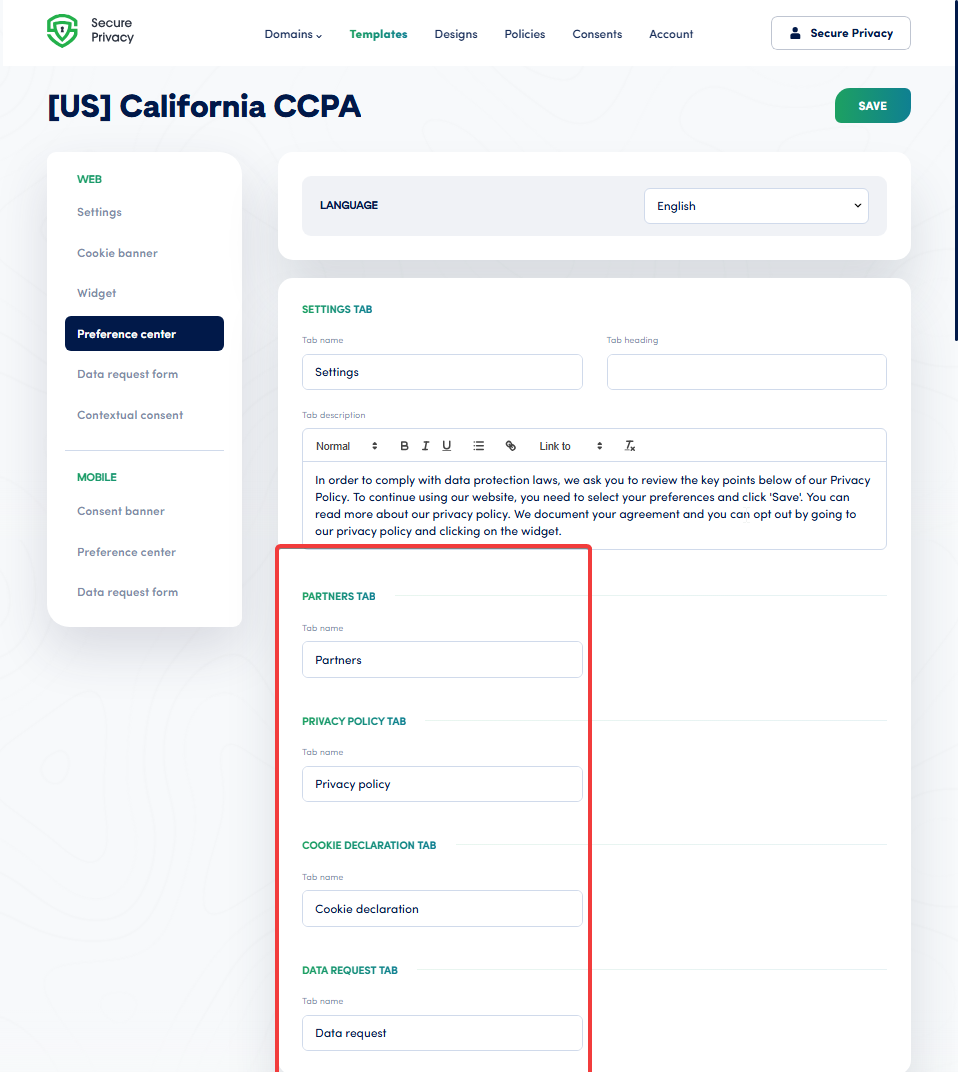
Use the Preference center in Secure Privacy to align tab labels, descriptions, and privacy links with the current website setup and the technologies you have deployed.
This is also the right place to review whether the user-facing privacy journey is too generic for the technologies actually in use on your site.
Where to Start: A Priority Review Checklist for Website Teams
If your California template has been live for a while, start with the items most likely to have been approved years ago as a standard business choice:
analytics and measurement scripts
ad and conversion pixels
session replay tools
chat services
embedded third-party widgets
form and lead-capture tools
Then compare those tools against your current Secure Privacy configuration:
Is the template using the right Consent Type? (opt-in vs. opt-out)
Does the banner show a clear first-layer choice? (accept, decline, and customize all visible)
Is the Cookie widget labeled clearly enough for California users? (Do Not Sell or Share / Your Privacy Choices)
Does the Preference Center language still match the tools on the site?
That review keeps the focus where it belongs: on implementation, not on platform replacement.
Why This Matters for Secure Privacy Users
The value of a consent management platform is not just that it displays a banner. The value is that it gives website teams a controlled place to update consent behavior, user-facing text, ongoing privacy access points, and preference-center content — without a development cycle. In Secure Privacy, those controls already exist in the California template. The practical work is making sure they still reflect your legal review, your website stack, and your current privacy choices.
Conclusion
A CIPA vs. CCPA review for your website almost never starts with buying a new platform. It starts with checking whether the existing California consent banner template is still configured correctly for the tools you are running today.
For most Secure Privacy users, the highest-impact updates are:
reviewing Consent Type (opt-in vs. opt-out)
updating banner buttons and text to eliminate dark patterns
changing the Cookie widget label to "Do Not Sell or Share" or "Your Privacy Choices"
revising the Preference Center copy to match the current website stack
Those four changes will usually tell you very quickly whether your California consent management setup still matches the site you are operating today.
Frequently Asked Questions
Does my CCPA consent banner also cover CIPA?
Not automatically. A standard CCPA consent banner is designed to give users notice and an opt-out right for the sale or sharing of personal information. CIPA (California Penal Code §§ 631–632) raises a separate question about whether tools that intercept or record communications — such as session replay, chat widgets, or call tracking — are operating with the user's prior consent. If those tools activate before a user has affirmatively agreed, an opt-out-only banner may not satisfy CIPA's standard. Reviewing your Consent Type in Secure Privacy is the starting point.
Do I need to switch from opt-out to opt-in for California users?
CCPA does not require opt-in consent as a baseline. However, if your site uses tools that could be categorised as intercepting communications under CIPA — such as session replay, live chat recording, or certain form analytics — your legal team may recommend opt-in consent for those specific categories or technologies. In Secure Privacy, you can set the California template to Explicit [Opt-in] for all categories, or review which tool categories warrant the higher standard.
What is a dark pattern in a cookie consent banner?
Under the California Privacy Protection Agency (CPPA) regulations, a dark pattern is a user interface design that subverts or impairs a user's ability to make a free and genuine choice — for example, making the "Accept" button prominent and brightly coloured while hiding the "Decline" button, or not showing a decline option at all on the first layer. The CPPA has stated that consent obtained through dark patterns is not valid. Reviewing your banner's button text and visibility in Secure Privacy's Cookie banner settings is the practical fix.
Should the Cookie widget say "Do Not Sell" or "Do Not Sell or Share"?
"Do Not Sell or Share My Personal Information" is the more current phrasing, reflecting the CPRA (Proposition 24) amendments to CCPA that added a right to opt out of sharing for cross-context behavioural advertising. "Do Not Sell" was the original CCPA language. The CPPA also accepts "Your Privacy Choices" as an alternative label. Which you use depends on your company's privacy disclosures and legal guidance. In Secure Privacy, the Cookie widget text can be updated directly under Template → Widget.
How often should I review my California consent banner configuration?
A good rule of thumb is to review your California consent banner configuration whenever you add or remove a technology from your website stack, after any significant change in California privacy regulations or CPPA guidance, and at least annually as a routine audit. Because CIPA litigation often targets tools that were added to a site without updating the consent layer, keeping the banner configuration in sync with the actual website stack is the most practical risk-reduction step.
Primary Sources
California Civil Code § 1798.100 — Right to Know (leginfo.legislature.ca.gov)
California Civil Code § 1798.120 — Right to Opt Out (leginfo.legislature.ca.gov)
California Civil Code § 1798.135 — Opt-Out Methods (leginfo.legislature.ca.gov)
California Penal Code § 631 — CIPA Wiretapping (leginfo.legislature.ca.gov)
California Penal Code § 632 — CIPA Recording (leginfo.legislature.ca.gov)
California Privacy Protection Agency (CPPA) Regulations — cppa.ca.gov
Related Articles
Setting Up Your California CCPA Template in Secure Privacy[?]
Opt-In vs. Opt-Out Consent: When to Use Each in Your CMP[?]
Configuring the Do Not Sell or Share Button for CCPA Compliance
CPPA Dark Pattern Rules: What Your Cookie Banner Must Avoid[?]