
A customer asks what personal data you hold about them. Another wants their account deleted. A third writes in on behalf of a family member. Each one is a data subject access request (DSAR), and the clock starts the moment it arrives: generally one month under GDPR and 45 days under the CCPA. When those requests come in through a generic contact form or a shared inbox, deadlines slip, identity checks go undocumented, and pulling together records for an audit turns into a copy-paste exercise.
Most teams patch the problem with what they already have: one-size-fits-all contact forms that ask every visitor the same questions, spreadsheets for tracking response deadlines, and email threads as the only audit trail. Standalone DSAR tools help, but they usually mean another vendor to manage and another page your visitors have to find.
DSAR 3.0 brings privacy request management into the same Secure Privacy platform that runs your cookie consent banner. A visual DSAR form builder lets you define your own request types, ask who is submitting, and show each visitor only the fields that apply to their request. Every submission lands in one Privacy Requests dashboard with a statutory deadline countdown, identity verification status, downloadable attachments and a filtered CSV export for audits. DSAR handling, without the inbox chaos.
By the end of this guide, you will know what changed in DSAR 3.0, how to build and publish a DSAR form on your website, in your mobile apps or as a hosted privacy request link you can share anywhere, and how to review, verify and export the requests that come in.
Who this DSAR guide is for
Privacy, legal and compliance teams who need a documented, deadline-aware intake process for GDPR, CCPA and other privacy law requests.
Data Protection Officers who want to capture the right details up front, such as who is submitting, what they are asking for and any supporting documents.
Website and app administrators who already publish the Secure Privacy consent banner and want the data request form in the same place.
Existing Secure Privacy customers moving from the previous fixed-layout DSAR forms to the new form builder.
Prerequisites
A Secure Privacy account with access to Privacy Requests.
The Secure Privacy tag installed on every domain where the Data Request tab should appear. You do not need the tag if you only share the hosted form link.
Mobile SDK support on your account, if you want to offer the form in mobile or TV apps.
Optional: Secure Privacy Governance, if you want to route incoming requests to the Governance portal.
What's new in DSAR 3.0
This update introduces a redesigned DSAR (Data Subject Access Request) experience: a visual form builder, flexible request and identity types, conditional fields, and a clearer admin view of incoming submissions.
Previously, DSAR forms relied on a fixed set of request types and a relatively static field layout. DSAR 3.0 moves to a configurable form model: you define request types and (optionally) identity types, add custom fields, and control which fields appear depending on what the visitor selects.
Area | What changed |
|---|---|
Form design | Visual form builder with request types, optional identity types, custom fields and conditional visibility |
Request types | Fully configurable; no longer tied to a fixed list for new forms |
Identity | Optional identity selection step; identity type stored and shown on submissions |
Conditional fields | "Shown for" controls visibility; "Required" applies when a field is visible |
Public forms | Hosted form link (External tab), Preference Center Data Request tab and dedicated DSAR page; all send type selections |
Admin | Privacy Requests with dynamic filters, a richer detail panel, statutory deadlines, attachments and CSV export |
Validation | Server validates required fields while respecting conditional visibility |
Web form embed | Coming soon |
This release is aimed at teams that need flexible DSAR forms (multiple request and identity paths, conditional questions, attachments) and a clearer compliance workflow for reviewing and acting on incoming privacy requests. Below is a walkthrough of each new capability and how they fit together.
Manage incoming DSARs in the Privacy Requests dashboard
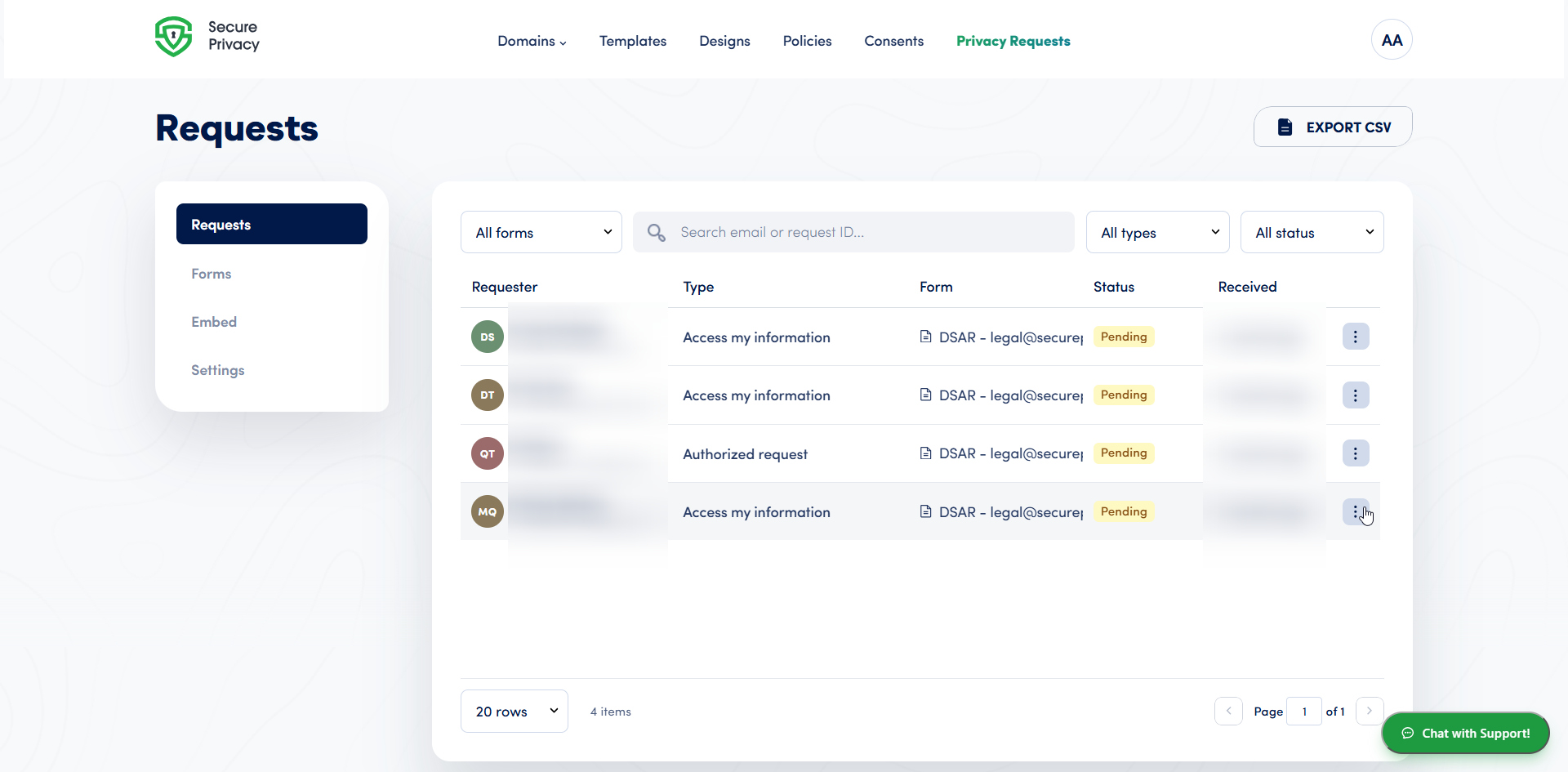
Submissions are stored with richer metadata and are available at the top level under Privacy Requests. The page lists submissions from all of your DSAR forms, with:
Dynamic request type filter: options come from each form's configured request types (English labels), not a fixed global list.
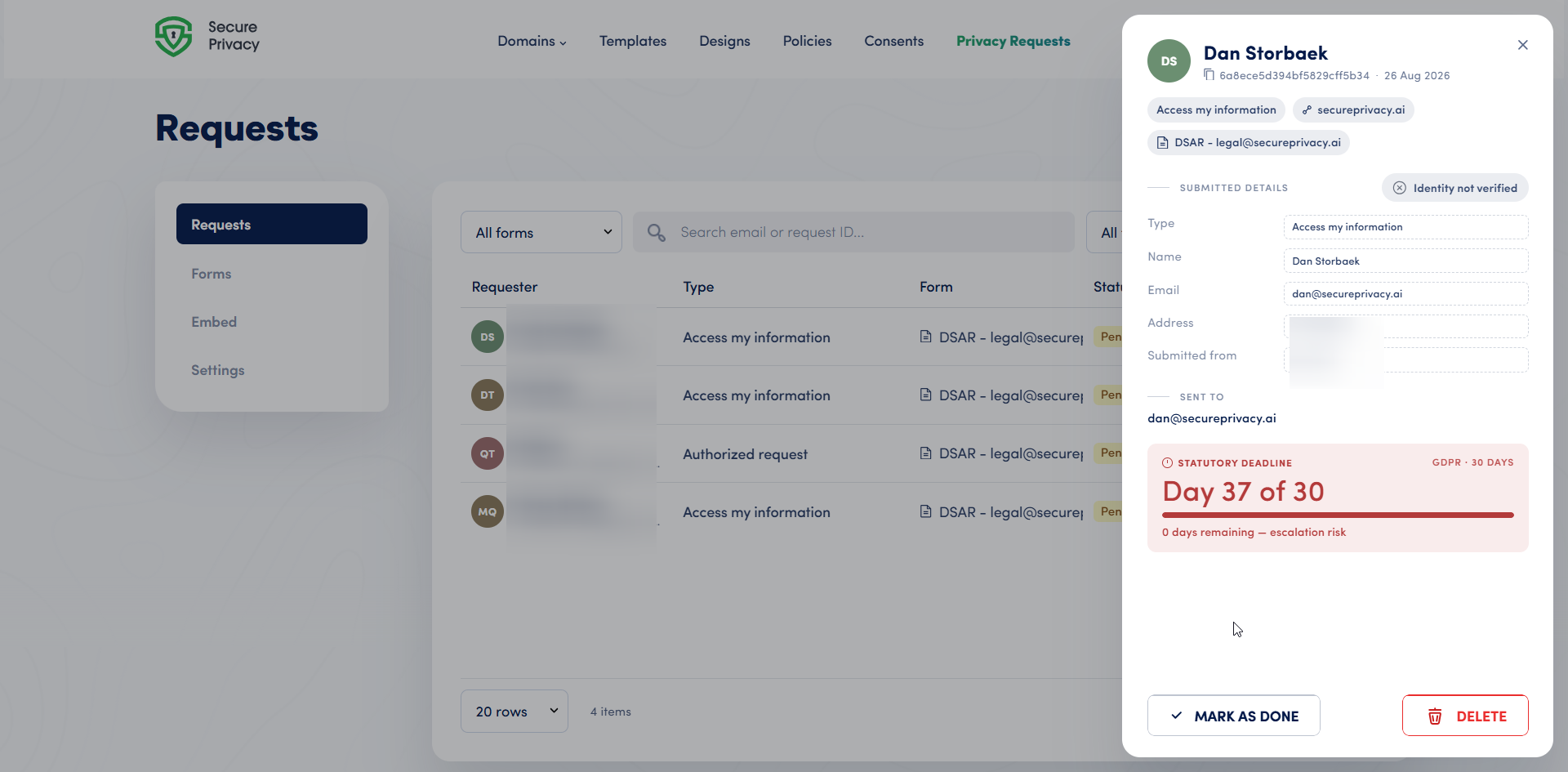
Detail panel with header badges for request type, identity type (when present), source domain and form name.
Submitted details: the visitor's field answers, with attachments available for download when present.
Identity verified indicator: shown only when verification was actually completed.
Statutory deadline: a countdown based on the visitor's country and the applicable regulation.
View DSAR details and track the statutory deadline
Click any row to open the submission detail panel. Alongside the submitted details and the deadline countdown, the panel includes Mark as done and Delete actions, so you can close out a request once it has been handled.
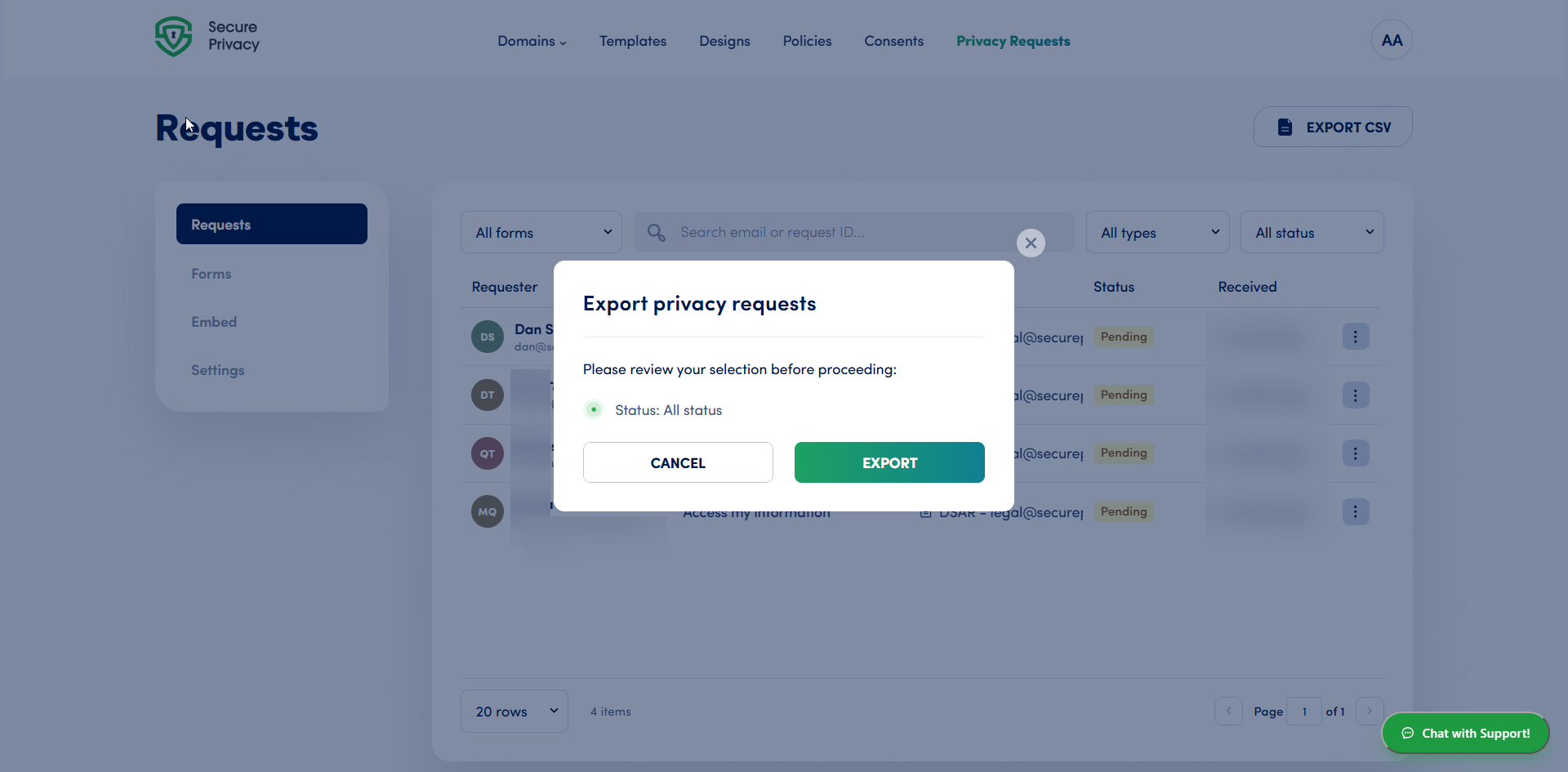
Export privacy requests to CSV for audits and reporting
The Export CSV action lets you pull submission data out of the platform for reporting, audits or offline review. The export respects whatever you currently have filtered in the grid (DSAR form, search by email or request ID, request type and status), so you export exactly the slice you are looking at rather than the entire account. Before the export runs, a confirmation step summarizes those filters so you can double-check the scope.
The export is processed in the background, and you receive an email with a download link when the file (a zipped CSV) is ready. Each row includes the submission ID, form name, request type, status, contact email (when present), source, location data, date created, and all submitted field values in a single column.
Only one export can run at a time per account, and daily export limits apply on paid plans. This replaces manual copy-paste from the detail panel when you need bulk DSAR records for compliance workflows.
Publish your DSAR form: hosted link, preference center and apps (Embed settings)
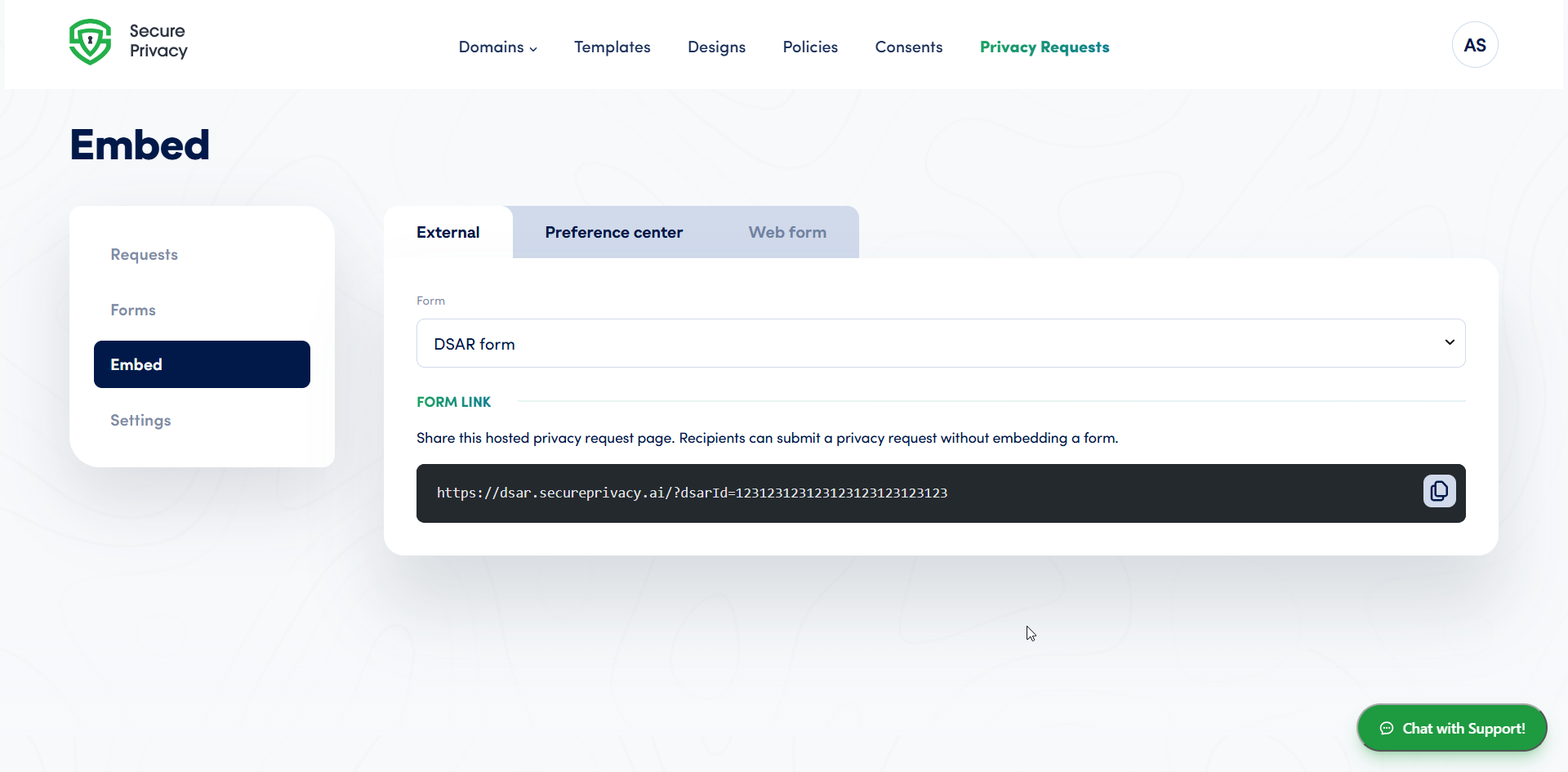
The Embed page controls where and how each DSAR form is offered, not the fields or request types themselves, which you configure in the form builder. It has three tabs: External, Preference center and Web form (not active yet). Each tab starts with a Form dropdown where you choose which DSAR form to publish.
Share a hosted DSAR form link (External tab)
The External tab gives you a form link to a privacy request page hosted by Secure Privacy on dsar.secureprivacy.ai. Anyone with the link can submit a privacy request without you embedding a form on your site. The link opens the dedicated DSAR page, the standalone step-by-step version of your form.
Copy the link with the copy button and place it wherever people look for a way to ask about their data: your privacy policy, your website footer, or replies from your support team.
Add the DSAR form to your banner and apps (Preference center tab)
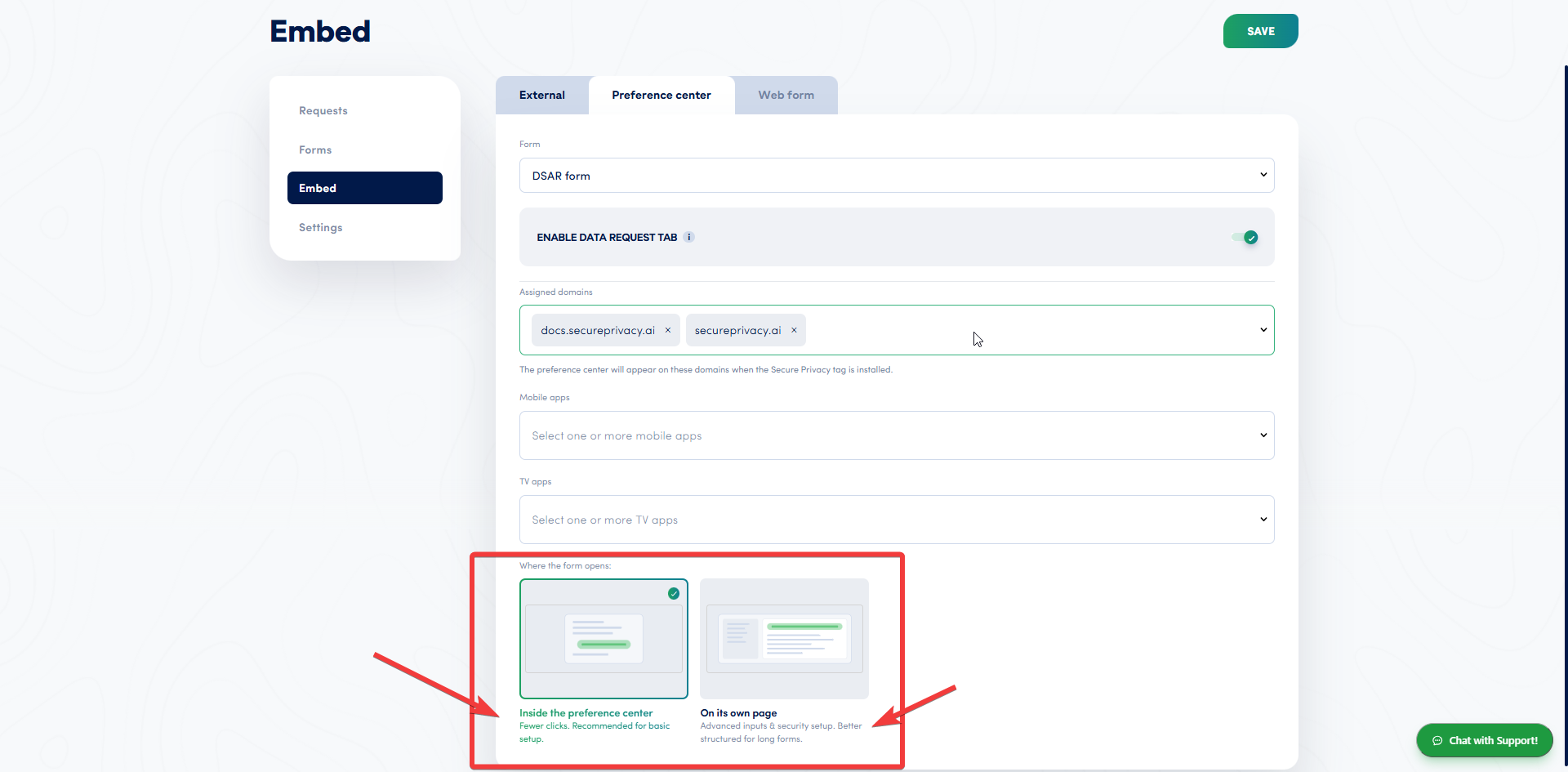
The Preference center tab connects a DSAR form to your consent banner and in-app preference centers. The main switch, Enable Data request tab, controls whether the selected form is active in the Preference Center at all. When it is off, the form is unassigned from every domain and app until you turn it back on.
With publishing enabled, assign the form to one or more domains where the Secure Privacy tag is already installed. Visitors on those sites will see a Data Request tab inside the consent and privacy banner. If your account includes mobile SDK support, you can also link the same form to mobile apps and TV apps, so in-app preference centers offer the same request flow.
Under Where the form opens, choose how visitors fill in the form:
Inside the preference center: the form opens directly in the banner. It takes fewer clicks and is recommended for basic setups.
On its own page: the form opens on the dedicated DSAR page. It is better suited to advanced inputs, security setup and longer forms.
Click Save when you are done to apply your assignments.
Account-wide DSAR settings: email verification, spam protection and Governance routing
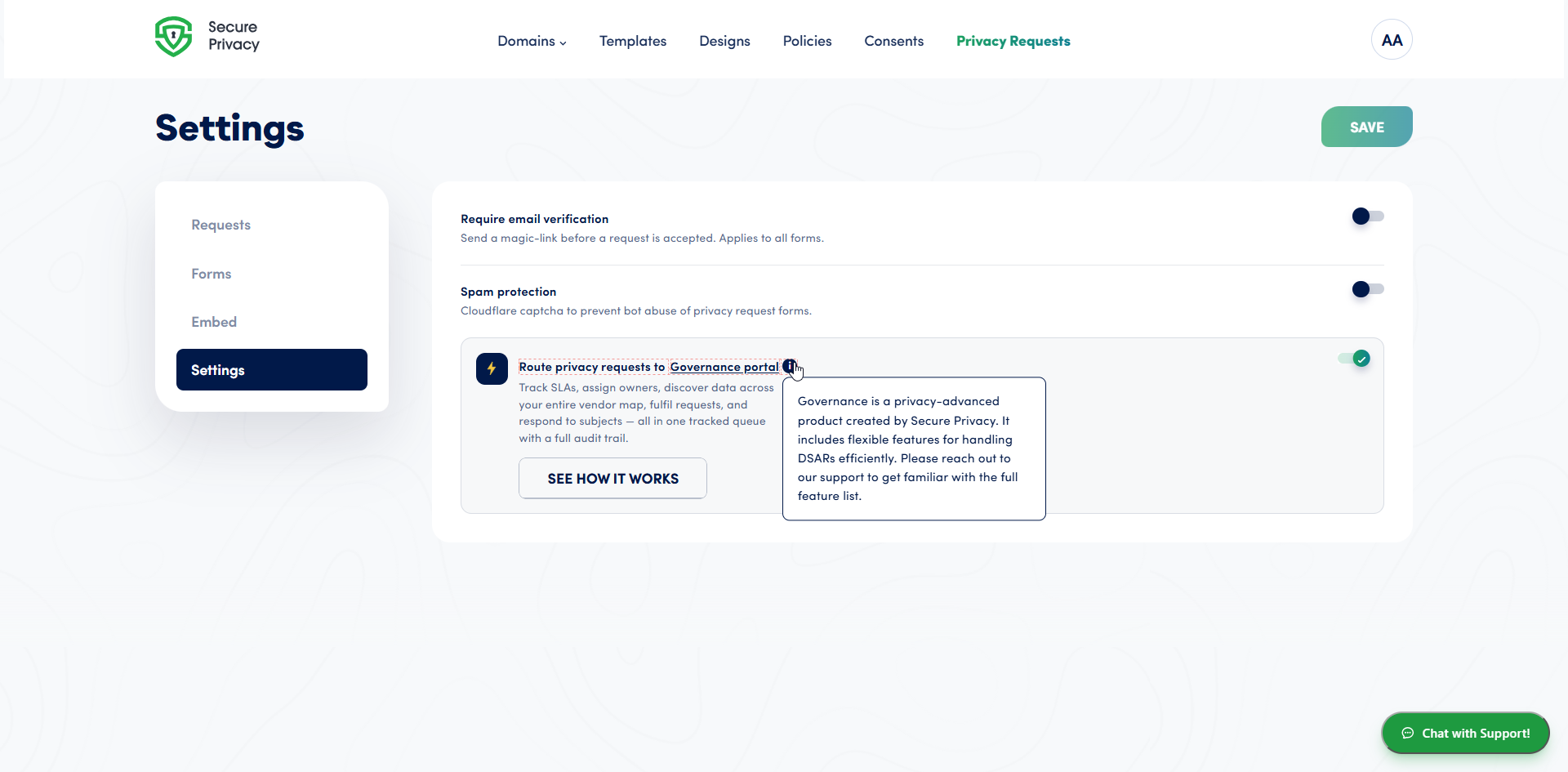
The Settings tab under Privacy Requests controls behavior for your entire account, not individual forms:
Require email verification turns on the magic-link flow: visitors must confirm their email before a request is fully accepted, which helps reduce bogus or mistaken submissions.
Spam protection enables a captcha on public DSAR forms to limit automated abuse.
Route privacy requests to Governance (when you use Secure Privacy Governance) syncs incoming requests into the Governance portal's DSAR handling module, so you can manage SLAs, ownership, fulfilment and audit trails in one place.
These switches apply globally and every form inherits them, so you set verification, security and routing once rather than per form. Form-specific choices, such as which user receives notifications, supported languages and the form name, live in each form's Form settings tab instead. Save your changes from the action bar when you are done.
Build a custom DSAR form: Forms, Form settings and Form builder
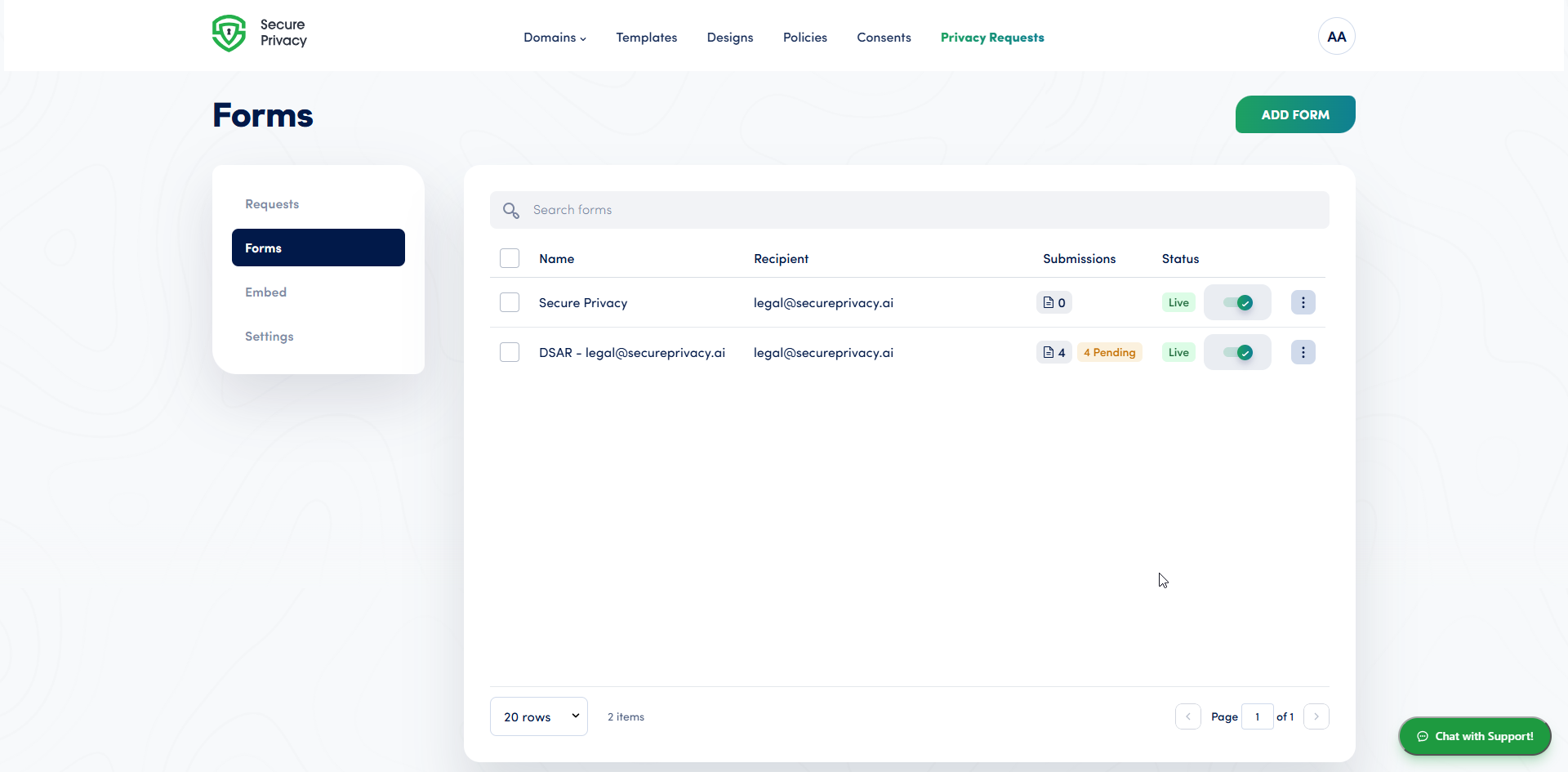
The Forms page lists all of your DSAR forms. Open a form by clicking its row or through the row's context menu, or click Add DSAR to create a new one. Each form has two tabs: Form settings for the basics and Form builder for the form itself.
Each form can be published to two targets:
Preference Center: the Data Request tab inside the consent and privacy banner on your website or mobile/TV application.
Dedicated DSAR page: a standalone page that visitors reach through the hosted form link, or from your banner when the form is set to open on its own page.
Both targets share the same form configuration, while the dedicated DSAR page offers the more advanced, step-by-step experience.
Form settings: name the form, choose the recipient and set supported languages
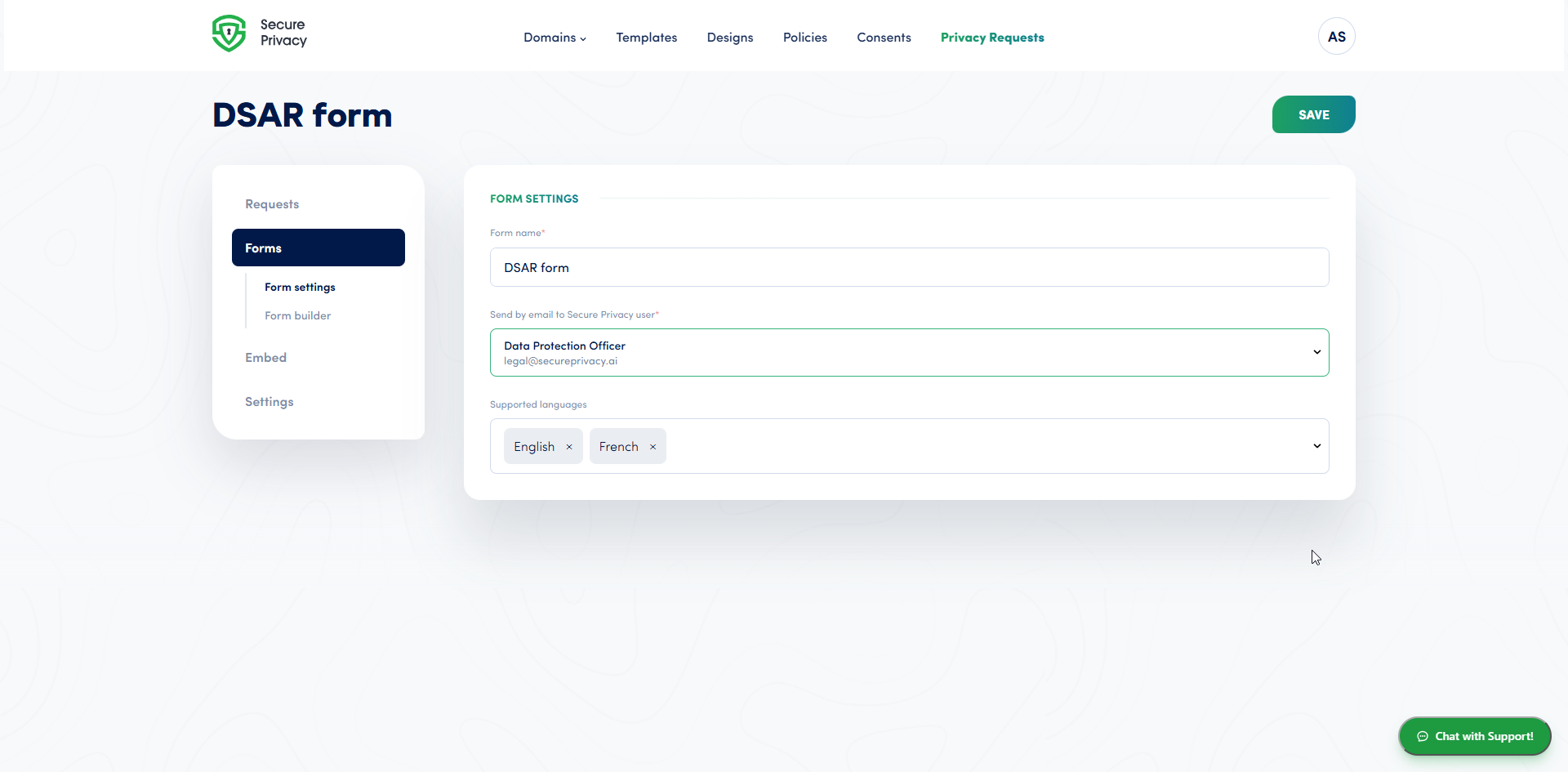
Start in Form settings, where you set the basics for each form:
Form name: how the form appears in your Forms list, the Embed form dropdown and Privacy Requests.
Send by email to Secure Privacy user: the recipient who receives an email notification for each new submission.
Supported languages: the languages your form is available in. You edit the text for each one in the Form builder tab.
Click Save to apply your settings.
Form builder: edit the text for each language and change the logo
The Form builder tab is where you design the form itself, and it is interactive: click any label, title or section heading to change its text for the selected language. Use the language switcher at the top right to move between the languages you chose in Form settings; English is the default where applicable. Section headings such as "Who is submitting?", "Request type" and "Your details", as well as the introduction text, are all editable per language.
To change the logo, click it at the top of the form builder and upload your own. The logo is shown on the public form.
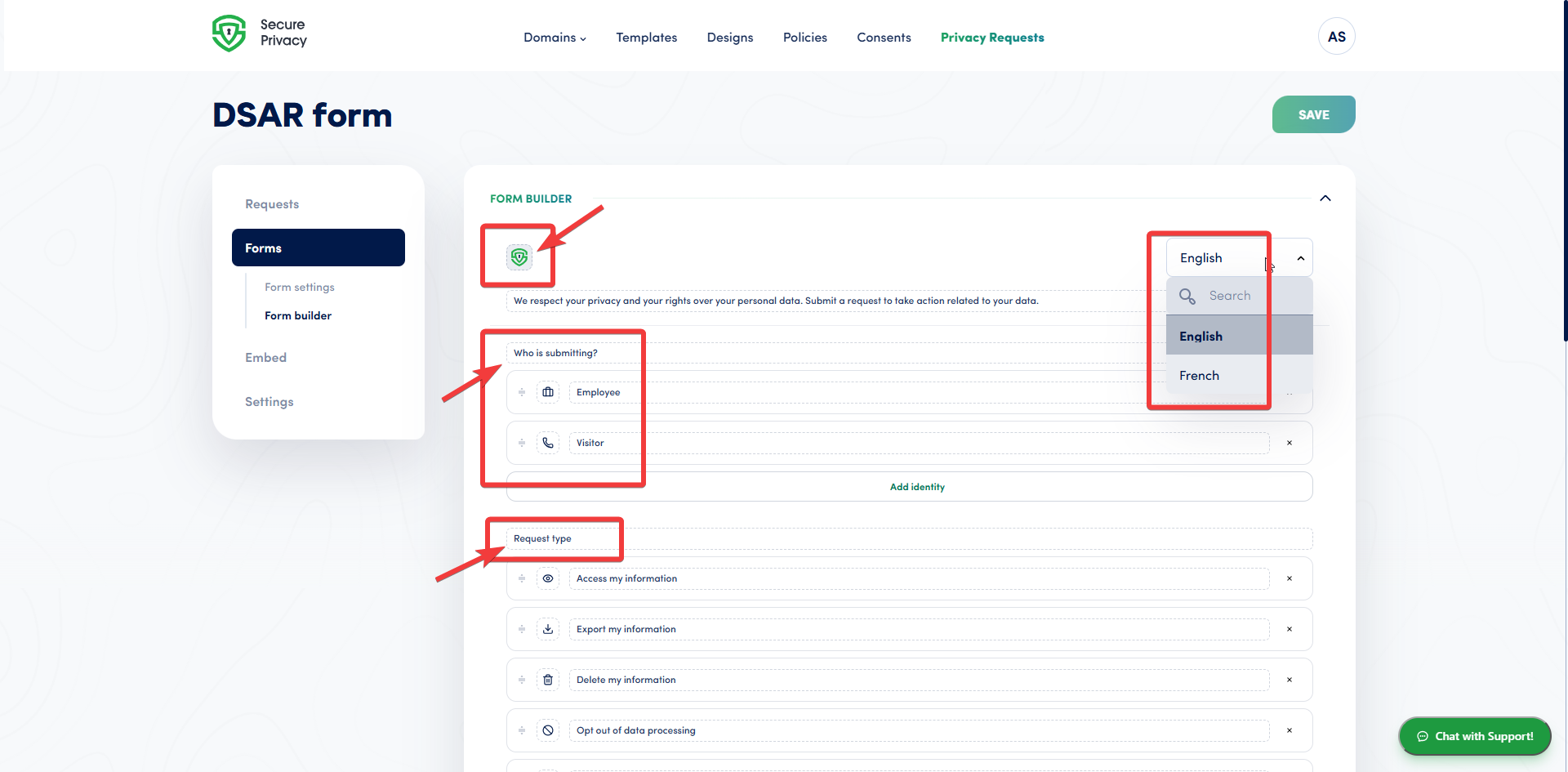
The rest of the form builder covers who is submitting, which request types you offer, and which fields each visitor sees.
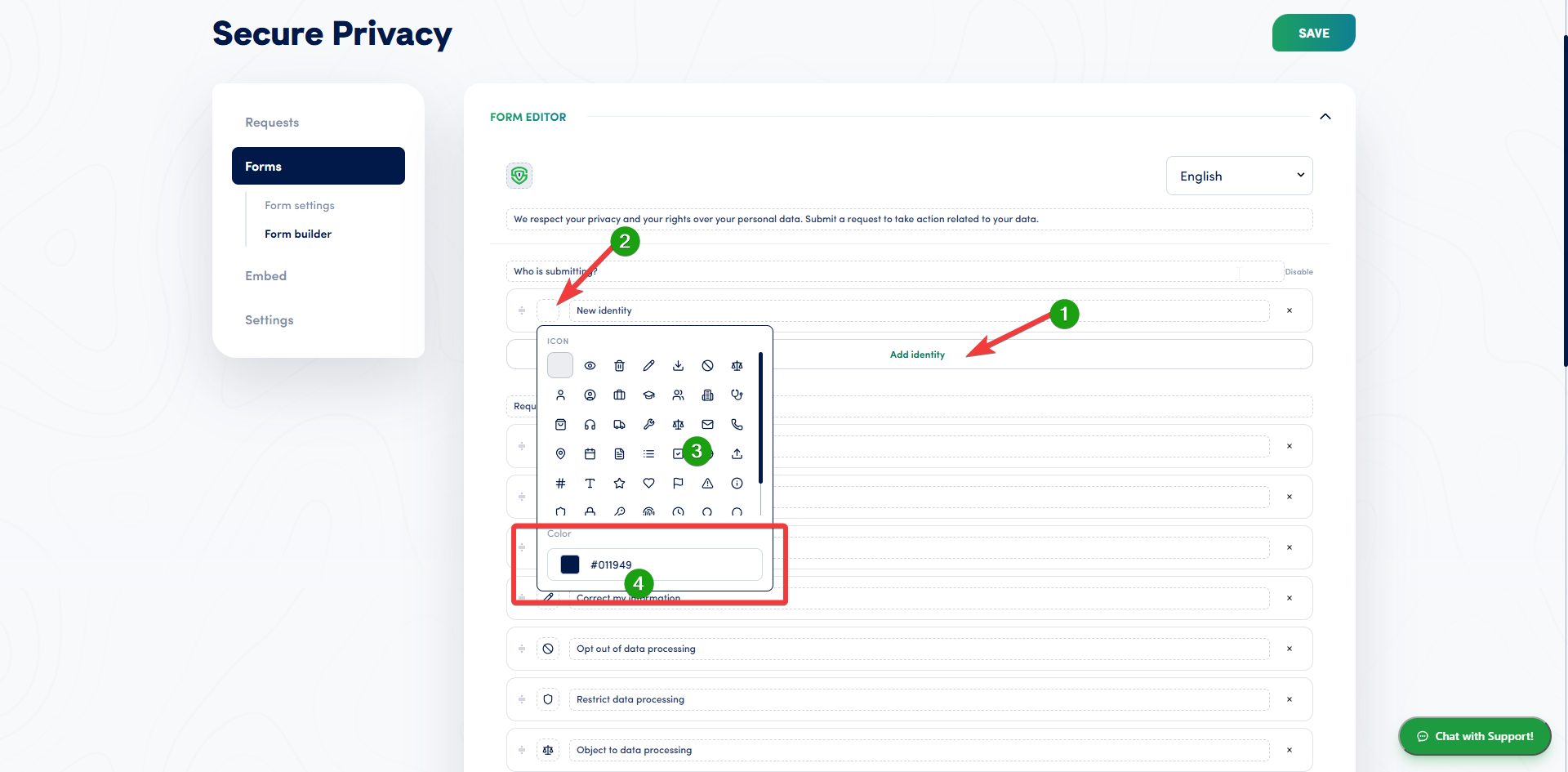
Identity selection: ask who is submitting the request (optional)
You can turn on identity selection, a step where the visitor indicates who is submitting, for example "I am the data subject" or "I am submitting on behalf of someone else". This is useful when requests can come from different groups, such as customers, employees or authorized agents acting for another person.
Identity types use the same pattern as request types: icon, color, labels per language, and enable/order controls. When enabled, identity selection appears as its own section in the form flow. The icon is optional and can be changed from the icon library or unset.
Custom DSAR request types
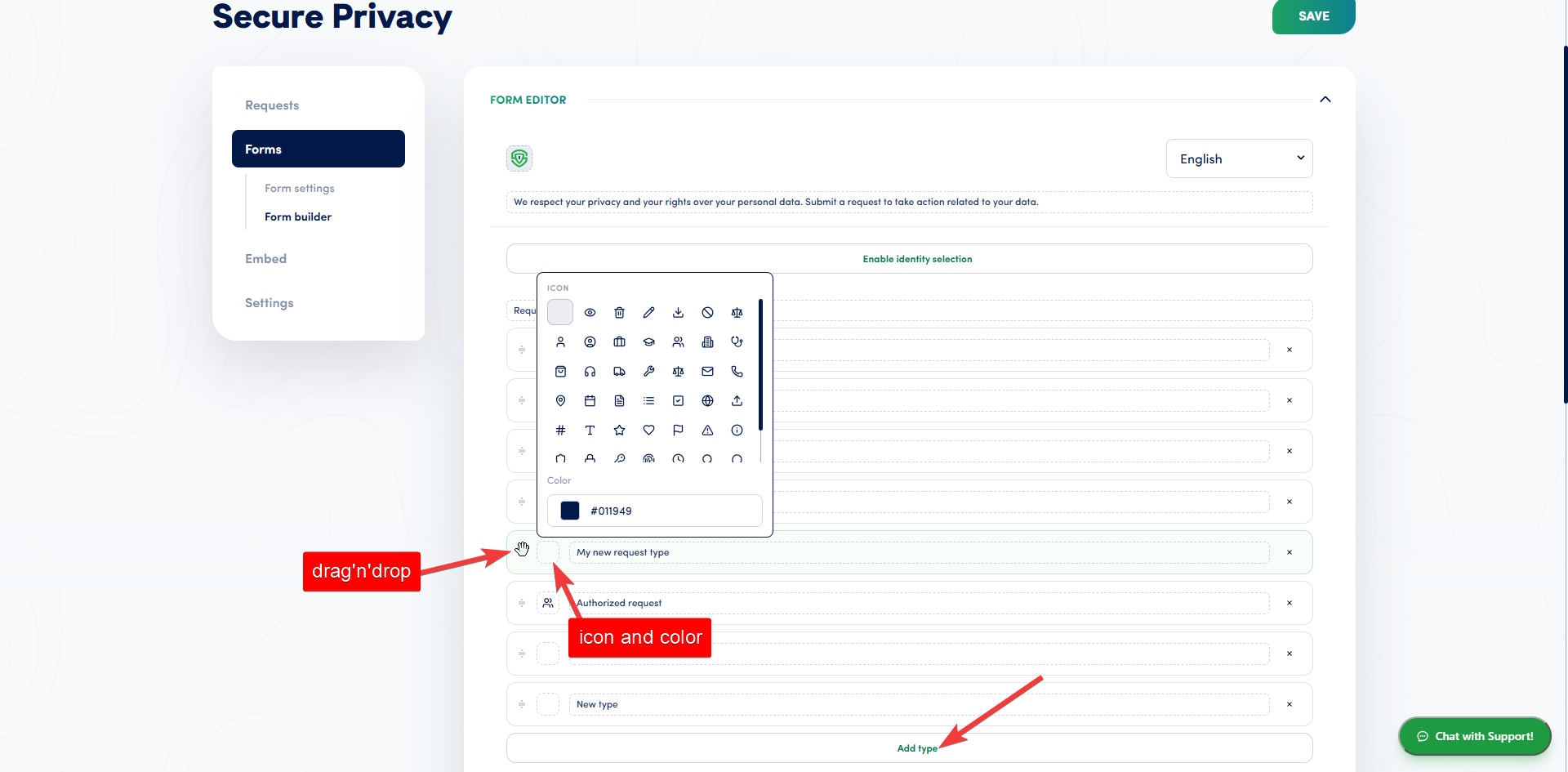
Request types are no longer limited to a predefined list. You configure tiles (or options in the Preference Center dropdown) with:
Labels per language
An icon and color
Enable/disable and reordering with drag and drop
Visitors pick a request type before, or while, filling in their details. The chosen type is stored on the submission as an English label, which is used for filtering and display in Privacy Requests.
You can add custom request types beyond the usual Access, Deletion, Correction, Export, Objection and Opt out, or delete the ones your privacy operations do not need.
Custom fields and supported field types
Supported field types include text, email, textarea, select (dropdown), radio buttons, checkboxes, country picker, advanced phone picker, date picker and file attachment. For each field you can:
Drag to reorder it
Set labels per language
Mark it as required (a simple on/off switch)
Control when the field is shown using conditional visibility
Conditional visibility: show fields only for specific request types ("Shown for")
Each field can be shown for all request and identity combinations, or only for specific request types and/or identity types:
If no restriction is set, the field is visible to everyone who reaches that part of the form.
If targets are set, the field appears only when the visitor's selected request type and/or identity type matches.
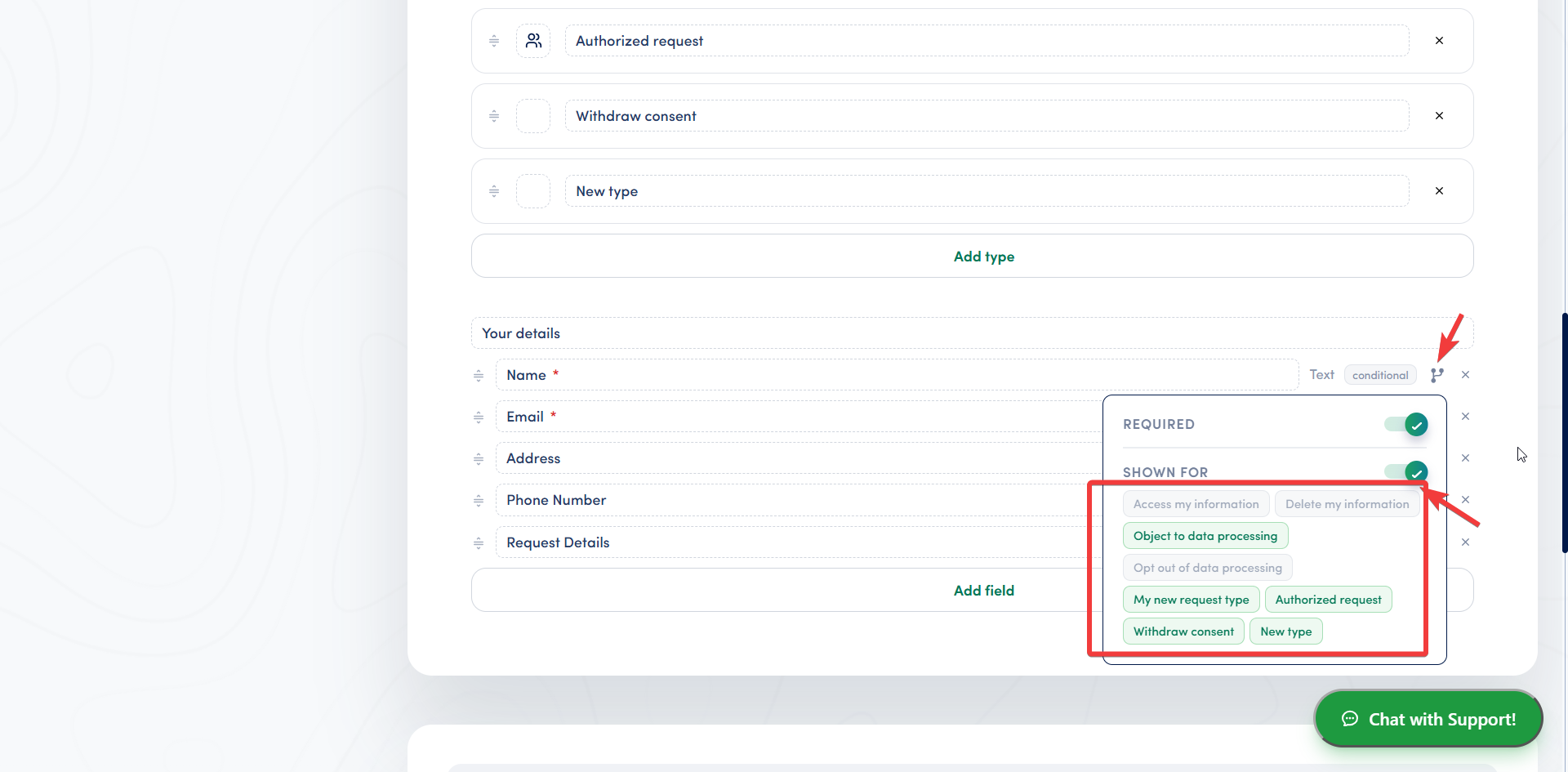
Required works separately: when a field is visible and marked required, it must be filled in before the visitor can submit. There is no separate "required only for X" rule. Visibility and requiredness work together: hidden fields are not validated, and visible required fields are. This matches how submissions are validated on the server.
Where visitors submit a DSAR
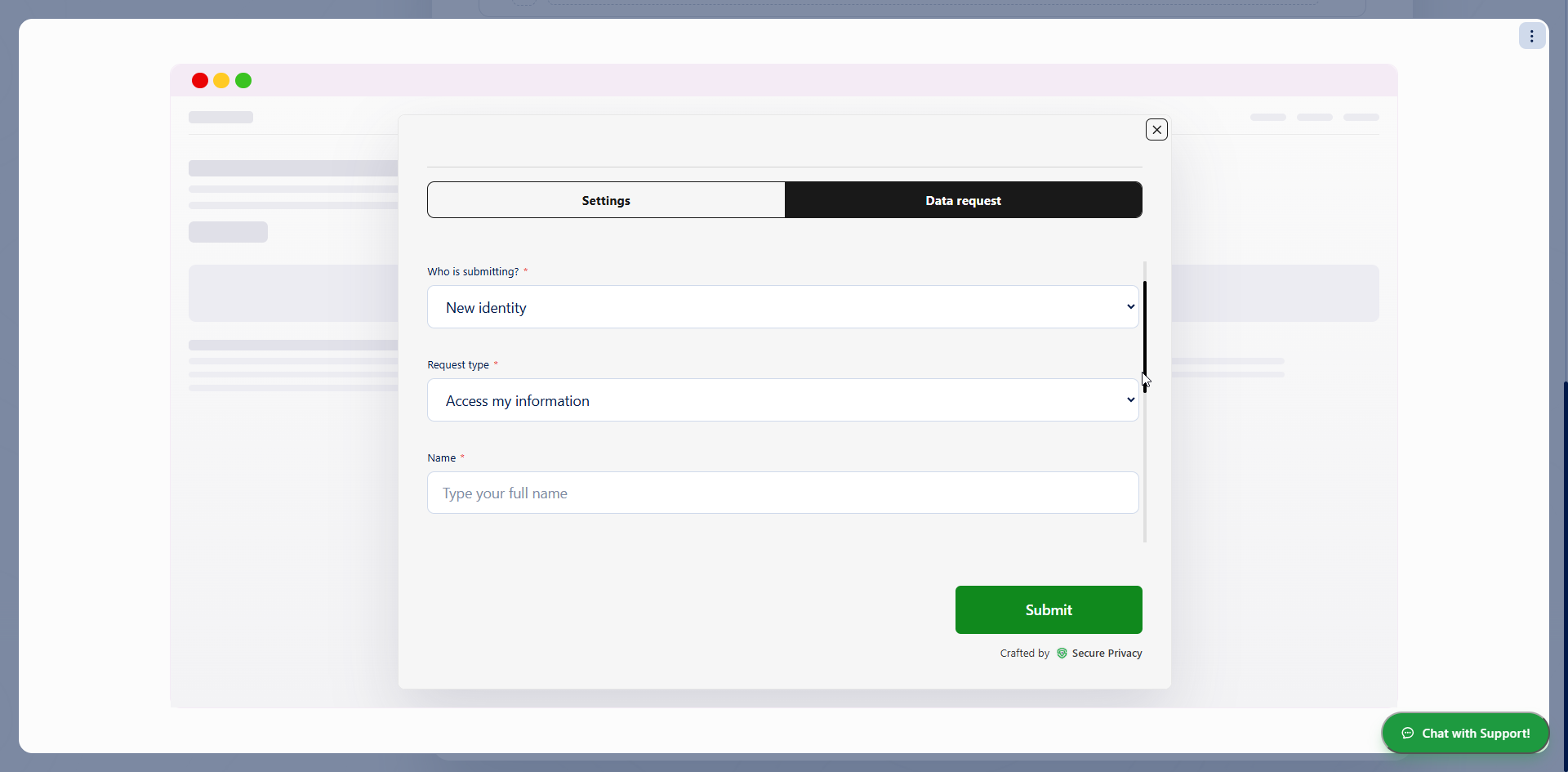
Data Request tab in the Preference Center (website banner)
When a DSAR form is linked to a domain's banner, visitors open the Privacy / Preference Center and use the Data Request tab. The compiled layout includes:
Request type (and identity type, if enabled) selectors
Your custom fields, with conditional show/hide
The submit flow, including optional email verification
Dedicated DSAR page and hosted form link (step-by-step wizard)
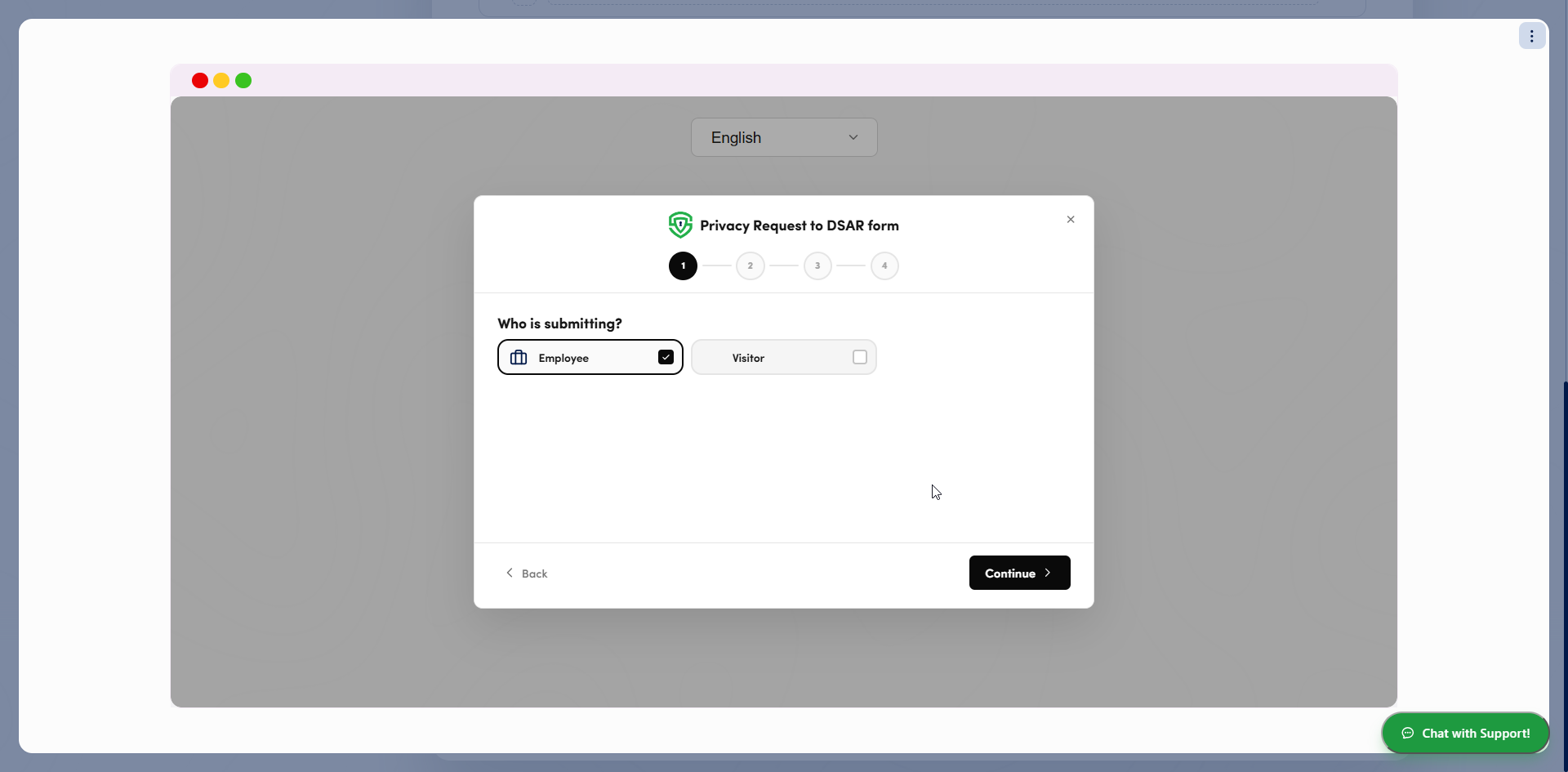
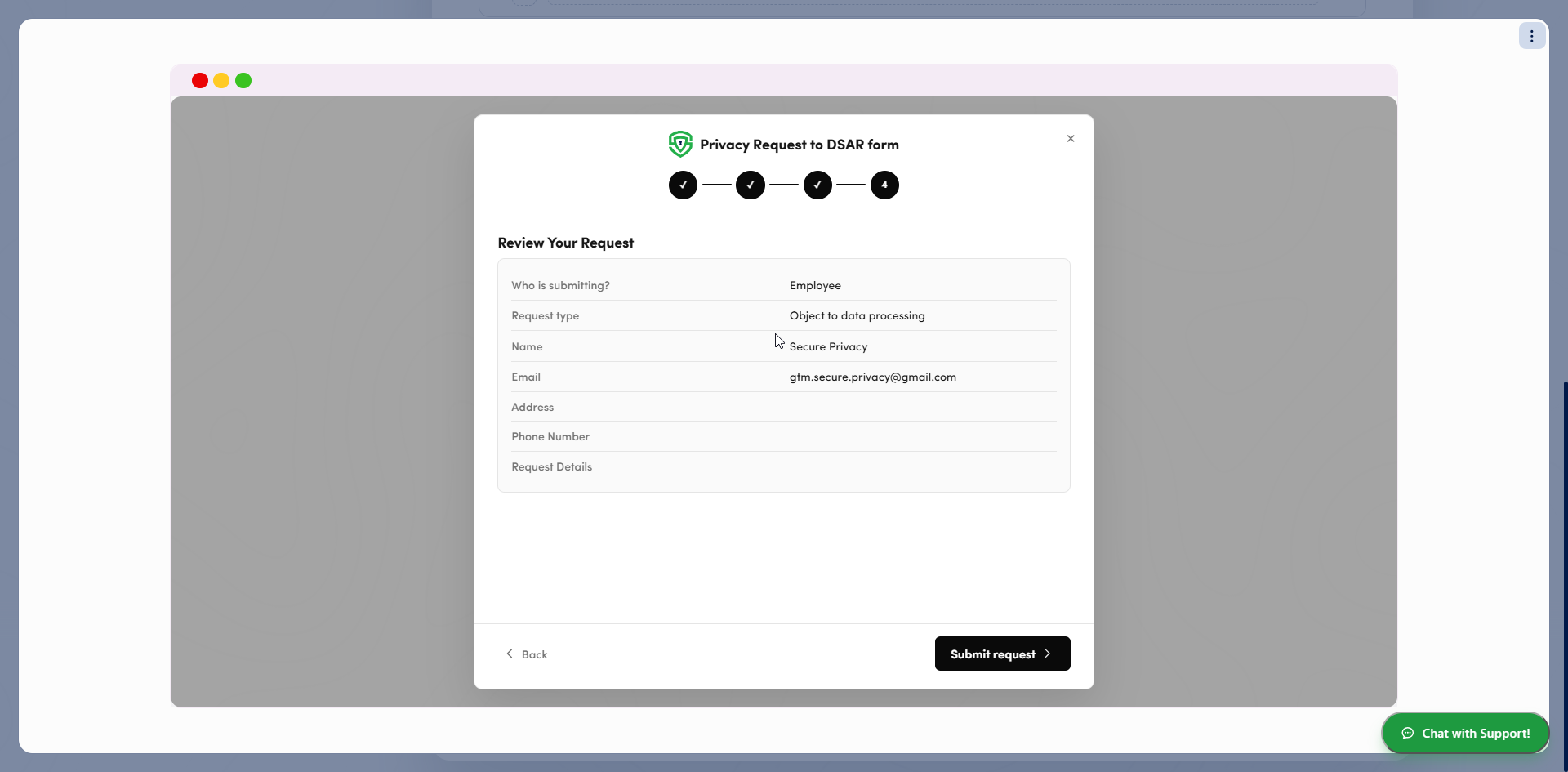
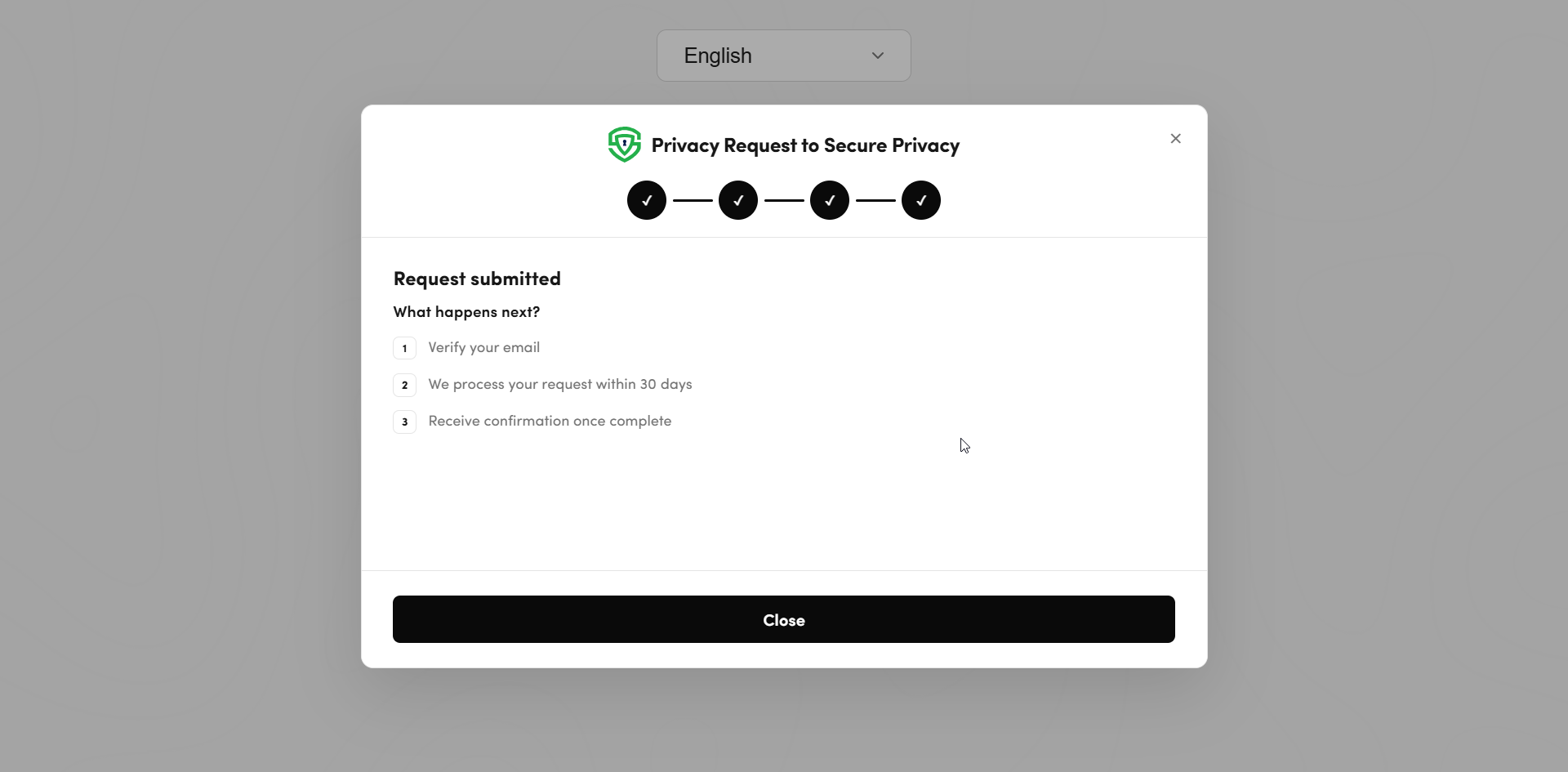
The standalone DSAR page uses a wizard-style flow when identity selection and/or multiple request types are configured: choose identity → choose request type → fill in fields → review and submit. The same configuration drives which fields appear at each step. Visitors reach this page through the hosted form link from the External tab, or from your banner when Where the form opens is set to On its own page.
Web form embed (coming soon)
The Web form embed option in DSAR settings is not active in this release. For now, publish your form with the hosted form link or the Preference Center Data Request tab.
How DSAR submissions are stored, validated and verified
What each submission stores
Field | Meaning |
|---|---|
Request type | English label of the selected request type |
Identity type | English label of the selected identity type (if identity selection was enabled and the visitor chose one) |
Controls | Answers to custom fields (keyed by field label) |
Source | Where the form was submitted (domain, app or URL context) |
Status | Including the unverified → verified flow when email verification is on |
Server-side validation of required fields
On submit, the backend checks that all visible, required fields have values, using the same conditional rules as the public forms (selected request type plus identity type). Submissions missing required visible fields are rejected with a clear message listing the missing field labels.
File attachments on DSAR forms
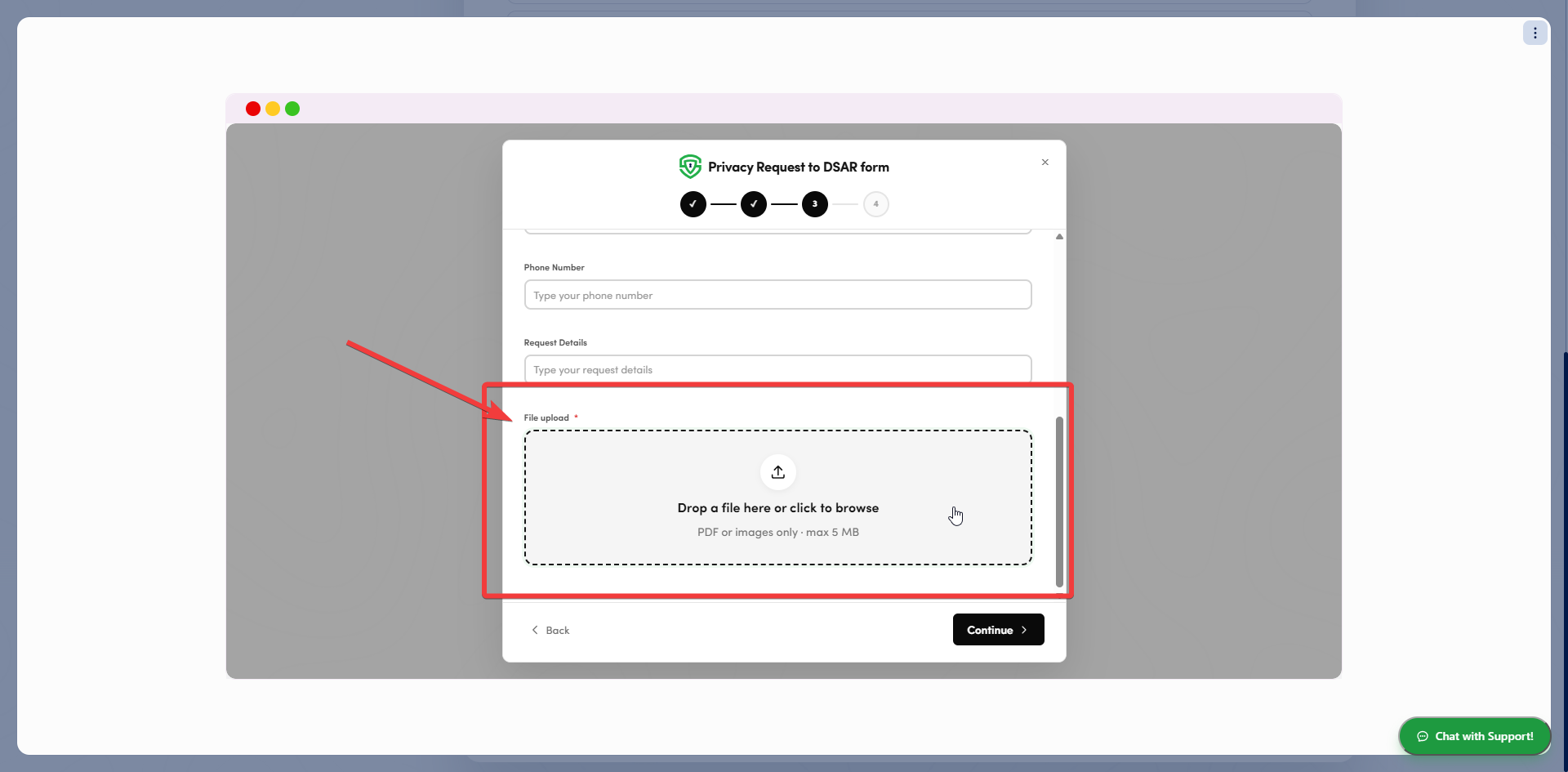
DSAR forms support file attachment fields (PDF and images; size limits apply). Files upload separately before submit, and the original file name is preserved. Admins can download attachments from the submission detail panel on the Privacy Requests page.
Email verification for DSAR submissions
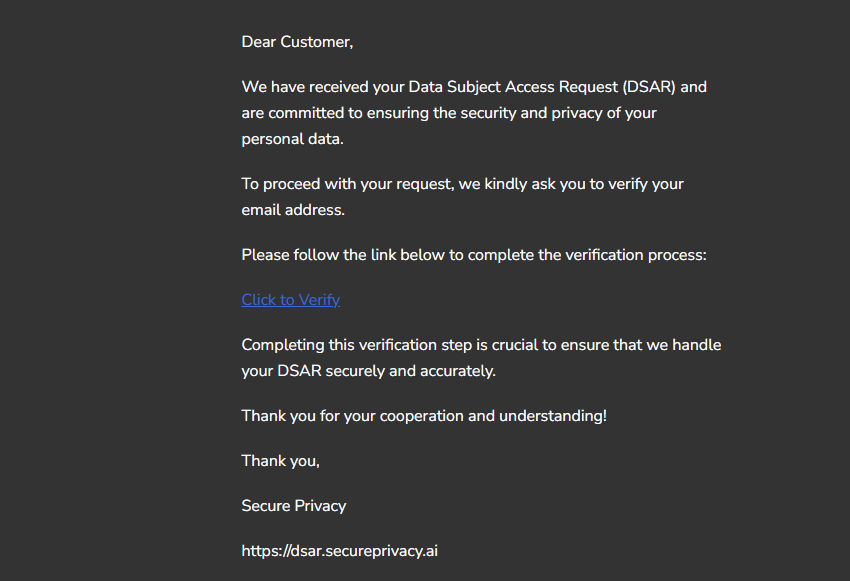
When email verification is enabled, the visitor receives a verification email after submitting. The submission stays in an unverified state until they confirm.
Important: The Privacy Requests admin panel does not show unverified submissions. A request appears there only after the visitor confirms their email address.
How to set up a DSAR form in Secure Privacy: recommended workflow
Follow these eight steps to build, publish and monitor a DSAR form with DSAR 3.0.
Step 1 - Create or open a DSAR form
In Privacy Requests, go to Forms. Click Add DSAR to create a new form, or click an existing row (or use its context menu) to open it.
Step 2 - Name the form and choose the recipient and languages
In Form settings, enter the form name, choose the Secure Privacy user who receives submission notifications, and select the supported languages. Click Save.
Step 3 - Configure request types and identity types
In Form builder, add, remove and reorder the request types your organization handles. If you need to know who is submitting, turn on identity selection and configure your identity types.
Step 4 - Add fields and set conditional rules
Add and order your fields, then set Required and Shown for where needed, so each visitor sees only the questions that apply to their request.
Step 5 - Edit the text for each language and change the logo
Use the language switcher to edit labels, headings and introduction text for each supported language, and click the logo to replace it with your own.
Step 6 - Preview the Preference Center experience
Use Preview to check how the form looks and behaves inside the Preference Center before you publish it.
Step 7 - Publish the form with a hosted link or in your banner
In Embed, copy the hosted form link from the External tab to share it anywhere. To show the form in your banner, open the Preference center tab, turn on Enable Data request tab, assign the form to your domains (and apps, if available), choose where the form opens, then click Save.
Step 8 - Monitor submissions in Privacy Requests
Review incoming requests, track each statutory deadline, and export records to CSV when you need them for audits.
What happens after your DSAR form is live
Once your form is published, the day-to-day workflow runs from Privacy Requests:
Verified submissions appear in the list, filterable by form, request type and status. If email verification is on, a request appears only after the visitor confirms their email.
The detail panel shows the statutory deadline countdown, so you can prioritize the requests closest to their legal response date.
When a request has been handled, use Mark as done to close it.
Use Export CSV to keep records for audits and accountability reporting, or route requests to Secure Privacy Governance to manage SLAs, owners and audit trails there.
For guidance on preparing the response itself, see how to handle a DSAR under GDPR Article 15.
Troubleshooting DSAR forms and privacy requests
A submitted DSAR does not appear in Privacy Requests
If Require email verification is on, unverified submissions are hidden until the visitor confirms their email. Ask the visitor to check their inbox (and spam folder) for the verification email.
The Data Request tab is not showing on my website
In Embed, then Preference Center, check that Enable Data request tab is on, that the form is assigned to the correct domain, and that you clicked Save. The Secure Privacy tag must also be installed on that domain.
The form opens on a separate page instead of inside the banner
In Embed, then Preference center, check the Where the form opens setting. Choose Inside the preference center to show the form directly in the banner, then click Save.
A field is missing from the form
Check the field's Shown for setting. If it is restricted to specific request types or identity types, it only appears when the visitor selects a matching option.
Visitors see an error about missing required fields
The server rejects submissions where a visible, required field is empty, and the error lists the missing field labels. Review which fields are marked Required and confirm the conditional rules match the request types that need them.
My CSV export has not arrived
Exports run in the background and arrive by email as a download link to a zipped CSV. Only one export can run at a time per account, and daily limits apply on paid plans. Also check your grid filters, since the export includes only the filtered results.
The Identity verified indicator is missing on a request
The indicator is shown only when verification was actually completed for that submission.
The Web form option in Embed does not work
The Web form embed is not active in this release. Use the hosted form link from the External tab or the Preference Center Data Request tab instead.
Still stuck? Submit a ticket to Secure Privacy support.
Frequently asked questions about DSAR forms and privacy requests
What is a DSAR (data subject access request)?
A DSAR is a request from an individual to exercise their rights over the personal data an organization holds about them. Depending on the law, that can include access to their data, deletion, correction, a portable export, objection to processing, or opting out of the sale or sharing of their data. GDPR, the CCPA/CPRA, LGPD and many other privacy laws give people these rights.
How long do I have to respond to a DSAR under GDPR and CCPA?
Under GDPR you generally have one month from receipt, which can be extended by two further months for complex or numerous requests if you inform the person within the first month. Under the CCPA, businesses have 45 calendar days, which can be extended once by another 45 days with notice. Secure Privacy shows a statutory deadline countdown on each request, based on the visitor's country and the applicable regulation, so you can see how much time is left at a glance.
Do I need a DSAR form on my website?
Privacy laws require you to give people a practical way to exercise their rights, and a web form is one of the most common methods and one of the easiest to document. Some laws, such as the CCPA, also specify which submission methods you must offer, so check the requirements for each jurisdiction you operate in. With Secure Privacy, the DSAR form sits in the same preference center as your cookie banner, so visitors can find it without searching through your site, and you can share it anywhere as a hosted link.
How do I verify the identity of someone who submits a DSAR?
Turn on Require email verification in the Privacy Requests Settings tab. Visitors then receive a magic link and must confirm their email before the request is fully accepted, and the Identity verified indicator appears on the submission only once verification is complete. If you need more evidence for certain request types, add a file attachment field and use Shown for to display it only where it applies. Ask only for the information you genuinely need to confirm identity.
Can someone submit a DSAR on behalf of another person?
Yes. Many privacy laws allow requests through an authorized agent, parent or guardian. Enable identity selection in the Form builder tab and add an identity type such as "I am submitting on behalf of someone else". You can then use conditional visibility to show extra fields, like a proof-of-authorization upload, only to people who choose that option. The selected identity type is stored on the submission and shown in Privacy Requests.
Can I create custom DSAR request types in Secure Privacy?
Yes. In DSAR 3.0, request types are fully configurable. Add your own types alongside Access, Deletion, Correction, Export, Objection and Opt out, give each one labels per language, an icon and a color, reorder them with drag and drop, or remove the ones you do not need.
How do I export DSAR records for an audit?
In Privacy Requests, filter the list by form, request type, status or search term, then click Export CSV. Confirm the filter summary, and you will receive an email with a download link to a zipped CSV once the export is ready. Each row includes the submission ID, form name, request type, status, contact email, source, location data, date created and all submitted field values.
Can I add a DSAR form to my mobile app?
Yes, if your account includes mobile SDK support. In Embed, then Preference Center, link the form to your mobile apps and TV apps so in-app preference centers offer the same request flow as your website.
What is the difference between the Preference Center Data Request tab and the dedicated DSAR page?
Both use the same form configuration. The Data Request tab lives inside your consent and privacy banner, so visitors can submit without leaving the page they are on. The dedicated DSAR page is a standalone, step-by-step version of the form for longer or more advanced forms. Visitors reach it through the hosted form link from the External tab, or from your banner when the form is set to open on its own page.
How do I add a DSAR link to my privacy policy?
In Privacy Requests, go to Embed, then the External tab, choose your form and copy the hosted form link. Paste it into your privacy policy with descriptive link text such as "Submit a privacy request". Visitors who follow it land on your dedicated DSAR page and can submit without you embedding anything.
Can I embed the DSAR form directly on my own web page?
Not as an embedded form yet: the Web form option is not active in this release. You can still put the form on any page by linking to it. Copy the hosted form link from Embed, then External, and add it to a button, your footer or your privacy policy.
Related articles
Managing data subject access requests (DSARs) in Secure Privacy
DSAR handling module: deadline tracking and audit logging in Secure Privacy Governance
Cookie consent and DSARs, managed in one place
Secure Privacy is a Google Gold CMP Partner covering 65+ privacy laws, with consent management, DSAR forms and privacy governance in a single platform. Start your free Secure Privacy trial (30-day free trial, no credit card required) or schedule a demo with the team.