
This guide covers the previous DSAR version (2.0)
Secure Privacy has released DSAR 3.0, which replaces most of the setup described below with a new visual DSAR form builder, custom request types, identity selection, conditional fields and CSV export. Much of this article no longer matches what you will see in your account.
Only continue below if you are still working with a DSAR form created before DSAR 3.0.
Every website that collects personal data is legally required to give visitors a way to exercise their privacy rights — the right to access, delete, correct, or export the data you hold about them. Under GDPR, CCPA, LGPD, and 65+ other privacy laws, failing to provide a working, documented intake process for these requests isn't just a compliance gap: it's an enforcement risk. Yet most organisations still handle data subject access requests (DSARs) through ad-hoc email inboxes, spreadsheets, or generic contact forms — approaches that leave you exposed when regulators or auditors ask for evidence of timely, structured responses.
Dedicated DSAR management software closes this gap. The Secure Privacy CMP includes a built-in DSAR module that lets you create branded, multi-language privacy request forms, embed them on any website or app, route submissions to the right team members or to the Secure Privacy Governance Portal for centralised compliance tracking, and manage everything — including bulk operations across multiple properties — from a single dashboard.
This guide covers everything you need to configure, embed, and manage DSARs in Secure Privacy, including the latest DSAR 2.0 features that make the module faster to set up and easier to scale across multi-domain organisations.
By the end of this article you will be able to: create a DSAR form, customise its fields and request types, embed it on your website, route submissions to your team or Governance Portal, and handle incoming requests in a fully auditable, regulation-ready workflow.
Who Is This Guide For?
This article is written for Account Administrators on the Secure Privacy CMP. It is relevant to anyone responsible for privacy compliance, including Data Protection Officers (DPOs), legal teams, marketing operations managers, and web developers implementing privacy request forms on behalf of their organisation.
Overview: The Secure Privacy DSAR Module
The DSAR section of the Secure Privacy CMP is your central workspace for creating and managing Data Subject Access Request forms — the privacy rights intake mechanism through which website visitors can submit requests to access, delete, export, or correct their personal data. With DSAR 2.0, the module is now a dedicated, top-level feature in Secure Privacy Web, fully decoupled from the Template system, so DSAR management is easier to find, easier to configure, and easier to scale across multiple properties.
Each DSAR is a standalone, configurable form that can be:
Linked to one or more of your registered domains, mobile apps, or TV apps
Presented in multiple languages (70+ supported)
Customised with your organisation's branding and field labels
Routed to the Secure Privacy Governance Portal for centralised compliance tracking, or delivered by email to a designated team member or external DPO
Embedded on any webpage via a lightweight JavaScript widget
Prerequisites
An active Secure Privacy account with Account Administrator permissions
At least one domain or mobile app registered in your Secure Privacy workspace
Access to the page source of your website (to paste the embed script), or a developer who can add a
<script>tag for you(Optional) Access to the Secure Privacy Governance Portal if you intend to route submissions there — contact [email protected] to enable it
Navigating to the DSAR Module
Log in to the Secure Privacy CMP at cmp.secureprivacy.ai.
Click DSAR in the top navigation bar.
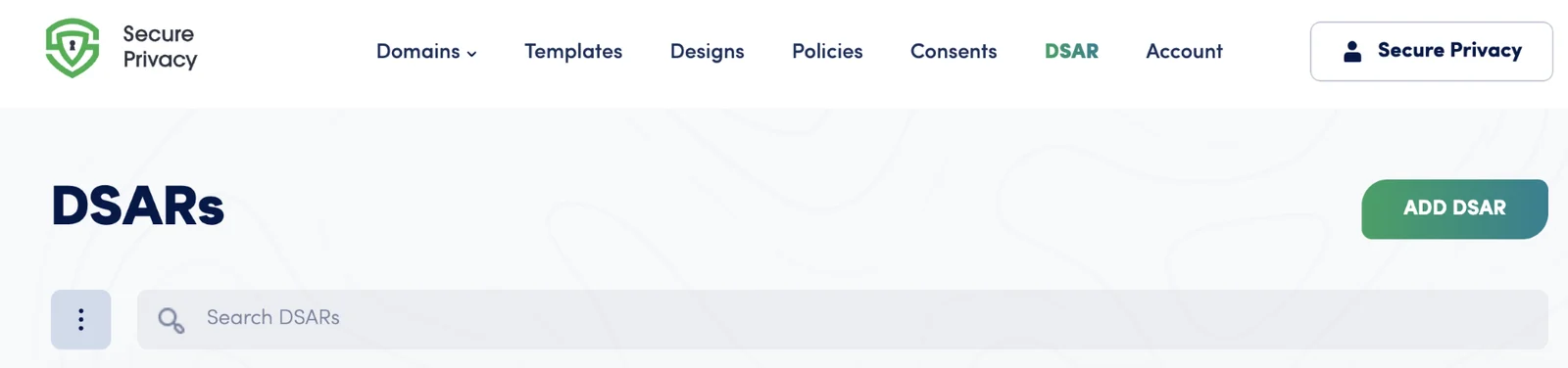
The DSAR list page shows all existing forms. Each row displays:
Element | Description |
|---|---|
Name | The label you assigned the DSAR form |
Toggle | Enables or disables the form (green = active) |
⋮ menu | Per-item actions: Edit, Duplicate, Delete |
Use the Search DSARs bar to filter by name. The ⋮ icon at the top left of the list lets you Select All or Deselect All items for bulk operations.
DSAR 2.0 — Bulk Management: The DSAR list now fully supports multi-select, Select All / Deselect All, and bulk actions including bulk enable, bulk disable, and bulk delete. This makes managing DSARs across many properties significantly faster.
Creating a New DSAR Form
Step 1 — Open the DSAR Creation Flow
On the DSAR list page, click the green ADD DSAR button in the top right corner. You are taken to the DSAR Settings page for the new form.
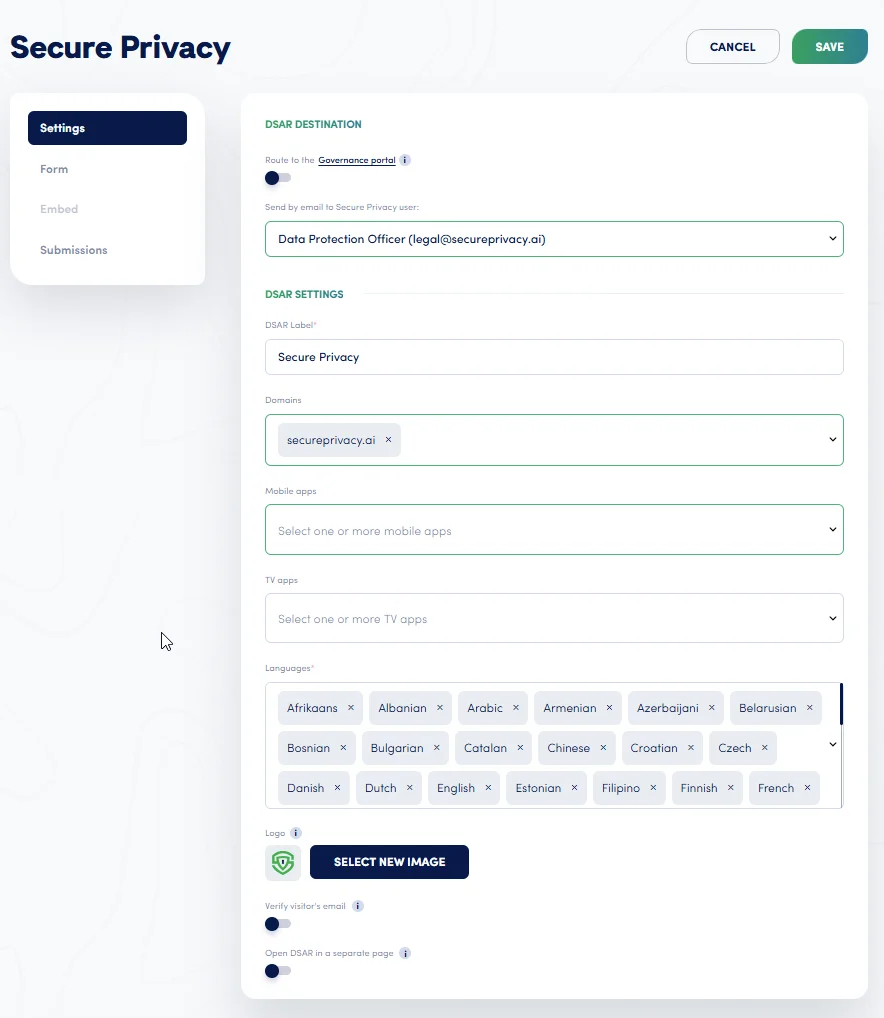
Step 2 — Configure the DSAR Destination
The DSAR Destination section sits at the top of DSAR Settings and answers the most important operational question: where should incoming DSAR submissions go?
Field | Description |
|---|---|
Route to the Governance Portal | Toggle ON to send all incoming requests to governance.secureprivacy.ai for centralised tracking, compliance dashboards, automated actions, and risk/compliance evaluation at scale. |
Send by email to your organisation user | Select a team member from your organisation in the dropdown to receive email notifications for each new request. In DSAR 2.0, you can also assign an external user — such as an external DPO, legal team, or third-party privacy vendor — who does not require platform access. |
Tip: You can enable both routing options simultaneously — submissions will be sent to the Governance Portal and trigger an email notification to the designated user.
Step 3 — Fill In DSAR Settings
Complete the fields in the DSAR Settings section:
Field | Required | Description |
|---|---|---|
DSAR Label | Yes | An internal name for this form (e.g., "Main Website DSAR"). Visible in the list view only. |
Domains | No | Link one or more of your registered domains so the widget activates on those sites. |
Mobile apps | No | Associate one or more of your registered mobile apps. DSAR 2.0 makes domain and mobile app assignment consistent and reduces misconfiguration risk. |
TV apps | No | Associate one or more of your registered TV apps. |
Languages | Yes | Select which languages the DSAR form should support. All major languages are pre-selected by default; remove any that are not relevant to your audience. |
Logo | No | Upload a brand logo to display at the top of the DSAR form. Click SELECT NEW IMAGE to upload. |
Verify visitor's email | No | When enabled, the submitter receives an email verification step before their request is logged. Recommended for GDPR compliance to confirm identity. |
Open DSAR in a separate page | No | When enabled, the form opens in a dedicated full-screen page instead of as an inline widget. When this option is active, the Captcha setting becomes available as an additional spam-prevention layer. |
Step 4 — Save the DSAR
After filling in all required fields (marked with *), click SAVE to create the DSAR. It will immediately appear in your DSAR list.
Editing an Existing DSAR
There are two ways to open an existing DSAR for editing:
Click the DSAR name directly in the list — this opens the Settings tab.
Click the ⋮ menu on the row, then select EDIT.
```html
```
Once inside, navigate across four tabs using the left sidebar:
Tab 1 — Settings
Contains all the same fields described in the Create section above (Destination, Label, Domains, Mobile Apps, Languages, Logo, verification toggles, and separate-page mode). Make your changes and click SAVE.
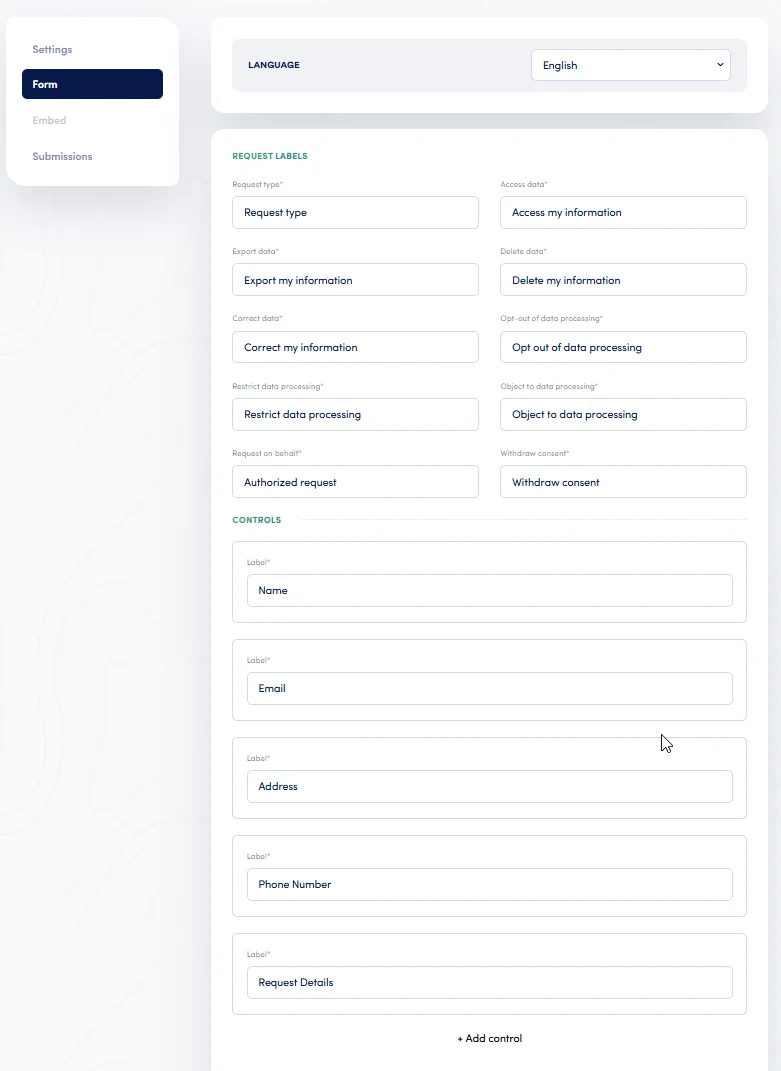
Tab 2 — Form
Controls the language and field labels that end users see when filling out your DSAR form. DSAR 2.0 introduces more flexible form configuration throughout this tab.
Language selector
At the top of the tab, select the language you want to configure labels for. Changes to labels are language-specific, so you can maintain different label sets for each language your form supports.
Request Labels
Each label corresponds to a privacy request type button shown to the visitor. DSAR 2.0 provides nine standardised request types designed to cover the most common GDPR and CCPA scenarios, reducing ambiguity for visitors and improving internal routing and reporting consistency. All labels are fully editable — rename them to match your organisation's brand voice or legal terminology.
Field | Default label |
|---|---|
Request type | Request type |
Access data | Access my information |
Export data | Export my information |
Delete data | Delete my information |
Correct data | Correct my information |
Opt-out of data processing | Opt out of data processing |
Restrict data processing | Restrict data processing |
Object to data processing | Object to data processing |
Withdraw consent | Withdraw consent |
Controls (Form Fields)
This section defines the input fields shown on the form. DSAR 2.0 makes these controls more configurable, so you can match the DSAR experience to your organisation's needs without custom development. The default controls are:
Name — the submitter's full name
Email — a dedicated email input type (new in DSAR 2.0) that captures visitor email in a structured way, improving consistency and downstream processing
Address — postal address
Phone Number — contact phone
Request Details — a free-text area for the submitter to describe their request
To add a custom field, click + Add control at the bottom of the controls list. Click SAVE after making any changes.
Tab 3 — Embed
Provides the JavaScript snippet to place the DSAR widget on your website - the feature is asctively being worked on and is not available at the moment.
Tab 4 — Submissions
The Submissions tab is designed for monitoring and quick triage of incoming privacy requests. It provides:
Element | Description |
|---|---|
Total submissions counter | A summary count of all requests received so you can immediately see volume at a glance |
Date range filter | Filters the list to a specific time window (default: last 30 days) |
Search requests | Full-text search across key submission fields (email, source, type) to quickly locate relevant requests |
Table columns | Email · Date · Source · Type — each submission includes an identifier and timestamp for traceability and correlation with internal processes |
For advanced DSAR management: The submissions list in Secure Privacy Web shows only the essential fields needed for monitoring and basic triage. Full submission details, deeper context, structured processing, risk and compliance evaluation, and automated workflows are available in the Secure Privacy Governance Portal. Contact [email protected] for access.
Managing DSARs: Duplicate, Delete, Enable, and Disable
Duplicating a DSAR
Duplicating is useful when you want to create a variation of an existing form for a different domain without starting from scratch:
Click the ⋮ menu on the DSAR row.
Select DUPLICATE.
A copy is created with all settings preserved. Edit the duplicate's label, domains, and other fields as needed.
Deleting a DSAR
Click the ⋮ menu on the DSAR row.
Select DELETE (shown in red).
Confirm the deletion when prompted.
Warning: Deleting a DSAR is permanent. Any embedded widget using that DSAR's ID will stop working immediately. Submissions associated with the DSAR will no longer be accessible from the CMP. If you are unsure, disable the DSAR instead of deleting it.
Enabling and Disabling a DSAR
Use the toggle on each row to turn a DSAR on or off without deleting it. When disabled, the embedded widget will not accept new submissions, but all existing submissions and configuration are fully preserved. You can also bulk-enable or bulk-disable multiple DSARs at once using the multi-select controls in the list header.
Troubleshooting Common DSAR Issues
The DSAR widget is not appearing on my website
Check that the embed snippet has been pasted into the <head> of the page (not the <body> or footer). Confirm that the data-dsar-id in the snippet matches the ID shown in the Embed tab of the correct DSAR form. Finally, check that the DSAR is enabled (green toggle in the list).
I am not receiving email notifications for new submissions
In the DSAR Settings, confirm that the Send by email destination is toggled on and a user (or external recipient) is selected in the dropdown. Check your spam folder. If the problem persists, contact [email protected].
Submissions are not appearing in the Governance Portal
Confirm that the Route to the Governance Portal toggle is enabled in DSAR Destination settings. If you do not yet have a Governance Portal account, contact [email protected] to request access.
I duplicated a DSAR but the widget is still showing the old form
Each DSAR has a unique data-dsar-id. After duplicating, go to the new DSAR's Embed tab, copy the updated snippet, and replace the old snippet on the target pages.
Frequently Asked Questions
What is a DSAR and am I legally required to have one?
A Data Subject Access Request (DSAR) is a formal mechanism through which individuals exercise privacy rights granted by laws such as GDPR (EU/UK), CCPA (California), LGPD (Brazil), and many others. These rights include the right to access personal data, delete it, correct it, export it, or opt out of certain processing activities. If your website collects personal data from individuals in any of the 65+ jurisdictions with privacy legislation, you are legally required to provide a way for them to submit these requests and to respond within prescribed timeframes (30 days under GDPR, 45 days under CCPA).
Can one DSAR form cover multiple domains?
Yes. In the Settings tab, you can select multiple domains and the same form will serve all of them. The same applies to mobile apps — you can assign a single DSAR form to multiple registered mobile properties.
What is the difference between the CMP submissions view and the Governance Portal?
The Submissions tab inside the Secure Privacy CMP is designed for quick monitoring — it shows essential fields (email, date, source, type) and a submission counter so you can track volume and perform basic triage. The Governance Portal (governance.secureprivacy.ai) provides full submission details, deeper compliance context, structured processing workflows, risk and compliance evaluation, and automated actions at scale. For organisations that need to demonstrate regulatory compliance, the Governance Portal is strongly recommended.
What happens if I don't route to the Governance Portal?
If the Governance Portal toggle is off, requests are only delivered by email to the designated Secure Privacy user emailbox (or external recipient mailbox). The tracking has to happen on the mailbox level, dashboards, workflows are also to be created and controlled by the mailbox owner. For small volumes and simple workflows, email-only routing may be sufficient. For multi-domain organisations or those subject to regular audits, the Governance Portal provides the audit trail and structured processing that regulators expect.
Can I add fields beyond the defaults on the DSAR form?
Yes. Use + Add control in the Form tab to add custom input fields to the form. DSAR 2.0 makes controls more configurable than before, allowing you to tailor the form to your organisation's specific data collection practices without custom development.
How do I display the DSAR form in a different language on specific pages?
Update the data-lang attribute in the embed script to the appropriate language code before placing it on a specific page (for example, data-lang="de" for German). You can also set the default language for all instances of a DSAR widget using the Default language dropdown in the Embed tab.
Can an external DPO or legal team handle DSAR submissions without a Secure Privacy account?
Yes. DSAR 2.0 introduces support for external recipients: you can assign a DSAR email destination to an external user — such as an external Data Protection Officer, a legal team, or a third-party privacy vendor — who does not need a Secure Privacy platform login. They will receive email notifications for each new submission and can process requests through their own systems.
What happens when I delete a DSAR form?
Deleting a DSAR form is permanent. The embedded widget on your website will stop working immediately (it will no longer display or accept submissions), and submission records associated with that DSAR will no longer be accessible from the CMP. If you want to stop accepting new submissions temporarily while preserving the configuration and historical data, use the toggle to disable the DSAR instead.