
An expired card or a missing invoice shouldn't put your cookie consent compliance at risk — but it happens. When a payment fails on your Secure Privacy subscription, your consent banners can go dark, leaving your website exposed to GDPR, CCPA, and ePrivacy enforcement. And when your finance team asks for a PDF invoice, hunting through email threads is the last thing you need.
Secure Privacy keeps everything in one place. The Billing page lets you update your payment method in seconds, while the Billing History page gives you a filterable, downloadable record of every transaction — no support ticket required.
By the end of this guide, you'll know exactly how to update your card details, read your invoice status at a glance, and download receipts for your business records.
Who Is This For?
This article is for any Secure Privacy account holder who needs to:
Update or replace an expired or declined credit/debit card
Review past charges on their Secure Privacy subscription
Download PDF invoices for accounting or VAT purposes
How to Update Your Payment Method
The Billing page in your Secure Privacy account dashboard is where you add and manage the credit or debit card associated with your subscription. To update your card, navigate to Account → Billing and enter the following details:
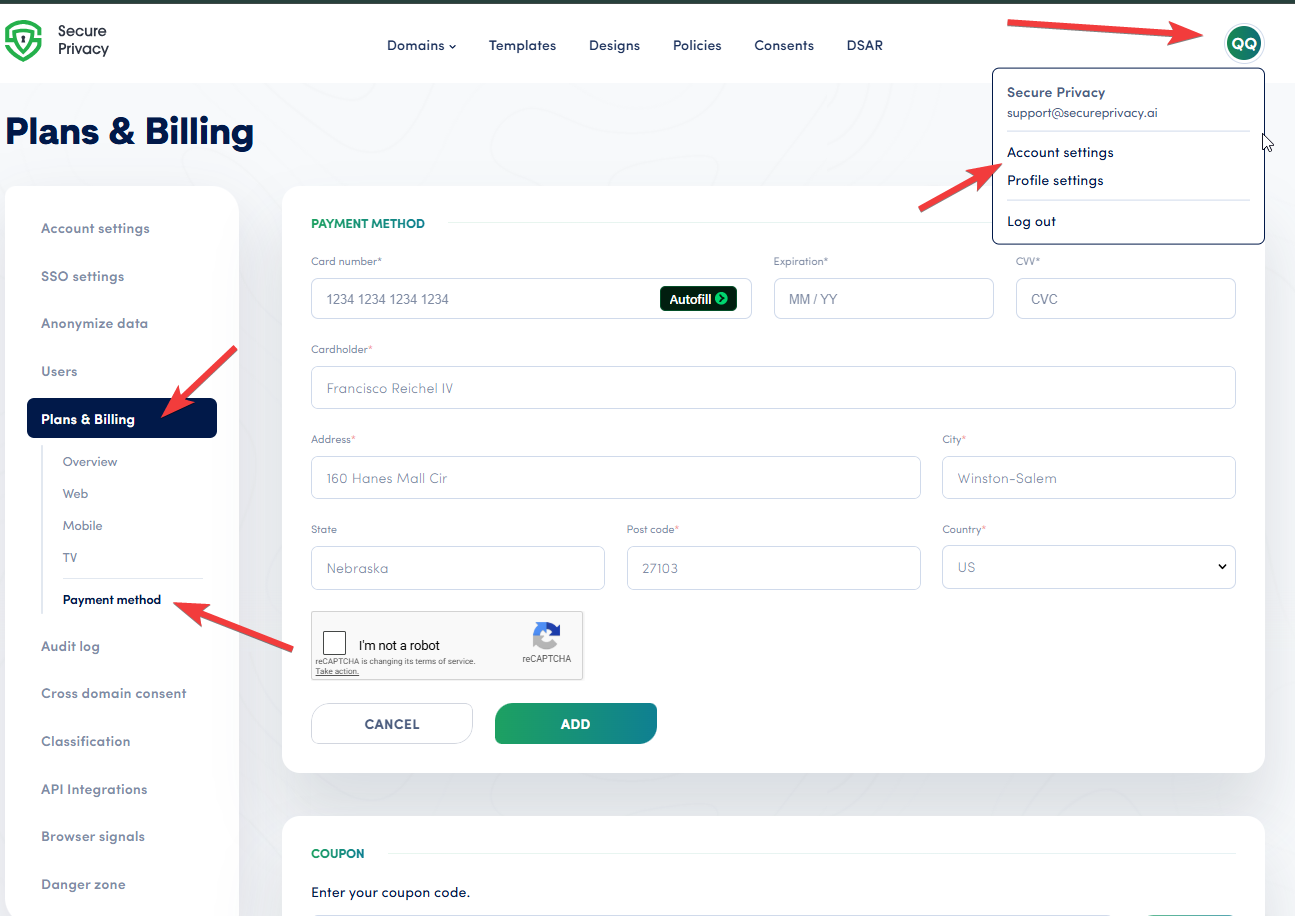
The Billing page in the Secure Privacy account dashboard.
Card Number: The 16-digit number on the front of your credit or debit card.
Expiration Date: The card expiry date, typically formatted as MM/YY.
CVV: The 3- or 4-digit Card Verification Value found on the back of your card, used to verify authenticity.
Cardholder Name: The full name exactly as it appears on your credit or debit card.
Address: The billing address associated with your card.
City, State, and Post Code: Must match the information registered to your card.
Country: The country where your card was issued.
Keeping your payment information accurate and up to date ensures uninterrupted access to your Secure Privacy subscription and prevents any gap in your cookie consent coverage.
How to View and Download Your Billing History
The Billing History page provides a complete, filterable log of all charges on your Secure Privacy account. Use it to verify payments, check for outstanding invoices, and download receipts for your records.
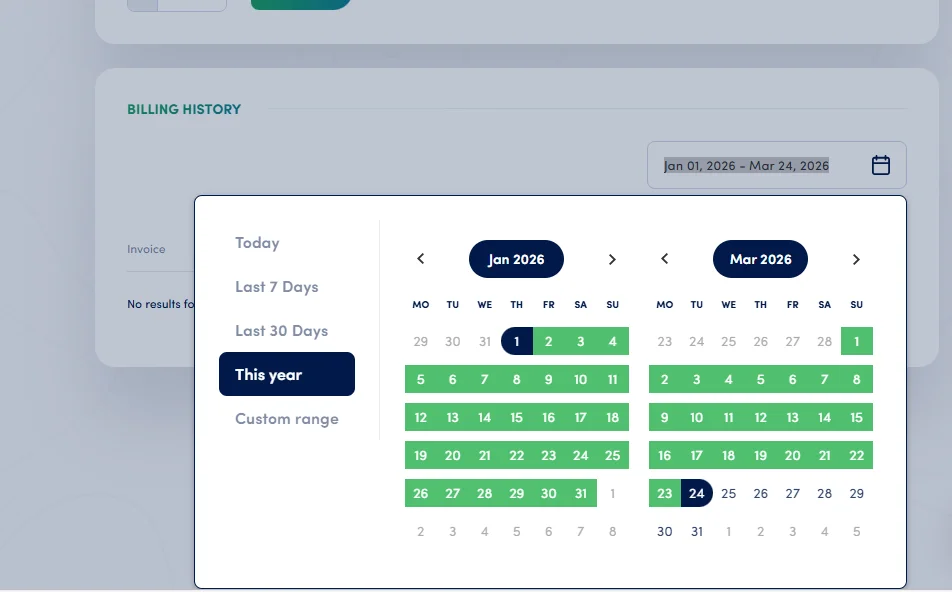
The Billing History page, with date filters and downloadable invoices.
You can filter your transaction history by the following time periods: Today, Last 7 Days, Last 30 Days, This Year, or a Custom Date Range.
Each invoice entry includes:
Invoice Number: A unique identifier for each invoice (for example, "AAA11111-1111").
Date: The date on which the invoice was issued.
Amount: The total amount charged for the specified billing period.
Status: Indicates whether the invoice is Paid, Pending, or Overdue.
Download: Click the download icon to save a PDF copy of the invoice for personal or business record-keeping.
Regularly reviewing your Billing History and keeping your payment details current will help you avoid service disruptions, stay on top of your account status, and maintain an accurate record of all transactions.
Troubleshooting Common Billing Issues
Payment declined: Double-check that the card number, expiry date, CVV, and billing address all match your bank's records exactly. Some banks also require you to authorise online SaaS charges — contact your card issuer if the problem persists.
Invoice shows "Overdue": Update your payment method immediately and then contact Secure Privacy Support to reprocess the charge.
Can't download a PDF invoice: Ensure your browser isn't blocking pop-ups or downloads from the Secure Privacy domain. Try a different browser if the issue continues.
Invoice not visible in Billing History: Use the Custom Date Range filter to widen your search window, or check that you are logged in to the correct account.
Frequently Asked Questions
How do I update my payment method on Secure Privacy?
Log in to your Secure Privacy account, navigate to Account → Billing, and enter your new card details (card number, expiry, CVV, cardholder name, and billing address). Save your changes to apply the new payment method immediately.
Where can I download invoices for my Secure Privacy subscription?
Go to Account → Billing History. Find the invoice you need using the date filters, then click the Download icon on that row to save a PDF copy to your device.
What happens to my cookie consent banners if my payment fails?
If a payment fails and your Secure Privacy subscription lapses, your cookie consent banners may stop displaying, which can put your website out of compliance with GDPR, CCPA, and ePrivacy regulations. Update your payment method as soon as possible to restore service.
Can I filter my billing history by date range?
Yes. The Billing History page offers preset filters — Today, Last 7 Days, Last 30 Days, and This Year — as well as a Custom Date Range picker for more precise searches.
Does Secure Privacy store my full card number?
Secure Privacy uses a PCI-compliant payment processor. Your full card number is never stored on Secure Privacy's servers; only a secure token is retained to process recurring subscription charges.
Related Articles
Secure Privacy Subscription Plans & Pricing[?]
How to Upgrade or Downgrade Your Secure Privacy Plan[?]
How to Cancel Your Secure Privacy Subscription[?]