
Your cookie consent banner is live. Your legal team is happy. But your Google Ads conversion data has quietly collapsed—sometimes by 50%, sometimes overnight. Sound familiar?
This is the hidden cost of implementing a consent banner without properly configuring Google Consent Mode v2 (GCM v2). When users in the EEA and UK decline cookies, Google tags don't just stop collecting data—they change how they operate. Without the right parameter settings, you lose conversion attribution, remarketing audiences stop building, and GA4 fills up with (not set) traffic sources. A documented case from April 2026 showed one Google Ads account losing 90% of measured conversions overnight due to a GCM v2 misconfiguration.
Many teams try to paper over the problem with workarounds: ignoring consent requirements entirely (a compliance and legal risk), using a bare-minimum cookie banner that blocks all tags in Basic mode (legal, but ruins measurement), or copying a consent snippet from a blog post without understanding what each parameter actually does.
The better path is to configure GCM v2 correctly from the start—and that means understanding every parameter. Especially the three that most guides skip entirely: url_passthrough, ads_data_redaction, and wait_for_update.
As a Google-certified Consent Management Platform (CMP) partner, Secure Privacy handles GCM v2 signal transmission automatically—so the right consent signals reach Google's ad and analytics infrastructure every time, without manual tag configuration. This guide explains the complete parameter set so you understand what's happening under the hood, can troubleshoot edge cases, and make informed decisions about your privacy-measurement trade-offs.
By the end of this article you will:
Understand all seven consent type parameters and four configuration parameters in GCM v2
Know exactly what
url_passthroughandads_data_redactiondo, when to use each, and when to use bothKnow how to handle late consent, unknown states, and race conditions that cause
(not set)attributionHave a troubleshooting checklist for the most common GCM v2 implementation problems
Who Is This Guide For?
Digital marketers and PPC managers who have noticed a drop in Google Ads conversion data after adding a consent banner to their site
Web developers and GTM implementers configuring GCM v2 via Google Tag Manager or gtag.js
Privacy and compliance officers evaluating the privacy implications of specific GCM parameters, particularly URL Passthrough
Analytics professionals troubleshooting
(not set)dimensions and unexplained data gaps in GA4Anyone evaluating or already using a CMP who wants to understand what GCM v2 signals their platform is sending on their behalf
Why Google Consent Mode v2 Is Now Mandatory
Google Consent Mode v2 became mandatory on March 6, 2024 for any website using Google advertising products (Google Ads, Display & Video 360, Search Ads 360, Floodlight) with traffic from the European Economic Area (EEA) or the United Kingdom. From July 21, 2025, Google began actively restricting and disabling conversion tracking and audience creation for accounts that are not compliant.
GCM v2 added two new parameters—ad_user_data and ad_personalization—to the original v1 parameters (ad_storage, analytics_storage). All four must now be addressed in your implementation.
The core concept: instead of simply blocking Google tags when consent is denied, GCM allows tags to fire in a restricted "cookieless" mode. In Advanced implementation, this produces cookieless pings that feed Google's conversion and behavioral modeling—recovering an estimated 15–25% of otherwise lost conversion data.
Date | Event |
|---|---|
September 2020 | Consent Mode v1 released |
November 2023 | Consent Mode v2 released — added |
March 6, 2024 | GCM v2 mandatory for EEA/UK advertising traffic |
October 2024 | GA4 backend improvements for retroactive session attribution |
November 13, 2024 | Google requires |
July 21, 2025 | Google began restricting conversion tracking and audiences for non-compliant accounts— see Google's EEA enforcement notice |
Complete Google Consent Mode v2 Parameters Reference
GCM v2 has two categories of parameters: consent type parameters (which declare what the user has consented to) and configuration parameters (which control how tags behave). Understanding the difference is critical—consent type parameters change what data Google collects and stores; configuration parameters change how and when your tags fire.
Core Consent Type Parameters (all four required for EEA/UK compliance)
Parameter | What it controls | Values | When | When | Google products affected |
|---|---|---|---|---|---|
| Cookies and device IDs used for advertising |
| No new ad cookies written or read; requests sent through a different, cookieless domain; Google Signals paused; IP addresses truncated | Ad cookies read and written normally; full data collection including GCLID/DCLID, IP addresses, third-party cookies on google.com/doubleclick.net | Google Ads, Floodlight, Google Analytics (Signals), Display & Video 360 |
| Cookies and device IDs for analytics (visit duration, session continuity) |
| No first-party analytics cookies read/written; cookieless pings sent (Advanced mode only) for modeling | Analytics cookies operate normally; full measurement data collected | Google Analytics 4, Firebase Analytics |
| Sending user data related to advertising to Google |
| Personal data for online advertising disabled, including | User data (including Enhanced Conversions hashed data) sent to Google for advertising | Google Ads (Enhanced Conversions), GA4→Ads data sharing |
| Consent for personalized advertising and remarketing |
| Remarketing disabled in Google Ads, Display & Video 360, Search Ads 360; no personalized advertising | Remarketing lists populated; personalized advertising enabled | Google Ads, Display & Video 360, Search Ads 360 |
Important distinction: ad_storage and analytics_storage are upstream qualifiers—they directly control which identifiers are transmitted with pings. ad_user_data and ad_personalization are downstream instructions—they tell Google services how to process data but do not change tag behavior on your site itself. When any conflict exists between consent settings, the strictest setting always wins in favor of data protection.
Additional Consent Type Parameters
Parameter | What it controls | Current Google tag behavior |
|---|---|---|
| Storage for website functionality (language settings, preferences) | Not currently checked by any Google tag; included for future-proofing |
| Storage for personalization (video recommendations, content preferences) | Not currently checked by any Google tag; included for future-proofing |
| Storage for security purposes (authentication, fraud prevention) | Not currently checked by any Google tag; always recommended as |
Configuration and Privacy Enhancement Parameters
Parameter | Type | What it does | When to use |
|---|---|---|---|
|
| Appends GCLID, DCLID, | When conversion measurement is a priority and |
|
| When | When maximizing user privacy is the priority and you want to ensure no ad identifiers reach Google servers |
| Integer (milliseconds) | Delays tag firing by the specified duration to allow an asynchronously loading CMP to send its consent update before tags fire | Always, when using any asynchronously loading CMP. Google's recommended value: |
| Array of ISO 3166-2 codes | Scopes a specific default consent state to visitors from listed regions; the most specific region always takes precedence | When you want different defaults for EEA/UK versus the rest of the world |
By default, Google sets no consent mode values at all. Every parameter must be explicitly configured via the gtag('consent', 'default', {...}) command. Omitting the command does not mean "granted"—it means consent mode is not active, and modeling is unavailable.
URL Passthrough (url_passthrough): Preserving Ad Attribution Without Cookies
What URL Passthrough Does
When a user clicks a Google Ad and lands on your site, Google normally stores the GCLID (Google Click Identifier) in a first-party cookie. When ad_storage is 'denied', that cookie cannot be written—and without the GCLID, the conversion cannot be attributed to the original ad click.
URL Passthrough solves this by appending the click identifier directly to the URL as the user navigates through your site. Instead of reading the GCLID from a cookie on the next page, Google reads it from the URL parameter. No cookie is stored; the identifier travels with the user through their session.
What Gets Appended to URLs
When url_passthrough is true, Google tags append the following query parameters to outgoing internal links:
gclid— Google Click ID (Google Ads)dclid— DoubleClick Click ID (Campaign Manager / Floodlight)gclsrc— Google Click Source identifier_gl— Google Linker parameter (carries client ID and session ID for cross-page analytics continuity)wbraid— Web-to-app attribution identifier
Five Conditions Required for URL Passthrough to Work
Google's official documentation states all five conditions must be met simultaneously:
The Google tag is consent-aware and present on the page
The advertiser has enabled the URL passthrough feature
Consent mode is implemented on the page
The outgoing link refers to the same domain as the current page (not cross-domain)
A GCLID or DCLID is present in the URL (required for Google Ads and Floodlight tags)
How to Enable URL Passthrough
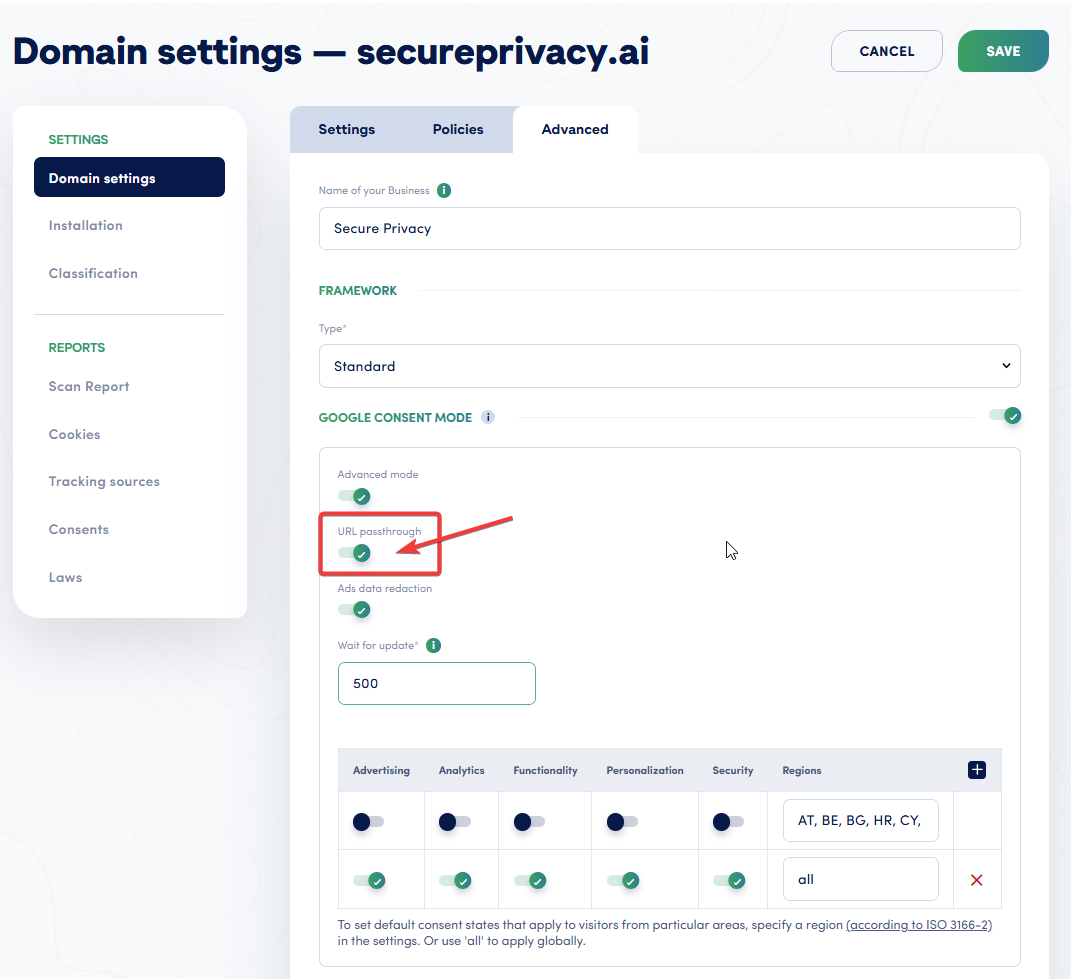
URL Passthrough is enabled in Secure Privacy under Domain Settings → Google Consent Mode. Advanced mode must also be active for URL Passthrough to function.
Important GTM note: If URL Passthrough is set in a CMP template, it still needs to be explicitly configured inside any Conversion Linker tags you are using to work as expected. A GCLID or DCLID is present in the URL (Google Ads and Floodlight tags only).
URL Passthrough Caveats and Best Practices
Redirects must preserve all query parameters (
gclid,dclid,gclsrc,_gl,wbraid). If your server strips query parameters on redirect, URL Passthrough breaks silently.Configure your analytics tools to ignore these parameters in page URLs to avoid inflating unique page counts.
Test for URL conflicts. Sites that use query parameters for navigation, content routing, or filtering are especially at risk. URL Passthrough can interfere with site functionality if your application parses URL parameters for business logic.
This only works for same-domain navigation. Cross-domain attribution requires a different setup (Cross Domain Measurement in GA4).
Is URL Passthrough GDPR Compliant?
URL Passthrough sits in a legal gray area. Google positions it as a privacy-respecting alternative to cookie storage for use when consent is denied. However, the GCLID is a unique identifier tied to a specific ad interaction, which some Data Protection Authorities may consider personal data under GDPR Article 4(1). Evaluate this with your legal counsel before enabling URL Passthrough as your default behavior for non-consented EEA users. Google's documentation does not explicitly address whether URL-passed GCLIDs constitute personal data under GDPR.
Further reading: Google's official Consent Mode implementation guide
Ads Data Redaction (ads_data_redaction): Maximum Privacy for Ad Identifiers
What Data Redaction Does
Where URL Passthrough preserves ad click identifiers by moving them into URLs, ads_data_redaction does the opposite: it removes them entirely from all network requests to Google's servers when ad_storage is denied.
Specifically, when ads_data_redaction=true AND ad_storage='denied', the following occurs:
Ad click identifiers (GCLID, DCLID) are redacted from all consent pings and conversion pings
Page URLs containing ad click identifiers are redacted in advertising requests
Network requests are routed through a different, cookieless domain to prevent any previously set third-party cookies from being sent in HTTP headers
No new advertising cookies or device identifiers are written
No existing advertising cookies or device identifiers are read
Google Signals features do not accumulate data
IP addresses are truncated at collection
Google Ads will delete any previously stored information if a user who previously granted consent later denies it
When Data Redaction Activates — and When It Does Not
ads_data_redaction is conditional on ad_storage. It has no effect when ad_storage='granted'—in that case, all data is collected normally regardless of what ads_data_redaction is set to.
|
| Outcome |
|---|---|---|
|
| No effect — normal ad data collection |
|
| Normal ad data collection |
|
| No cookies; page URL with click ID still sent to Google Ads |
|
| Full redaction: no cookies, click IDs redacted from all requests, cookieless domain routing |
How to Enable Ads Data Redaction
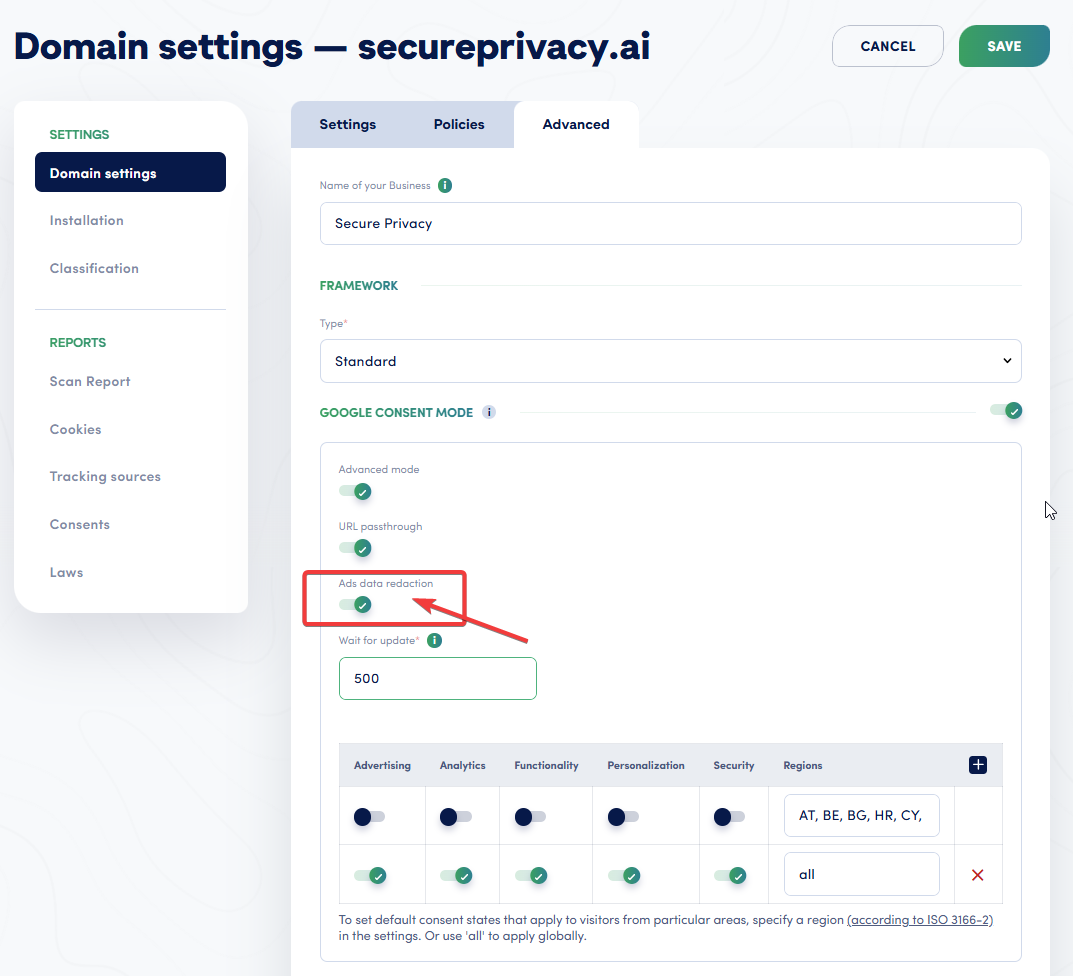
Ads Data Redaction is enabled in Secure Privacy under Domain Settings → Google Consent Mode. This setting only takes effect when ad_storage is denied.
URL Passthrough vs. Data Redaction: A Decision Framework
These two parameters serve opposing purposes and represent the core privacy-vs-measurement trade-off in GCM v2:
|
| |
|---|---|---|
Primary purpose | Preserve ad click attribution without cookies | Remove all ad click identifiers for maximum privacy |
Effect on GCLID | Keeps GCLID in URL parameters for attribution | Redacts GCLID from all network requests |
Best when | Maximizing conversion measurement is the priority | Maximizing user privacy is the priority |
GDPR posture | More permissive (passes identifiers without cookie storage) | More restrictive (removes identifiers entirely) |
Impact on modeling | Higher modeling accuracy (more signal available) | Lower modeling accuracy (less signal to Google) |
Can you enable both? Yes. If both url_passthrough=true and ads_data_redaction=true are set while ad_storage='denied', the GCLID will be appended to URLs by URL Passthrough for internal navigation continuity, but the network requests to Google's ad servers will have identifiers redacted. When there is any conflict between settings, the strictest setting always wins in favor of data protection.
Further reading: Google Consent Mode concepts and behavioral reference
The wait_for_update Parameter: Preventing Race Conditions with Async CMPs
Most Consent Management Platforms load asynchronously—they add their consent logic to the page after the initial HTML loads. Without wait_for_update, your Google tags may fire before the CMP has had a chance to transmit the user's stored consent preference. The result: tags behave as if no consent state has been set, sending cookieless pings even for users who previously granted consent, and creating attribution gaps that look identical to a consent denial.
wait_for_update tells the Google tag to pause for a specified number of milliseconds before firing, giving your CMP time to call gtag('consent', 'update', {...}) first.
Google's recommended and industry-standard value is 500 milliseconds:
gtag('consent', 'default', {
  'ad_storage': 'denied',
  'ad_user_data': 'denied',
  'ad_personalization': 'denied',
  'analytics_storage': 'denied',
  'wait_for_update': 500
});
Always set wait_for_update when using an async CMP. Its absence is one of the most common causes of the race condition described in the Troubleshooting section below.
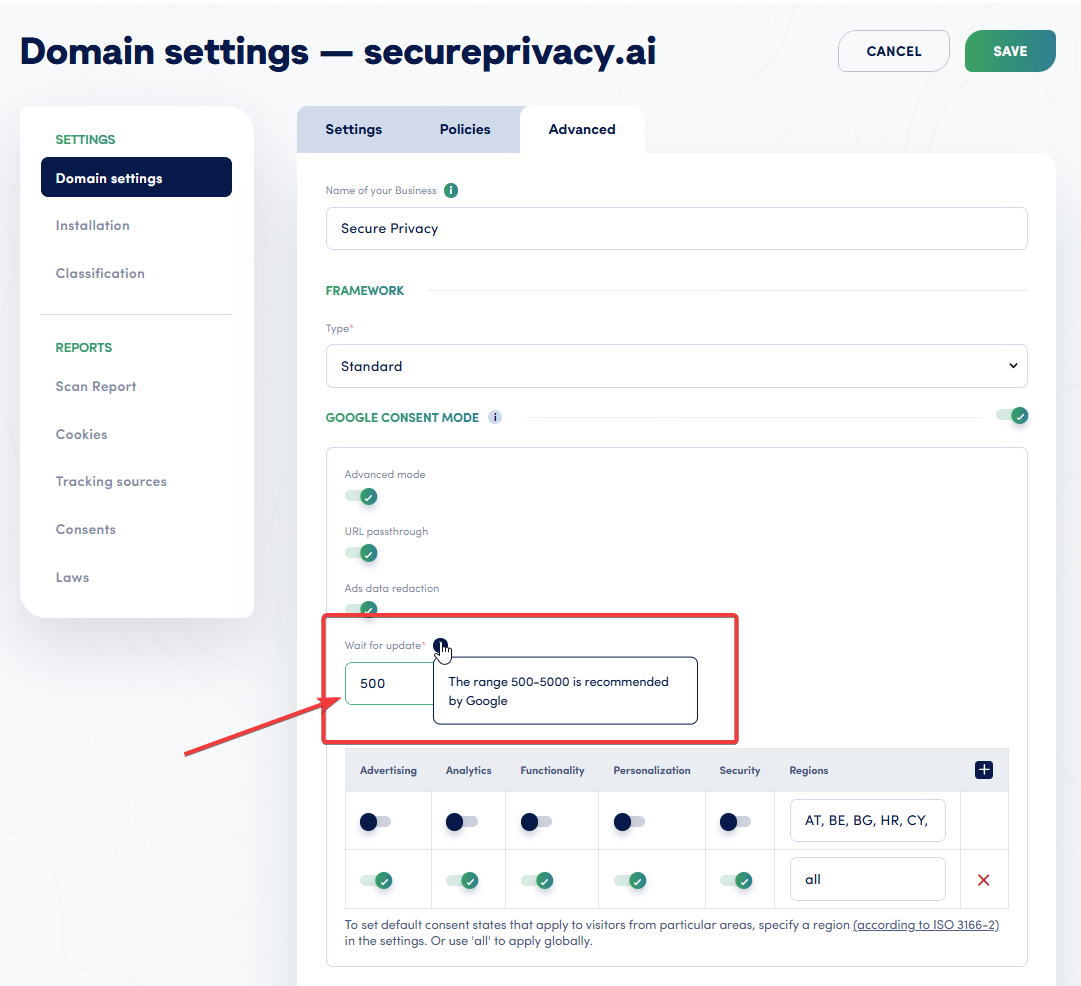
The Wait for Update field accepts values between 500–5000ms. Google recommends 500ms as a starting point — increase if you notice race conditions where tags fire before your CMP has transmitted the user's consent state.
How Google Tags Behave in Each Consent State
When Consent Is Granted
When all four core parameters are set to 'granted':
All advertising and analytics cookies are read and written normally
Full data collected: page URLs, IP addresses, GCLID/DCLID, user agents, device identifiers
Third-party cookies on google.com and doubleclick.net are accessible
Remarketing audience lists populate normally
Enhanced Conversions: hashed emails, phone numbers, and other first-party data are sent to Google
No modeling required—full, unrestricted measurement
When Consent Is Denied — Advanced Mode vs. Basic Mode
This is where the choice between Basic and Advanced Consent Mode has its most significant practical impact:
Behavior | Advanced Mode | Basic Mode |
|---|---|---|
Tags load | Yes — restricted mode | No — tags blocked entirely |
Cookieless pings sent | Yes | No |
Conversion modeling | Advertiser-specific modeling available | General model only |
Behavioral modeling in GA4 | Available (after thresholds met) | Not available |
Data sent to Google | Timestamp, user agent, referrer, boolean consent state, random page ID | Nothing |
Remarketing audience build | No (cookieless pings never build remarketing lists) | No |
The Unknown / Not-Set State
Google's documentation states: "By default, no consent mode values are set." An "unknown" or not-set state occurs when:
Tags fire before the default consent command executes (race condition)
The CMP loads and fires consent updates after tags have already read the consent state
The
gtag('consent', 'default', {...})command is missing from the page entirely
In this state, the gcd HTTP parameter encodes the signal as l (lowercase L), meaning "signal not set with Consent Mode." Google cannot apply conversion or behavioral modeling when the consent state is unknown. Attribution falls into (not set) or "Unassigned" channel groupings in GA4—the same symptom as a misconfigured default, but with a different root cause.
If you see a Tag Assistant warning reading "a tag read consent before a default was set," you have a race condition. See the Troubleshooting section below for resolution steps.
Recommended GCM v2 Default Configuration
The following is Google's recommended pattern for a compliant EEA/UK default with a separate "rest of world" default. Secure Privacy installation script with the Google Consent Mode defaults should be placed before your GTM snippet or any Google tag script:
<!-- Google Consent Mode v2 default  -->
  // EEA + UK: default denied, wait for CMP to update
  gtag('consent', 'default', {
    'ad_storage':          'denied',
    'ad_user_data':        'denied',
    'ad_personalization':  'denied',
    'analytics_storage':   'denied',
    'wait_for_update':     500,
    'region': ['AT','BE','BG','HR','CY','CZ','DK','EE','FI','FR','DE',
               'GR','HU','IE','IT','LV','LT','LU','MT','NL','PL','PT',
               'RO','SK','SI','ES','SE','IS','LI','NO','GB']
  });

  // Rest of world: default granted
  gtag('consent', 'default', {
    'ad_storage':          'granted',
    'ad_user_data':        'granted',
    'ad_personalization':  'granted',
    'analytics_storage':   'granted'
  });
</script>

<!-- Your GTM snippet here -->
When a user grants or denies consent via your CMP banner, the Secure Privacy as certified Google CMP calls:
gtag('consent', 'update', {
  'ad_storage':          'granted', // or 'denied'
  'ad_user_data':        'granted', // or 'denied'
  'ad_personalization':  'granted', // or 'denied'
  'analytics_storage':   'granted' // or 'denied'
});
The update command above, again, is fired automatically when the user interacts with the consent banner. No manual configuration is required.
For GTM-based implementations, see How to Implement GCM Advanced with GTM.
Official reference: Set up consent mode on websites — Google Tag Platform documentation
Impact on Google Ads Conversion Tracking and Google Analytics 4
Google Ads: Conversion Modeling Thresholds
When consent is denied and you are using Advanced Consent mode, Google fills the measurement gap with conversion modeling. Key facts:
Modeling eligibility requires at least 700 ad clicks over a 7-day period per country and domain grouping
At least 7 full days of GCM v2 implementation are required before modeling begins
Modeled conversions appear in the standard "Conversions" and "Conversion value" columns with the same column granularity as observed conversions
Consented users are typically 2–5× more likely to convert than unconsented users—meaning the modeled uplift is significant
Consent mode status in Google Ads takes 48 hours to appear, but may require up to 2 weeks; modeling uplift numbers appear for 4 weeks after modeling start date
Remarketing enforcement (active since July 21, 2025): Without GCM v2, Google will not populate remarketing audiences for EEA users at all. Cookieless pings are never used to build remarketing lists—audience creation requires ad_personalization='granted'.
Google Ads modeling reference: About consent mode conversion modeling — Google Ads Help
Google Analytics 4: Behavioral Modeling Thresholds
GA4 behavioral modeling requires all of the following to be met:
Advanced consent mode implemented on all pages
Tags loaded before the consent dialog appears
At least 1,000 events per day with
analytics_storage='denied'for at least 7 daysAt least 1,000 daily users with
analytics_storage='granted'for at least 7 of the previous 28 daysReporting Identity set to "Blended" in GA4 Admin → Data Display → Reporting Identity
TCF limitation: When users deny consent via an IAB TCF v2.0 implementation, GA4 is unable to model data to fill in missing information.
GA4 consent mode reference: Consent mode on websites and apps — Google Analytics Help
Troubleshooting Google Consent Mode v2: Common Problems and Fixes
The following issues represent the most common GCM v2 implementation problems, including late consent, unknown states, and race conditions that cause (not set) attribution in GA4.
Problem 1: Tags Fire Before Consent Is Set (Race Condition)
Symptom: Tag Assistant shows "a tag read consent before a default was set." GA4 shows (not set) for session source/medium on a high percentage of sessions, even for users who granted consent.
Root cause: The gtag('consent', 'default', {...}) command is executing after the GTM container or Google tag snippet has already initialized and begun reading consent state.
Fix:
Ensure Secure Privacy script script appears before the GTM snippet or any Google tag script in your page
<head>—not after.Add
'wait_for_update': 500inside your default consent command (see thewait_for_updatesection above).In GTM: confirm the Consent Initialization trigger is used for Secure Privacy - please do not use the DOM Ready or Window Loaded triggers for Secure Privacy; the same way - make sure NO other tag is using the Consent Initialization trigger - only Secure Privacy - as this trigger is specifically designed to be used exclusevely by Consent Management Platforms, like Secure Privacy.
Problem 2: Late Consent — User Grants Consent After Initial Page Load
Symptom: Users who accept the banner after reading the page are still showing as (not set) in GA4 session source. session_start and first_visit events are missing for these users.
Root cause: In Advanced mode, GA4 can retroactively process events collected on the same page after consent is granted—but only if the default consent command (fired automatically be Secure Privacy) - gtag('consent', 'update', {...}) - fires before the user navigates away from the page. If the page transition happens before the update, the session attribution is permanently lost for that session.
What Google's October 2024 update improved: Google launched backend improvements allowing GA4 to retroactively apply session and identity context to events triggered before consent was granted, as long as the consent update fires on the same page. This significantly reduces, but does not eliminate, the (not set) attribution problem for late-consent scenarios.
Fix:
Ensure your Secure Privacy fires default consent command -
gtag('consent', 'update', {...})
(no race condition with other async / Google scripts)Implement a GA4 Config tag on the Consent Initialization trigger with
send_page_view: false. This ensures the config is registered before GA4 events fire, preserving session context even for late-consent users.Since November 13, 2024, Google requires a
configcommand before custom events are processed. Fire the Config tag on "Initialization" withsend_page_view: falseas a best practice to ensure this is always satisfied.
Problem 3: Unknown Consent State — gcd Parameter Shows l
Symptom: When inspecting network requests in the browser developer tools, the gcd parameter in Google's ping URLs contains l (lowercase L). Conversion modeling is not activating. GA4 attribution is mostly (not set).
Root cause: The gcd=l value means the consent signal has not been set with Consent Mode at all—neither granted nor denied. The most common causes are: the consent default script is missing from one or more page templates, for some reason Secure Privacy is not firing gtag('consent', 'update') when the user makes a choice, or the page has a custom event that fires before any consent initialization.
Fix:
Audit every page template (including landing pages, thank-you pages, and error pages) to confirm Secure Privacy is running there and that the default consent event is firing as expected.
Use Google's Consent Mode debugging guide and the Tag Assistant Chrome extension to verify the consent state on each page type.
Use
window.parent.google_tag_data.icsobject to confirm the wasSetLate is false.
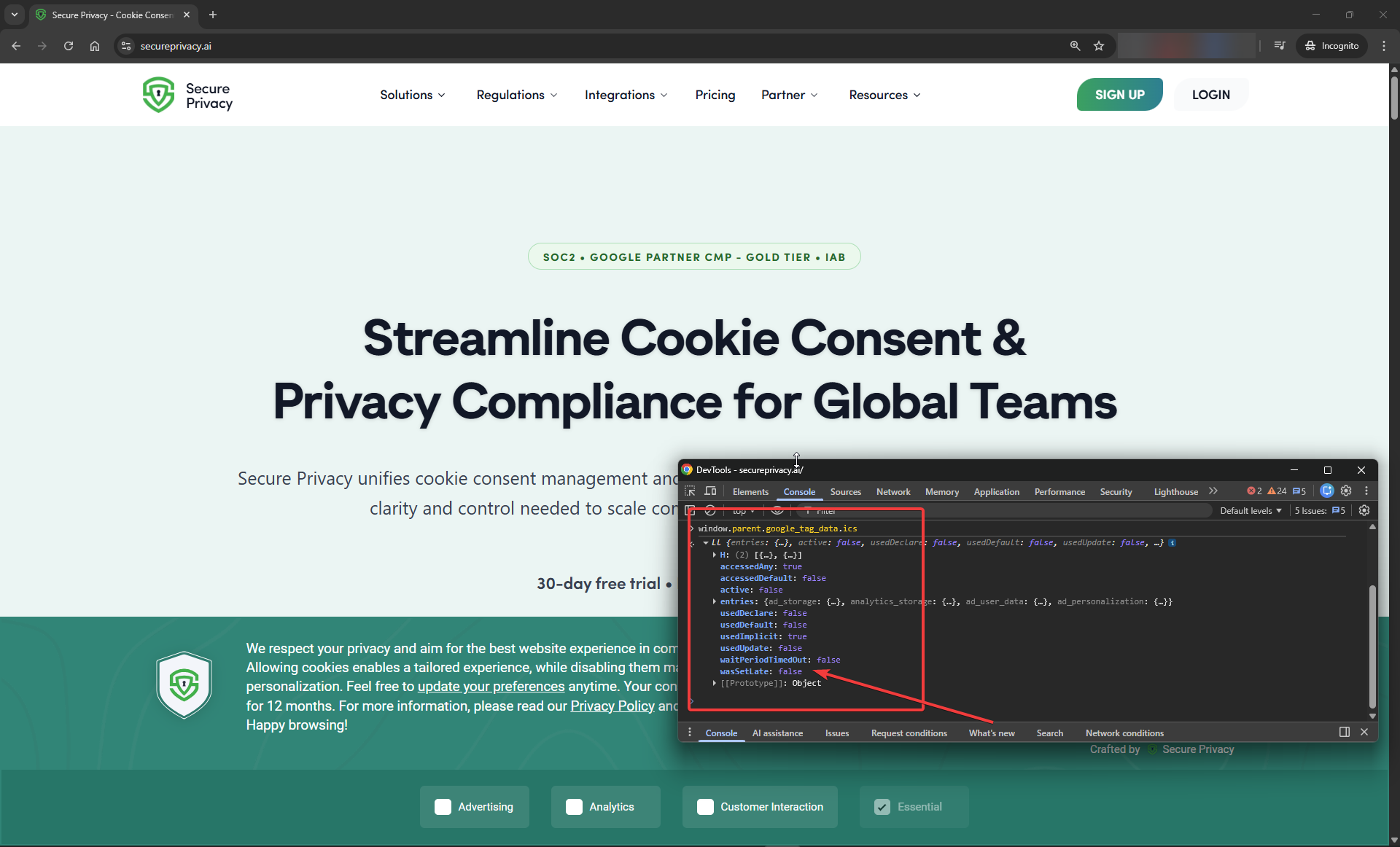
Open DevTools → Console and run window.parent.google_tag_data.ics to inspect the live consent state object. wasSetLate: false confirms that consent defaults were set before any Google tag fired — no race condition is present. If you see wasSetLate: true, move Secure Privacy script higher above in the <head> section or at least above your GTM snippet and increase wait_for_update.
Problem 4: Users Who Never Interact With the Banner
Symptom: A significant portion of sessions show no consent signal at all. Analytics and ad measurement for these sessions is entirely missing.
Root cause: Users who scroll past or close the page without interacting with the consent banner remain in the default consent state indefinitely. In Advanced mode with 'denied' as the default, cookieless pings continue to be sent throughout their session—which feeds modeling. In Google Consent Basic mode - no data is sent.
Fix:
If you are using Basic mode and this scenario matters for your measurement, evaluate switching to Advanced mode. See Google Consent Mode: Basic vs. Advanced — Complete Guide for the trade-offs.
Ensure the consent default command is on every page so that modeling can apply to these sessions. You can use the snippet below - set it as high and above as possible of any other script -
<script>
  window.dataLayer = window.dataLayer || [];
  function gtag_first(){ dataLayer.push(arguments); }

  // Consent Mode v2: default DENIED
  gtag_first('consent', 'default', {
    'ad_storage': 'denied',
    'analytics_storage': 'denied',
    'ad_user_data': 'denied',
    'ad_personalization': 'denied',
    'wait_for_update': 500
  });

  // Optional hardening
  gtag_first('set', 'ads_data_redaction', true);
  gtag_first('set', 'url_passthrough', true);
</script>
Audit banner UX—a banner that is immediately dismissible without a clear choice leads to more unresolved consent states.
Problem 5: URL Passthrough Parameters Causing Site Errors
Symptom: After enabling url_passthrough, certain pages break, redirect incorrectly, or display wrong content. Analytics shows inflated unique page counts.
Root cause: Your application is reading URL query parameters for routing, content selection, or filtering logic. The _gl or gclid parameters appended by URL Passthrough are being interpreted as application parameters.
Fix:
Audit your application's URL parameter handling. Ensure
gclid,dclid,gclsrc,_gl, andwbraidare explicitly ignored or passed through by your routing logic.Configure GA4 to exclude these parameters from page URL reporting (Admin → Data Streams → Additional Settings → List unwanted referrals / excluded domains is not the right place—use a data filter or configure GTM to strip them from the
page_locationvariable).Ensure any server-side redirects preserve all five URL Passthrough query parameters.
If the site issues cannot be resolved, consider disabling URL Passthrough and relying on conversion modeling instead.
Problem 6: Consent Mode Status Not Appearing in Google Ads
Symptom: You have implemented GCM v2 but the consent mode status in your Google Ads account still shows as not configured or pending.
Fix:
Allow 48 hours after correct implementation—this is normal. Full status may take up to 2 weeks.
Make sure Secure Privacy is installed correctly on all pages, with Google Consent Mode Advanced enabled in the UI under Domain -> Settings -> Advanced
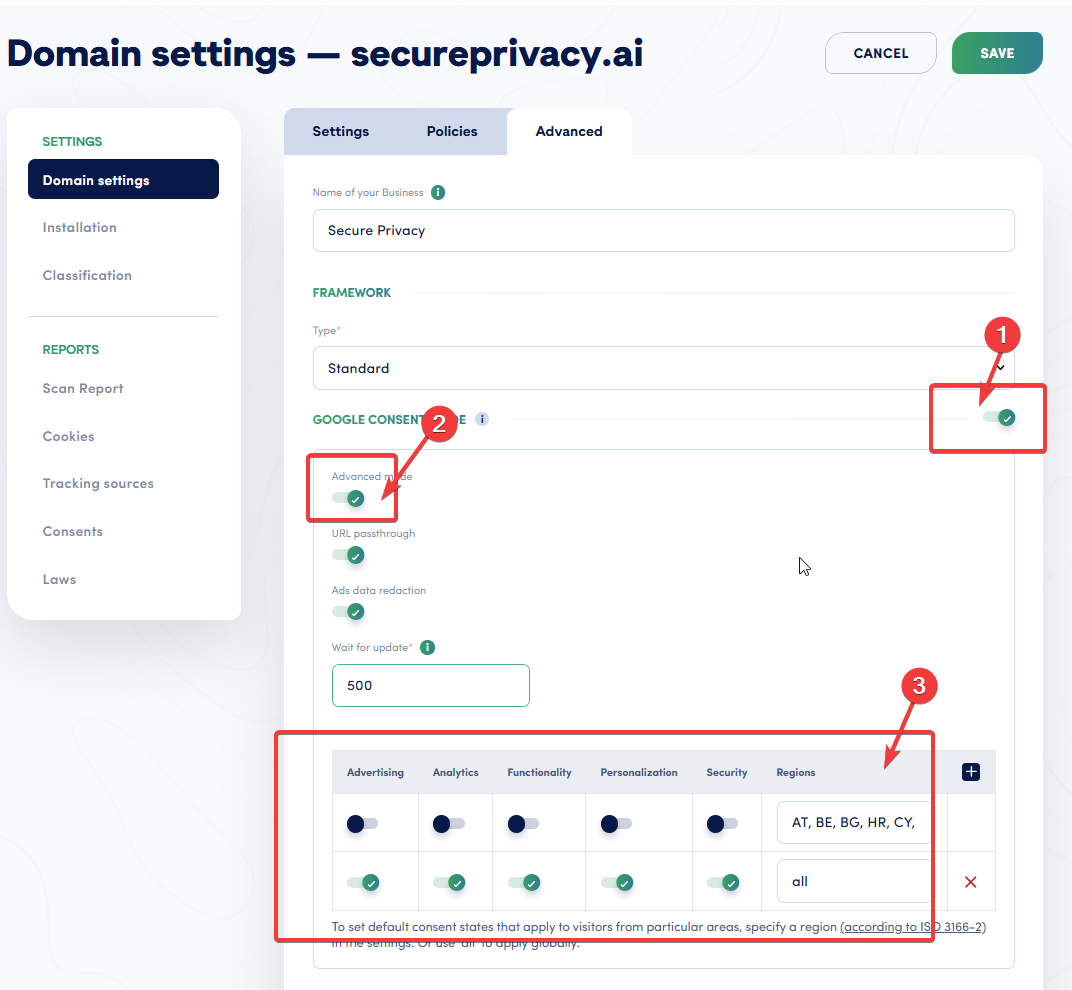
To enable Google Consent Mode Advanced in Secure Privacy, go to Domain Settings → Advanced tab → Google Consent Mode and complete three steps:
Enable the Google Consent Mode master toggle
Enable Advanced mode
Configure default consent states per region — set all consent types to denied for EEA countries and granted for
allother regions
Additionally:
Verify the
gcsparameter in your network requests.G100= both denied,G101= analytics denied/ads granted,G110= analytics granted/ads denied,G111= both granted. See How to Check If Google Consent Mode Is Working for the fullgcsparameter reference.Confirm your Google Ads account is linked to the same Google tag or GTM container that has GCM v2 configured.
Confirm GCM v2 is active on your live site using Tag Assistant: open tagassistant.google.com, enter your URL, and inspect the Consent tab for each tag.
Debugging reference on Google Tag Documentaion - Consent mode debugging — Google Tag Platform documentation
Frequently Asked Questions
Is Google Consent Mode v2 mandatory?
Yes, for any website using Google advertising products (Google Ads, Display & Video 360, Search Ads 360, Floodlight) with traffic from the European Economic Area (EEA) or the United Kingdom. Google made GCM v2 mandatory on March 6, 2024, and began actively restricting conversion tracking and audience creation for non-compliant accounts on July 21, 2025.
What are the four main Google Consent Mode v2 parameters?
The four core parameters required for GCM v2 compliance are: ad_storage (controls advertising cookies and device IDs), analytics_storage (controls analytics cookies and session tracking), ad_user_data (controls sending user data to Google for advertising, including Enhanced Conversions), and ad_personalization (controls remarketing and personalized advertising). The first two were present in v1; the last two are new in v2.
What is url_passthrough in Google Consent Mode?
url_passthrough is a GCM v2 configuration parameter that, when set to true, appends ad click identifiers (GCLID, DCLID, _gl, wbraid, gclsrc) as URL query parameters to internal links on your site. This preserves conversion attribution and session continuity across page navigations when ad_storage is denied and cookies cannot be used. It enables cookie-free attribution for same-domain navigation only.
What is ads_data_redaction in Google Consent Mode?
ads_data_redaction is a privacy enhancement parameter that, when set to true and ad_storage is 'denied', removes all ad click identifiers (GCLID, DCLID) from network requests to Google's servers, routes requests through a cookieless domain, and ensures no advertising cookies are read or written. It has no effect when ad_storage is granted. It is the highest-privacy option for handling ad data when users decline consent.
Should I enable url_passthrough or ads_data_redaction?
They serve opposing purposes. Enable url_passthrough=true when maximizing conversion measurement is the priority—it keeps click identifiers in URL parameters when cookies are unavailable, enabling better attribution. Enable ads_data_redaction=true when maximizing user privacy is the priority—it removes all click identifiers from Google's servers entirely. Both can be enabled simultaneously; when combined with ad_storage='denied', the click ID will travel in URLs for internal navigation but will be redacted from all network requests to Google. Always consult legal counsel on the GDPR implications of URL Passthrough for EEA users before enabling it as a default for non-consented users.
What is the difference between Google Consent Mode Basic and Advanced?
In Basic mode, Google tags are completely blocked from firing when consent is denied—no data is sent to Google at all. Conversion modeling uses only a general, non-advertiser-specific model. In Advanced mode, Google tags load but operate in a restricted, cookieless mode. Cookieless pings are sent even when consent is denied, feeding advertiser-specific conversion and behavioral modeling. Advanced mode typically recovers 15–25% of otherwise lost conversion data through modeling, but requires careful legal review since data is sent to Google from users who have not explicitly opted in.
What happens when ad_storage is denied in Google Consent Mode?
When ad_storage='denied': no new advertising cookies are written or read; requests are sent through a different, cookieless domain; Google Signals does not accumulate data; IP addresses are truncated at collection; full page URLs are still collected (including GCLID if present), unless ads_data_redaction=true is also set. In Advanced mode, cookieless pings are sent containing limited signals used for conversion modeling.
Why do I have (not set) traffic source in GA4 after adding a consent banner?
The most common causes of (not set) traffic source/medium in GA4 after adding a consent banner are: (1) session_start and first_visit events firing before the consent default is set, meaning GA4 cannot associate them with a session; (2) tags firing before the CMP loads (a race condition)—fixed by adding wait_for_update: 500 to your consent default; (3) the consent config command missing, causing GA4 to not register a session before events fire. Fire a GA4 Config tag on "Consent Initialization" with send_page_view: false to resolve the session registration issue.
Is url_passthrough GDPR compliant?
This is legally uncertain. Google positions URL Passthrough as a privacy-respecting alternative to cookie storage for use when consent is denied. However, GCLID is a unique identifier tied to an individual ad click, and some Data Protection Authorities may consider it personal data under GDPR Article 4(1)—which would mean processing it without explicit consent is non-compliant. Google's documentation does not explicitly address this question. Consult your legal counsel before enabling URL Passthrough as a default behavior for EEA users who have denied consent.
How do I check if Google Consent Mode v2 is working?
The easiest starting point is the Consent Mode Inspector by InfoTrust — install it, visit your site, and it displays the active consent state for every parameter in a clear UI without needing to read network requests. For a deeper check, open DevTools → Network tab and filter for Google tag requests. Look for the gcs parameter: G100 = both ad_storage and analytics_storage denied; G101 = analytics denied, ads granted; G110 = analytics granted, ads denied; G111 = both granted. Also check the gcd parameter—l means no consent signal was set at all. For a full step-by-step walkthrough of both methods, see How to Check If Google Consent Mode Is Working.