
Winning a new client should not mean creating a new consent management account, rebuilding a cookie banner from scratch, and emailing someone a password. This guide shows agencies how to run every client from a single Secure Privacy account using shared designs, reusable legal templates, and safe read-only client access.
Your agency signs a new client, and somewhere in the onboarding checklist sits the line item nobody volunteers for: cookie consent. The client's site drops analytics, advertising and chat scripts on load, they operate in the EU, and someone needs to own GDPR compliance for that domain before the campaign goes live.
Most agencies solve this the hard way. They open a separate consent management account for each client, which means a separate login, a separate invoice, a separate trial clock, and a banner rebuilt from zero every single time. Others share one login across the account team and the client, which works right up until an accidental edit changes a live banner and nobody can say who did it. A third group hands the client full admin access "just so they can see it", and then spends a fortnight untangling a preference center someone reconfigured on a Friday afternoon.
None of that is necessary. Secure Privacy is built to let one agency account manage cookie consent for multiple client domains. You create a design once and assign it to as many client domains as you like, apply pre-built legal templates for GDPR, CCPA, LGPD and other frameworks per client jurisdiction, and invite each client contact as a Domain Admin who can see their own domain and its configuration but cannot edit your designs, templates or policies, and cannot see your billing or any other client.
By the end of this guide you will know how to structure a multi-client agency account, add each client domain, build and share a reusable banner design across domains, apply the right legal template per client, give clients read-only visibility with a clean change request workflow, and hand a domain back cleanly when a contract ends.
Short answer: do agencies need a separate account for each client?
No. You do not need a separate Secure Privacy account for each client. One agency account on the Business plan manages multiple client domains. Each client gets its own domain entry, its own banner configuration and its own consent records, while you keep one login, one invoice and one place to work. New clients are added as new domains, not as new accounts.
Who Is This Guide For?
This article is written for anyone running cookie consent on behalf of someone else:
Digital, marketing and web agencies deploying cookie consent banners across a portfolio of client websites
Consultancies and privacy advisors who configure GDPR compliance for clients but do not want to hand over full account control
Web development studios that build sites, install the consent script, and then maintain it under a retainer
In-house teams managing multiple brands or business units, where the structure is effectively the same as an agency portfolio
Anyone evaluating Secure Privacy who needs to know whether a multi-client consent management platform can work from a single account before committing
Prerequisites Before You Onboard Your First Client
Have these ready before you start:
A Secure Privacy account on a plan that supports multiple domains. The Business plan includes a 30-day free trial with no credit card required, and you can start it from the pricing page.
A licence for each client domain or subdomain that independently places cookies. See how the Secure Privacy domain licensing model works to size your plan correctly.
The full list of client domains and subdomains, including any regional or language variants.
The email address of the client contact who should receive read-only visibility.
Access to the
<head>of each client site, or a developer contact at the client who can add the script.Clarity on which privacy frameworks apply to each client, since the legal template is set per domain.
How to Set Up a Multi-Client Agency Account in Secure Privacy
Six steps to structure one Secure Privacy account so it scales cleanly from your first client to your fiftieth, with shared branding assets and safe client access.
Step 1 - Create one agency account, not one per client
Open a single Secure Privacy account in your agency's name and select the Business plan, which includes a 30-day free trial. This account becomes your control centre: billing, users, designs, templates and every client domain live inside it. Resist the temptation to open an account under each client's name, because doing so fragments your workflow, multiplies your logins, and removes your ability to reuse a design across domains.
Step 2 - Add each client domain to the Domains tab
Open the Domains tab in the top navigation and add your client's domain, for example the site you are launching this week. Each domain gets its own settings page, its own consent records, and its own unique installation script. Add subdomains separately where they place cookies independently. Once the domain exists, copy its script and install it in the site's <head>, following the guide to installing the Secure Privacy script on a new domain. Repeat this step for every new client you onboard.
Step 3 - Build a reusable design and assign it to client domains
Designs in Secure Privacy are created at account level and then assigned to domains, which is exactly what makes them shareable across a client portfolio. Open the Designs tab, select Add a new Design, give it a clear internal title such as "Agency default - light bar", then configure banner position, colours, button styles, the floating widget and the preference center. In the domain selection panel, tick every domain this design should apply to. Build one neutral agency default that you assign to most clients, then create separate designs only for clients with strong brand requirements. Full detail is in the guide to designing and personalising your banner, widget and preference center, and branding removal plus custom logos are covered in design settings.
Step 4 - Apply the right legal template to each client domain
Where a design controls how the banner looks, a template controls what it does and says. Templates are pre-built legal configurations that set the blocking behaviour and the content of the banner, widget, preference center, privacy policy, cookie declaration, data request form and contextual consent, aligned to frameworks such as GDPR, CCPA and LGPD. In the client's domain settings, choose the template matching that client's jurisdiction and risk posture. A client selling only in the EU and a client selling across US states will usually need different templates even if they share your agency design. See how Secure Privacy templates work for the full settings breakdown.
Step 5 - Invite the client contact as a Domain Admin
Go to the Account section, open the Users tab, and click Add New User. Enter your client contact's first name, last name and email address, then select Domain Admin as the access level. Save, then edit that user and assign only their own domain from the domain dropdown. They receive an invitation email and set their own password, so no credentials are ever shared. This is the role that gives clients visibility without risk: they can see and manage their assigned domain, but designs, templates and policies configured outside the Domains tab are view-only to them, and billing and account settings are entirely out of reach. The step-by-step screens are documented in the guide to adding users and assigning roles in Secure Privacy.
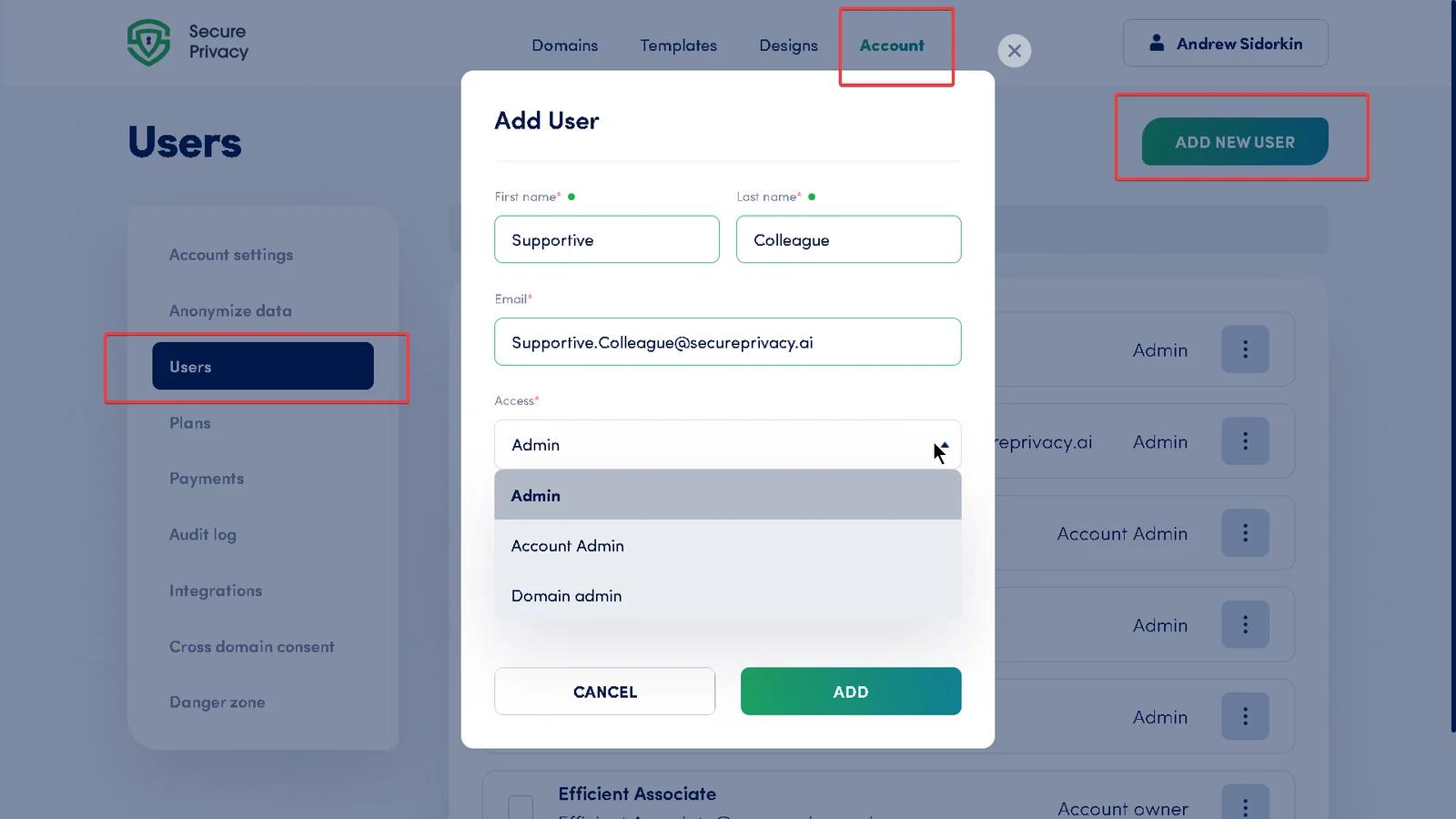
The Add New User form. Enter the client contact's details and select Domain Admin before confirming.
Step 6 - Agree a change request workflow with the client
Read-only access only works if the client knows how to ask for an edit. Before you hand over the login, agree a single route for change requests: a shared inbox, a ticket queue, or your existing account management channel. Ask clients to reference the domain, the exact element they want changed, and the business or legal reason. Your agency then implements the change in the design, template or policy, and the client verifies it in their own dashboard view. This keeps one editor per configuration while still giving the client the transparency they asked for.
Secure Privacy User Roles and Permissions for Agencies
Secure Privacy uses role-based access control with three levels. Choosing correctly is what keeps client A from ever seeing client B.
Role | Domain access | Designs, templates and policies | Billing and account settings | Best used for |
|---|---|---|---|---|
Account Owner / Admin | All domains in the account | Full edit access | Full access including billing | The agency principal or operations lead who owns the subscription |
Account Admin | All domains in the account | Full edit access | No billing or core account changes | Agency staff who configure consent across every client |
Domain Admin | Only the domains assigned to them | View-only for anything configured outside the Domains tab | No access | Client-side contacts, and external developers scoped to one site |
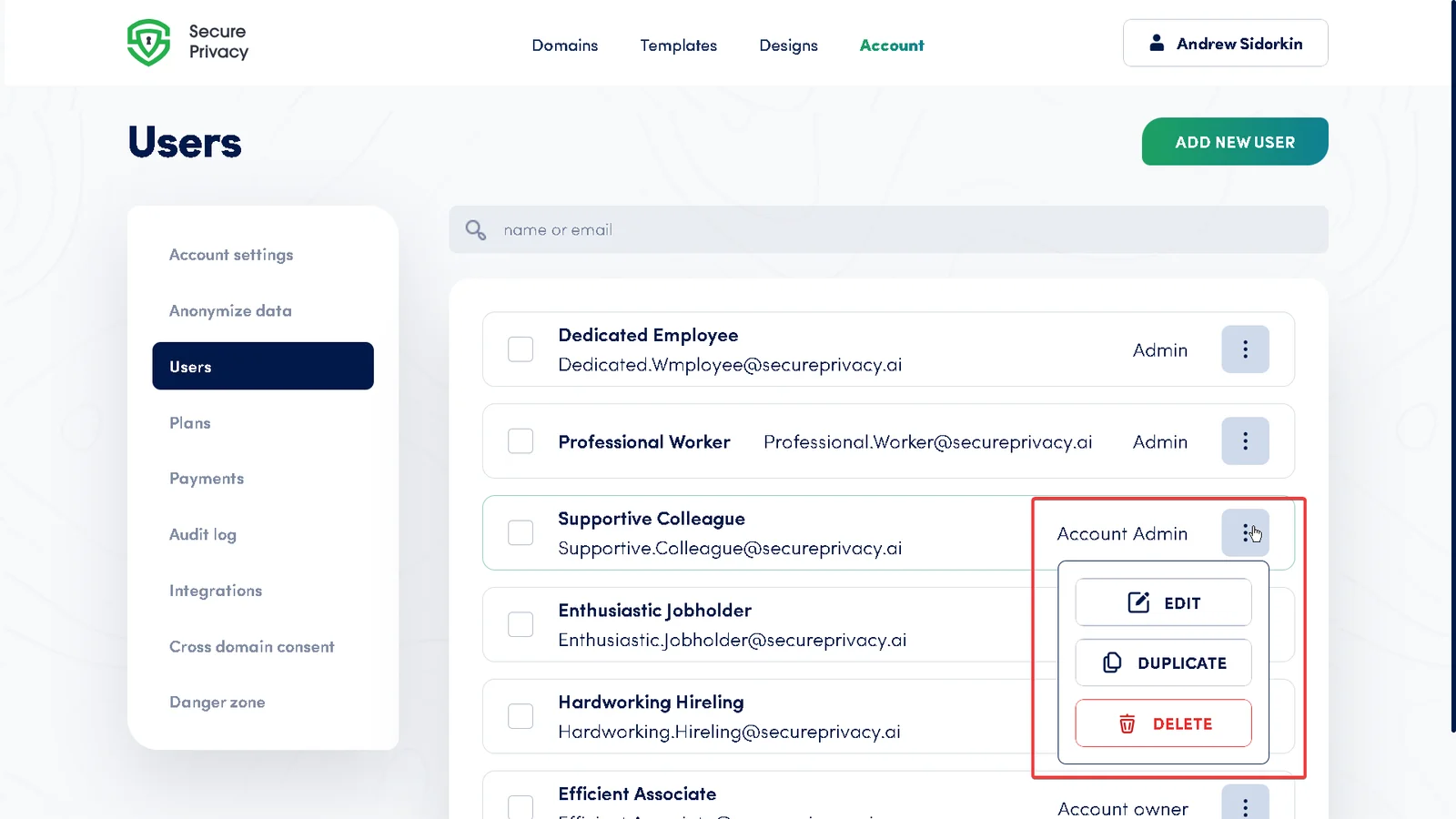
The Edit User dialog. Role changes take effect immediately, with no re-login required.
What a client Domain Admin can and cannot do
They can:
Log in with their own credentials and see only the domains you assigned to them
View the banner, widget and preference center configuration applied to their site
View the design, template and policy settings attached to their domain
Work with their own domain's settings and reporting
They cannot:
Edit designs, templates or policies configured outside the Domains tab
See any other client's domain, configuration or consent data
View or change billing information, invoices or plan details
Add, edit or remove users
That combination is what makes the Domain Admin role the right fit for agency client access: full transparency for the client, no shared credentials, and a single point of editorial control on your side.
Shared Designs vs Client-Specific Designs: Which to Use
The most common agency question after "one account or many" is whether to reuse one banner design across every client or build one per client. Both are supported, and the decision usually comes down to how much brand control the client expects.
Situation | Recommended approach | Why |
|---|---|---|
Small clients with no strict brand guidelines | One shared agency design assigned to multiple domains | Fastest onboarding, one place to update, consistent quality across the portfolio |
Clients with defined brand colours, fonts and logo | A dedicated design per client | Custom logo and colour work should not leak into other clients' banners |
One client with several domains or regional sites | One design assigned to all of that client's domains | Consistent client experience with a single edit point |
Clients on different privacy frameworks | Shared design, different templates | Appearance is reusable, legal behaviour is jurisdiction-specific |
Important: editing a shared design updates the banner on every domain it is assigned to. If a client asks for a one-off tweak to a shared design, duplicate it into a client-specific design first, reassign that client's domain, then make the change.
What Happens After You Launch a Client
Once the script is live and the banner is showing, the ongoing agency workflow looks like this:
Verify the installation. Use the Test Installation option on the domain, then load the client site in a clean browser session to confirm the banner appears and non-essential scripts are held until consent.
Run and review scans. Rescan periodically so newly added client scripts are detected and categorised rather than silently firing before consent.
Onboard the next client the same way. Add the domain, assign a design, set the template, invite the Domain Admin. There is no new account, no new trial, no rebuild.
Synchronise consent where a client owns several sites. If a client runs multiple domains that should share one consent decision, set up cross-domain consent so visitors are not prompted repeatedly.
Review access quarterly. Remove client contacts who have left, and check that no client user has drifted up to Account Admin.
Offboard cleanly. When a retainer ends, delete the client user from the Users tab. Deleting a user revokes access instantly but does not change any banner configuration or consent record, so the domain keeps working while ownership is transferred.
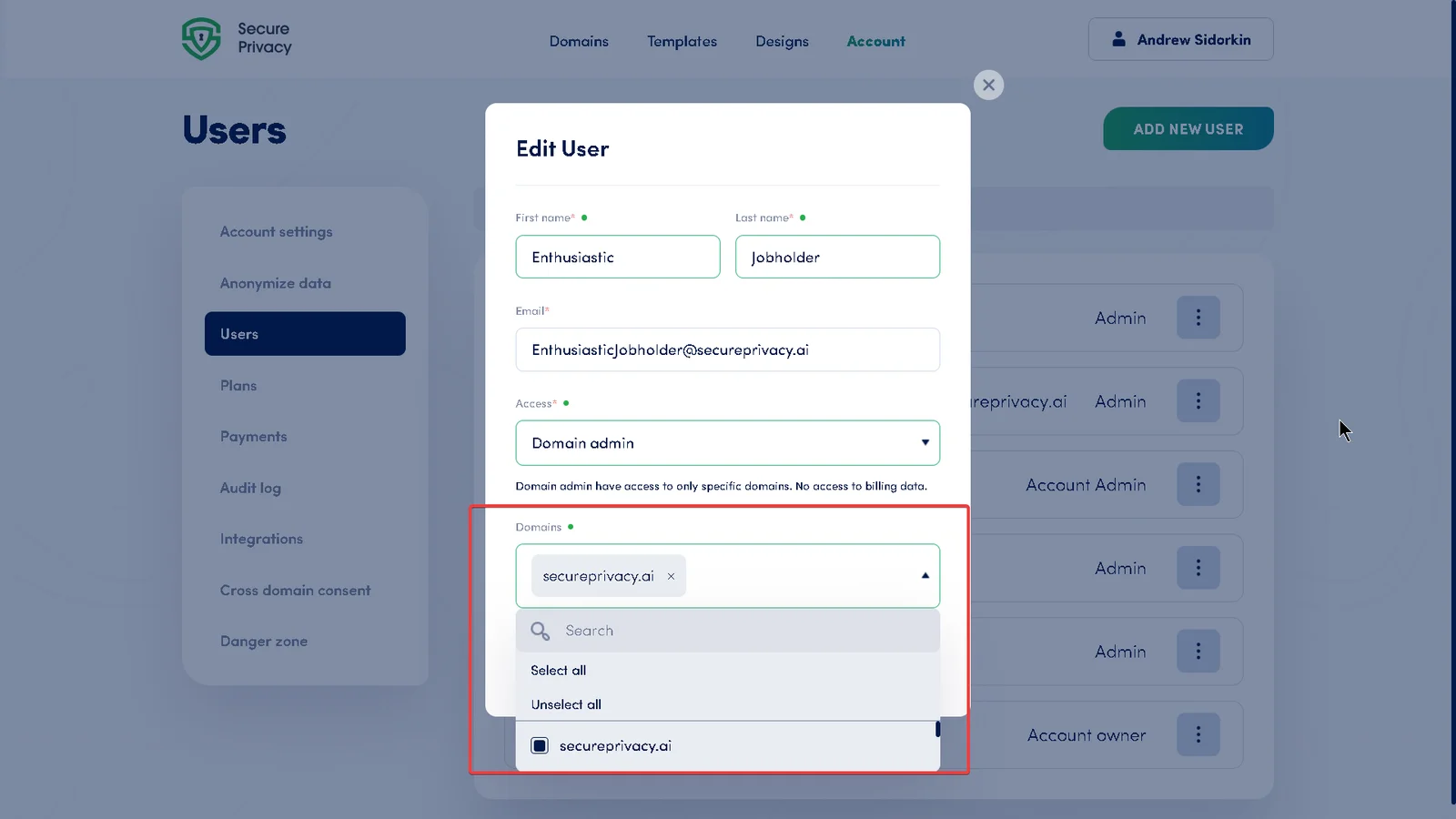
Use the domain dropdown to assign a client domain to a Domain Admin, or to reassign it when handing work back.
Troubleshooting Agency and Client Access Issues
Symptom | Likely cause | Fix |
|---|---|---|
Client logs in and sees no domains | The user was created as a Domain Admin but no domain was assigned | Open Users, click Edit next to the user, select their domain from the dropdown, and save |
Client reports they cannot edit the banner design | Expected behaviour, not a fault | Domain Admins have view-only access to designs, templates and policies. Point them to your agreed change request route |
A client can see another client's domain | The user was assigned Account Admin instead of Domain Admin | Edit the user, change the role to Domain Admin, and assign only their own domain |
Editing one banner changed several clients' sites | A shared design is assigned to multiple domains | Duplicate the design, reassign the affected domain to the copy, then apply the change to the copy only |
Client did not receive the invitation email | Filtered as spam, or a typo in the address | Check the address on the Users tab, ask the client to check junk folders, and/or re-add the user again |
No banner appears on the client site | The script is missing, placed incorrectly, or belongs to a different domain | Each domain has a unique script. Re-copy it from that domain and place it in the |
Client's subdomain is not covered | Subdomains that independently place cookies need their own licence | Add the subdomain as a separate domain and check your plan's domain allowance |
Frequently Asked Questions
Can one agency account manage multiple clients in Secure Privacy?
Yes. A single Secure Privacy account is designed to manage cookie consent across multiple client domains. You add each client as a domain, assign it a design and a legal template, and manage everything from one login. There is no need to create a new account when you win a new client.
Do I need a separate Secure Privacy account for each client?
No. Separate accounts mean separate logins, separate invoices and no ability to reuse designs across clients. The recommended agency setup is one account on the Business plan with one domain entry per client website.
Which Secure Privacy plan do agencies need?
Agencies managing several client websites typically use the Business plan, which supports multiple domains and includes a 30-day free trial with no credit card required. The number of domains and users you need determines the right tier, so check the pricing page or contact the team if your portfolio is large.
Can I give a client read-only access to their cookie banner settings?
Yes. Invite the client contact as a Domain Admin and assign only their own domain. They can log in and view their domain's configuration, but designs, templates and policies configured outside the Domains tab are view-only to them, and they cannot see billing or any other client.
What is a Domain Admin in Secure Privacy?
Domain Admin is the most restricted of the three Secure Privacy roles. A Domain Admin is scoped to the specific domains assigned to them, has no access to billing or account-level settings, and has view-only access to designs, templates and policies configured outside the Domains tab. It is the role intended for external agencies, developers and client-side contacts.
Can a Domain Admin see my other clients or my billing information?
No. Domain Admins can only view and work with the domains explicitly assigned to them, and they cannot access billing data or account-level settings. This isolation is what makes it safe to invite client contacts into a shared agency account.
Can I reuse the same cookie banner design across multiple client domains?
Yes. Designs are created at account level and assigned to domains, so one design can be applied to as many client domains as you choose. Bear in mind that editing a shared design updates every domain it is assigned to, so duplicate it before making a change that should apply to one client only.
How do clients request changes if they only have read-only access?
Agree a single change request route during onboarding, such as a shared inbox or ticket queue. The client references the domain and the element they want changed, your agency implements it in the design, template or policy, and the client verifies the result in their own dashboard view. This keeps one editor per configuration while preserving client transparency.
Does each client domain need its own licence?
Each domain or subdomain that independently places cookies or trackers requires its own Secure Privacy licence. A single licence covers that domain and all of its subpages. Language subpages and staging environments have specific rules, so review the domain licensing guidance if your client's architecture is complex.
Related Articles
Ready to Consolidate Your Clients Into One Account?
Managing consent for a portfolio of clients should not mean a portfolio of logins. Start a 30-day free trial of the Business plan, add your first client domain, and see how quickly the second and third go live once your shared design and templates are in place. If you would like a walkthrough of the agency setup before you begin, the Secure Privacy support team is happy to help.
Start your free 30-day Business plan trial or contact Secure Privacy support for help structuring a multi-client account.