
When your privacy compliance tool controls cookie banners, consent records, and GDPR configurations across every domain you manage, deciding who can change what is not a minor detail — it is a compliance and security decision. Sharing a single login across your whole team means one accidental change can alter consent banners site-wide, with no audit trail and no way to roll back responsibility.
Many teams work around this by copying credentials into a shared password manager or granting everyone blanket admin access — neither approach scales, and both create unnecessary risk when a contractor finishes their engagement or a team member changes roles.
Secure Privacy solves this with granular, role-based access control built directly into the platform. You can invite colleagues and agencies as individual users, assign each person exactly the level of access their role requires, and revoke that access instantly when circumstances change — all without touching your cookie consent configuration.
By the end of this guide you will know how to add new team members, understand the difference between Account Owner, Account Admin, and Domain Admin roles, update permissions for existing users, reassign domain administrators, and permanently remove users from your account.
Who Is This Guide For?
This article is relevant if you are:
An Account Owner or Admin onboarding a new developer, agency partner, or privacy officer to your Secure Privacy account
A team lead who needs to restrict a contractor's access to specific domains only
An IT or compliance manager conducting a periodic access review and needing to remove former employees
Anyone evaluating Secure Privacy who wants to understand how multi-user access and permission levels work before committing
How to Add a New Team Member to Your Secure Privacy Account
Invite a colleague, developer, or agency partner to your account in under a minute. You control the access level they receive at the point of invitation.
Step 1 — Log in to Secure Privacy
Sign in to your Secure Privacy account at your usual login URL.
Step 2 — Open the Users Tab
Navigate to the Account section and click on the Users tab.
Step 3 — Click Add New User
Click the Add New User button to open the invitation form.
Step 4 — Enter the User's Details
Fill in the new team member's first name, last name, and email address.
Step 5 — Select an Access Level and Confirm
Choose the appropriate user role for this team member (see role descriptions below), then confirm. The user will receive an invitation email with instructions to set up their access.
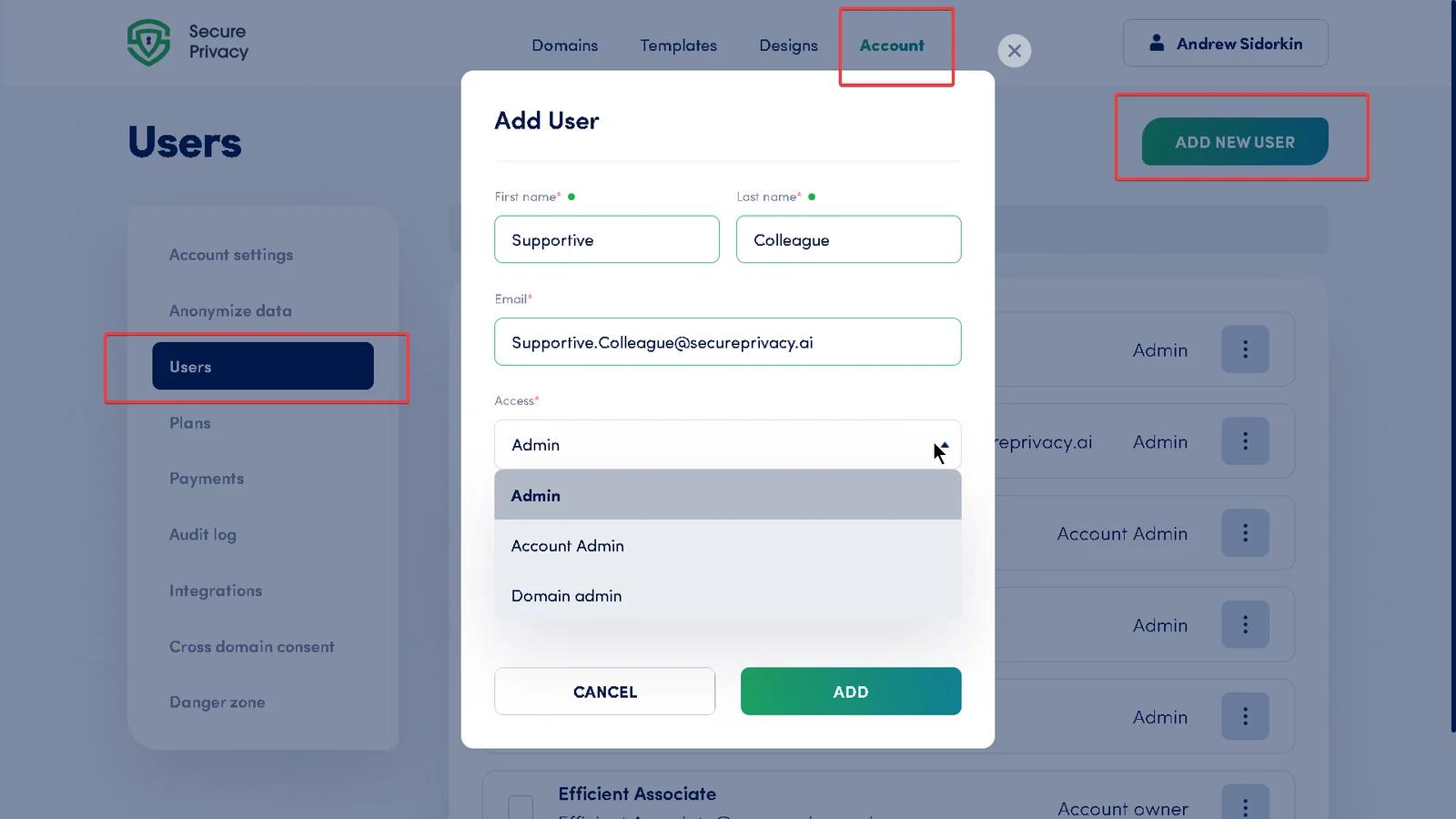
The Add New User form — enter contact details and choose the correct access level before confirming.
Secure Privacy User Roles and Permission Levels Explained
Secure Privacy uses role-based access control (RBAC) to determine what each team member can view and manage. Three roles are available, each scoped to a different level of responsibility:
Account Owner / Admin: Full access to all domain configurations, account settings, and billing data. This is the highest permission level in the account and is typically held by the primary account holder.
Account Admin: Access to all features and domain configurations, but cannot modify billing information or core account details. Ideal for internal team leads or privacy officers who need broad operational access.
Domain Admin: Full access only to their assigned domains. Cannot access billing or account-level settings. Any designs, templates, or policies configured outside the Domains tab are view-only for Domain Admins — they cannot edit these configurations. Best suited for external agencies or developers responsible for a specific set of domains.
How to Modify User Roles and Permissions in Secure Privacy
To update the access level assigned to an existing team member:
Step 1 — Go to the Users Tab
Open the Account section and select the Users tab.
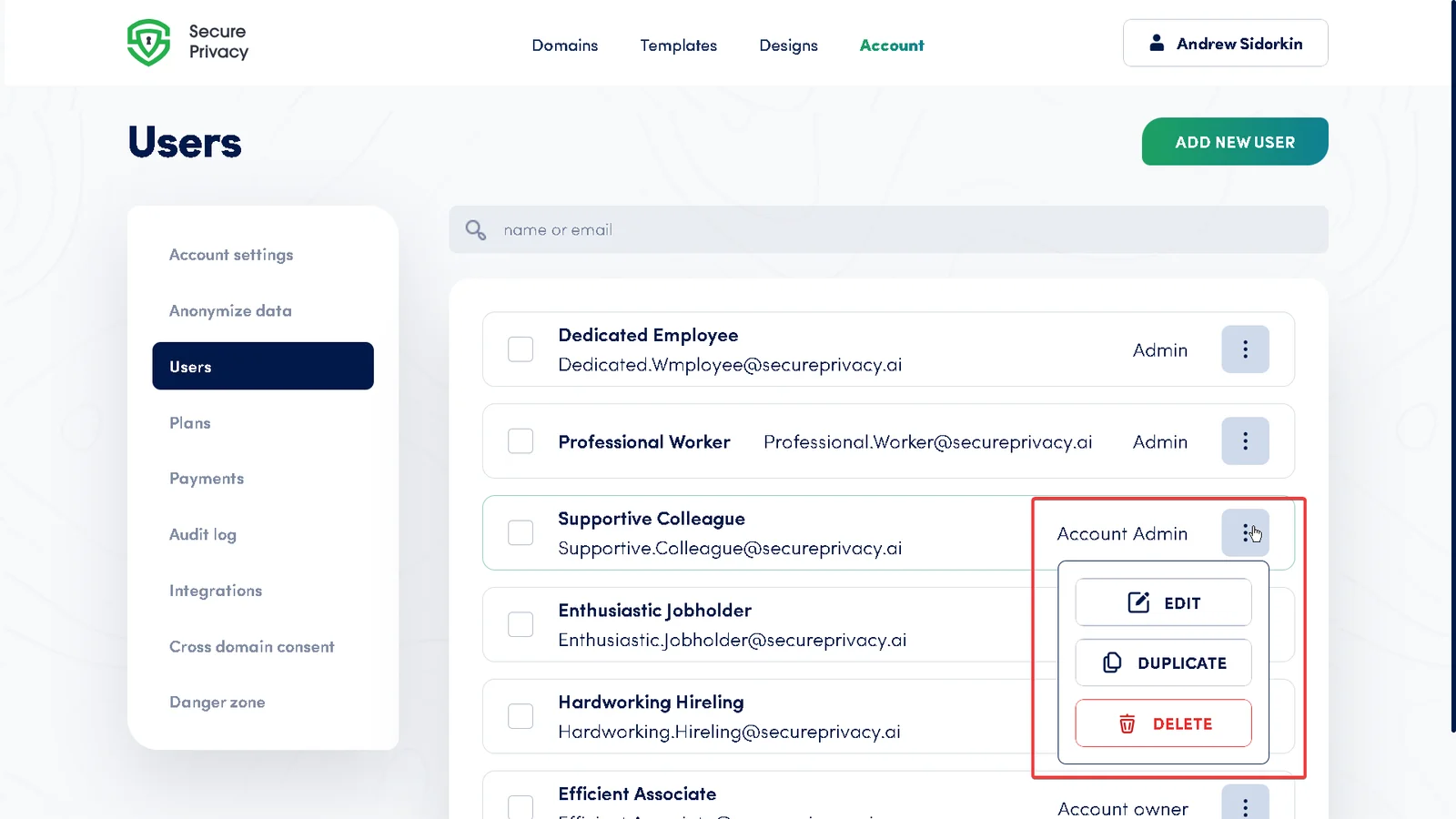
Step 2 — Find the User and Click Edit
Locate the team member whose role you want to change and click the Edit button next to their name.
Step 3 — Select the New Role
Choose the updated user role from the available options in the dialog.
Step 4 — Save Changes
Click Save. The new access level takes effect immediately — no re-login required for the affected user.
The Edit User dialog — select a new role to immediately update what this team member can access.
How to Change the Domain Administrator for a Specific Domain
If you need to reassign ownership of a domain — for example, when handing a website back to a client or transferring responsibility between team members — follow these steps:
Step 1 — Open the Users Tab
Navigate to the Users tab inside the Account section.
Step 2 — Edit the Intended Domain Admin
Find the user you want to appoint as the new domain administrator and click the Edit button.
Step 3 — Assign the Domain
Select the relevant domain from the dropdown list to assign this user as its administrator.
Step 4 — Save Changes
Click Save to confirm the new domain administrator assignment.
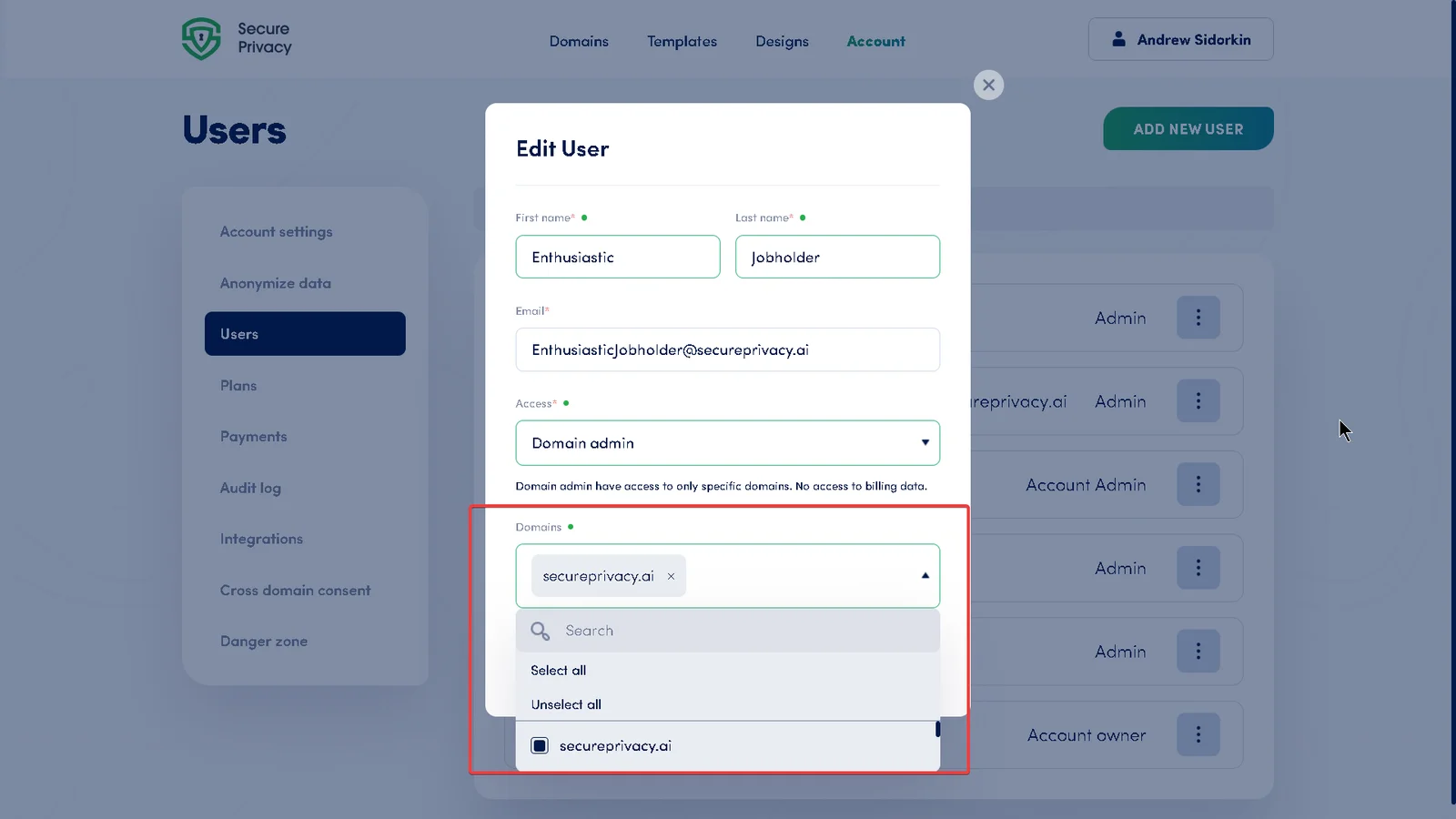
Use the domain dropdown to assign or reassign a Domain Admin to any domain in your account.
How to Remove a User and Revoke Their Access to Secure Privacy
When a team member, contractor, or agency partner no longer needs access to your account, remove them immediately to keep your consent management environment secure.
Step 1 — Open the Users Tab
Go to the Users tab in the Account section.
Step 2 — Click Delete Next to the User
Find the user you want to remove and click the Delete button next to their name.
Step 3 — Confirm the Removal
Confirm the deletion when prompted. This action permanently removes the user and immediately revokes all their access. It cannot be undone — if you need to re-add them later, you will need to send a new invitation.
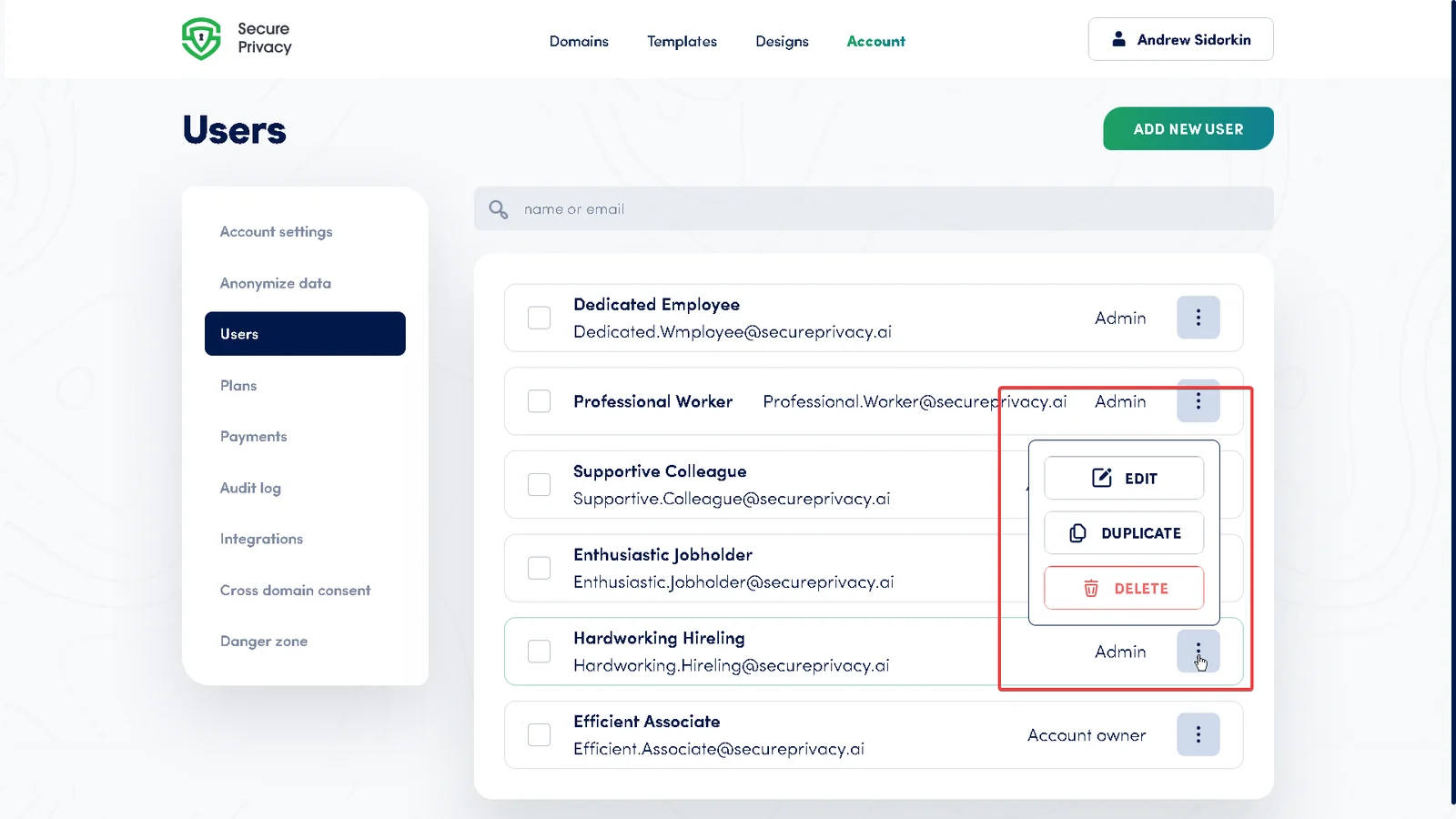
The Delete button on the Users tab permanently removes a team member and revokes their access instantly.
Secure Privacy's role-based access control gives you a clear, auditable structure for every person who touches your consent management configuration — from account-level admins down to domain-specific contributors. Keeping your user list current is one of the simplest steps you can take to maintain both security and GDPR compliance across your account.
If you need further help with user management or any other account settings, contact the Secure Privacy support team[?] and we will be happy to assist.
Frequently Asked Questions
How many users can I add to my Secure Privacy account?
The number of users you can add depends on your Secure Privacy subscription plan. Check your plan details in the Account section, or contact support[?] for information about increasing your user limit.
What is the difference between Account Admin and Domain Admin in Secure Privacy?
An Account Admin has access to all features and domain configurations across the entire account, but cannot change billing details. A Domain Admin is scoped to only the specific domain(s) assigned to them and has view-only access to designs, templates, and policies configured outside the Domains tab. Use Domain Admin for agency partners or developers who should only manage a particular website.
Can a Domain Admin see billing information or other domains?
No. Domain Admins cannot access billing data or account-level settings, and they can only view and manage the domains specifically assigned to them. This makes the Domain Admin role ideal for external partners or contractors who need hands-on access to a limited set of domains without exposing sensitive account information.
What happens to a domain's cookie consent settings when I delete its Domain Admin?
Deleting a user only removes their access — it does not alter any cookie consent configurations, banners, or consent records associated with that domain. All existing settings remain intact and continue to function normally. You can assign a new Domain Admin to that domain at any time.