
Why cookie consent on a Smart TV is harder than it looks
If you publish a Samsung Smart TV app that uses analytics, advertising, or personalization, you are legally required to obtain and record user consent under GDPR, CCPA, South Korea's PIPA, and a growing list of regional privacy laws. That obligation is the same one you already meet on the web. The problem is that connected TV (CTV) is a completely different environment.
Most teams first try to reuse a standard web cookie banner inside their Tizen app, and it falls apart quickly. There is no mouse cursor, so hover states mean nothing. There is no touch screen. Viewers interact from across the room using a D-pad remote (Up, Down, Left, Right, OK, Back), and the TV browser does not move focus between buttons automatically the way the Tab key does on desktop. A consent banner built for click-and-hover simply cannot be operated with the remote, which means viewers cannot accept or decline, and you cannot legally record their choice.
The alternative, building your own TV consent flow from scratch, is expensive: you would need spatial remote navigation, focus styling that reads from across the room, an on-screen form for data requests, and ongoing re-certification every time privacy laws change.
Secure Privacy solves this without the rebuild. The Secure Privacy Tizen TV SDK takes the same certified consent banner and preference centre used across the web and makes it fully navigable with a Samsung TV remote, using the same brand colours you already configured. By the end of this guide you will have a working, D-pad-friendly consent banner live on your Tizen app, your cookies classified so consent is actually recorded, and consent reporting in place, all without redesigning anything.
Who this guide is for
Samsung Smart TV app publishers and streaming (CTV / OTT) services that need GDPR or CCPA-ready consent.
Product managers responsible for privacy compliance on connected TV platforms.
Anyone running analytics, advertising pixels, or personalization inside a Tizen TV app who needs a consent banner that works with the remote.
You do not need to be a developer to follow along. Almost every step happens in the Secure Privacy dashboard. The only technical step, pasting two script tags into your app, is a simple copy-and-paste you can hand to whoever manages your app's code.
Prerequisites
Before you start, make sure you have:
A Secure Privacy account. You can sign in or start a free trial at cmp.secureprivacy.ai.
A Samsung Tizen TV (Smart TV) app whose HTML
<head>section you, or your developer, can edit.The list of cookies and trackers your app uses, or a website domain whose classified cookies you can copy into the app.
How to set up the Secure Privacy consent banner on a Tizen TV app
The full setup takes five steps: create your TV app, choose which privacy laws to cover, install two scripts, classify your cookies, then preview and publish.
Step 1 - Create your TV app and set the platform to Samsung Tizen TV
Sign in to cmp.secureprivacy.ai and add a new app. On the Settings tab, give it an Application name (for example, "Samsung Tizen TV OS"), then set Platform to Samsung Tizen TV and Framework to Native. Choose a Design (Full Screen works well on a 10-foot TV screen) and set the application and SDK version fields. Selecting the Tizen platform is what tells Secure Privacy to serve the TV-optimised, remote-navigable version of the banner.
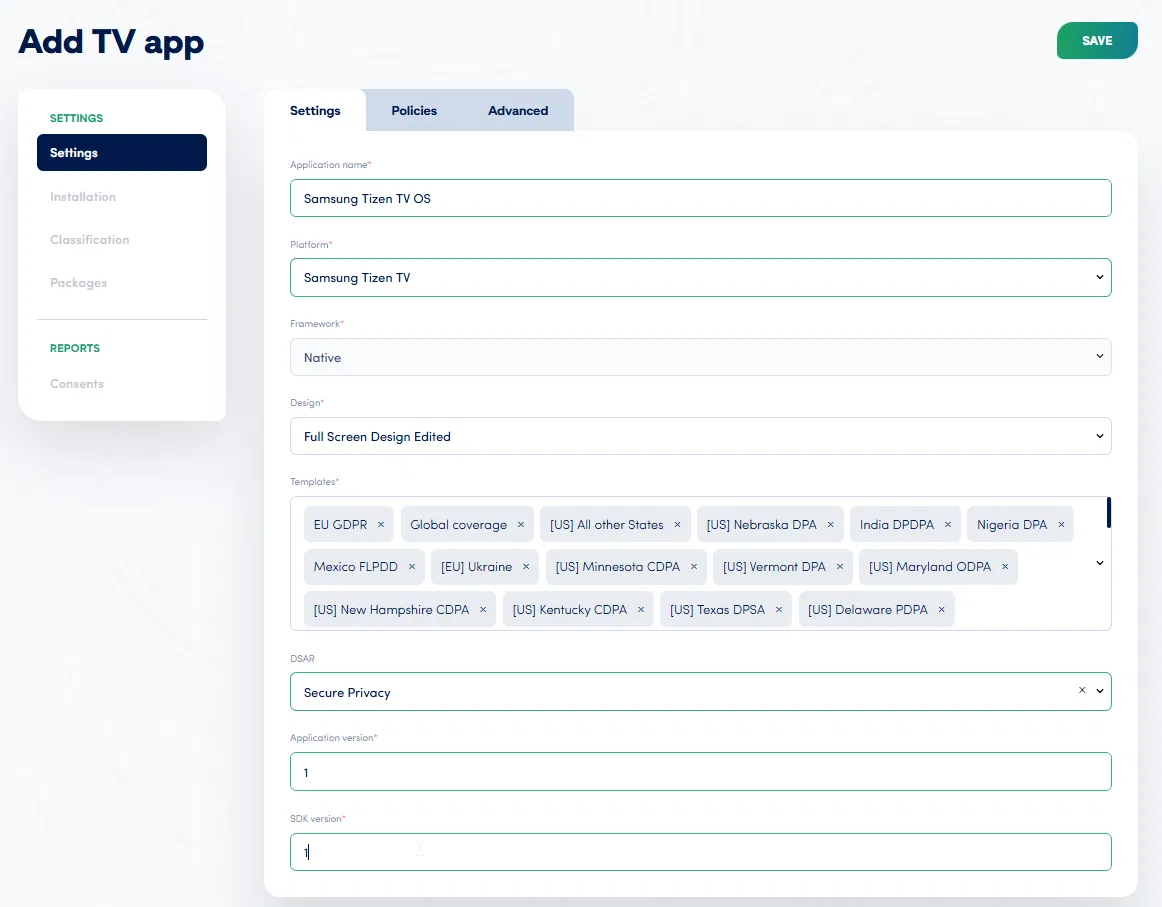
The Add TV app screen: set the platform to Samsung Tizen TV and add the privacy laws you need to cover.
Step 2 - Choose the privacy laws your banner should cover
In the Templates field, add every jurisdiction your viewers live in, such as EU GDPR, the US state laws (CCPA and the other state privacy acts), India DPDPA, and more. Secure Privacy detects each viewer's regulatory context automatically and shows the correct notice, so a single app can stay compliant across regions. Finally, assign a DSAR handler so viewers can submit data-subject requests directly from the TV. This is the one place where you decide, once, which laws the banner honours.
Step 3 - Install the two consent scripts in your app
Open the Installation tab and copy the two script tags shown there into the <head> of your Tizen app's HTML. The order matters: the Tizen TV wrapper must load before the Core SDK, because the wrapper prepares the consent storage the SDK then reads.
<head>
  <!-- 1. Secure Privacy Tizen TV wrapper - must load before the Core SDK -->
  <script src="https://tv.secureprivacy.ai/sp-tizen-wrapper.min.js"></script>

  <!-- 2. Your Secure Privacy script (copied from your Installation page) -->
  <script src="https://app.secureprivacy.ai/script/YOUR_SCRIPT_ID.js"></script>
</head>
That is the entire technical footprint. The wrapper auto-detects the Samsung TV environment and switches the banner into remote-friendly mode on its own, so no extra configuration is needed for the consent UI to work with the D-pad. Your developer waits for the SDK to signal readiness before starting analytics or tracking; the exact pattern is documented in the Tizen TV SDK setup and initialisation guide.
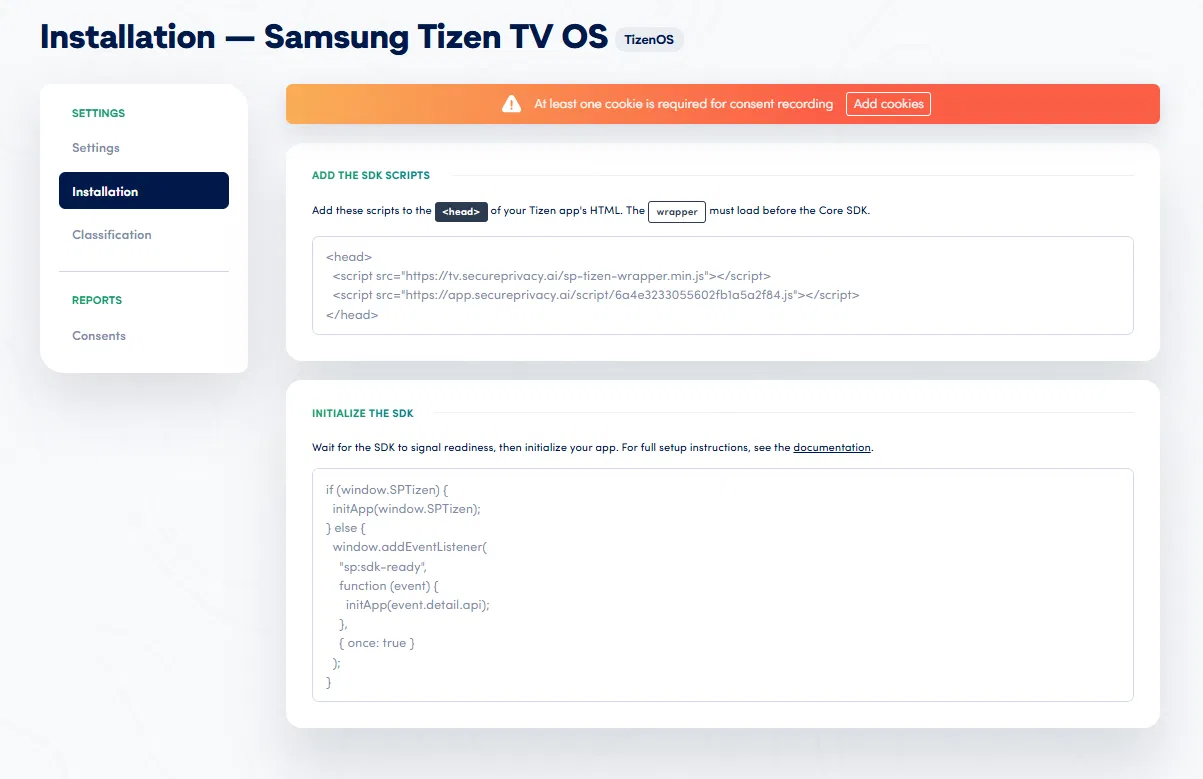
The Installation tab gives you the exact wrapper and Core SDK script tags to paste into your app's head.
Step 4 - Classify the cookies and services your app uses
Consent can only be recorded once your app has at least one classified cookie or service, which is why you will see an "At least one cookie is required for consent recording" notice until you add one. Open the Classification tab and choose the fastest option for you. Use Copy from domain to import the already-classified cookies from a website you run in Secure Privacy, or use Add cookie to enter each cookie or service by hand (name, host, category, service, first or third party, and expiry). Once at least one item is classified, the warning clears and consent recording is active.
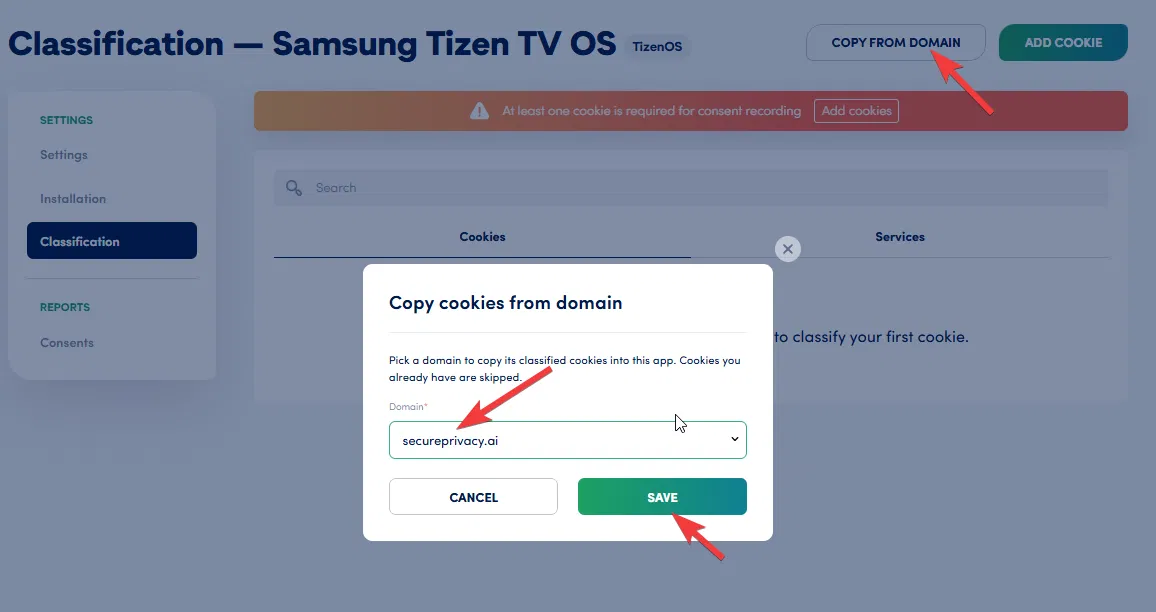
Copy from domain is the quickest way to classify cookies if you already scan a website in Secure Privacy.
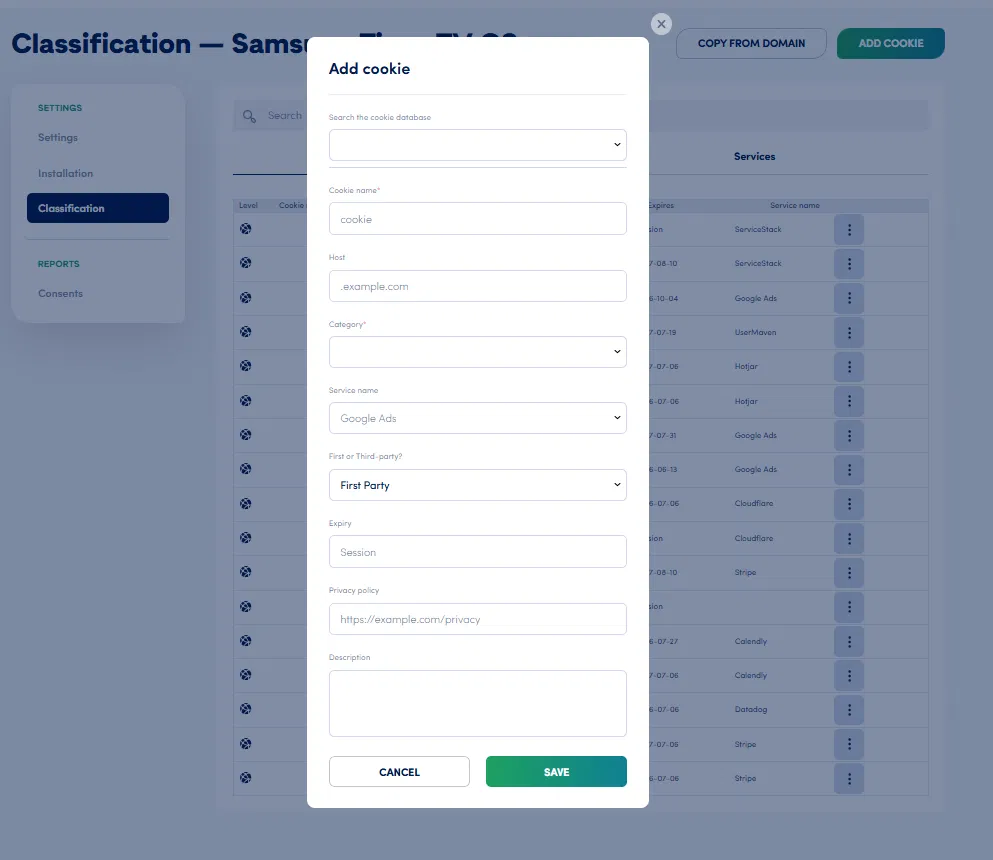
Or add each cookie and service manually, choosing its category so the banner can block or unblock it correctly.
Step 5 - Preview on your TV and publish
Load the app on a Samsung Smart TV or the Tizen emulator. The consent banner appears on first launch with the Accept button already focused. Use the remote's arrow keys to move between Accept, Decline, and Customize, and press OK to choose. Open Customize to confirm the preference centre and its tabs (categories, privacy policy, cookie policy, and the data-request form) all navigate cleanly with the D-pad. When you are happy, publish your app. Every recorded choice appears under Reports > Consents in the dashboard.
What happens after setup
Once the banner is live, Secure Privacy handles the rest of the consent lifecycle for you:
Consent is recorded and enforced automatically. Scripts and trackers you classified are blocked or unblocked based on each viewer's choice, with no manual coding for standard cases.
Viewers can change their mind anytime. The preference centre can be reopened from a "Privacy Settings" button in your app, so viewers can update consent long after the first launch.
Data requests work on the TV. Viewers submit data-subject (DSAR) requests through the Request Data form in the preference centre, fully operable with the remote.
Re-consent is handled for you. When stored consent expires, the banner reappears automatically on the next launch, so you stay compliant without tracking expiry dates yourself.
Everything is reportable. Consent records are available under Reports > Consents for your audit trail.
Optional: showing more than one banner (cookie consent plus VPPA)
Some streaming and video apps have to collect more than one type of consent, for example a standard cookie consent banner for GDPR and CCPA plus a separate VPPA (Video Privacy Protection Act) banner shown only on video-playback pages. Secure Privacy supports this on Tizen through independent, isolated banner contexts, so consent from one context never suppresses or overwrites the other. If your CTV app needs this, follow the Tizen TV multi-banner support guide.
Troubleshooting
The consent banner does not appear on the TV
Check the script order first: the Tizen TV wrapper (sp-tizen-wrapper.min.js) must load before your Core SDK script. Also confirm you have classified at least one cookie or service, because consent recording, and the banner, only activate once your app has one.
I still see "At least one cookie is required for consent recording"
Your app has no classified cookies yet. Open the Classification tab and either use Copy from domain or add a cookie manually. The notice clears as soon as one item is classified.
The banner shows but I cannot move around it with the remote
This usually means the TV wrapper did not load or loaded after the Core SDK. Make sure both scripts are present and that the wrapper comes first. If your device reports a non-standard user-agent that does not identify itself as a TV, you can force TV mode; the setup and initialisation guide explains how.
Consent is not being recorded
Confirm the Classification tab has at least one cookie or service, that both scripts are installed correctly, and then check Reports > Consents in the dashboard to verify choices are coming through.
Frequently asked questions
Do Samsung Smart TV apps need a cookie consent banner?
Yes. GDPR, CCPA, South Korea's PIPA, and other regional privacy laws apply to Tizen app publishers the same way they apply to websites. If your Samsung Smart TV app uses analytics, advertising, or personalization, you are required to obtain and record user consent, which means you need a consent banner that viewers can actually operate with a TV remote.
What is a CMP for Smart TV or Tizen?
A Consent Management Platform (CMP) detects a viewer's regulatory context, shows the right consent notice, records their choice, and blocks or unblocks trackers accordingly. A Smart TV CMP does all of that in a 10-foot interface that a viewer can navigate with a D-pad remote instead of a mouse. Secure Privacy's Tizen TV SDK provides exactly this for Samsung Smart TV apps.
How do viewers accept or decline consent with a TV remote?
The Secure Privacy banner opens with the Accept button focused. Viewers use the remote's arrow keys to move between Accept, Decline, and Customize, and press OK to select. Opening Customize reveals the preference centre, where every category, policy tab, and the data-request form is fully navigable with the D-pad.
Which privacy laws does the Tizen TV consent banner cover?
You choose the laws in the Templates field when you create the app: EU GDPR, US state laws such as CCPA, India DPDPA, and many more. Secure Privacy detects each viewer's region and shows the matching notice automatically, so one app can stay compliant across multiple jurisdictions.
Can I show more than one consent banner, such as cookie consent plus VPPA?
Yes. For apps that must collect separate consents, for example a cookie consent banner plus a VPPA banner on video-playback pages, Secure Privacy supports independent, isolated banner contexts on the same Tizen app so the two never interfere. See the Tizen TV multi-banner support guide for details.
How do I add Secure Privacy to my Tizen TV app?
Create a TV app in the dashboard and set the platform to Samsung Tizen TV, choose the privacy-law templates you need, then paste the two provided scripts (the Tizen wrapper first, your Core SDK second) into your app's HTML head. Classify at least one cookie or service so consent can be recorded, then preview on a TV and publish.
Why is my consent banner not showing on the TV?
The two most common causes are script order and empty classification. Make sure the Tizen wrapper script loads before the Core SDK, and make sure you have classified at least one cookie or service. The banner and consent recording only activate once your app has one classified item.
Is Secure Privacy a Google-certified CMP?
Yes. Secure Privacy is a Google Gold CMP Partner and supports IAB TCF, along with SOC 2 certification and coverage for 65+ privacy laws, which is why the same certified banner can be reused across the web, mobile, and Samsung Smart TV apps.