
Your cookie banner is doing its job. It blocks trackers, records visitor choices, and keeps your analytics compliant. But the moment someone types their email into your newsletter signup form, that consent record ends. The checkbox they ticked lives in your form tool. The subscriber lands in Mailchimp. And if a regulator ever asks you to prove that a specific person opted in to marketing emails - when, from where, and to exactly which purposes - you are stitching together screenshots from three different systems.
Most teams try to close this gap in one of three painful ways. Some rely on Mailchimp's built-in GDPR fields, which capture a permission state but no independent, timestamped audit record and no link back to the rest of your consent data. Others log consent in a spreadsheet or a custom database table, which works right up until someone leaves the company or the schema changes. The rest bolt a second consent tool onto their newsletter form, and now marketing and legal are reconciling two dashboards that disagree with each other.
Secure Privacy's Universal Consent feature closes the gap properly. Cookie banners are only one way to collect consent. With Custom Consent, any form, app, or backend service can post a granular consent record into the same audit-ready dashboard that already holds your cookie consent data - and Secure Privacy pushes that record straight into your Mailchimp audience as subscriber tags you can segment on. One source of truth for legal, one clean set of tags for marketing.
By the end of this guide you will have: a working custom consent integration and Integration ID, a newsletter signup flow that captures granular marketing, data processing, and third-party sharing consent, subscribers automatically created or updated in your Mailchimp audience with matching consent-* tags, and a centralized, exportable consent record in Secure Privacy for every GDPR audit that comes your way.
Who Is This Guide For?
Marketing and growth teams who need GDPR-compliant newsletter signups without losing the ability to segment campaigns by what people actually agreed to.
Privacy officers, DPOs, and legal teams who need defensible proof of email marketing consent with timestamps, purposes, and country of origin.
Developers and web agencies building custom signup forms, preference centers, or lead-magnet gates that must record consent before a contact enters a marketing list.
Anyone running Mailchimp in the EU, UK, or another consent-first jurisdiction who has realised that a cookie banner alone does not cover email marketing consent.
Prerequisites
Before you start, make sure you have:
An active Secure Privacy account with access to the Universal Consent section (available on Secure Privacy v2 - see the v1 end-of-support and v2 upgrade guide if you are still on the legacy platform).
A Mailchimp account with at least one audience created, and permission to authorize third-party apps.
A newsletter signup form, preference center, or application that can send an HTTPS POST request - either your own code or a form builder that supports webhooks.
Agreed consent purposes. Decide in advance which granular options you will present (for example marketing communications, data processing, third-party sharing) and make sure your privacy policy describes each one.
Roughly 15 minutes. No cookie banner changes and no site-wide script edits are required.
Why Use Universal Consent for Email Marketing Consent?
Cookie banners are not the only way to collect consent, and under GDPR they were never meant to be. Consent for sending marketing emails is a separate legal basis from consent for setting cookies, and it needs its own record. Universal Consent lets you:
Collect email marketing consent from any custom form, mobile app, or backend service
Centralize every consent record in one dashboard alongside your cookie consent data
Automatically sync consent data to your Mailchimp audience
Maintain GDPR compliance across all subscriber touchpoints, not just your website
Apply consent-based tags for targeted, defensible email campaigns
Keep subscriber preferences synchronized in real time as people change their minds
Record double opt-in confirmations and preference updates against the same subscriber identity
Why this matters for accountability: GDPR Article 7(1) requires you to be able to demonstrate that a person consented. A subscriber row in Mailchimp shows current state; it does not show what the person was asked, when they answered, or from where. Universal Consent stores that evidence independently, which is exactly what an audit or a data subject access request needs.
How to Connect Mailchimp to Secure Privacy Custom Consent (5 Steps)
Create a custom consent integration in Secure Privacy, copy the Integration ID into your newsletter form, and verify that consent records land in both your Mailchimp audience and the Secure Privacy consent dashboard.
Step 1 - Create your custom consent integration
You only need to do this once per integration type. The Integration ID can be reused across multiple forms and applications.
Navigate to Universal Consent in the main menu.
Click the ADD INTEGRATION button in the top right corner.
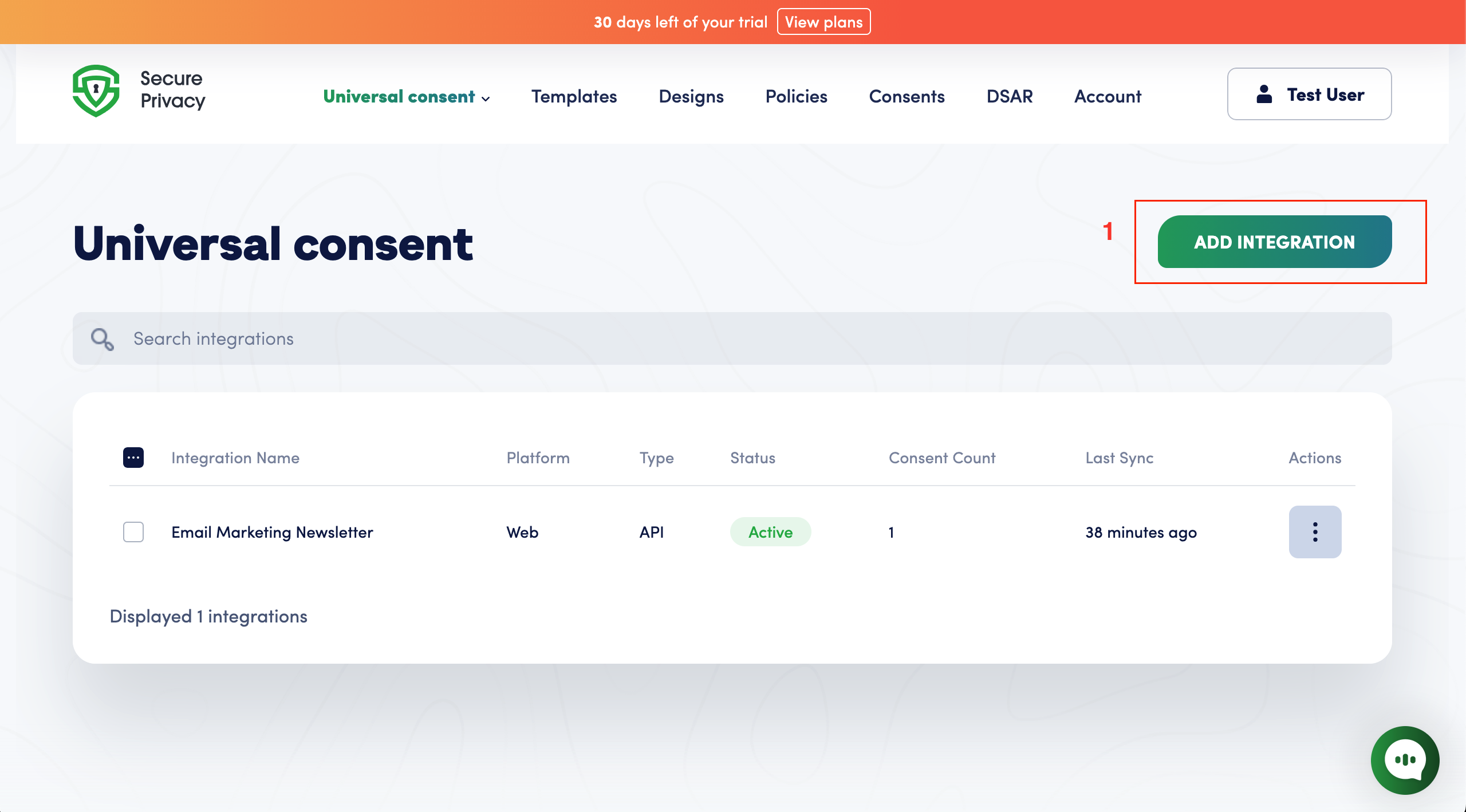
The ADD INTEGRATION button sits in the top right of the Universal Consent screen.
Fill in the integration details:
Integration Name: give it a descriptive name, for example "Email Marketing Newsletter"
Platform: select Web
Integration Type: select API
Status: set to Active
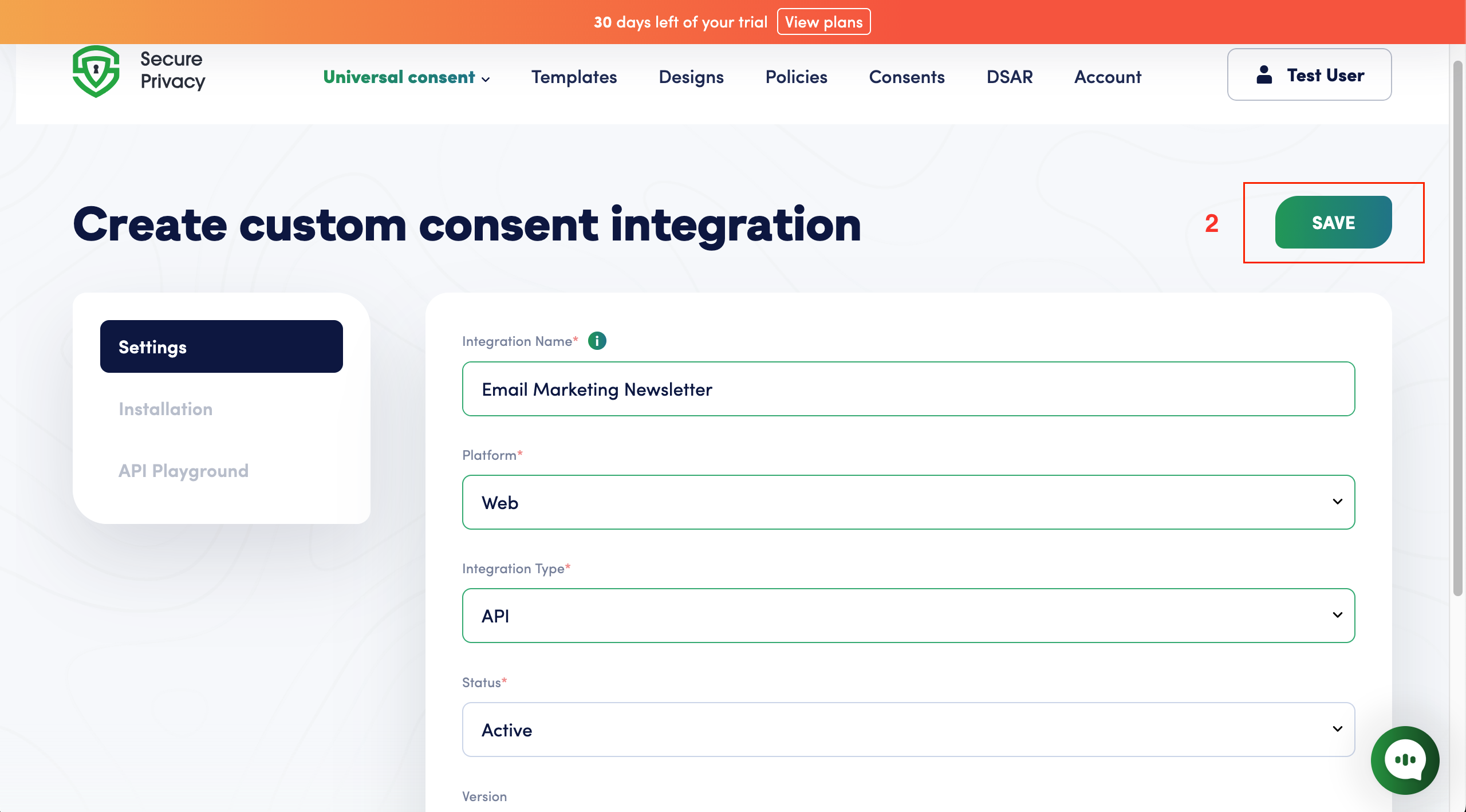
Set Platform to Web and Integration Type to API for a newsletter signup form.
Click SAVE.
Naming tip: if you run more than one newsletter or brand, name the integration after the specific list rather than the company. The name appears as the Entity on every consent record, so a clear name here makes audits far quicker later.
Step 2 - Copy your Integration ID
The Integration ID is a unique identifier that connects your custom form to Secure Privacy. You will need this ID to integrate with your application.
After saving, you are taken to the Installation page.
Locate the YOUR INTEGRATION ID section.
Click the copy icon to copy the Integration ID.
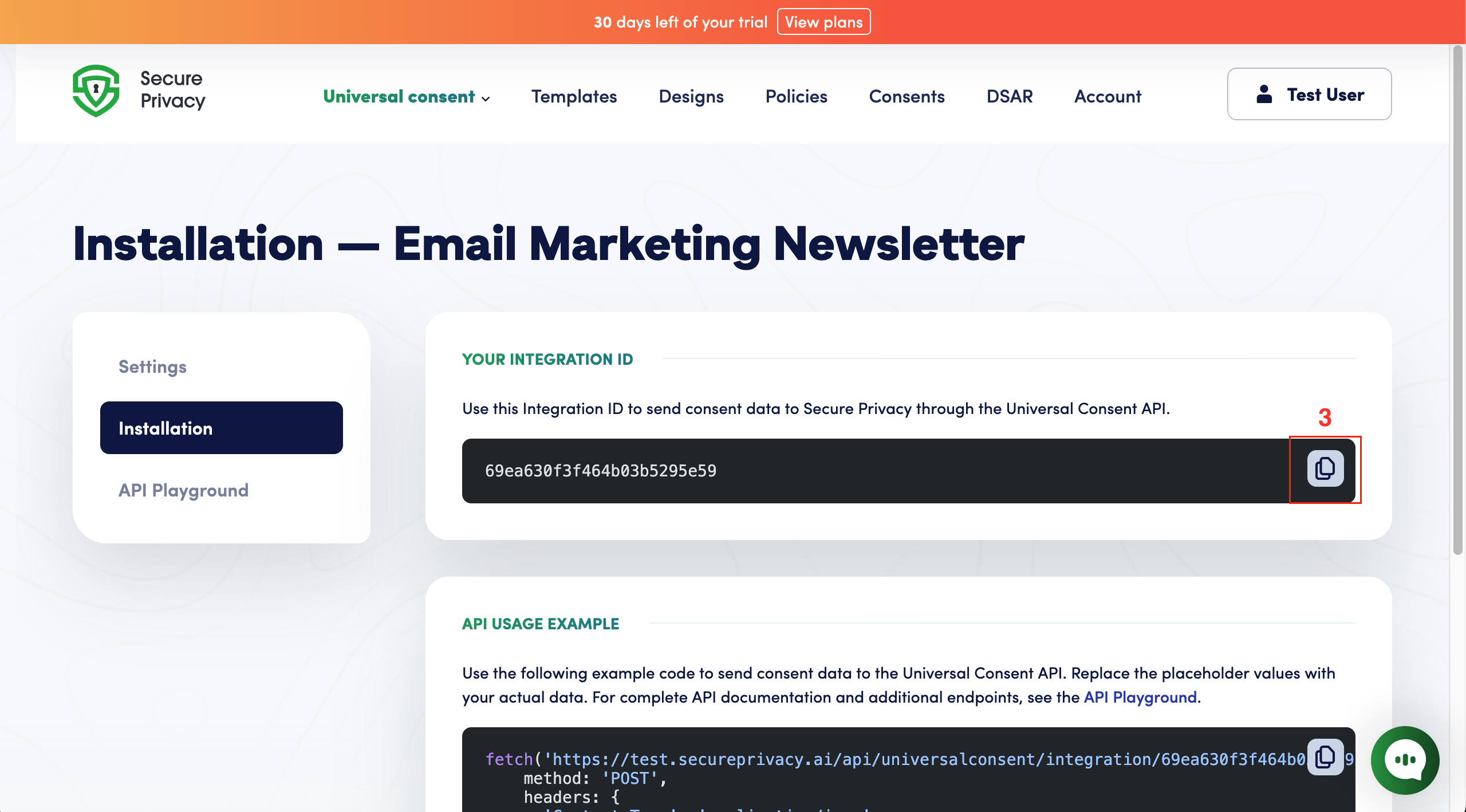
Copy the Integration ID from the Installation page and store it with your form configuration.
Example Integration ID: 69ea630f3f464b03b5295e59
The Integration ID is not a secret credential in the way an API key is, but treat it as configuration rather than something to hard-code in multiple places. Store it once in an environment variable or your form tool's settings so you can rotate integrations without hunting through code.
Step 3 - Submit consent through your newsletter signup form
Your subscribers can now submit consent through your custom newsletter form, website, or application.
Example subscription flow
The user fills out their subscription information:
Email address
First name
Last name
The user selects their consent preferences:
Marketing Communications - allow us to send marketing materials, product updates, and promotional content via email
Data Processing - process personal data for service improvement and analytics purposes
Third-Party Sharing - sharing with trusted partners and service providers
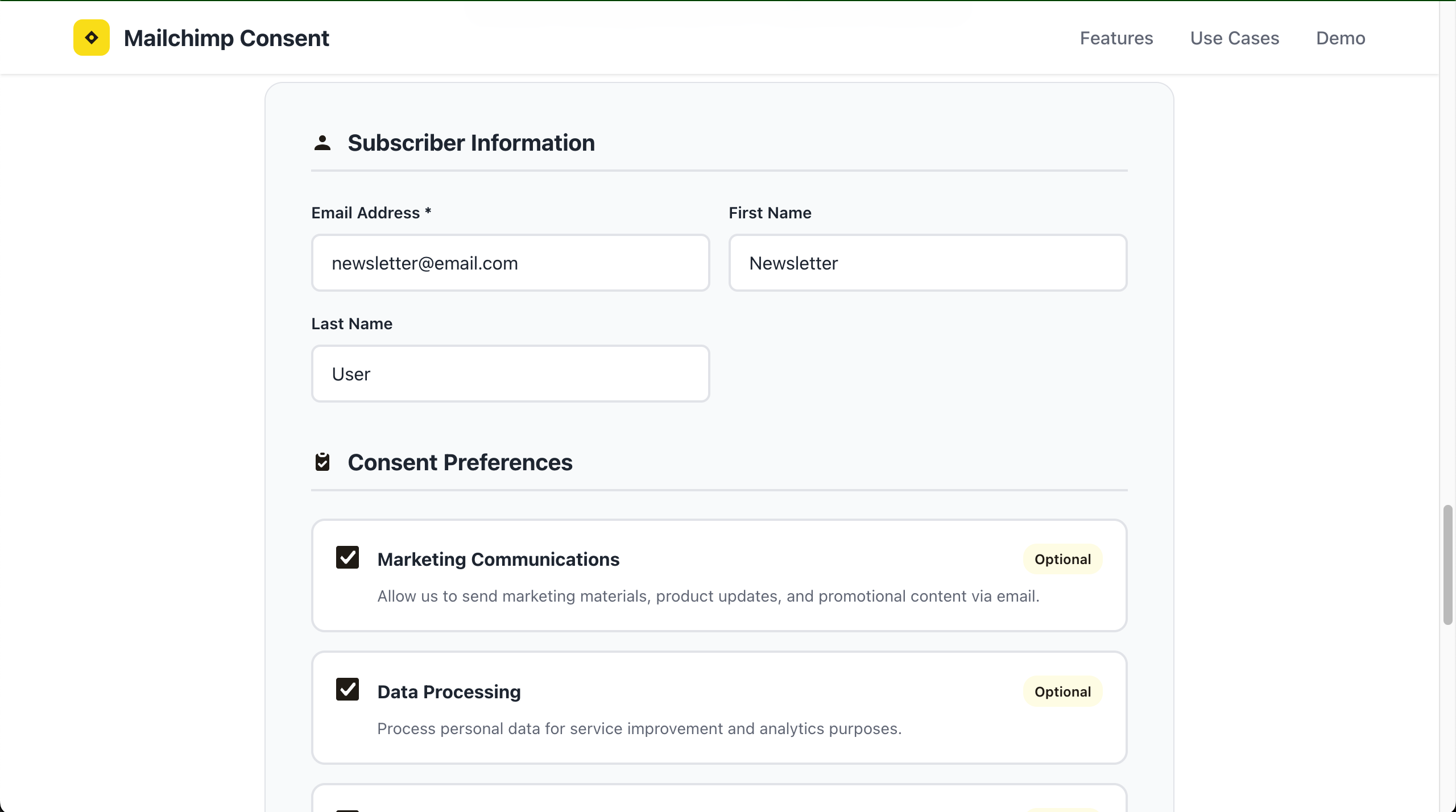
Each purpose gets its own unticked checkbox, which is what granular GDPR consent requires.
The user clicks Subscribe & Consent.
Success confirmation
After submission, users see a confirmation containing:
A consent summary showing all granted preferences
Subscription status in Mailchimp
The timestamp of consent
Mailchimp sync confirmation
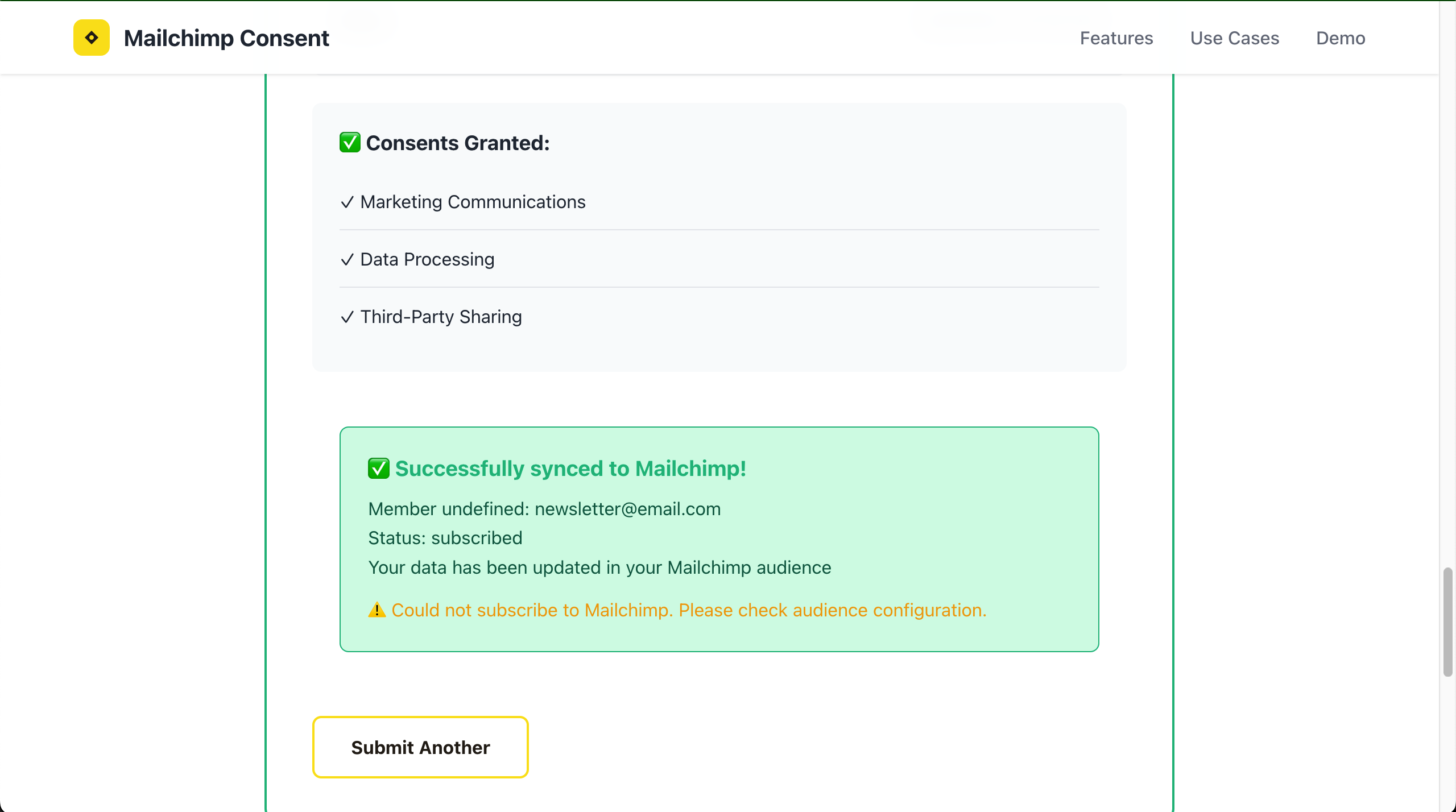
The confirmation screen doubles as a transparency notice for the subscriber.
Step 4 - Verify the consent data in your Mailchimp audience
If you have connected your Mailchimp integration, consent data syncs to your audience automatically.
Check your Mailchimp audience
Open your Mailchimp account.
Navigate to Audience → All contacts.
Find the subscriber by their email address.
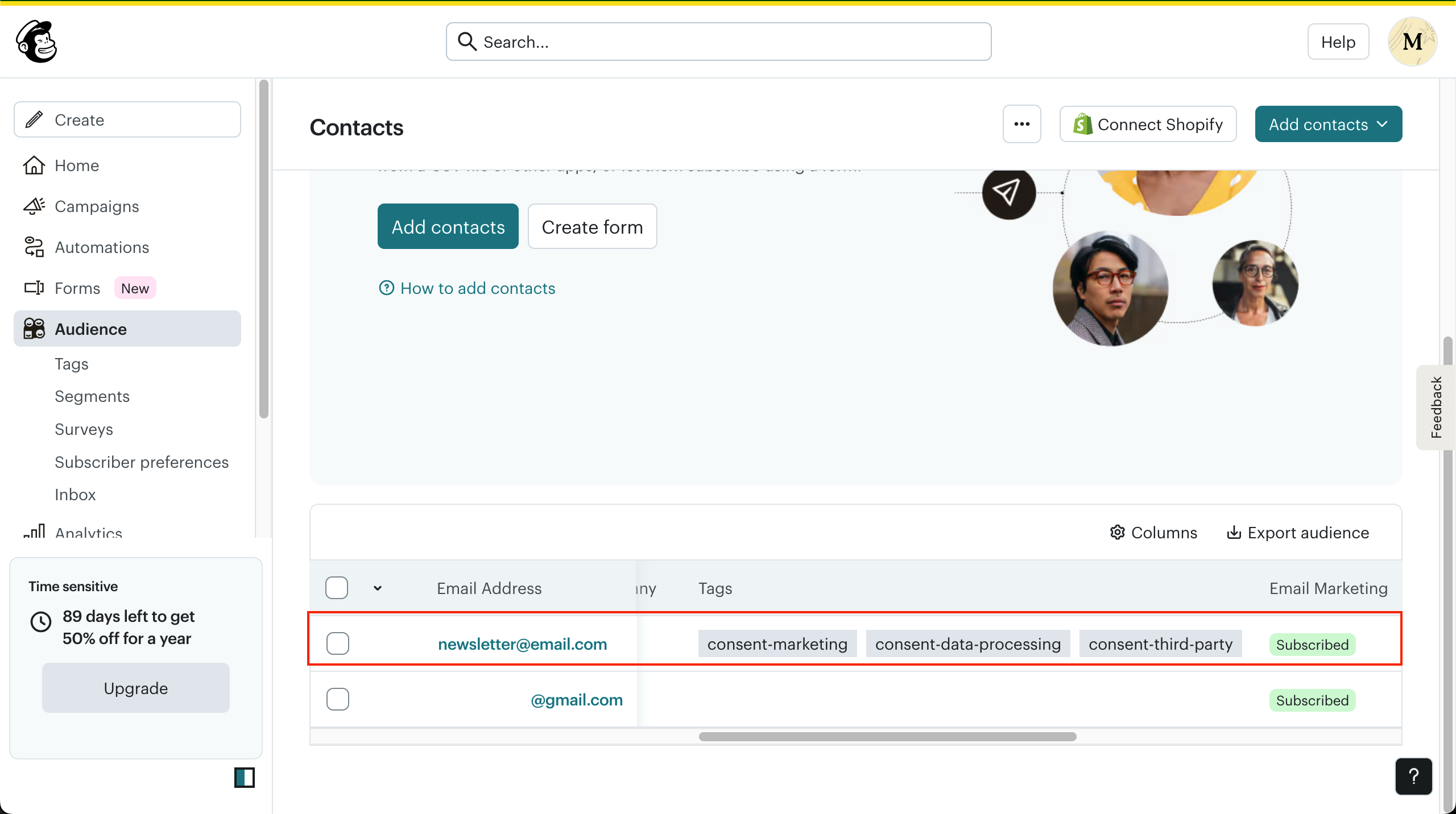
Consent purposes arrive in Mailchimp as tags you can build segments from.
The subscriber is created or updated with:
Email address and name, stored in the merge fields
FNAMEandLNAMESubscription status: Subscribed
Consent-based tags:
consent-marketing- marketing communications consentconsent-data-processing- data processing consentconsent-third-party- third-party sharing consent
An Email Marketing status indicator
Pro tip: use these consent tags in Mailchimp to create targeted segments for your email campaigns. For example, only send promotional emails to subscribers tagged with consent-marketing, and keep transactional or service messages on a separate segment so a marketing opt-out never blocks an essential email.
Step 5 - Review consent records in Secure Privacy
All consent records are centralized in your Secure Privacy dashboard for audit and compliance purposes.
Access the consents dashboard
Navigate to Consents in the main menu.
View your consent statistics:
Total consents collected
Accepted consents
Declined consents
Partial consents
Recent consent activity
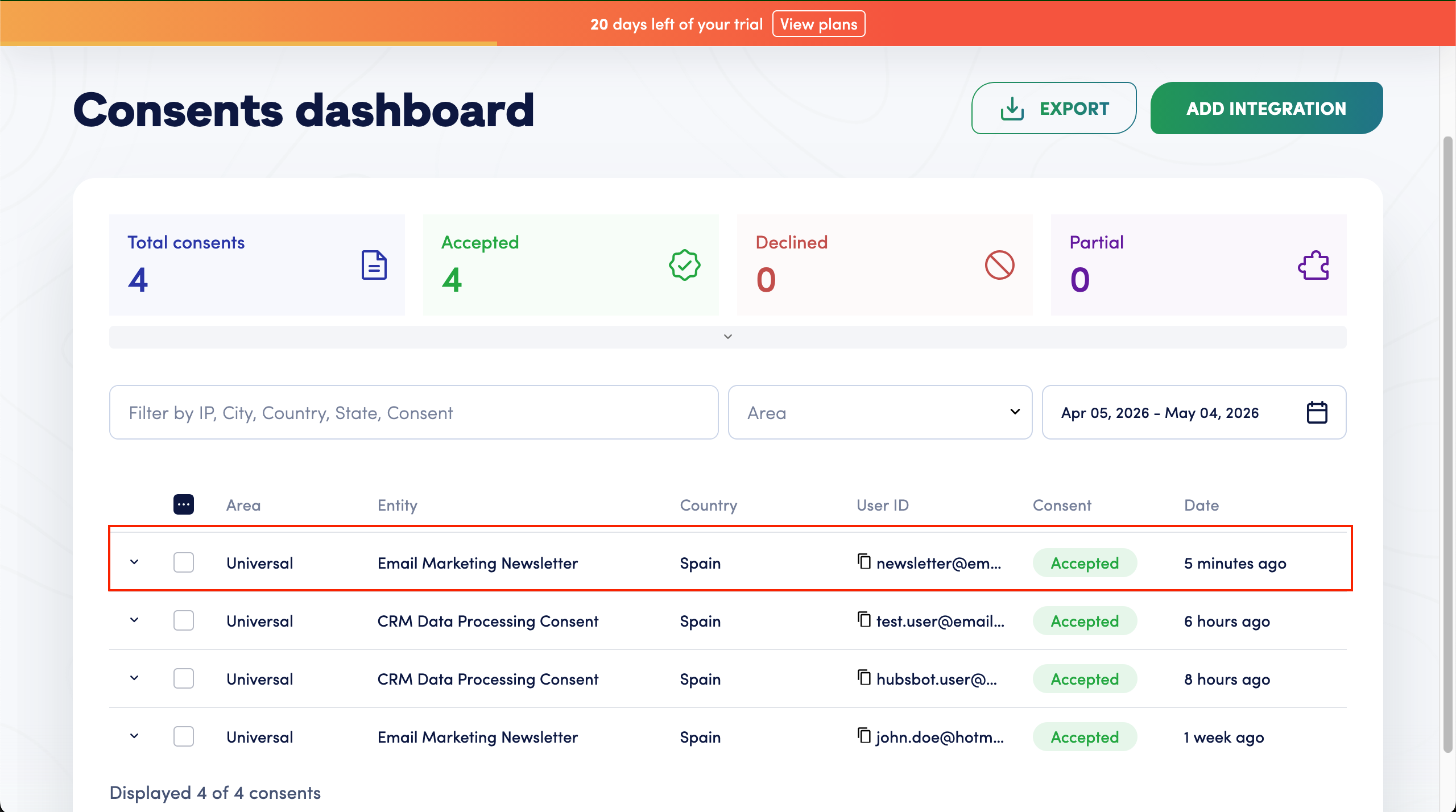
Newsletter consents appear in the same dashboard as your cookie consent records.
View individual consent details
Click any consent record to see:
User ID: the email address of the subscriber
Entity: which integration collected this consent, for example "Email Marketing Newsletter"
Country: the subscriber's location
Consent Status: Accepted, Partial, or Declined
Date & Time: when consent was given
Detailed Breakdown: individual consent preferences
Mailchimp Sync Status: confirmation of the sync to your Mailchimp audience
For filtering and CSV export options, see the Secure Privacy consent dashboard guide.
What Happens After Setup
Once the integration is live, the flow runs without further intervention. It helps to know what to expect and what to check periodically.
Every submission creates a record. A partial consent, where someone accepts marketing but declines third-party sharing, is stored as Partial rather than being discarded. That distinction is what makes the record useful in an audit.
Returning subscribers update, not duplicate. Posting the same email address again updates the existing Mailchimp contact and its tags, so a preference center can reuse the same Integration ID as your signup form.
Withdrawal is as important as granting. GDPR requires that withdrawing consent be as easy as giving it. Send an updated consent payload with the relevant purposes set to
falsewhen a subscriber changes their mind, so the Mailchimp tags and the Secure Privacy record stay in step.Consent records count towards your plan. High-volume signup flows consume consent allowance in the same way cookie banner consents do. See extra consents and budget limits if you expect a spike.
Retention is configurable. Consent records should be kept for as long as you rely on that consent, plus the limitation period that applies to your jurisdiction. Review the data retention period settings with your legal team.
DSARs get easier. When a subscriber asks what you hold on them, the consent record gives you a dated answer in one lookup. Pair this with DSAR management in Secure Privacy.
Real-World Use Cases for Custom Consent and Mailchimp
Use case 1: Newsletter signup forms
Add consent checkboxes to your website's newsletter signup form. When visitors subscribe, their consent preferences are automatically recorded and synced to Mailchimp with the appropriate tags.
Use case 2: Email preference center
Build a self-service preference center where subscribers can update their email marketing and privacy preferences at any time, with changes automatically logged and synced.
Use case 3: Lead magnets and content downloads
Collect granular consent when users download whitepapers, ebooks, or other gated content, ensuring compliance before adding them to marketing lists.
Use case 4: Multi-brand newsletter management
If you manage multiple brands or newsletters, create a separate integration for each, allowing subscribers to consent to specific types of communication rather than one undifferentiated list.
Use case 5: Event and webinar registration
Capture marketing consent during event registrations, webinar signups, or conference attendance, automatically syncing attendees to your Mailchimp audience with the right tags already applied.
Universal Consent API Integration Guide for Developers
For developers implementing the integration, use the Universal Consent API endpoint with your Integration ID. Full endpoint reference and a live request tester are available in the Secure Privacy Universal Consent API documentation.
API endpoint
POST https://api.secureprivacy.ai/api/universalconsent/integration/{INTEGRATIONID}Example request body
{
  "CustomUserId": "[email protected]",
  "IP": "192.168.1.100",
  "Country": "Spain",
  "ConsentDetails": {
    "marketingcommunications": true,
    "dataprocessing": true,
    "thirdpartysharing": true
  },
  "Metadata": {
    "firstName": "Newsletter",
    "lastName": "User",
    "email": "[email protected]"
  }
}
Example response
{
  "success": true,
  "message": "Consent recorded successfully",
  "mailchimpSync": {
    "status": "subscribed",
    "email": "[email protected]",
    "tags": ["consent-marketing", "consent-data-processing", "consent-third-party"]
  }
}
Send the request server-side rather than from the browser wherever possible, so the IP and Country values reflect the real submitter and cannot be tampered with. For complete API documentation and an interactive request builder, visit the API Playground in your integration settings. If you also need to read or react to consent state in the browser, see the Secure Privacy JavaScript API reference.
Troubleshooting Common Mailchimp Consent Sync Issues
Consent not appearing in the dashboard
Verify you are using the correct Integration ID.
Check that the integration status is set to Active.
Ensure the API request is returning a 200 success status.
Verify the request body includes all required fields.
Mailchimp sync not working
Confirm OAuth authentication is properly configured for Mailchimp.
Verify you have authorized the Mailchimp connection.
Check that the
MAILCHIMP_AUDIENCE_IDis correct in your configuration.Ensure the Mailchimp audience exists and is accessible to the authorized account.
Review the success message for sync status details.
Subscriber not appearing in Mailchimp
Check whether the email address already exists in your audience under a different status.
Verify the audience ID is correct in your integration settings.
Ensure the Mailchimp API credentials have not expired.
Check whether the subscriber was previously flagged as spam or hard-bounced, which prevents resubscription.
"Member undefined" error
This warning indicates the Mailchimp API response did not include member details.
The consent is still recorded in Secure Privacy, so no compliance record is lost.
Check your Mailchimp audience configuration.
Verify the OAuth token has the correct permissions for the audience.
Still stuck? Submit a support ticket with your Integration ID and the API response body, and the Secure Privacy team can trace the request.
Frequently Asked Questions
Do I need consent to send marketing emails under GDPR?
In most EEA and UK cases, yes. GDPR and the ePrivacy Directive generally require freely given, specific, informed, and unambiguous consent before sending marketing email to an individual, with a narrow soft opt-in exemption for existing customers in some member states. Crucially, GDPR Article 7(1) also requires you to be able to demonstrate that consent was given, which is why an independent, timestamped record matters as much as the opt-in itself. Confirm your specific position with your legal counsel or DPO.
Does a cookie banner cover newsletter signup consent?
No. A cookie banner covers consent for storing and reading information on a visitor's device. Consent to receive marketing email is a separate purpose with a separate legal basis, and it needs its own record showing what the person was asked and when they agreed. Universal Consent exists precisely to capture that second category of consent alongside your cookie banner data.
How do I make my Mailchimp signup form GDPR compliant?
Present each processing purpose as a separate, unticked checkbox; describe each purpose in plain language and link to your privacy policy; do not make marketing consent a condition of receiving the content; and store an auditable record of the choice. Connecting the form to Secure Privacy Custom Consent handles the last requirement automatically, writing a timestamped record with country and per-purpose breakdown while tagging the contact in Mailchimp.
Can I sync consent records to Mailchimp automatically?
Yes. Once your Mailchimp integration is connected, every consent submitted through your Integration ID creates or updates the corresponding contact in your Mailchimp audience, sets the subscription status, populates the FNAME and LNAME merge fields, and applies consent-marketing, consent-data-processing, and consent-third-party tags according to what the subscriber agreed to.
What is Universal Consent in Secure Privacy?
Universal Consent is the Secure Privacy feature for collecting consent outside the cookie banner - from custom web forms, mobile apps, TV apps, backend services, or offline channels - and storing every record in one dashboard. Custom Consent integrations are the configurable workflows within Universal Consent that connect a specific form or application to that record store via an Integration ID.
Where do I find my Integration ID?
After you save a new integration, Secure Privacy opens the Installation page for it. The Integration ID appears in the YOUR INTEGRATION ID section with a copy icon beside it. You can return to it at any time by opening the integration from the Universal Consent list. Note that this is different from your Domain ID, which is used for cookie banner configuration.
Can I use one integration for multiple newsletters or brands?
You can reuse a single Integration ID across multiple forms, and that is the right choice when they all feed the same list and the same purposes. If you run distinct brands or newsletters, create a separate integration for each instead. The integration name is stored as the Entity on every consent record, so separate integrations make it obvious which list a person opted in to.
Is double opt-in required under GDPR?
GDPR does not explicitly mandate double opt-in, but several supervisory authorities treat it as strong evidence that consent was genuinely given by the address owner, and Germany in particular has long expected it in practice. Recording the confirmation click as a consent update against the same subscriber keeps that evidence in one place rather than only in your email tool's logs.
Why is my Mailchimp sync not working?
The most common causes are an expired or unauthorized OAuth connection, an incorrect audience ID in your configuration, or an email address that Mailchimp has previously flagged as bounced or marked as spam, which blocks resubscription. Check the API response body first: if it returns success but no member details, the consent is safely recorded in Secure Privacy and the issue is on the Mailchimp audience side. See the troubleshooting section above for the full checklist.
Does this work with email platforms other than Mailchimp?
Yes. The Universal Consent API is platform-agnostic: any system that can send an HTTPS POST request can record consent. Secure Privacy also offers a native bidirectional consent sync with HubSpot, and consent records can be exported from the dashboard for use with other marketing tools. The Mailchimp-specific behaviour described here is the automatic subscriber creation and tagging.
Summary: What You Have Set Up
You now know how to:
Create a custom email marketing consent integration in Secure Privacy Universal Consent
Copy and use your Integration ID across newsletter forms and applications
Submit granular consent records from a custom newsletter signup form
Verify subscriber data and consent tags in your Mailchimp audience
Use consent-based tags to build targeted, defensible email campaigns
Review, filter, and audit consent records in the Secure Privacy dashboard
Troubleshoot the most common Mailchimp sync failures
Maintain GDPR-compliant email marketing consent evidence across every subscriber touchpoint
Not using Secure Privacy yet? Start a free trial and connect your first custom consent integration in minutes, or schedule a demo to see Universal Consent alongside cookie consent, DSARs, and privacy governance in one platform.
Related Articles
Secure Privacy Consent Dashboard Guide: View, Filter, and Export Consent Records for GDPR Compliance
How to Install Secure Privacy on HubSpot for GDPR-Compliant Cookie Consent
Secure Privacy JavaScript API Reference: sp Object Methods and Event Listeners
Managing Data Subject Access Requests (DSARs) in Secure Privacy
Using the Audit Log (Audit Trail) in Secure Privacy for GDPR Compliance
Self-Service Privacy Rights Portal: Submit GDPR and CCPA Data Requests
How to Change the Data Retention Period for a Legal Template
Secure Privacy Mobile SDK FAQ: Cross-Platform Consent Management
Secure Privacy v1 End-of-Support Q2 2026: Planning Your Upgrade to v2
Universal Consent API Reference (Secure Privacy Developer Docs)