
Your cookie banner handles the website. But most of the consent your business actually relies on is collected somewhere else: the marketing opt-in on a HubSpot form, the data processing checkbox in your onboarding flow, the preference toggle a customer flips six months later. If a regulator or a customer asks you to prove that consent was given, when it was given, and what exactly it covered, a checkbox buried in a CRM field is rarely enough.
Most teams try to close that gap in one of three painful ways. They add a checkbox property to a HubSpot form and hope the timestamp holds up in an audit. They export spreadsheets from three systems and stitch a consent history together by hand. Or they ask engineering to build a custom consent table, which then has to be maintained, versioned, and explained to legal every time the wording of an opt-in changes. None of these give you a single, defensible record of consent, and all of them break the moment consent is collected outside the website.
Secure Privacy Universal Consent is the simpler path. It gives you one API endpoint and one Integration ID that any form, app, portal, or backend can post to. Every consent record - whether it came from a cookie banner, a HubSpot form, a mobile app, or a preference center - lands in the same dashboard with a timestamp, a country, a full breakdown of what was accepted, and a CRM sync status. Consent management for marketing and legal teams, without a custom build.
By the end of this guide you will have: a live custom consent integration in Secure Privacy, an Integration ID wired into your form or application, consent data syncing automatically to HubSpot contact properties, and an audit-ready consent record for every contact in your CRM.
Who is this guide for?
Marketing operations teams running HubSpot forms who need provable marketing consent behind every email send
Privacy, legal, and compliance owners who need one GDPR consent audit trail instead of five partial ones
Developers building custom contact forms, signup flows, or a self-service preference center
Agencies and consultants setting up CRM consent tracking on behalf of clients
No prior Secure Privacy API experience is required. Steps 1 and 2 are point-and-click; only the form submission step involves code, and a working example is included below.
Prerequisites
A Secure Privacy account with access to the Universal Consent section of the dashboard
Admin access to your HubSpot account, so you can create custom properties and authorise the connection
Your HubSpot CRM integration connected in Secure Privacy via OAuth, if you want consent to sync automatically to contacts
A form, website, or application that can send an HTTP POST request (any HubSpot form, custom form, or backend service will do)
Optional but recommended: custom HubSpot properties named
marketing_consent,data_processing_consent, andthird_party_consentcreated before you start
Why collect consent outside the cookie banner?
Cookie banners are not the only way to collect consent, and under GDPR they only cover a narrow slice of what you do with personal data. Universal Consent extends the same record-keeping to every other touchpoint, so you can:
Collect consent from any custom form, portal, or application, not just your website
Centralise every consent record in one dashboard for audit and compliance purposes
Automatically sync consent data to your CRM, so sales and marketing act on current preferences
Maintain GDPR compliance consistently across all customer touchpoints
Create custom consent types that match how your business actually processes data
How to connect Secure Privacy Universal Consent to HubSpot: step-by-step setup
Follow these five steps to create a custom consent integration, capture consent from your form, and verify that the record reaches both HubSpot and your Secure Privacy audit trail.
Step 1 - Create your custom consent integration in Secure Privacy
You only need to do this once per integration type. The Integration ID can be reused across multiple forms and applications.
In the Secure Privacy dashboard:
Navigate to Universal Consent in the main menu
Click the ADD INTEGRATION button in the top right corner
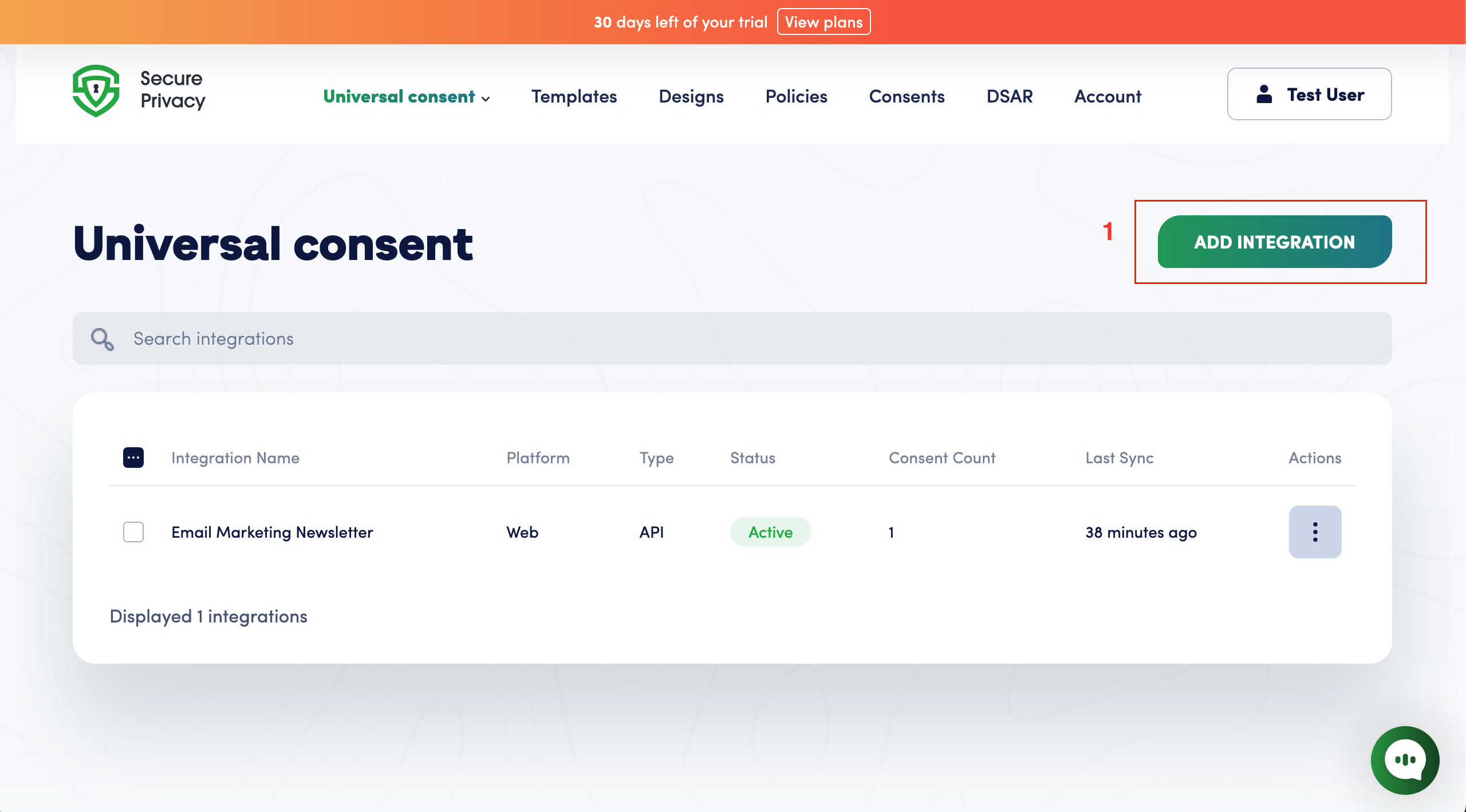
Universal Consent lives in the main Secure Privacy menu. Start a new integration from the top right.
Then fill in the integration details:
Integration Name: something descriptive, for example "CRM Data Processing Consent"
Platform: select Web
Integration Type: select API
Status: set to Active
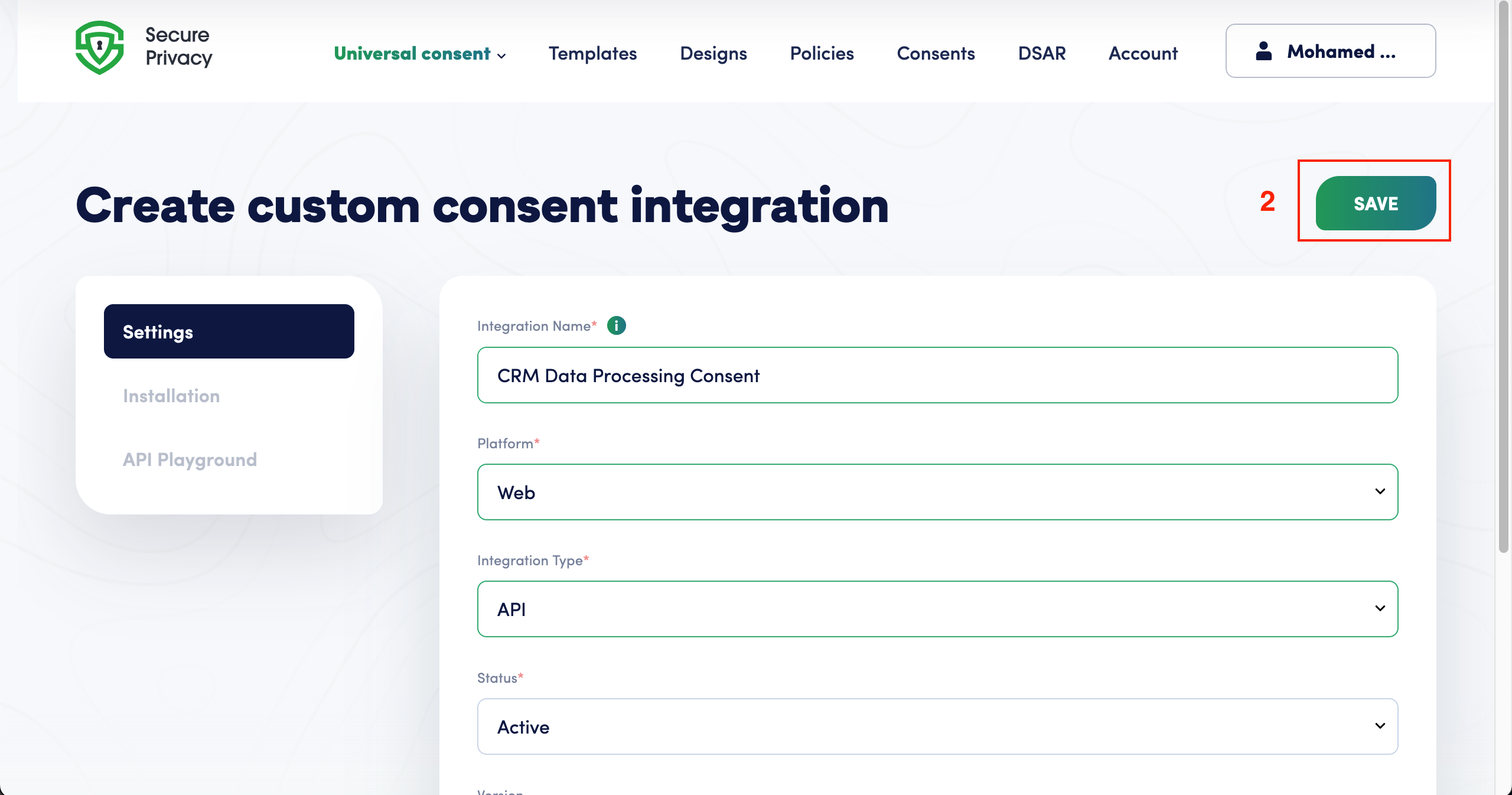
Platform Web plus Integration Type API is the correct combination for form and CRM consent capture.
Click SAVE to create the integration.
Step 2 - Copy your Integration ID
The Integration ID is the unique identifier that connects your custom form to Secure Privacy. You will need it in every consent request your application sends.
After saving, you are taken to the Installation page
Locate the YOUR INTEGRATION ID section
Click the copy icon to copy the Integration ID to your clipboard
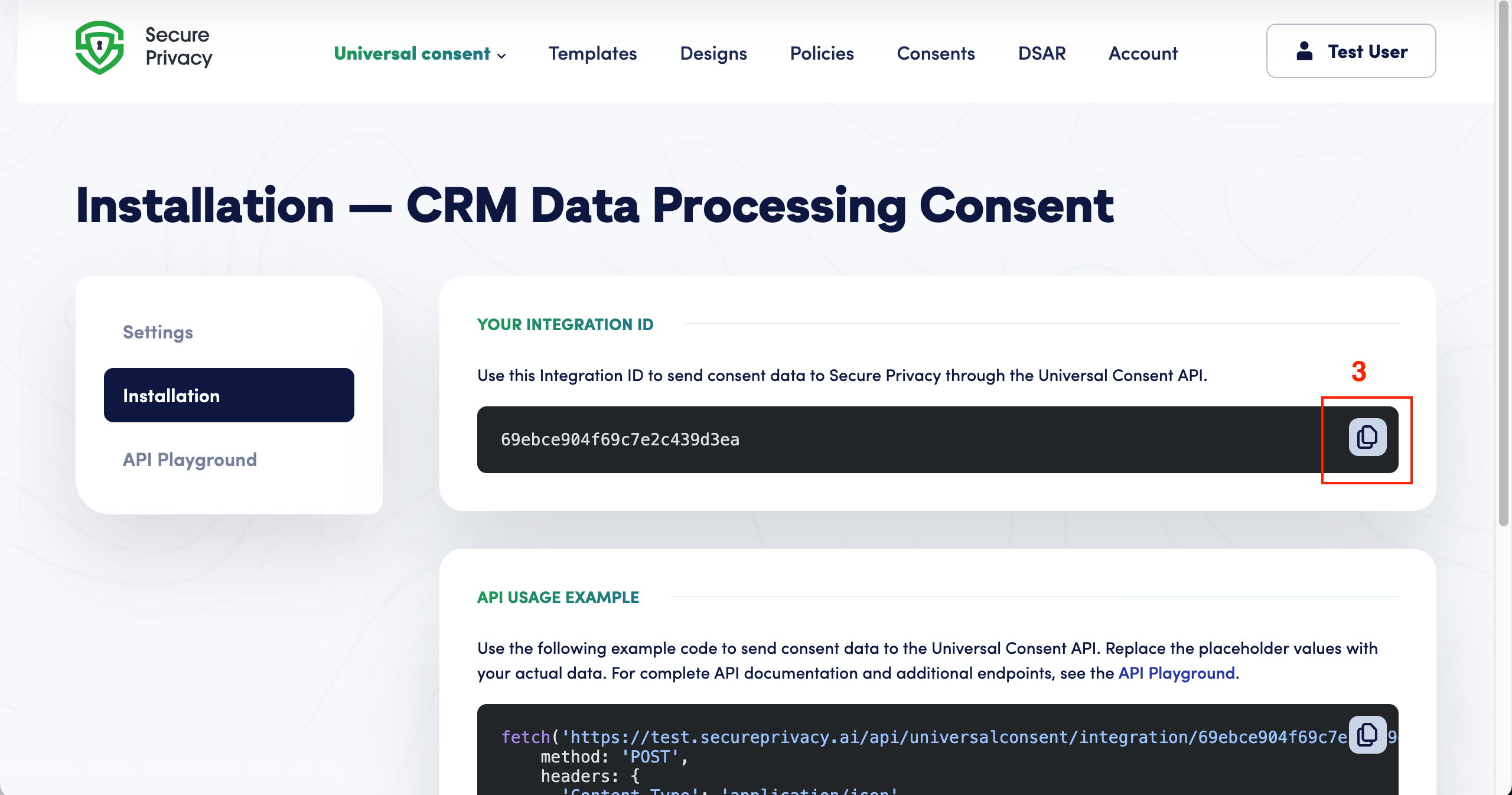
Copy the Integration ID from the Installation page. One ID can serve many forms.
Example Integration ID: 69ebce904f69c7e2c439d3ea
Step 3 - Submit consent through your form
With the Integration ID in place, your users can submit consent through your custom form, website, or application. A typical submission flow looks like this:
The user fills in their contact information: email address, first and last name, company name
The user selects their consent preferences, for example:
Marketing Communications - product updates and promotional content
Data Processing - service improvement and analytics
Third-Party Sharing - sharing with trusted partners
The user clicks Record Contact Consent in HubSpot
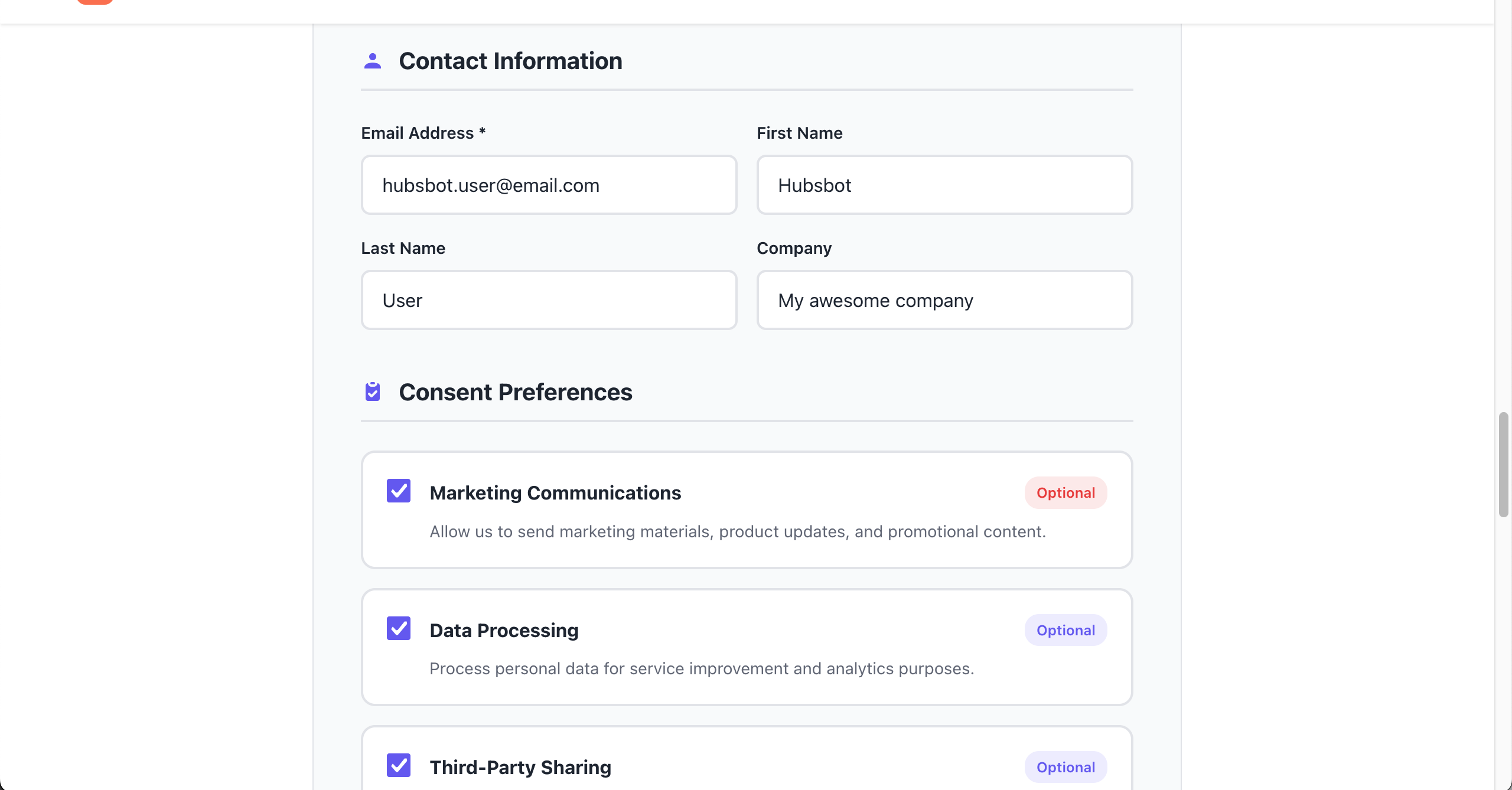
Granular consent options let a contact accept some purposes and decline others.
After submission, the user sees a confirmation containing:
Consent level: All, Partial, or None
Timestamp of consent
The list of granted consents
CRM sync status, if a CRM integration is connected
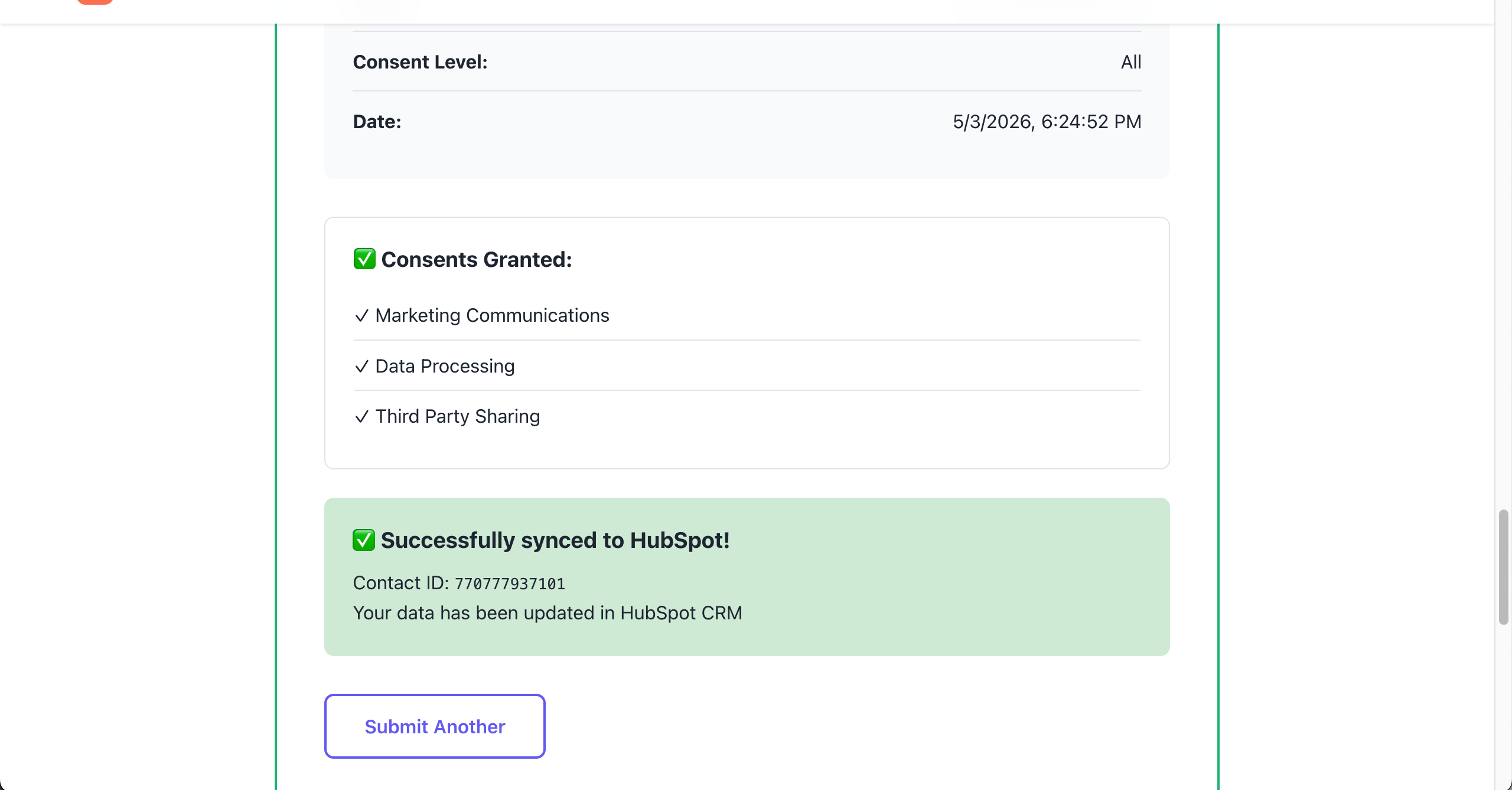
The confirmation doubles as your first verification that the record was written and synced.
Step 4 - Verify the consent data in your HubSpot CRM
If you have connected your CRM integration, consent data syncs automatically to your contacts. To confirm:
Open your HubSpot account
Navigate to Contacts → Contacts
Find the contact by their email address
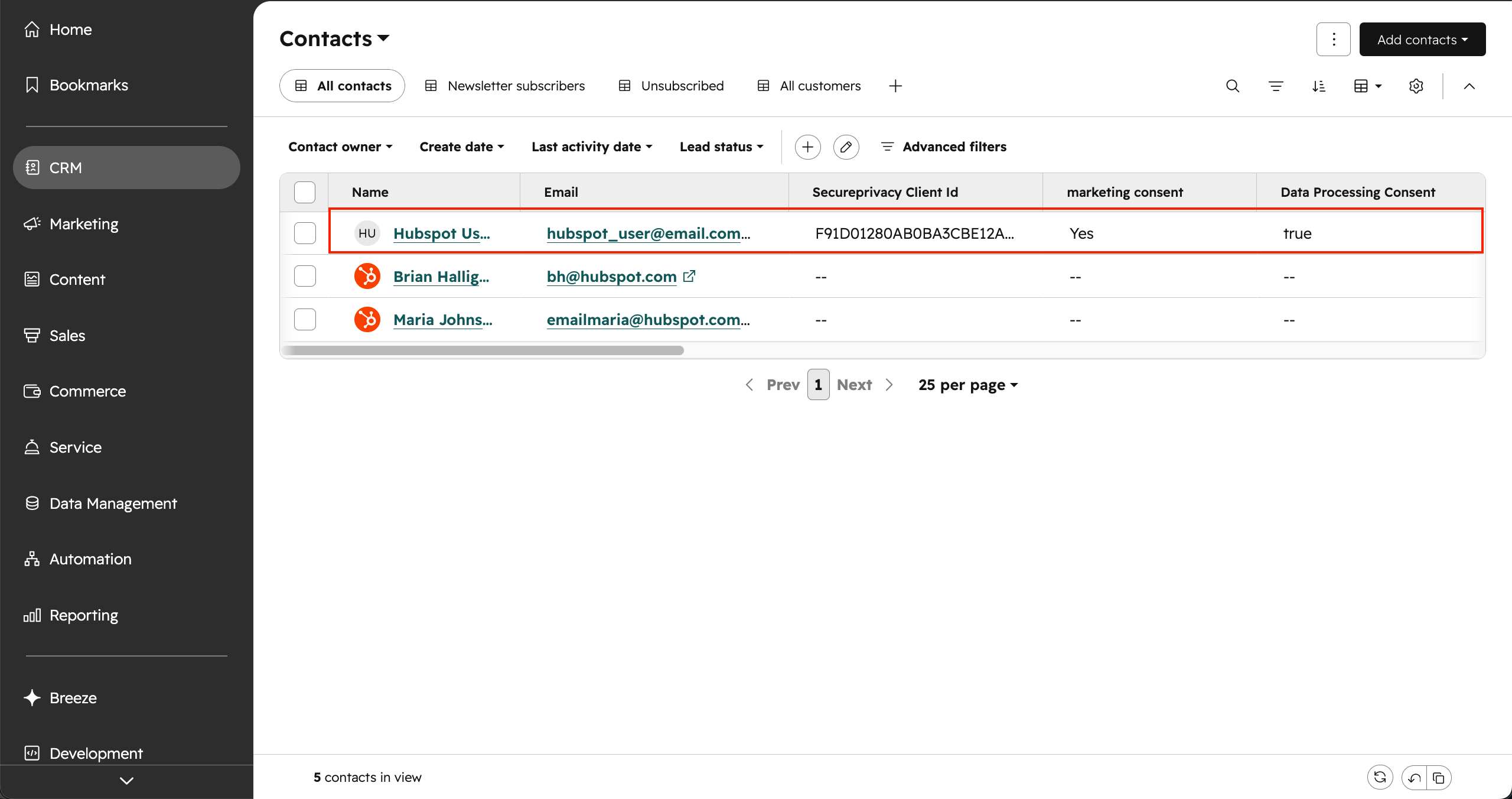
The HubSpot contact is created or updated with the consent properties and a Secure Privacy Client ID.
The contact will be created or updated with:
Contact information (name, email, company)
Custom consent properties
Secure Privacy Client ID
Consent timestamp
Pro tip: create custom properties in HubSpot such as marketing_consent, data_processing_consent, and third_party_consent to store the consent values. Once they exist, you can segment lists and suppress sends directly on consent state.
Step 5 - Review consent records in the Secure Privacy dashboard
All consent records are centralised in your Secure Privacy dashboard for audit and compliance purposes.
Navigate to Consents in the main menu
Review your consent statistics: total consents collected; accepted, declined, and partial consents; and recent consent activity
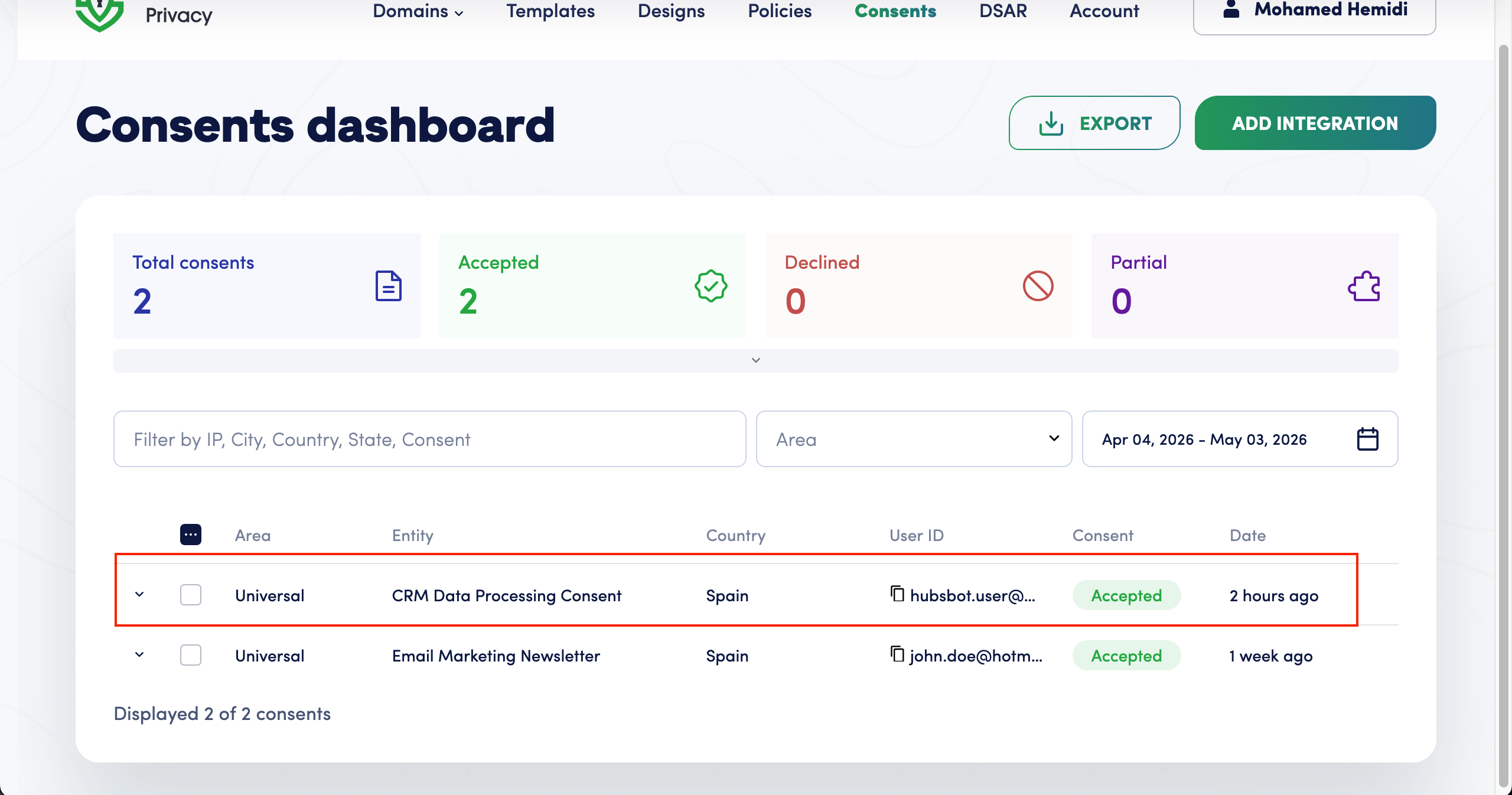
The Consents dashboard is your audit trail across every integration, not just HubSpot.
Click any consent record to see the full detail:
User ID: the email address or unique identifier
Entity: which integration collected this consent, for example "CRM Data Processing Consent"
Country: the user's location
Consent Status: Accepted, Partial, or Declined
Date and time: when consent was given
Detailed breakdown: the individual consent preferences
CRM sync status: confirmation of the sync to external systems
Universal Consent API guide for developers
For developers implementing the integration, post to the Universal Consent API endpoint using the Integration ID you copied in Step 2.
API endpoint
POST https://api.secureprivacy.ai/api/universalconsent/integration/{INTEGRATIONID}Example request body
{
  "CustomUserId": "[email protected]",
  "ConsentGiven": "All",
  "ConsentType": "CRMDataProcessing",
  "Metadata": {
    "email": "[email protected]",
    "firstName": "John",
    "lastName": "Doe",
    "company": "Acme Corp",
    "marketingConsent": true,
    "dataProcessingConsent": true,
    "thirdPartyConsent": true
  }
}
ConsentGiven accepts All, Partial, or None, and the Metadata object carries the contact fields and per-purpose flags that map to your HubSpot properties. For complete API documentation, open the API Playground in your integration settings.
What happens after consent is recorded
The record is stored immediately in the Secure Privacy Consents dashboard with its timestamp, country, and full purpose breakdown
The HubSpot contact is created or updated with the consent properties and the Secure Privacy Client ID, so your CRM reflects current preferences
Later submissions override earlier ones. Post a new consent record with the same
CustomUserIdand the latest state winsHistory is preserved. Previous consent states remain in the audit trail, which is what you need when demonstrating compliance rather than just current status
The same Integration ID keeps working across additional forms, so rolling consent capture out to a second or third touchpoint needs no new setup
Real-world use cases for CRM consent tracking
Use case 1: contact form integration
Add consent checkboxes to your website's contact form. When visitors submit their information, consent is automatically recorded and synced to your CRM, so no lead enters HubSpot without a matching consent record.
Use case 2: customer onboarding
During customer signup, collect the consents you need for data processing, marketing, and third-party sharing, all tracked in one place rather than scattered across product and CRM databases.
Use case 3: self-service preference center
Build a portal where customers update their consent preferences at any time. Every change is logged automatically, which makes withdrawal of consent as auditable as the original opt-in.
Troubleshooting the HubSpot consent integration
Consent is not appearing in the dashboard
Verify you are using the correct Integration ID
Check that the integration status is set to Active
Ensure the API request is returning a 200 success status
CRM sync is not working
Confirm OAuth authentication is properly configured for your HubSpot connection
Verify the custom properties exist in your CRM before the sync runs
Check the CRM sync status shown in the success message
A contact needs to update or withdraw consent
Submit a new consent record with the same
CustomUserIdThe latest consent overrides previous records
All consent history is maintained in the audit trail
Frequently asked questions
Do I still need consent records if I already have a cookie banner?
Yes. A cookie banner records consent for tracking technologies on your website. It does not cover the marketing opt-in on a contact form, the data processing consent captured during onboarding, or preferences a customer changes later. Universal Consent records those separately, in the same dashboard, so you have one consent history per person rather than several partial ones.
How do I track GDPR consent in HubSpot?
Create a custom consent integration in Secure Privacy, copy the Integration ID, and post consent from your form to the Universal Consent API. With the HubSpot CRM integration connected, each submission creates or updates the contact with consent properties, a Secure Privacy Client ID, and a consent timestamp, while the full record stays in the Secure Privacy Consents dashboard for audit.
Is a checkbox on a HubSpot form enough proof of consent?
A checkbox captures a yes or no, but demonstrating compliance usually means showing when consent was given, what purposes it covered, and how it changed over time. Universal Consent stores each submission as a dated record with a per-purpose breakdown and keeps the earlier states in the audit trail, which a single CRM property cannot do on its own.
What is Universal Consent in Secure Privacy?
Universal Consent is the part of Secure Privacy that collects consent from sources other than the cookie banner. You create an integration, receive an Integration ID, and any form or application can then post consent records to a single API endpoint. All records are centralised in the Consents dashboard and can sync to connected CRM systems.
Can I collect consent without a cookie banner?
Yes. Universal Consent works with any custom form, web application, portal, or backend service that can send an HTTP POST request. The cookie banner is optional and independent of this setup.
Can I use one Integration ID for multiple forms?
Yes. You only need to create an integration once per integration type, and the Integration ID can be reused across multiple forms and applications. Create separate integrations when you want to report on distinct consent purposes independently, since the integration name appears as the Entity on each consent record.
What happens when a customer withdraws or changes consent?
Submit a new consent record with the same CustomUserId. The latest consent overrides the previous state, the synced HubSpot properties update accordingly, and the earlier records remain in the audit trail.
Where do I find my Secure Privacy Integration ID?
Open Universal Consent in the main menu and select your integration. The Installation page shows a YOUR INTEGRATION ID section with a copy icon next to the value.
Does this work with CRMs other than HubSpot?
The Universal Consent API itself is CRM-agnostic: any application can post consent records to it. Automatic contact syncing depends on which CRM integration you have connected and authorised in Secure Privacy. HubSpot is used as the example throughout this guide; contact support to confirm the current list of supported CRM connectors.
Why is my consent record missing from the dashboard?
The three usual causes are an incorrect Integration ID in the request URL, an integration whose status is not set to Active, and an API call that is not returning a 200 response. Check those in order before investigating the CRM sync, which runs only after the record itself is stored.
Summary
You now know how to:
Create a custom consent integration in Secure Privacy
Copy and use your Integration ID
Submit consent records from custom forms through the Universal Consent API
Verify that consent data syncs to your HubSpot contacts
Review and audit every consent record in one dashboard
That is CRM consent tracking without a custom build, and without leaving gaps between your website, your forms, and your CRM. Secure Privacy is a Google Gold CMP Partner, SOC 2 Type II certified, and covers 65+ privacy laws.
Start a free Secure Privacy trial or schedule a demo to see Universal Consent working against your own forms.