
If your website collects cookies or processes visitor data, regulations like GDPR, ePrivacy, CCPA, and LGPD require you to obtain informed, documented consent before those cookies fire. Non-compliance can mean hefty fines — up to €20 million or 4% of global annual turnover under GDPR alone. Most website owners know they need a cookie consent banner, but getting one that's legally compliant, correctly configured, and not a nightmare to maintain is harder than it looks.
Homemrown solutions and free WordPress plugins often lack the automatic cookie scanning, geo-targeted consent logic, and audit-trail reporting that regulators actually expect. Heavyweight enterprise platforms can take weeks to implement and cost a fortune. Secure Privacy is built to close that gap: a fully featured cookie consent management platform designed so that any website owner — with or without a developer — can achieve genuine GDPR compliance quickly.
By the end of this guide you will have a verified Secure Privacy account, the consent script live on your website, and your cookie consent banner ready to serve compliant consent to every visitor — all in under 15 minutes.
Who Is This Guide For?
This guide is for new Secure Privacy users — including website administrators, developers, and compliance managers — who need a clear walkthrough of initial account setup and script installation. Whether you're running a small business site, a large e-commerce platform, or managing compliance for multiple clients, the steps below apply to every use case.
Prerequisites
The domain name of the website you want to make compliant
Access to the email address you'll use for your Secure Privacy account
Ability to edit your website's
<head>HTML, install a CMS plugin, or access Google Tag Manager (depending on your chosen installation method)
Setting Up Your Secure Privacy Account: Step-by-Step
Step 1 — Enter Your Domain and Account Information
Navigate to the Secure Privacy sign-up page. Enter your website domain and the required account details — including your name, company information, and a valid company email address. Double-check that your domain is entered without a trailing slash and matches the URL visitors actually use (e.g. www.example.com vs example.com). Once all fields are complete, click to proceed to the next step.
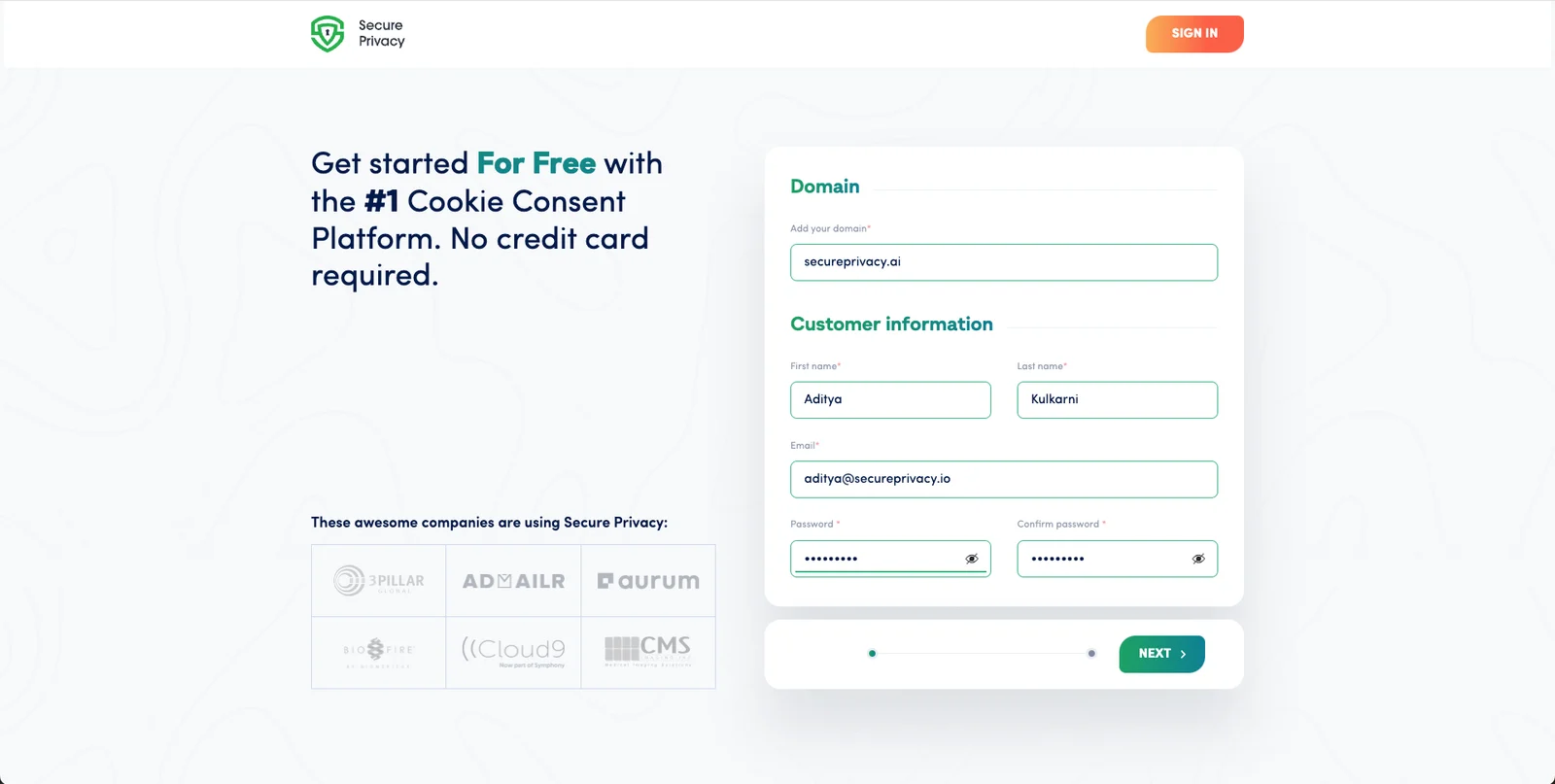
The Secure Privacy sign-up form — enter your domain and company details to begin account creation.
Step 2 — Activate Your Email Address
After submitting your details, Secure Privacy will send a verification email to the address you provided. Open that email and click the activation link to confirm your account. If the email doesn't arrive within a few minutes, check your spam or junk folder — automated messages from compliance platforms often get filtered. You can also request a new activation link directly from the sign-up page. Once your email is verified, log in to your Secure Privacy account to continue.
Step 3 — Choose Your Installation Method and Complete Setup
After logging in, the onboarding wizard will prompt you to choose how you want to install the Secure Privacy cookie consent script on your website. Three options are available:
Direct script install — paste a small JavaScript snippet into your site's
<head>tagCMS plugin — one-click integration for WordPress, Shopify, Magento, and other supported platforms
Google Tag Manager — deploy via your existing GTM container without touching site code
Select the method that matches your website setup and follow the on-screen instructions. A loading screen will appear while your configuration is processed, after which you'll be redirected to your Secure Privacy dashboard.
The Secure Privacy setup loading screen — your consent configuration is being applied before you're taken to the dashboard.
What Happens After Setup?
Once installation is complete, your Secure Privacy dashboard gives you full access to:
Cookie consent management — customize banner appearance, consent categories, and language
Automated cookie scanning — Secure Privacy scans your site and categorizes cookies automatically
Compliance reporting & audit logs — timestamped consent records you can produce if audited
Privacy policy generator — keep your privacy documentation up to date with applicable laws
Google Consent Mode v2 support — pass consent signals directly to Google Analytics and Google Ads
Your website will begin collecting GDPR-compliant consent from the moment your first visitor lands after installation.
Common Issues and Fixes
Activation email not received: Check your spam or junk folder, or request a new activation link from the sign-up or activation page.
Installation fails verification: Ensure the Secure Privacy script has been added to your site's
<head>section — not the footer — or verify that your CMS plugin or GTM tag is published and firing correctly.Cookie banner not appearing on the site: Clear your browser cache and check in an incognito window to rule out a cached version of the page loading without the script.
Unsure which installation method to use: Contact your website developer or the Secure Privacy support team for guidance tailored to your platform.
Frequently Asked Questions
Do I legally need a cookie consent banner on my website?
Yes, if your website sets non-essential cookies (analytics, advertising, personalization) and you have visitors from the EU, UK, California, Brazil, or other jurisdictions with privacy laws, you are legally required to obtain explicit consent before those cookies are placed. GDPR, the ePrivacy Directive, CCPA, and LGPD all include this requirement. Secure Privacy automates compliant consent collection for all major privacy regulations.
How long does it take to set up Secure Privacy?
Most users complete the full setup — account creation, email verification, and script installation — in under 15 minutes. The onboarding wizard guides you through every step, and no coding is required if you use the CMS plugin or Google Tag Manager option.
Which platforms does Secure Privacy support for installation?
Secure Privacy supports direct script installation on any website, as well as dedicated CMS plugins for WordPress, Shopify, Magento, and other popular platforms. You can also deploy via Google Tag Manager if you prefer to manage your scripts centrally without editing site code directly.
Does Secure Privacy support Google Consent Mode v2?
Yes. Secure Privacy fully supports Google Consent Mode v2, including the Advanced implementation via Google Tag Manager. Once installed, consent signals are automatically passed to Google Analytics and Google Ads, ensuring your measurement and advertising data remains compliant.
What happens if a visitor doesn't accept cookies?
Secure Privacy blocks non-consented cookies from firing until a visitor gives explicit consent. If a visitor declines or ignores the banner, only strictly necessary cookies are allowed to run. All consent and rejection events are logged in your dashboard for compliance audit purposes.