
Most website owners don't discover a GDPR compliance problem until it's already a legal risk — a data protection authority inquiry, a user complaint, or a third-party audit that turns up tracking scripts and cookies that were never properly disclosed. Manually reviewing your site for privacy violations is time-consuming, technically complex, and easy to get wrong, especially as your site grows and third-party integrations multiply.
One-off compliance checklists and paid consultants can help, but they only capture a snapshot. The moment you publish a new page, update a plugin, or add a marketing pixel, your compliance status can change — and you may not find out until it's too late.
Secure Privacy's Scan Reports feature gives you a continuous, automated GDPR compliance scanner built directly into your dashboard. It audits your domains on your schedule, assigns a clear compliance score, and surfaces exactly which issues need attention — so you have an always-current picture of your site's privacy posture without the manual overhead.
By the end of this guide, you'll know how to run a full website compliance scan, read and act on your results, compare scans over time to track progress, and configure automated monitoring so compliance never slips through the cracks again.
Who Is This For?
This guide is for Secure Privacy users who want to check their website for GDPR compliance issues, track their compliance score over time, or set up automated privacy audits for one or more domains. It's equally useful for website owners running their first scan and compliance managers reviewing ongoing monitoring results.
Getting Started: Accessing Scan Reports in Secure Privacy
To begin scanning your domains for privacy compliance issues, click Domains in the navigation bar and select the domain you want to audit. Then, in the left sidebar, select Scan Reports under the Report section.
Within the Scan Reports section, you will find three tabs:
Scan Report — Run a GDPR compliance scan and review your compliance score
History — Access and compare previous compliance audit results
Settings — Configure scan frequency, server location, and email notifications
The Scan Report tab provides an intuitive compliance graph showing how well your site meets relevant privacy regulations including GDPR. The goal is to achieve a compliance score as close to 100% as possible by identifying and resolving each flagged issue.
Step 1 — Run a Domain GDPR Compliance Scan
To scan your domain for privacy compliance issues, click the Scan or Rescan button on the Scan Report tab. Once the website compliance scan completes, the dashboard displays a detailed, prioritized breakdown of every area on your site that requires attention to achieve full regulatory compliance.
Results are presented in a clear format so you can quickly identify and address the most critical GDPR compliance issues first — from missing cookie consent notices to undisclosed third-party trackers.
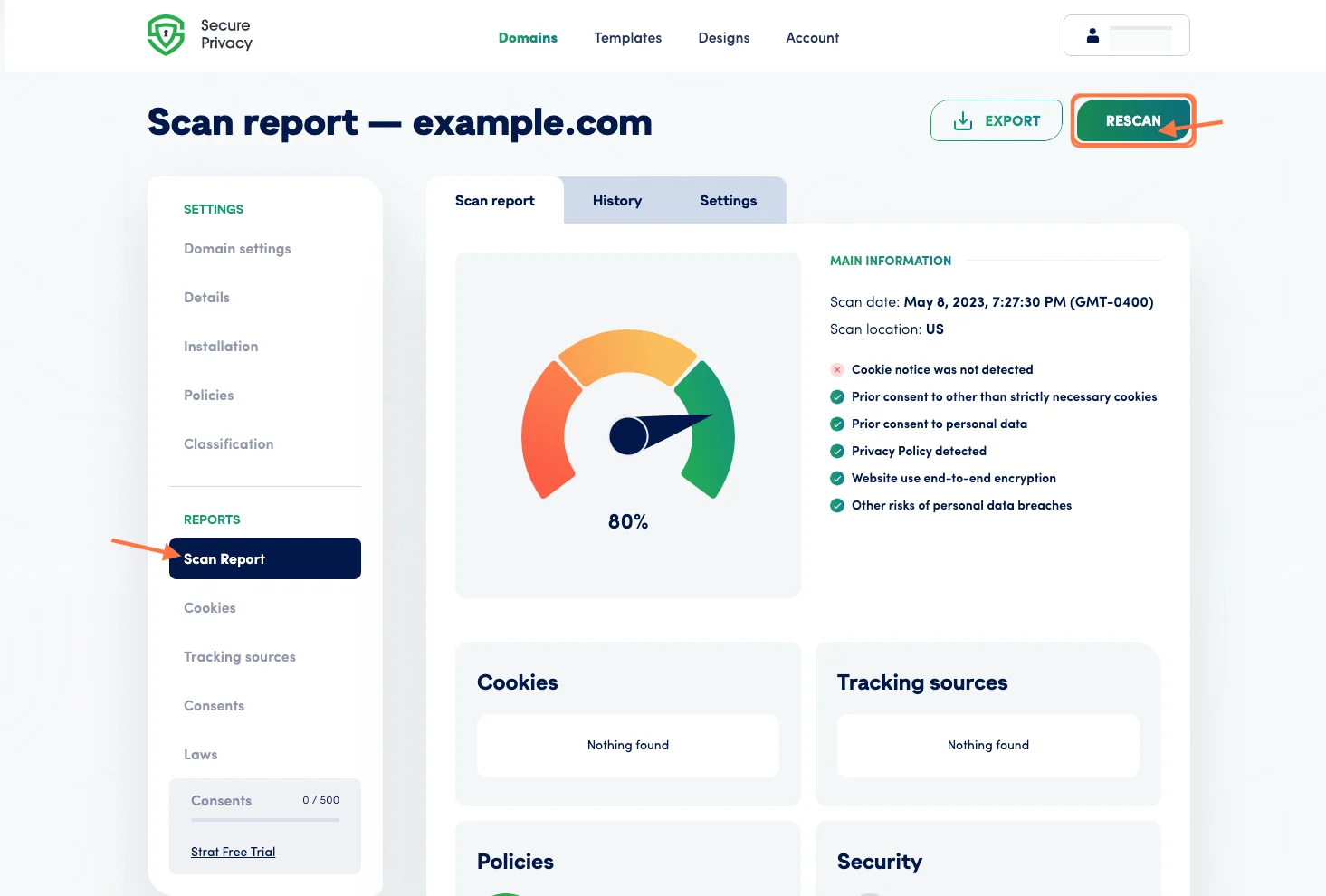
The Scan Report dashboard shows your overall compliance score and a prioritized list of issues to resolve.
Step 2 — Review Your Website Compliance Audit History
The History tab gives you access to all previously completed compliance scans for your domain. Click the History tab and select any saved scan to open the full audit report.
This feature provides a clear compliance audit trail, making it easy to track your site's progress over time, demonstrate improving compliance to stakeholders, and quickly spot any regressions or newly introduced privacy issues between scans.
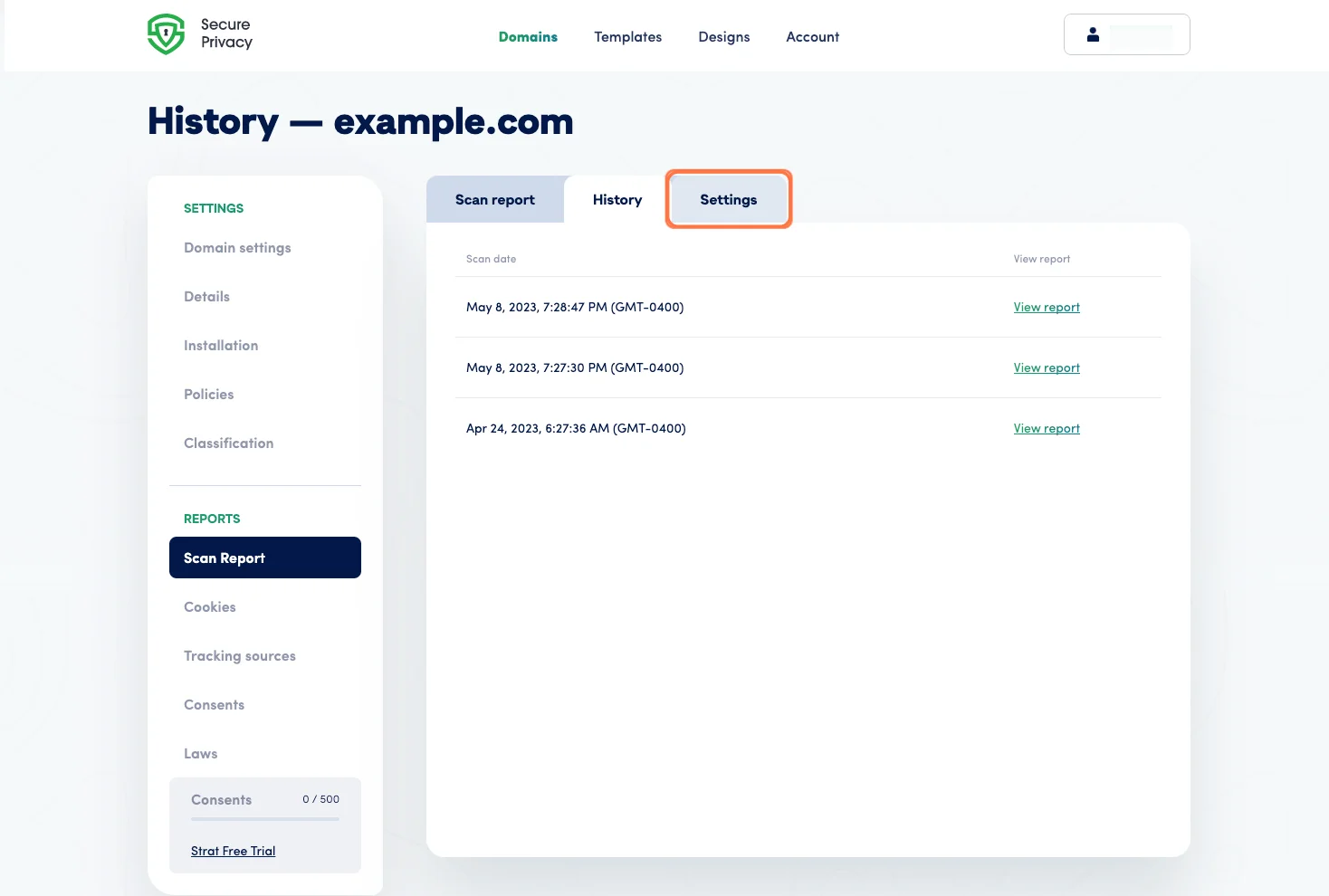
The History tab provides a timestamped log of every compliance scan run on your domain.
Step 3 — Configure Your Domain Scan Settings
The Settings tab lets you customize how, when, and from where your domain is scanned. Available options include:
Scan frequency: Choose between automatic monthly compliance scans or manual on-demand scans.
Scan location: Select whether to scan from a US or European server to reflect region-specific regulatory requirements — particularly useful for verifying GDPR compliance from a European IP perspective.
Email notifications: Opt in to receive an email alert each time a scan is completed so you're always informed of changes to your compliance status.
Scan behind login: Enable scanning of authenticated, members-only pages by providing the field IDs for your username and password inputs, along with the required login credentials.
These settings give you full control over your privacy compliance monitoring workflow, allowing you to tailor automated scanning to your organization's specific regulatory and operational needs.
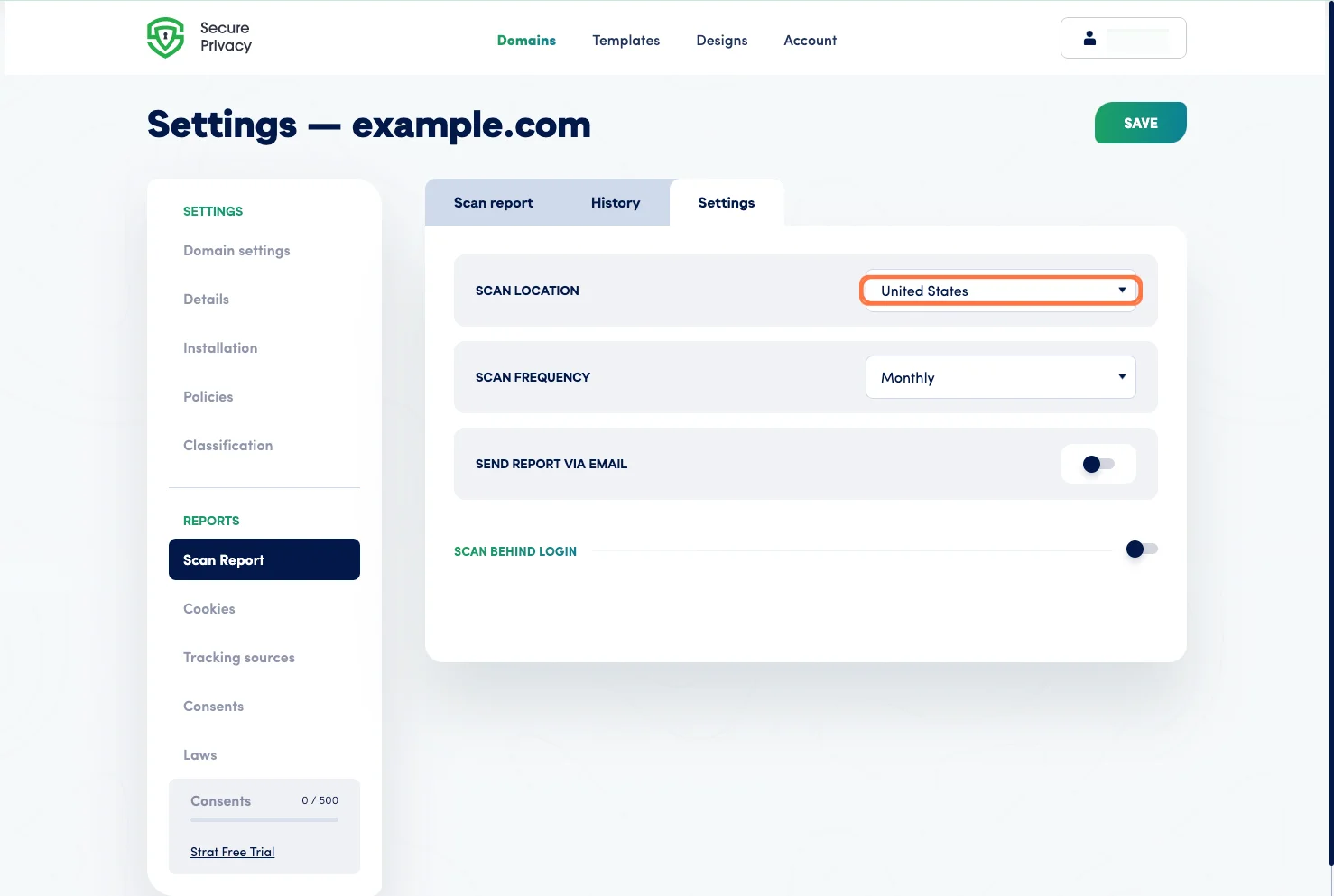
The Settings tab controls scan frequency, server location (US or EU), notifications, and authenticated page scanning.
What Happens After Your Scan?
Once your first GDPR compliance scan is complete, work through the flagged issues from highest priority to lowest using your Secure Privacy dashboard. Re-run a scan after making changes to confirm your compliance score has improved. Over time, use the History tab to build a documented compliance record — useful for demonstrating due diligence to auditors, clients, or data protection authorities.
Frequently Asked Questions
How do I check if my website is GDPR compliant?
In Secure Privacy, navigate to Domains, select your domain, and open Scan Reports in the left sidebar. Click Scan to run an automated GDPR compliance audit. The dashboard will display your compliance score and a prioritized list of issues — such as undisclosed cookies or missing consent banners — that need to be resolved.
How often should I scan my website for privacy compliance issues?
At a minimum, scanning monthly is recommended — especially if you regularly publish new content, update plugins, or add marketing integrations. Secure Privacy's automatic monthly scan option handles this for you. For high-traffic or frequently updated sites, more frequent on-demand scans are advisable.
Can I scan pages that require a login for GDPR compliance?
Yes. In the Scan Settings tab, enable Scan behind login and provide the field IDs for your login form's username and password inputs, along with valid credentials. Secure Privacy will then include authenticated pages in your compliance audit.
What is the difference between scanning from a US vs European server?
Some websites serve different content or cookie banners depending on the visitor's geographic location. Scanning from a European server simulates a visit from an EU-based user, which is the perspective that matters most for GDPR compliance verification. Scanning from a US server is useful for checking compliance under US privacy laws such as CCPA.
How can I track my website's GDPR compliance progress over time?
Use the History tab in Scan Reports to view all past scans for your domain, including their dates and compliance scores. Comparing scans before and after making fixes lets you confirm improvements and maintain a documented compliance audit trail.
Related Articles
Understanding the Secure Privacy Cookie Scanner[?]