
When your website hits its subscription consent limit, cookie consent records can quietly stop being stored in the cloud — leaving you with compliance gaps you may not notice until an audit or a visitor complaint surfaces the problem. Most teams discover this only after the fact, scrambling to figure out why recorded consent counts no longer match their traffic.
Generic workarounds — manually tracking consent in spreadsheets, switching to a cheaper tool with no overage option, or simply ignoring the cap — either create more work or introduce real regulatory risk under GDPR, CCPA, and ePrivacy rules. And while upgrading your entire subscription plan is always an option, it can mean paying for headroom you only occasionally need.
Secure Privacy's Extra Consents Settings give you a smarter middle path: a configurable overage budget that extends your consent recording capacity exactly when you need it, charged in transparent per-block increments, with a hard cap so you stay in control of spend. By the end of this guide you'll know exactly how to set your extra consents budget, what happens at each threshold, and how to avoid common billing surprises.
Who Is This For?
This article is intended for:
Account administrators responsible for managing the Secure Privacy CMP subscription and billing settings.
Billing contacts who need to authorize usage-based spend above the included plan consent volume.
Compliance or operations teams who need to ensure uninterrupted consent recording during traffic spikes or campaign periods.
If you are on a Free or Trial account, the Extra Consents Settings section is not available — see Eligibility below.
Overview: How Extra Consent Billing Works
Your Secure Privacy subscription plan includes a fixed consent volume. Extra Consents Settings let you set a spending budget for consent recording above that plan limit. You are charged at the rate shown in the product — for example, $10.00 per 100,000 consents over the limit. The currency and pricing on screen always reflect your account billing currency (EUR or USD).
Key distinction: Your plan's included consent allowance and your extra consents budget are two separate controls. Upgrading your plan (under Account → Plans) increases your included allowance. Setting an extra consents budget (under Account → Billing) adds flexible, usage-based overage capacity on top. You can use one, both, or neither — depending on your traffic and contract.
Important Points Before You Configure
Included consents vs. extra budget
Your plan covers a set consent volume. Extra Consents Settings only govern how much additional usage you authorize beyond that — they do not replace choosing the right plan for your long-term traffic.
No automatic plan upgrade
Secure Privacy does not automatically move your account to a higher subscription tier when usage climbs. Overage is handled entirely through your extra consents budget, which you control in the dashboard.
Default is zero (off)
The extra consents budget defaults to zero, meaning no paid overage is authorized. Until you enter a non-zero value and click SAVE, the feature is effectively disabled for billing purposes — even on paid plans.
Budget must cover the next block
Once you set a non-zero budget, it must be large enough to cover at least one full block at the rate shown (e.g. $10.00). If it is too low for the next purchasable block, consent recording behavior remains the same as when extra consents are disabled.
Eligibility
Extra Consents Settings are not available on Free or Trial accounts. If the section is absent from your Billing page, your account type may not include it. Upgrade or subscribe as required by your contract.
Monthly vs. yearly subscriptions
On monthly plans, extra consent usage is reflected in line with your Billing page. On yearly plans, overages may be billed on a separate schedule and may not appear on the main Billing summary — check your full invoice list and use date filters in the CMP for the complete picture.
Email notification at first activation
You may receive an email the first time extra consent usage is activated in a billing month, so your billing and operations teams are aware that usage-based charges have begun for that period.
Lowering the budget after activation
If extra consent usage has already been activated for a billing period, setting the budget back to zero does not instantly cancel an already-started block. You may still be invoiced for usage that was already committed. For exact impact, review your invoices and contact support or your account manager.
Where to Find Extra Consents Settings
Sign in to the Secure Privacy CMP at cmp.secureprivacy.ai.
Open Account from the main navigation.
Select Billing.
Scroll to the section titled EXTRA CONSENTS SETTINGS.
What You See on Screen
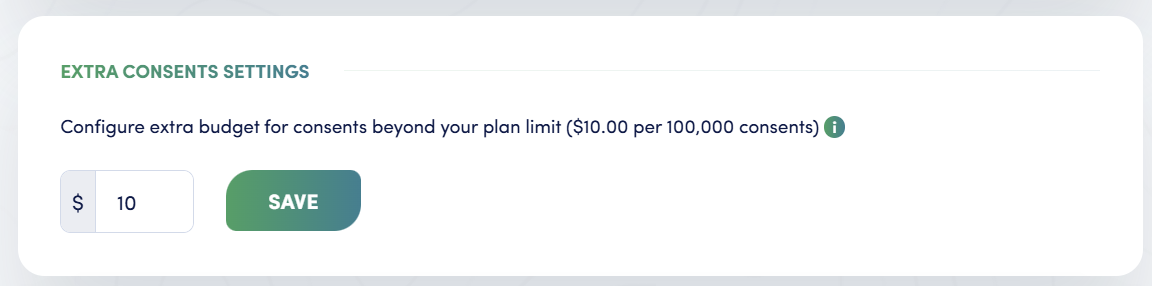
The Extra Consents Settings panel in Secure Privacy Billing — set your overage budget and click SAVE to authorize additional consent recording beyond your plan limit.
Element | Purpose |
|---|---|
Section title | EXTRA CONSENTS SETTINGS |
Description line | Explains the extra budget concept and shows the price per unit (e.g. $10.00 per 100,000 consents). Use the information (i) icon for in-product help. |
Amount field | Numeric field prefixed with your billing currency symbol. Enter the maximum budget you want to authorize for extra consents (0 = no paid overage). |
SAVE | Saves your extra consents budget. Always click this after any change. |
Currency (EUR / USD)
The currency symbol and pricing shown depend on your account's billing currency. Accounts billed in euro see EUR (€) rates; accounts billed in US dollar see USD ($) rates. Always rely on what appears on your Billing page — not screenshots from another account.
What Happens When Your Cookie Consent Plan Limit Is Reached
Behavior at the plan limit depends on whether extra consents are enabled and whether your budget covers the next chargeable block.
Extra consents disabled (budget is zero or unsaved)
If you have not set a non-zero extra consents budget:
Visitors may still see the cookie consent banner where your implementation shows it, but consent records may not be stored in your Secure Privacy account — they can be held locally in the browser for basic compliance display only.
When your billing period resets the consent counter on Secure Privacy's side, normal cloud recording resumes up to your plan limit.
If full cloud recording must continue after the limit is hit, raise your plan and/or set an appropriate extra consents budget and save it.
Extra consents enabled but budget too low for the next block
If you entered a non-zero budget but it is insufficient to purchase the next block at the listed price, cloud recording does not switch on for that extra tier. Increase the budget to cover at least one full block at the rate shown, then click SAVE.
After Extra Consents Have Been Activated
Once usage-based extra consent recording has activated for your subscription:
Setting the budget to zero later does not always mean immediate stop — you may still be invoiced for an already-committed block, and consent recording may continue until that package is used up.
For the exact effect on your account, review Billing, your invoices, and your order form, or contact support or your account manager.
How to Set or Change Your Extra Consents Budget
Follow these steps to configure the extra consents overage budget in your Secure Privacy account.
Step 1 — Open Account Billing
Sign in to cmp.secureprivacy.ai, then navigate to Account → Billing.
Step 2 — Locate Extra Consents Settings
Scroll down the Billing page to the section titled EXTRA CONSENTS SETTINGS.
Step 3 — Confirm your overage rate
Read the on-screen description to confirm the rate per block (e.g. $10.00 per 100,000 consents) and the currency that applies to your account.
Step 4 — Enter your budget
Type your desired maximum overage budget in the amount field. The currency prefix is read-only — edit the number only. Enter 0 to disable paid overage.
Step 5 — Save your changes
Click SAVE. Confirm no error messages appear. If applicable, verify that billing or usage reports reflect the updated budget after processing.
Prerequisites and Permissions
You need Account and Billing access in the CMP — typically an admin or billing role, depending on your organization's user configuration.
Extra Consents Settings require a paid subscription. The section is not visible for Free or Trial accounts.
Your subscription and payment method must be in a state that allows billing changes. If SAVE is disabled or errors appear, see Troubleshooting below.
Troubleshooting Extra Consents Settings
Issue | What to try |
|---|---|
SAVE does nothing or stays disabled | Refresh the page, confirm you entered a valid number, and verify you have permission to edit billing settings. |
Wrong currency on screen | Currency follows your account billing profile. Verify you are in the correct Secure Privacy account and that the billing contract matches your region. |
Need to remove extra consents spend | Set the budget to 0 (or the minimum allowed) and click SAVE, unless your contract requires changes through your account manager. |
Section missing on Billing page | Confirm you are not on a Free or Trial account — the section is hidden for those. Otherwise, refresh, check you are in the correct account, or contact support. |
At plan limit and consents not appearing in the CMP | If extra consents are disabled (budget 0), cloud recording may stop until the period resets or you enable a sufficient budget — see What Happens When Your Cookie Consent Plan Limit Is Reached. |
Budget is non-zero but nothing improved | The amount may be below the minimum needed for the next extra block at the listed price. Increase the budget and click SAVE. |
Yearly plan and line items look different | Extra overage may appear on separate invoices. Widen the invoice date filters in the CMP to see the full picture. |
Rate or limits unclear | Use the information (i) icon next to the description, or contact support/your account manager with your account name and a screenshot of the Extra Consents Settings block (redact sensitive data as needed). |
Frequently Asked Questions
What happens when I reach my cookie consent plan limit?
When your included consent volume is exhausted and no extra consents budget is set, consent records may stop being stored in your Secure Privacy account. Visitors can still see the cookie banner, but recordings are held locally in the browser only. To resume full cloud recording, either upgrade your plan or set a non-zero extra consents budget in Account → Billing.
How does Secure Privacy charge for consent overage?
Secure Privacy charges for extra consents in blocks — for example, $10.00 per 100,000 consents. The rate and currency shown in the Extra Consents Settings section reflect your account's billing currency. You authorize a maximum budget cap; charges only apply once your included plan consents are used up.
Will Secure Privacy automatically upgrade my plan when I exceed my consent limit?
No. Secure Privacy does not automatically move your account to a higher subscription tier. You remain in control through the Extra Consents Settings budget. If your traffic consistently exceeds your plan limit, you can manually upgrade your plan under Account → Plans or set an appropriate extra consents budget.
Can I set a cap on how much I spend on extra consents?
Yes. The Extra Consents Settings section lets you enter a specific budget amount. Secure Privacy will not charge beyond that cap for extra consents in a billing period. Set it to zero if you do not want any paid overage.
What is the difference between upgrading my plan and setting an extra consents budget?
Upgrading your subscription plan (Account → Plans) permanently increases your included consent allowance. Setting an extra consents budget (Account → Billing) adds a flexible, usage-based overage allowance on top of your current plan. You can use one, the other, or both depending on your traffic and contract.
Why is the Extra Consents Settings section not showing on my Billing page?
This section is hidden for Free and Trial accounts. It only appears for paid subscriptions. If you are on a paid plan and still cannot see it, try refreshing the page, confirm you are in the correct account, or contact Secure Privacy support.
Related Articles
Understanding Secure Privacy Subscription Plans[?]
Reading Your Secure Privacy Billing Invoices[?]