
A cookie consent banner is one of the most visible elements of your website's privacy compliance strategy. Whether you need to meet GDPR, CCPA, or ePrivacy requirements, configuring the right cookie banner template helps you collect valid user consent, build trust, and avoid regulatory risk. This guide walks you through every setting on the Secure Privacy Cookie Banner page — from enabling your banner to customizing text, buttons, and advanced consent categories.
How to Access Cookie Banner Settings in Secure Privacy
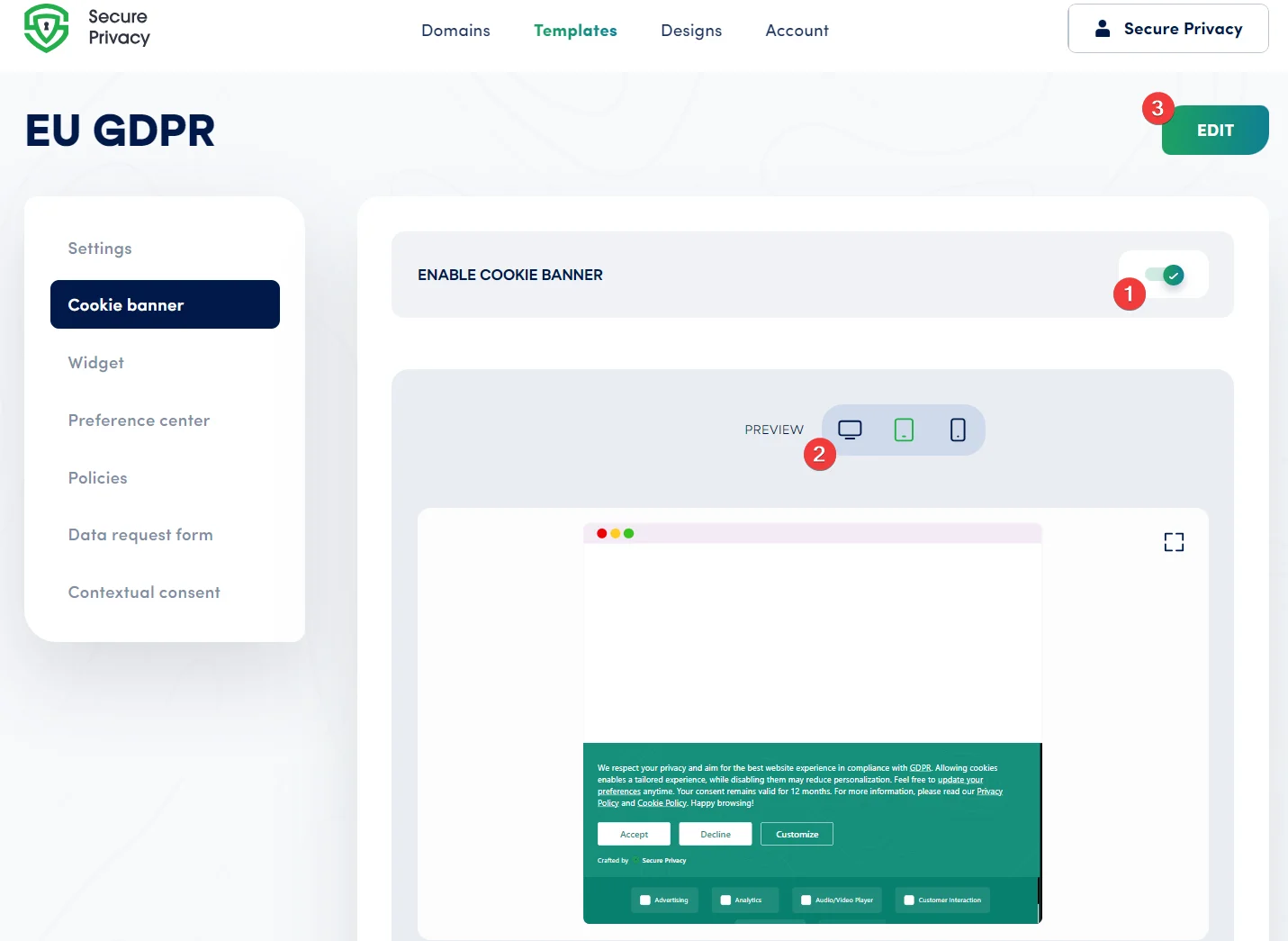
To reach the Cookie Banner configuration page, log in to your Secure Privacy account, click Templates in the navigation bar, select the template you want to modify, then open the Cookie Banner tab.

3. How to Switch to Cookie Banner Edit Mode
To modify any cookie banner setting, click the Edit button. This unlocks the full editor, divided into five sections: Language, Text, Buttons, Advanced Categories, and Preview.
4. Edit Mode: Cookie Banner Language Settings
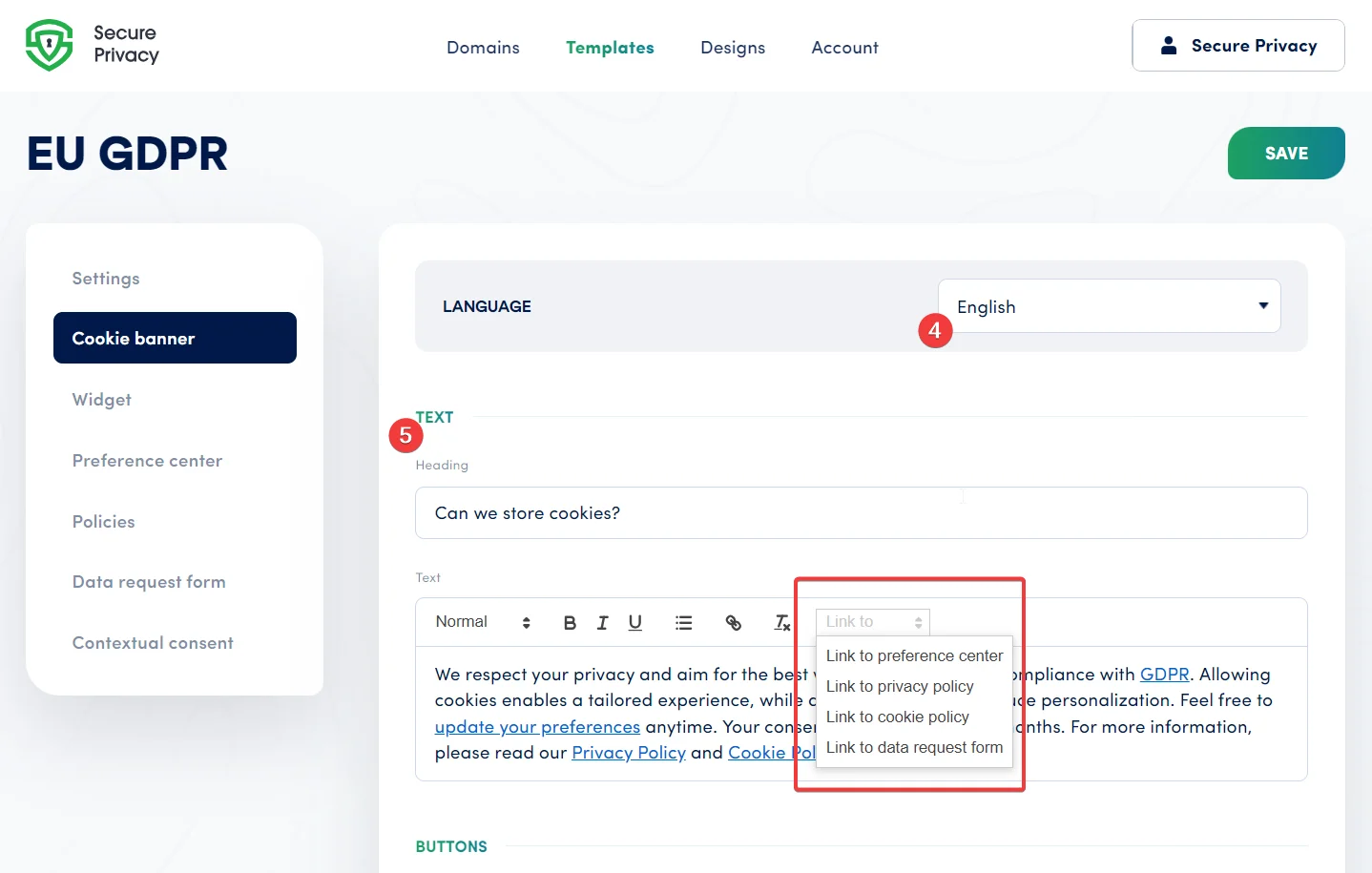
Each template comes pre-loaded with languages relevant to its target region — for example, EU-focused templates include the major EU languages by default. To add or remove languages, navigate to Template → Settings. Supporting multiple languages ensures your cookie consent notice is compliant and accessible to all visitors.
5. Edit Mode: Customize Cookie Banner Text & Links
The Text section lets you edit every written element of your cookie banner — including the heading, body copy, and embedded hyperlinks. You can link directly to key privacy resources such as your preference center, privacy policy, cookie policy, and data request form.
All text is pre-written to be legally compliant, but can be tailored to match your brand's tone and voice for a seamless user experience.
7. Edit Mode: Advanced Cookie Consent Categories
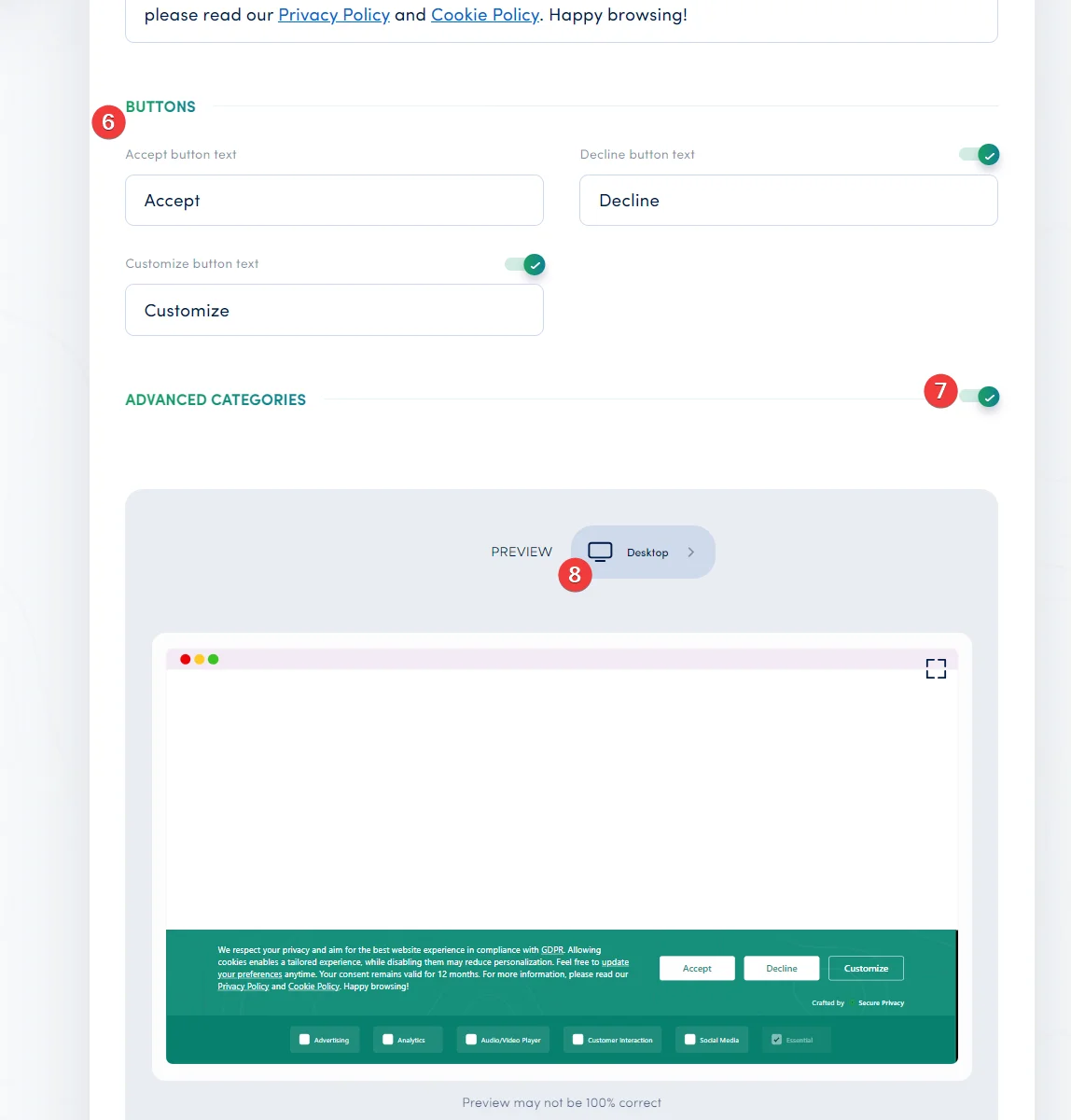
Advanced categories allow granular control over cookie consent — for example, separating analytics cookies from marketing cookies. You can enable or disable each category here. To edit category names and descriptions, go to the Preference Center tab. Changes are reflected instantly in the preview below.
8. Edit Mode: Interactive Cookie Banner Preview
The interactive preview updates in real time as you make edits, so you can see exactly how your cookie banner will look before going live. Preview across desktop, tablet, and mobile to confirm the design is consistent with the rest of your website.
Summary: Building a Compliant, Customized Cookie Banner
The Templates → Cookie Banner page in Secure Privacy gives you complete control over your cookie consent experience. With pre-configured templates, multi-language support, customizable text and buttons, and an interactive preview, you can create a GDPR-compliant cookie banner that fits your brand and satisfies your legal obligations — without writing a single line of code.
Frequently Asked Questions
Can I disable the cookie banner for specific pages?
The Enable/Disable toggle applies at the template level. For page-level control, configure targeting rules within your Secure Privacy account settings.
Will the cookie banner work on mobile devices?
Yes. The cookie banner is responsive by design. Use the built-in device preview in Edit Mode to verify how it appears on mobile and tablet before publishing.
How do I add a new language to my cookie banner?
Navigate to Template → Settings and add your desired language. It will then become available in the Language section of the Cookie Banner editor.
What is the Preference Center in cookie banners?
The Preference Center is a dedicated UI where users can manage their individual cookie consent choices by category (e.g., analytics, marketing). You can link to it directly from your banner text.