
You publish a cookie consent banner and the questions start. Legal wants to know whether Decline really stops marketing tags firing. Marketing wants to know why analytics dropped the week it went live. A visitor emails asking how to take back the consent they gave last month, and asks for proof of what they agreed to. Someone on the web team asks why Accept all turned into Save the moment they touched a toggle.
All of these have one root cause: nobody has documented what each button writes to the visitor's consent state. That gap is where compliance risk lives. A banner with no reject option, or a downplayed decline button, is among the most commonly cited dark patterns in GDPR enforcement decisions, and hand-coded banners rarely offer a withdrawal path at all. In Secure Privacy, each button maps to an explicit granted: true or granted: false value per cookie category, logs a timestamped consent record, and forwards the result to your tag stack including Google Consent Mode v2 signals.
By the end of this guide you will know what each banner and preference center button does, which are configurable, what the Consent ID shown to visitors is for, and how to verify that a choice produced the consent signal you expected.
Who this is for and what you need
Written for web admins configuring which buttons appear, marketing teams tracing why a consent choice changed tag firing, and legal teams checking that reject and withdrawal options meet GDPR, ePrivacy and CPRA expectations.
You will need an active Secure Privacy account with the consent script installed, at least one legal template assigned to the regions you serve, and edit access to Template → Cookie Banner and Template → Preference Center.
Cookie banner buttons: visibility and effect
Four buttons can appear on the banner. Only two of them can be turned off in your template.
Button | Visibility | Effect on consent state |
|---|---|---|
Accept all | Not configurable. | Sets |
Save | Not configurable. | Sets |
Decline | Configurable inside template. | Sets |
Customize | Configurable in the template. | Opens the Preference center. No consent is written by this button alone. |
Why Accept all becomes Save: the swap is deliberate. Once a visitor edits a toggle, "Accept all" no longer describes the action, so the label changes to match what will actually happen. Essential cookies are never affected by any button: session, authentication, cart and security cookies do not require consent under GDPR or the ePrivacy Directive.
Preference center buttons: visibility and effect
The preference center is where visitors return to review or change a decision. Its buttons are context-sensitive: what appears depends on whether consent already exists.
Button | Visibility | Effect on consent state |
|---|---|---|
Save | Not configurable. | Sets |
Withdraw consent | Configurable in the template. | Sets |
Decline | Configurable in the template. | Sets |
Withdraw consent and Decline never appear together. They produce the same consent state, but a visitor who has already consented sees Withdraw consent, and one who has not sees Decline. The wording always matches what the visitor is actually doing.
Withdrawing consent without reopening the banner
The Withdraw consent button is new. Visitors who previously accepted cookies can now revoke that permission directly in the preference center, without interacting with the banner again or clearing browser data. This closes a specific gap: GDPR Article 7(3) requires withdrawal to be as easy as consent, and CPRA and other US state laws require ongoing opt-out enforcement rather than one-time capture.
To make withdrawal genuinely reachable, pair it with a persistent entry point such as a footer link or floating widget. See how to add a preference center Button or Hyperlink widget.
Consent Details: showing visitors their Consent ID and consent date
A new Consent Details section in the preference center gives end users visibility into the exact consent record captured for them. It contains two values:
Consent Date - the date and time the consent was provided.
Consent ID - the unique identifier of the consent record in the database.
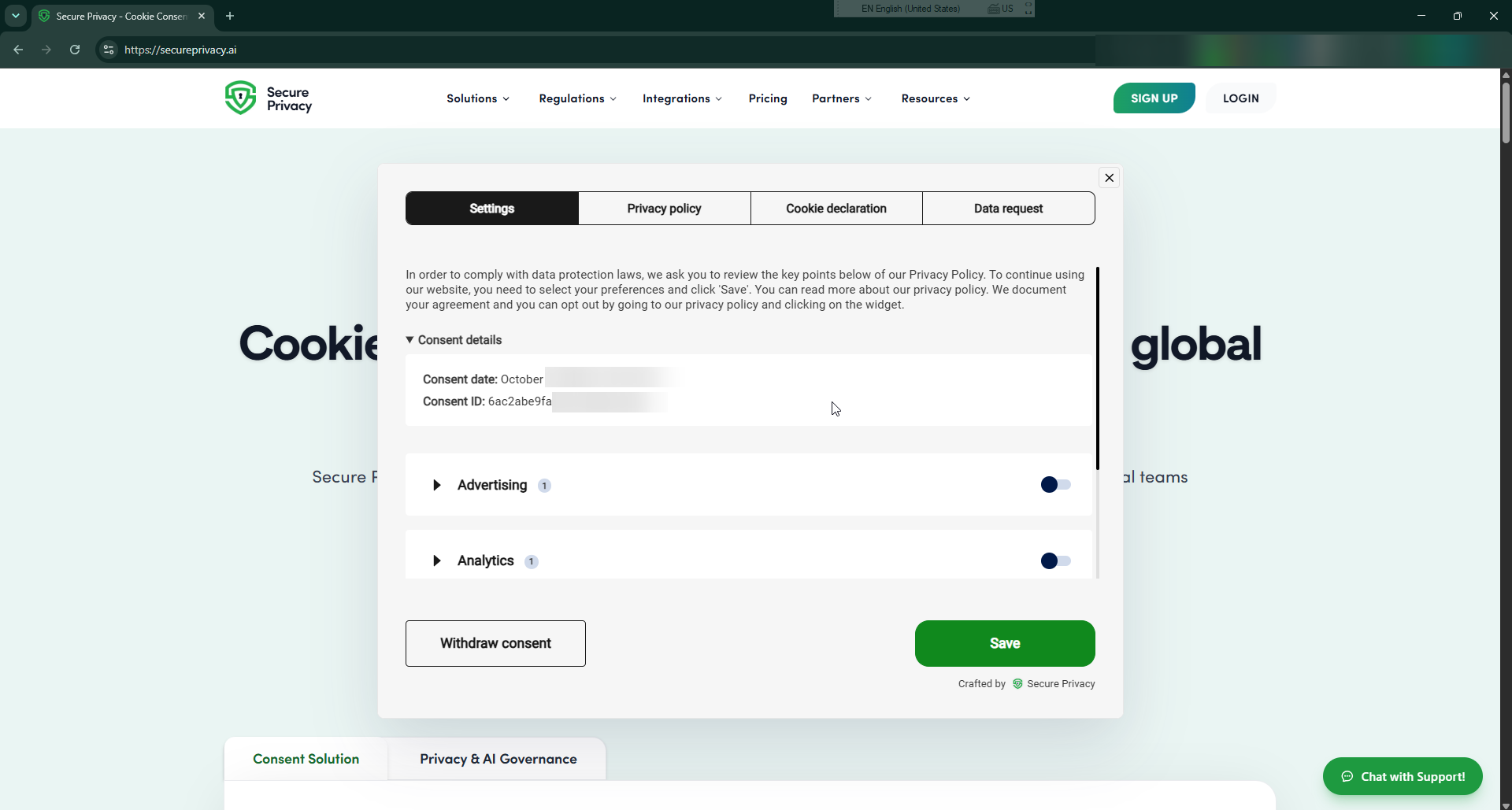
The Consent Details section in the preference center, with the Withdraw consent and Save buttons below it.
The section is hidden until consent is given. It appears only once a consent record exists, so visitors who have not yet interacted with the banner never see an empty panel.
Display of the Consent ID is configurable in the Design Template settings, so you can disable it per template if you prefer not to surface it to end users.
Looking up a consent record from a Consent ID
The Consent ID is the same identifier your team sees internally, which makes it the fastest way to resolve a support or data subject request. When a visitor quotes their ID, account admins can search for it in the Consent Hub on the CMP Dashboard to pull up the matching record, including the domain, country, consent state and timestamp.
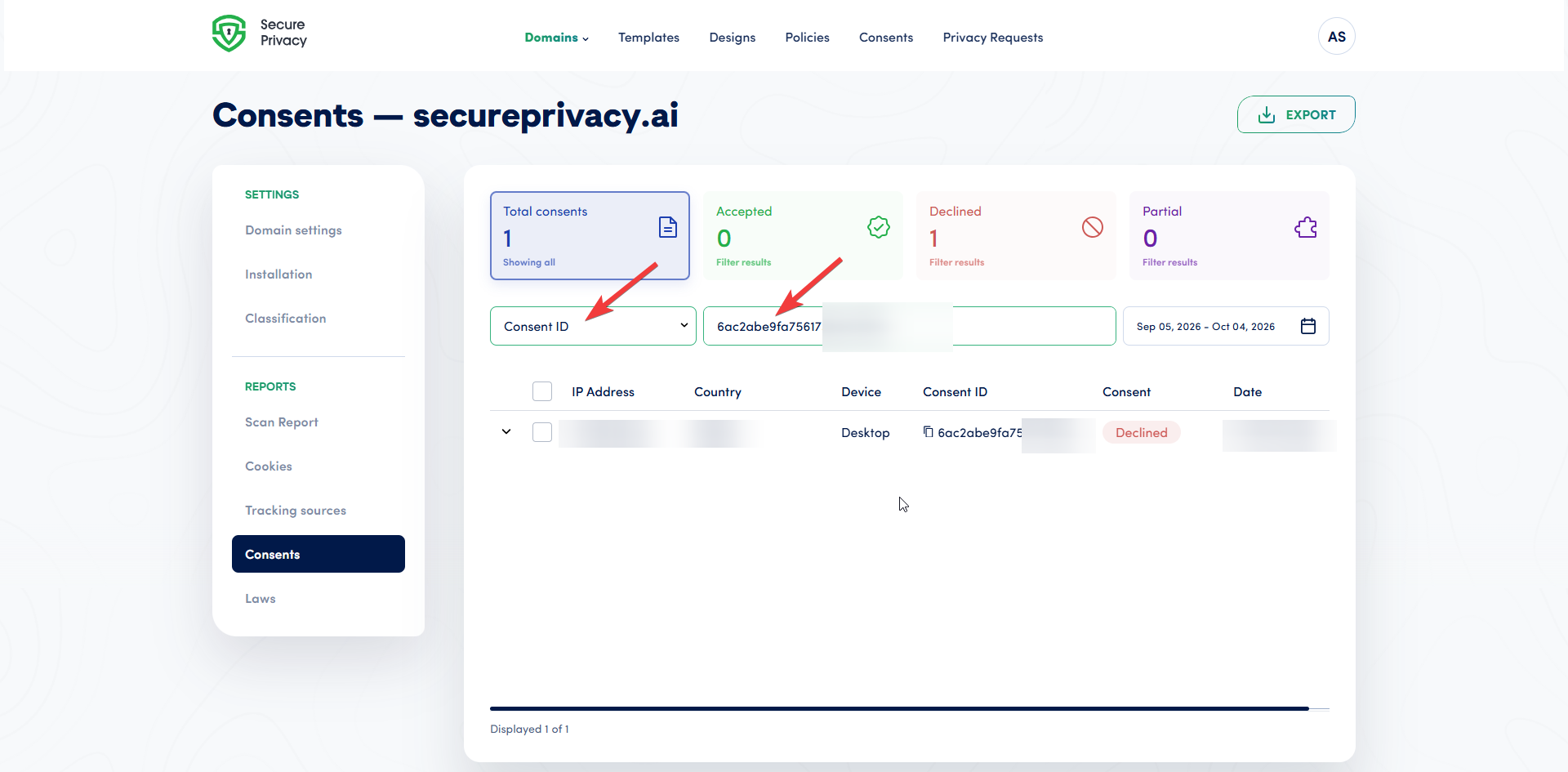
Searching by Consent ID in the Consent Hub to find the record behind a visitor's request.
How each button choice becomes a consent signal
Every button resolves to the same underlying structure: a granted value per cookie category, written to the visitor's consent state and logged to your audit trail.
Visitor action | Essential | Other categories |
|---|---|---|
Clicks Accept all on the banner | Unaffected, always active | All set to |
Edits toggles, then clicks Save | Unaffected, always active | Selected categories |
Clicks Decline on the banner | Unaffected, always active | All set to |
Clicks Customize on the banner | Unaffected, always active | Unchanged until the visitor acts in the preference center |
Clicks Withdraw consent in the preference center | Unaffected, always active | All previously granted categories set to |
If Google Consent Mode is enabled, these values are translated into Google's consent parameters before your tags fire. In a standard template the advertising category drives ad_storage, ad_user_data and ad_personalization, and the analytics category drives analytics_storage. To confirm what is actually sent, check the gcs parameter using the Consent Mode verification guide.
How to configure which buttons and details appear
Visibility is set per template, so a GDPR template for EEA visitors and a CCPA template for US visitors can show different buttons.
Step 1 - Open the template that serves your target region
In your Secure Privacy dashboard, open Template and select the template assigned to the region you want to change. Changes apply only to domains using that template, so confirm you are editing the right one.
Step 2 - Set the banner button visibility and labels
In the Cookie Banner section, enable or disable the Decline and Customize buttons independently, and edit each button label per language. Accept all and Save are not configurable. See the cookie banner template guide for the full set of options.
Step 3 - Set the preference center buttons and Consent ID display
In the Preference Center section, enable or disable the Withdraw consent and Decline buttons and update their labels. Display of the Consent ID is controlled in the Design Template settings: leave it on if you want visitors to be able to quote their record in a support or data subject request, or disable it per template if you prefer not to surface it.
Step 4 - Check button prominence before publishing
Under GDPR the reject option must be as prominent as the accept option. In Design → Cookie Banner, each button has independent fill, corner, background, hover and text colour controls, so style Accept and Decline with equal visual weight. See the design settings guide and the accessibility guide for contrast requirements.
Step 5 - Publish, then verify on the live site
Publish the template and load your site in a private window. Confirm that Accept all switches to Save when you edit a toggle, that Decline is visible, and that reopening the preference center after accepting shows the Consent Details section and the Withdraw consent button rather than Decline.
What happens after a visitor clicks
Scripts respond immediately. Denied categories are blocked from that moment; granted categories are released without a page refresh.
A consent record is created with a timestamp and a Consent ID, and surfaced back to the visitor in the Consent Details section.
The banner stops reappearing until consent expires or the visitor changes it in the preference center.
Cookies already stored stay until they expire. Withdrawal stops the scripts that set new cookies, but cookies written on third-party domains cannot be deleted from your site. State this plainly in your cookie policy.
Google Consent Mode signals update on the next tag firing, so denied categories stop passing advertising and analytics identifiers.
Troubleshooting cookie banner button issues
The Accept all button disappeared and Save appeared instead
Expected behaviour. Save replaces Accept all as soon as any category or plugin toggle is changed, because the visitor is no longer accepting everything.
The Decline button is not visible on the banner
Decline is configurable per template. Open Template → Cookie Banner for the template assigned to that visitor's region and confirm it is enabled. If you serve several regions, check you edited the template actually being served.
Visitors cannot find the Withdraw consent button or Consent Details
Both appear only once consent has been provided. In a session that has not consented, Decline renders instead and the Consent Details section stays hidden. Accept cookies first, then reopen the preference center. If Withdraw consent is still missing, it is disabled in the template.
The Consent ID is not shown to end users
Display of the Consent ID can be disabled in the Design Template settings. Check that setting on the template serving the visitor. Admins can always retrieve the record from the Consent Hub regardless of whether the ID is surfaced in the UI.
Google tags still fire after a visitor clicks Decline
This is a tag configuration issue rather than a button issue. Verify your Google Consent Mode implementation and confirm tags respect the denied signals using the verification guide.
Frequently asked questions
What does the Accept all button do on a cookie banner?
Accept all sets granted: true for every existing cookie category except Essential, which is always active and never requires consent. It is visible at all times and cannot be disabled in the template.
Why did my Accept all button change to Save?
Because the visitor checked or unchecked a category or plugin. The choice is no longer "accept everything", so the button becomes Save and applies granted: true only to selected categories. The swap is automatic and not configurable.
Does the Decline button block all cookies?
Decline sets granted: false for all categories except Essential. Strictly necessary cookies such as session, authentication and security cookies continue to operate, because the site cannot function without them and they are exempt from the consent requirement.
Can I remove the Decline button from my cookie banner?
Technically yes, since Decline is configurable inside the template. In practice, removing it from a banner shown to EEA or UK visitors is a serious compliance risk: consent must be as easy to refuse as to give, and regulators treat a missing or downplayed reject option as a dark pattern.
What does the Withdraw consent button do?
It appears in the preference center once consent has been provided and sets granted: false for all categories except Essential. It lets visitors revoke a permission directly, without interacting with the banner again. Visitors who have not consented see the Decline button instead.
What is a Consent ID and what is it used for?
The Consent ID is the unique identifier of a visitor's consent record in the database. It is shown to the visitor in the Consent Details section of the preference center alongside the consent date, and account admins can use it to look up the corresponding entry in the Consent Hub on the CMP Dashboard.
Can I hide the Consent ID from end users?
Yes. Display of the Consent ID can be disabled per template in the Design Template settings. The Consent Details section itself only appears after consent has been captured, so it is never shown to visitors who have not yet interacted with the banner.
Does withdrawing consent delete cookies already stored in the browser?
No. Withdrawal blocks the scripts that set and read those cookies from that moment on, but cookies already written, particularly on third-party domains, remain until they expire. No CMP can delete cookies on domains it does not control, and the ePrivacy Directive does not require it.
Can visitors delete a consent record they already gave?
Not yet. An option to delete an already-given consent is on the roadmap but is not built or delivered. Today, Withdraw consent revokes the permission and logs the withdrawal as a new consent record, which preserves the audit trail evidence that the request was honoured.
Related articles
Customize your cookie banner text, buttons and languages using templates
Add a preference center widget so visitors can withdraw consent from any page
Design your preference center for a consistent consent experience
Accessibility and ADA compliance for banners and preference centers
CIPA vs CCPA: reviewing your California consent banner buttons
Need a second opinion on your configuration? Contact Secure Privacy support and our privacy experts will review whether your accept, decline and withdrawal options meet the requirements of the regions you serve.