
Summary: Your cookie consent banner is often the very first thing a visitor sees on your website—so it should reflect your brand, not undermine it. With Secure Privacy's cookie banner design editor, you can fully customize your consent banner's layout, colors, button styles, and typography to match your brand identity. This guide walks through every design option available, including advanced custom CSS for cookie banners, GDPR compliance considerations, and best practices for mobile-friendly, accessible consent UI.
Who Is This Guide For?
- Website owners and designers who want their cookie banner to match their site's visual identity
- Developers looking to apply custom CSS to Secure Privacy's consent banner
- Compliance managers ensuring their cookie banner meets GDPR design requirements (equal button prominence, accessibility, contrast)
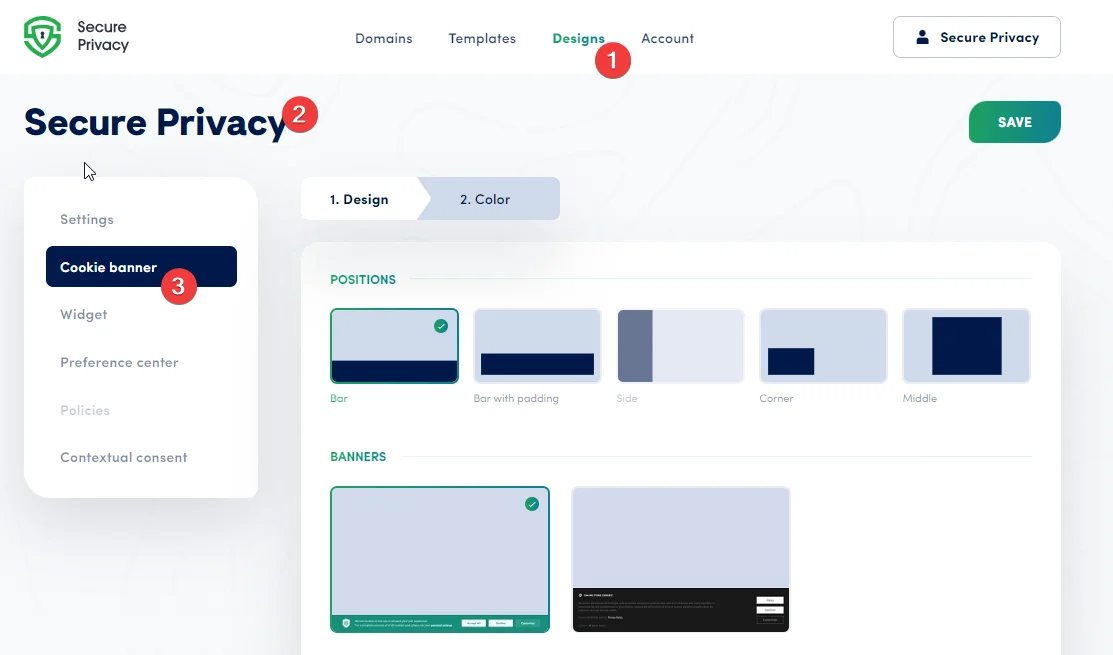
Accessing the Cookie Banner Design Editor
To start customizing your consent banner in Secure Privacy:
- Log in to your Secure Privacy account
- Navigate to Design in your dashboard
- Select a design to preview and modify
- Open the Cookie Banner section
Choosing a Cookie Banner Layout
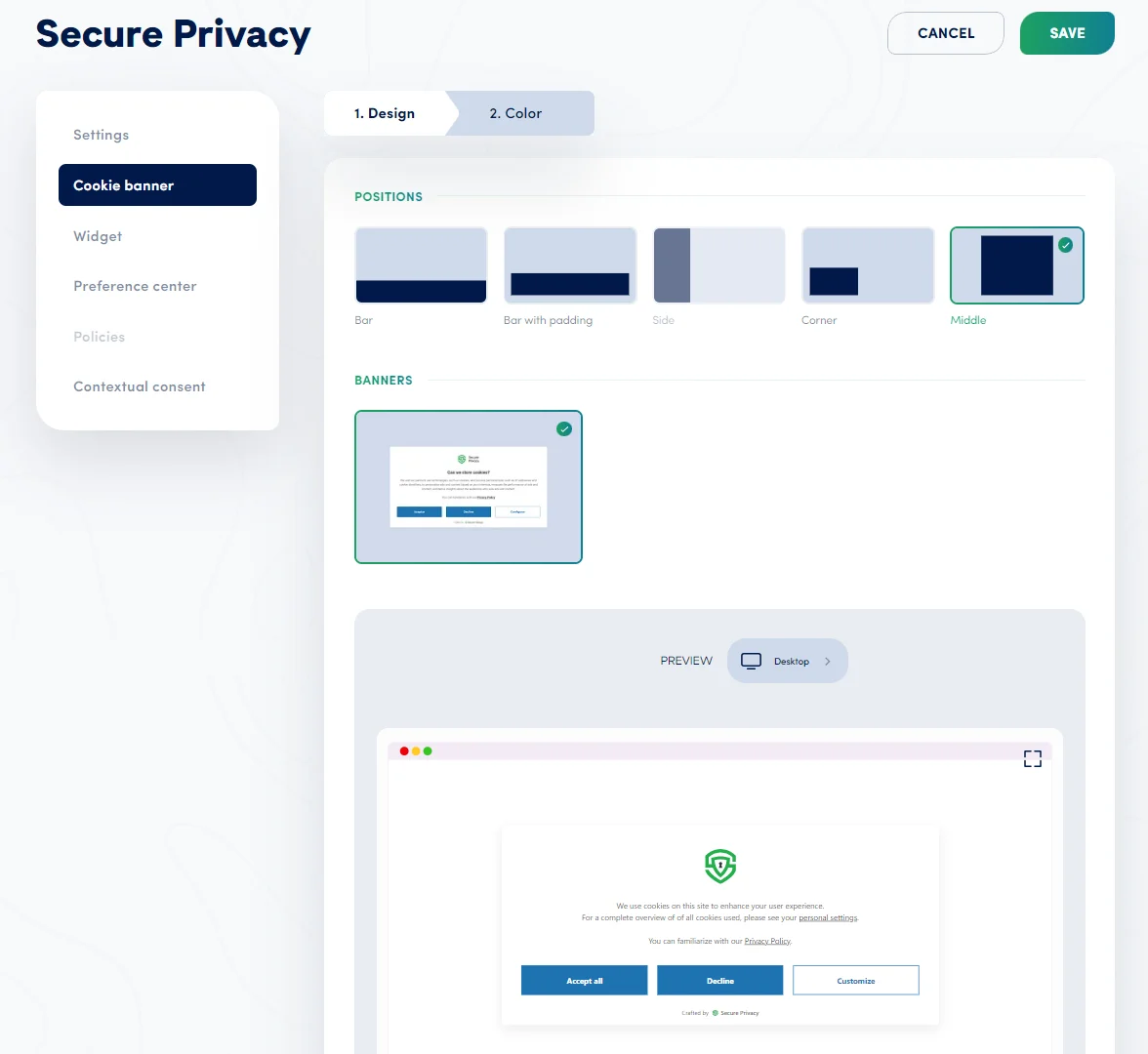
Secure Privacy offers four cookie banner layout options. Choose the one that best fits your site's design language, content type, and consent collection requirements.
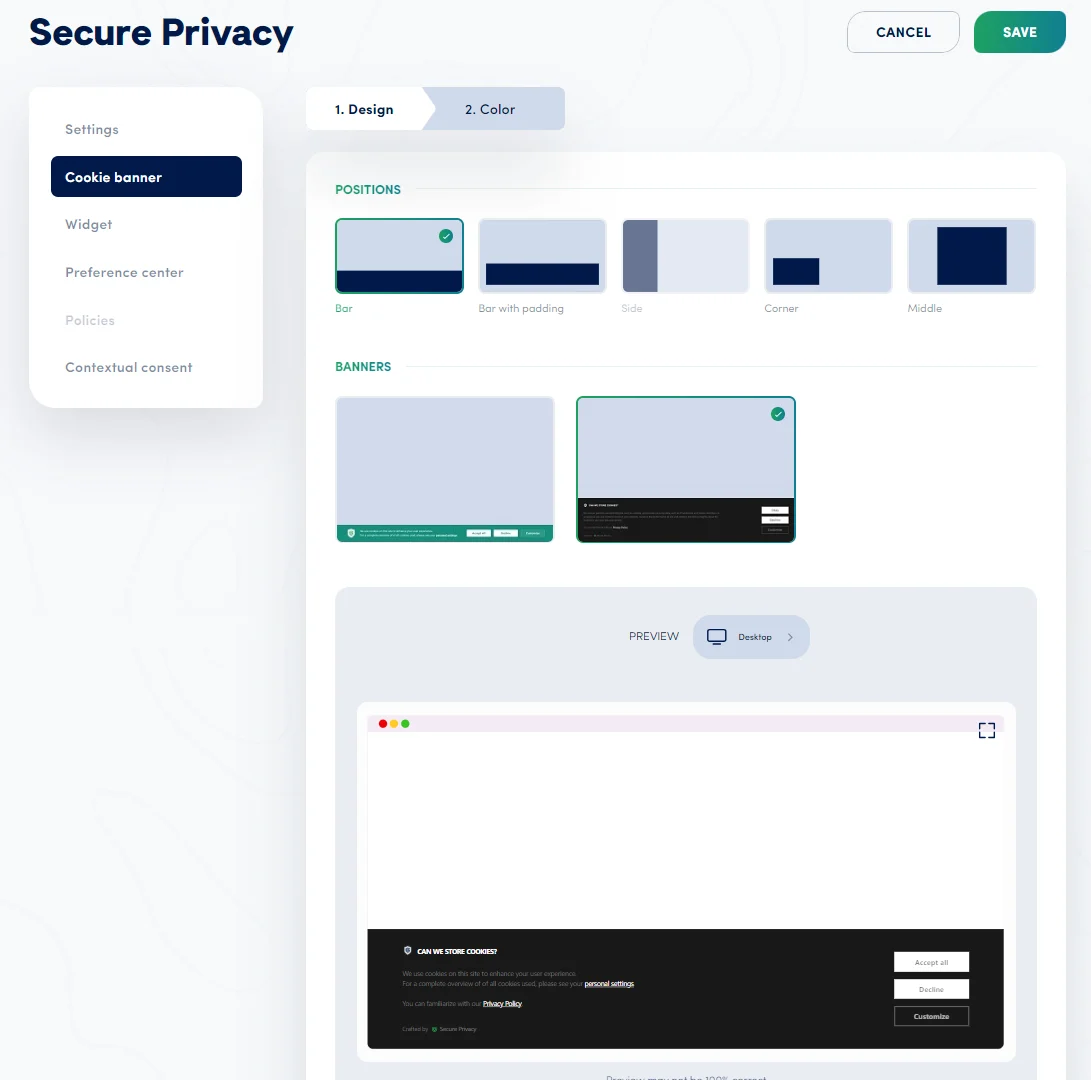
Bar (Full Width)
A full-width consent bar displayed at the top or bottom of the viewport. This is the most widely used cookie banner layout because it is immediately recognizable to users and does not obscure page content.
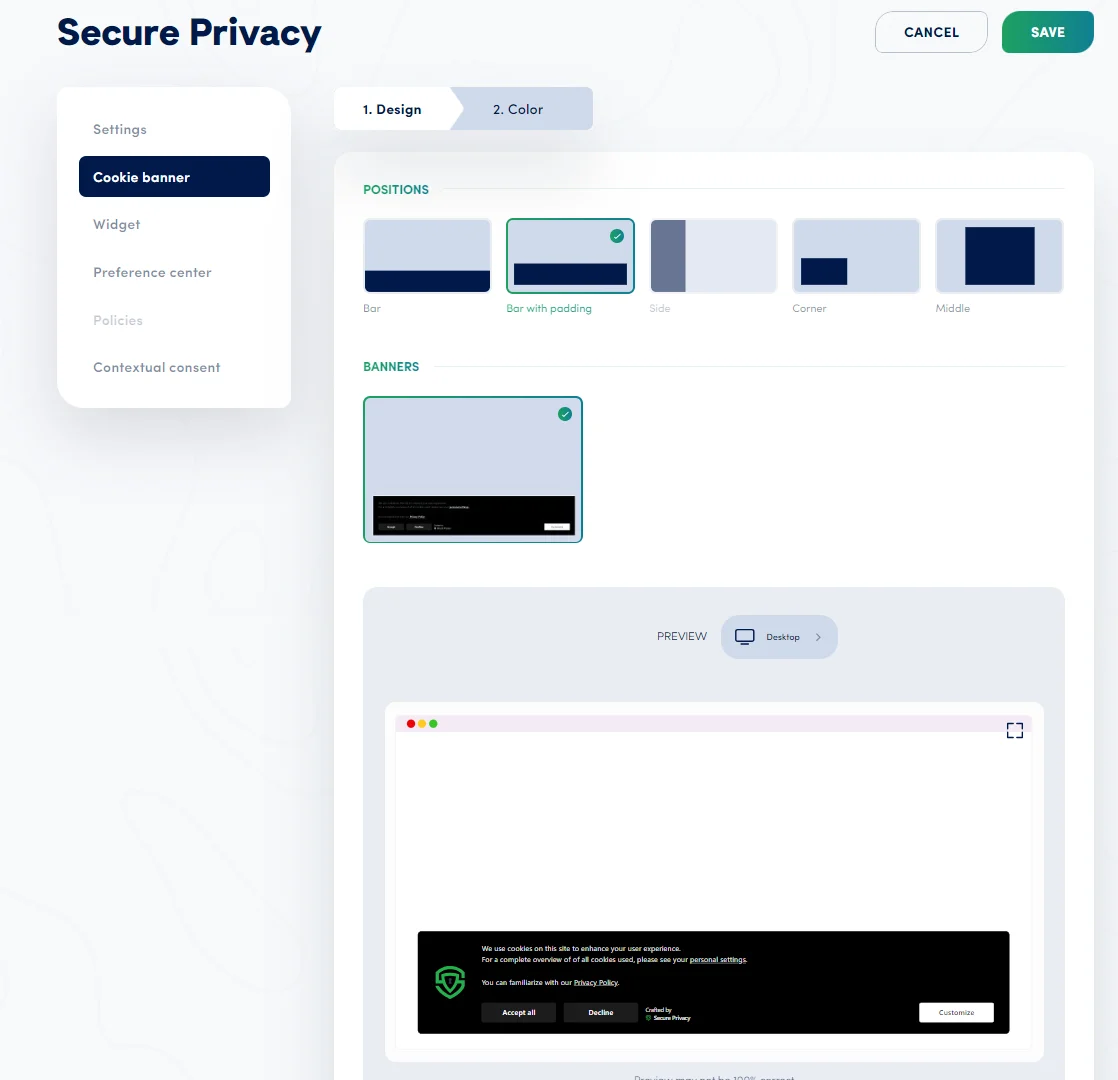
Bar with Padding
Identical to the full-width bar, but with padding applied on all sides. This gives the consent banner a floating, elevated appearance that draws slightly more attention without overwhelming the surrounding content.
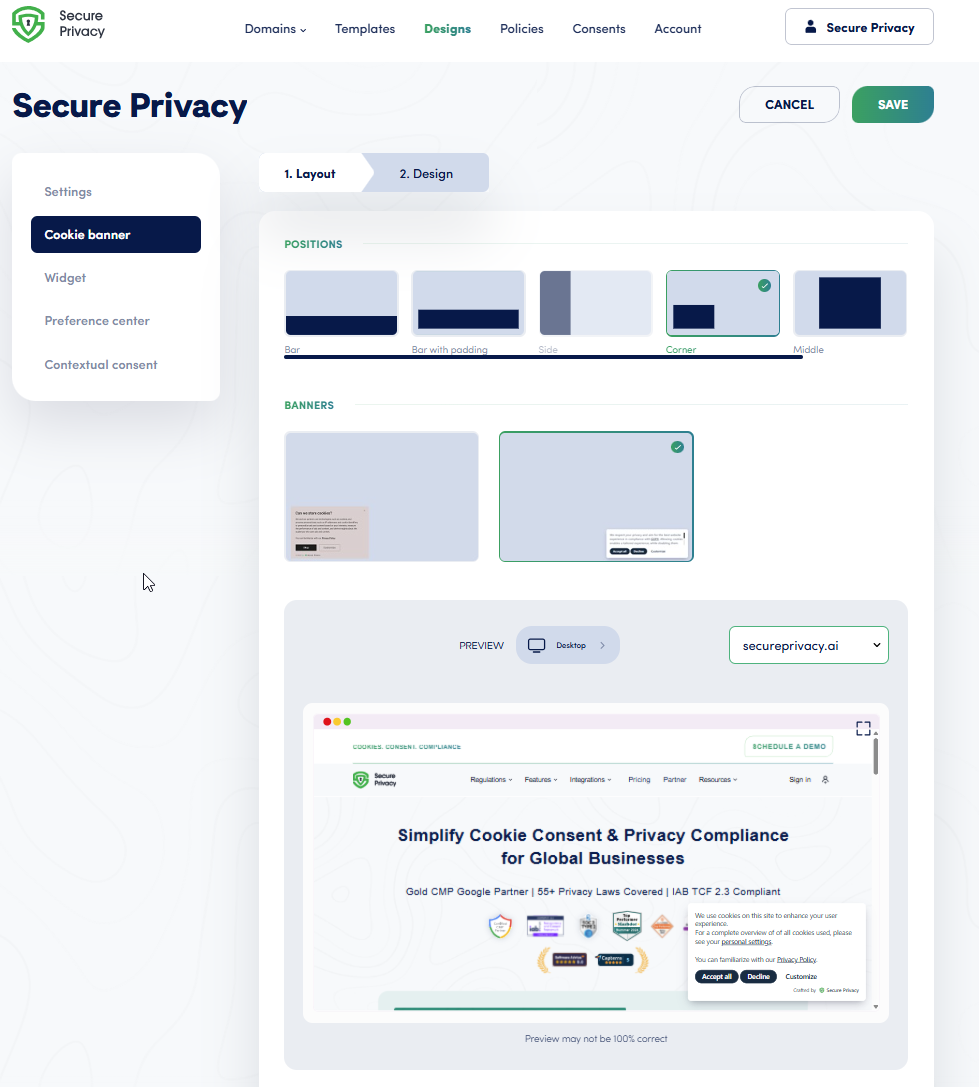
Corner
A compact cookie consent banner positioned in the bottom-left or bottom-right corner of the screen. This is the most unobtrusive layout option—it integrates seamlessly with your page design and works well for sites that prioritize minimal visual disruption.
Middle (Modal)
A centered modal overlay that dims the background until the user responds. This layout provides maximum consent banner visibility and is best when you need explicit, unmissable consent collection—particularly for high-compliance scenarios under GDPR.
Customizing Cookie Banner Colors to Match Your Brand
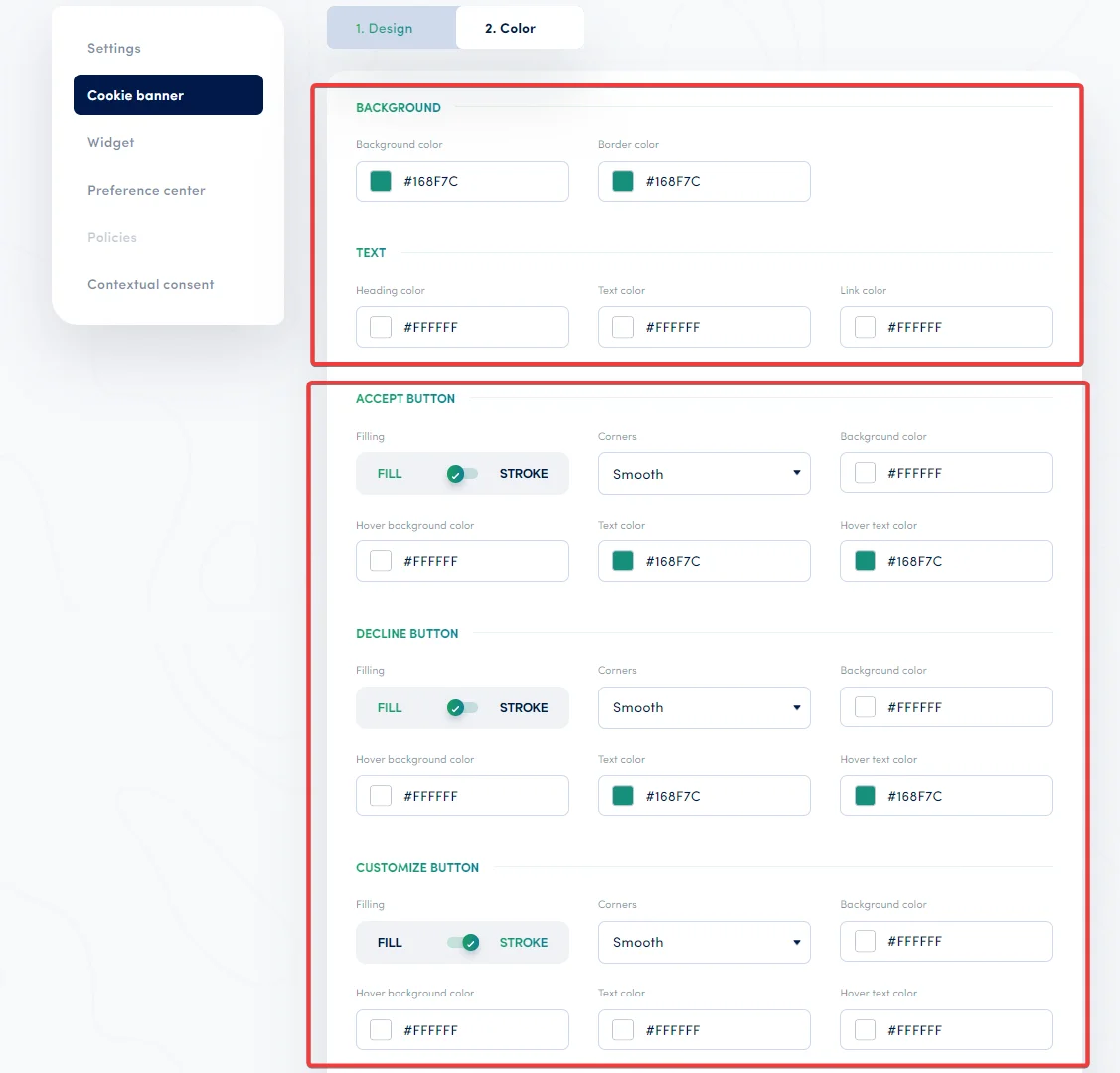
Every color element of your GDPR cookie banner can be adjusted to align with your website's brand identity. The following elements are fully customizable:
| Element | What It Controls |
|---|---|
| Background color | The banner's main background |
| Border color | The outer frame of the banner |
| Heading text | Title and section headings |
| Body text | Descriptions and informational text |
| Link color | Clickable links within the banner |
| Hover color | Interactive states for links and elements |
Advanced Cookie Banner Customization: Custom CSS
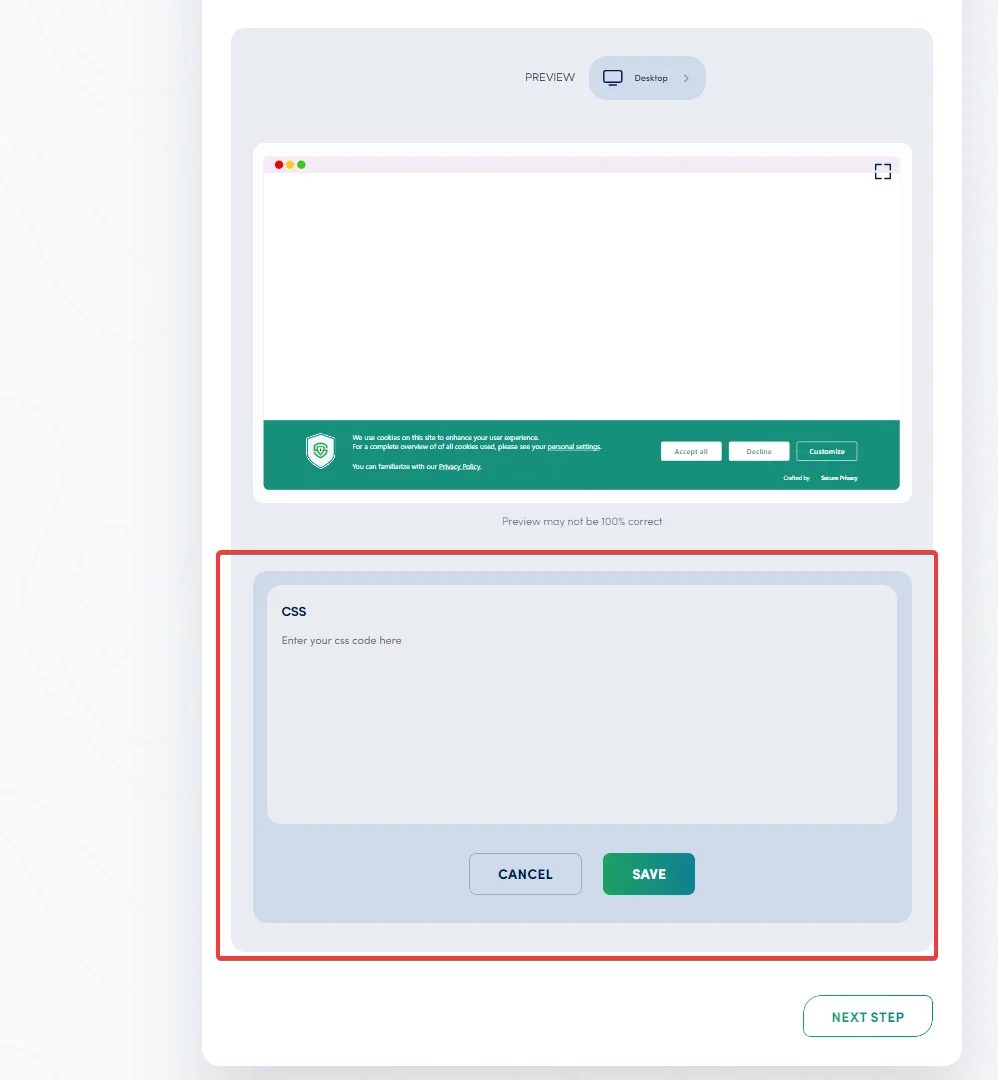
For design customizations beyond what the visual editor offers, Secure Privacy supports custom CSS for your cookie consent banner. This allows developers to apply any styling using Secure Privacy's component classes.
How to Access Custom CSS
- Go to Design > Cookie Banner > Custom CSS
- Add your CSS rules targeting Secure Privacy classes
Example: Rounded Cookie Banner with Margin
.sp-banner {
  border-radius: 16px !important;
  margin: 16px !important;
}
Example: Custom Accept Button Styling
.sp-banner .sp-btn-accept {
  border-radius: 8px !important;
  text-transform: uppercase !important;
}
Example: Custom Font for Cookie Banner
@import url('https://fonts.googleapis.com/css2?family=Inter');
.sp-banner {
  font-family: 'Inter', sans-serif !important;
}
Previewing Your Cookie Banner Design Across Devices
Before publishing any changes, use the built-in responsive preview to test how your cookie banner looks and functions across different screen sizes:
- Desktop view
- Tablet view
- Mobile view
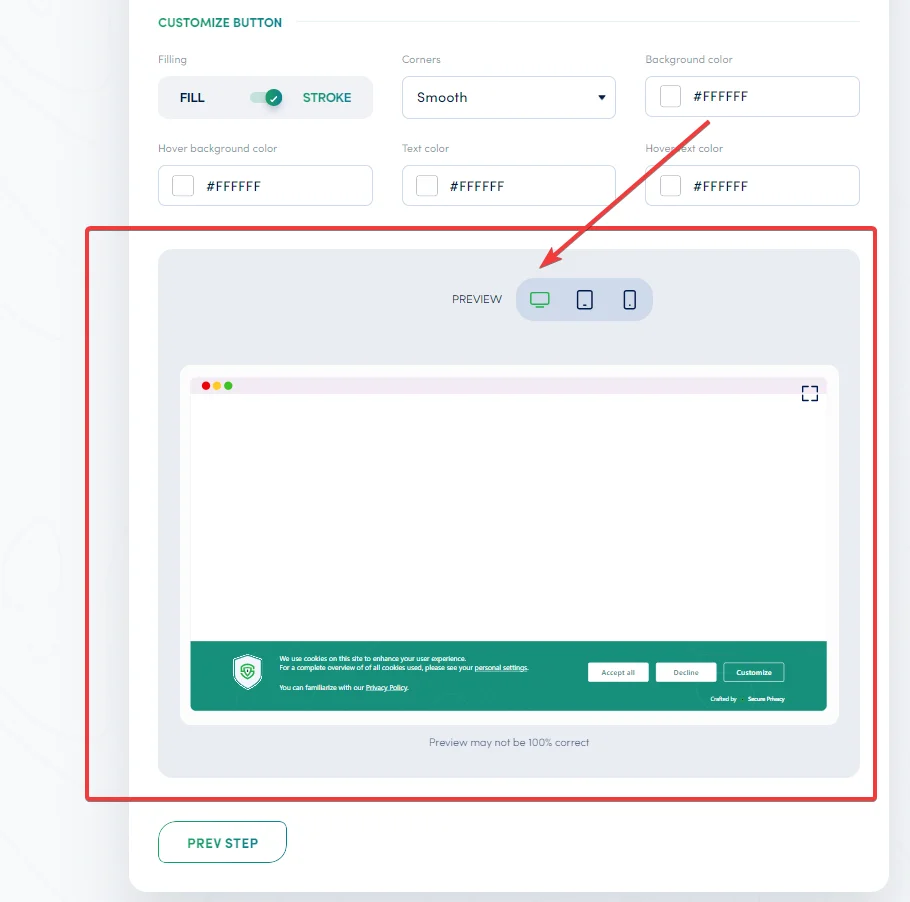
Switch to full-screen preview for the most accurate visualization of how your banner will appear to real visitors. Note that minor rendering differences between preview and live may occasionally occur.
Cookie Banner Design Best Practices
- Match your brand identity — Use your site's color palette and typography for a cohesive, trustworthy appearance
- Keep text concise and clear — Avoid legal jargon; use plain language that users can understand at a glance
- Ensure accessibility contrast — All text must be readable against the banner background (aim for WCAG AA contrast ratio of at least 4.5:1)
- Test on mobile first — Over half of global web traffic is mobile; ensure buttons are large enough to be tap-friendly
- Maintain GDPR button parity — Accept and Reject buttons must be equally prominent in size, color weight, and placement
- Verify after every change — After any styling update, test that all consent buttons still fire correctly and that Google Consent Mode signals are updating as expected
Frequently Asked Questions (FAQ)
Can I fully customize my cookie banner to match my website's brand?
Yes. Secure Privacy's design editor lets you customize every visual element of your cookie consent banner—including background color, border, heading and body text colors, button fill style, corner style, and hover states. For further control, the Custom CSS feature lets developers apply any additional styling using Secure Privacy's component classes.
What cookie banner layouts does Secure Privacy support?
Secure Privacy supports four layouts: Bar (Full Width), Bar with Padding, Corner, and Middle (Modal). Each suits different design and compliance needs—from minimal disruption to maximum consent visibility.
Does my cookie banner design need to comply with GDPR requirements?
Yes. Under GDPR, your cookie banner must not use dark patterns. The "Reject All" option must be as visually prominent as "Accept All." Using a brightly styled Accept button alongside a hidden or downplayed Decline button can result in regulatory action. Secure Privacy's editor makes it straightforward to style both buttons equally.
How do I add a custom font to my Secure Privacy cookie banner?
Use the Custom CSS panel (Design > Cookie Banner > Custom CSS) to import a Google Font or other web font and apply it to the .sp-banner class. See the custom font CSS example in the Advanced Customization section above.
Can I preview my cookie banner on mobile before publishing?
Yes. Secure Privacy's built-in design preview includes Desktop, Tablet, and Mobile views. Use the full-screen preview mode for the most accurate representation of how your banner will appear to real visitors across devices.