
If your website serves visitors in the European Economic Area (EEA) or the UK, and you're running Google Ads or using Google Analytics, you're almost certainly losing conversion data — and you may not have noticed yet. Since March 2024, Google has required all advertisers to implement Google Consent Mode v2 via a certified Consent Management Platform (CMP) for EEA and UK traffic. By July 2025, Google began actively restricting conversion tracking and audience creation for accounts that weren't compliant. For some advertisers that meant an overnight drop of 80–90% in measured conversions.
The two painful workarounds most teams try first don't hold up. Writing manual
gtag('consent', 'default', ...) code is error-prone, hard to maintain, and still requires a separate
consent banner that actually meets GDPR standards. Bolting on a generic cookie notice without a proper Google
integration means consent signals never reach your Google tag — so modeling never kicks in and attribution stays
broken.
There's a cleaner path. In 2025, Secure Privacy built a deep integration directly inside the Google Tag platform, which Google approved and made live in April 2026. Secure Privacy is now listed as a fully integrated platform inside Google's own consent mode wizard — meaning you can connect a compliant, Google Gold CMP Partner to your Google tag in minutes, with no manual gtag configuration on your end.
By the end of this guide you will have Google Consent Mode v2 active on your site, your consent signals flowing correctly to Google Ads and Google Analytics, and a built-in test to confirm everything is working.
Who Is This Guide For?
This guide is for you if any of the following apply:
-
You run Google Ads campaigns targeting EEA or UK audiences and you don't yet have a consent banner connected to your Google tag.
-
You're a marketer or developer setting up Google Consent Mode v2 for the first time and want to avoid manual gtag code.
-
You've seen a warning in Google Ads about consent mode not being configured, or you've noticed a spike in "(not set)" traffic source data in GA4.
-
You're evaluating a Google-certified CMP and want to understand what the setup process looks like in practice.
Prerequisites
-
Access to a Google Ads or Google Tag Manager account — specifically, access to a Google Tag. This can be a tag connected to Google Ads, Google Analytics 4, or any other Google product.
-
Your website domain (you will associate it with your Secure Privacy account during setup).
-
A Secure Privacy account — a free tier is available and can be created directly inside the wizard without leaving Google.
Step-by-Step Setup Guide
Step 1 — Open the Google Tag Admin Settings
In Google Ads: navigate to Tools in the left sidebar, then open Data manager. Click into your Google tag to open its settings panel, and select the Admin tab along the top.
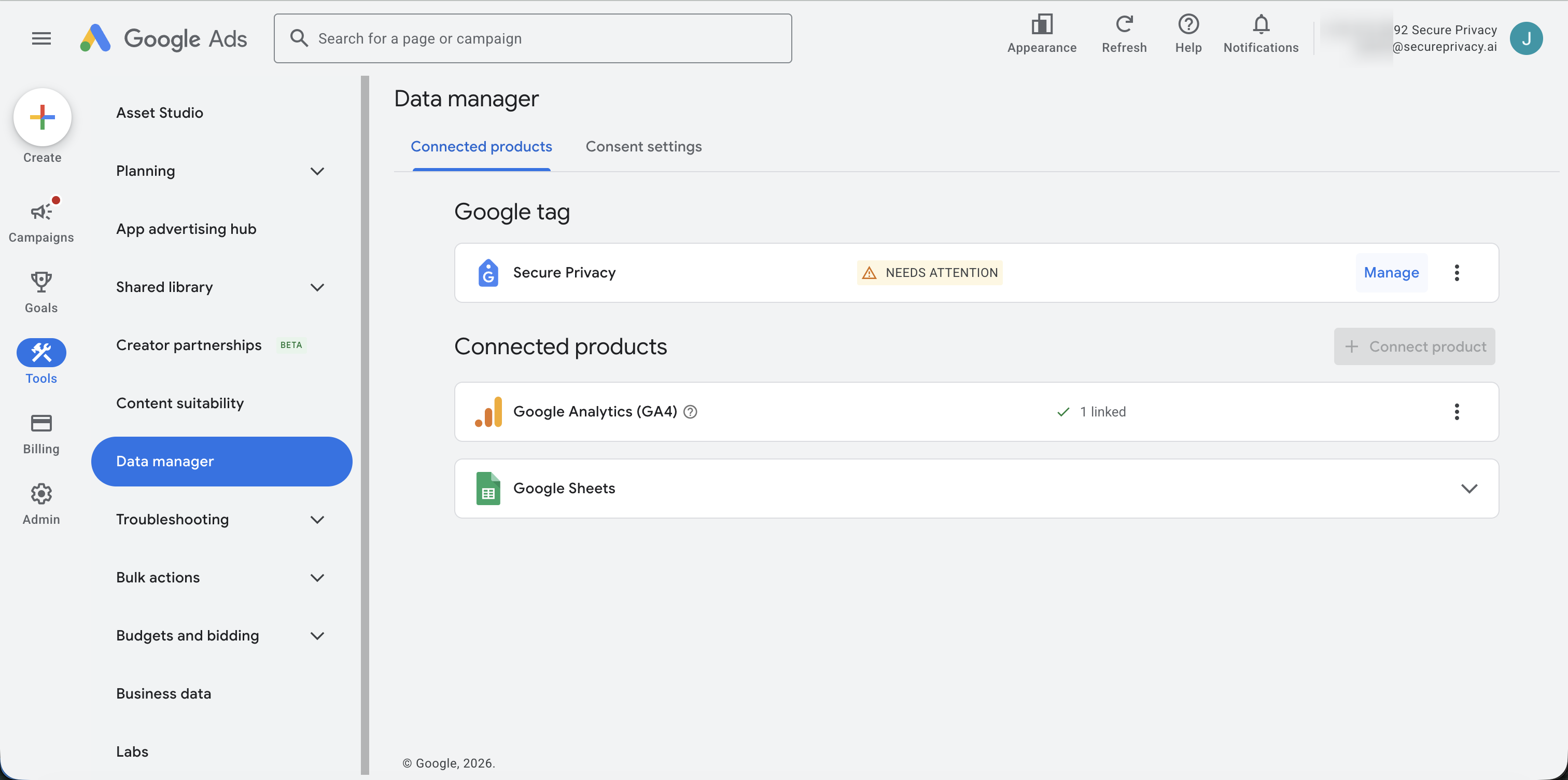
Google Ads → Tools → Data manager → select your Google tag → Admin tab.
In Google Tag Manager: navigate to Google tags and select your tag from the list. Click into your Google tag to open its settings panel, then select the Admin tab along the top.
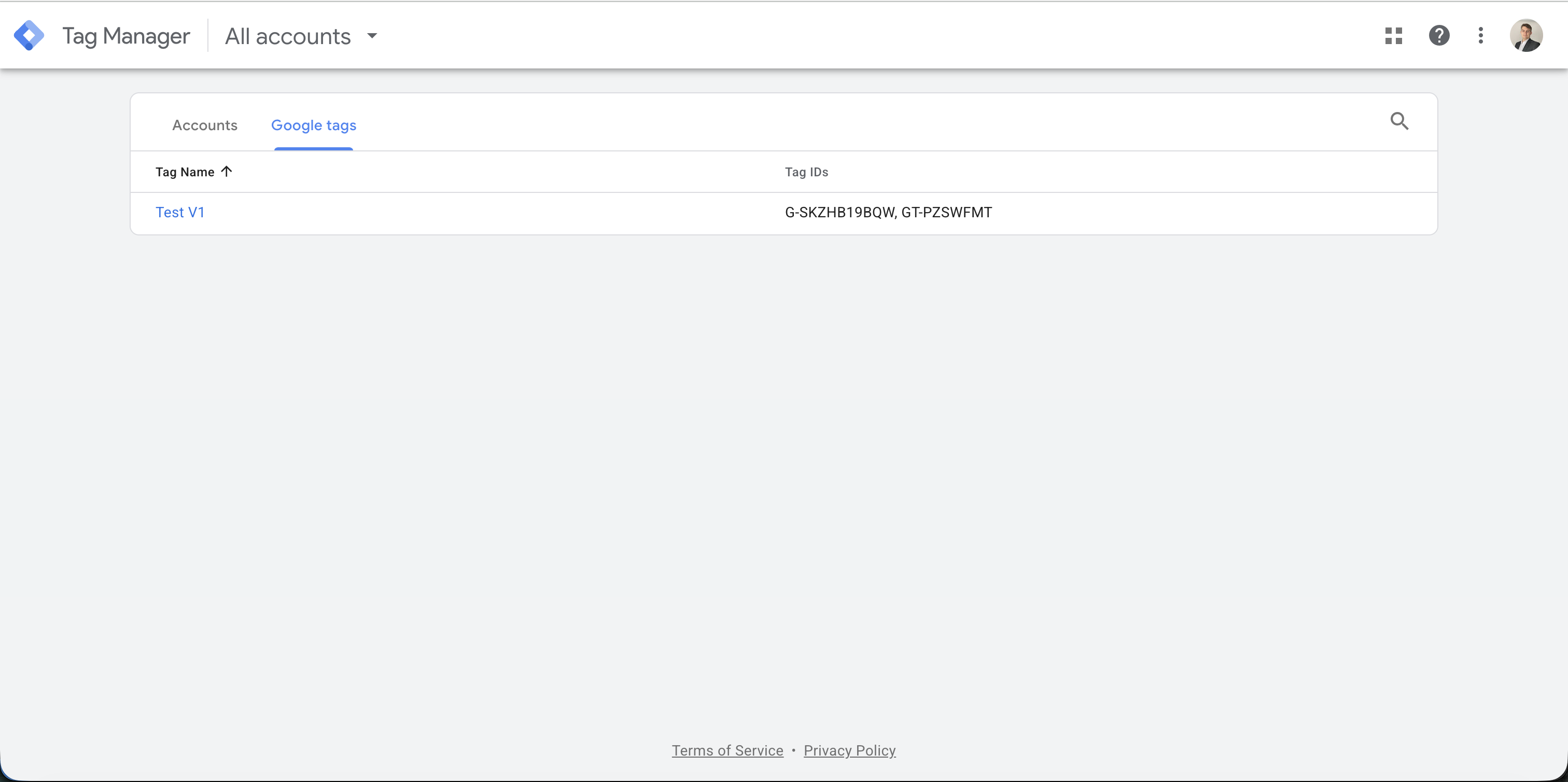
Google Tag Manager → Google tags → select your tag → Admin tab.
Step 2 — Click "Set Up Consent Mode"
On the Admin tab you will see a Google tag management section listing several configuration options. Click Set up consent mode. This launches a guided setup wizard.
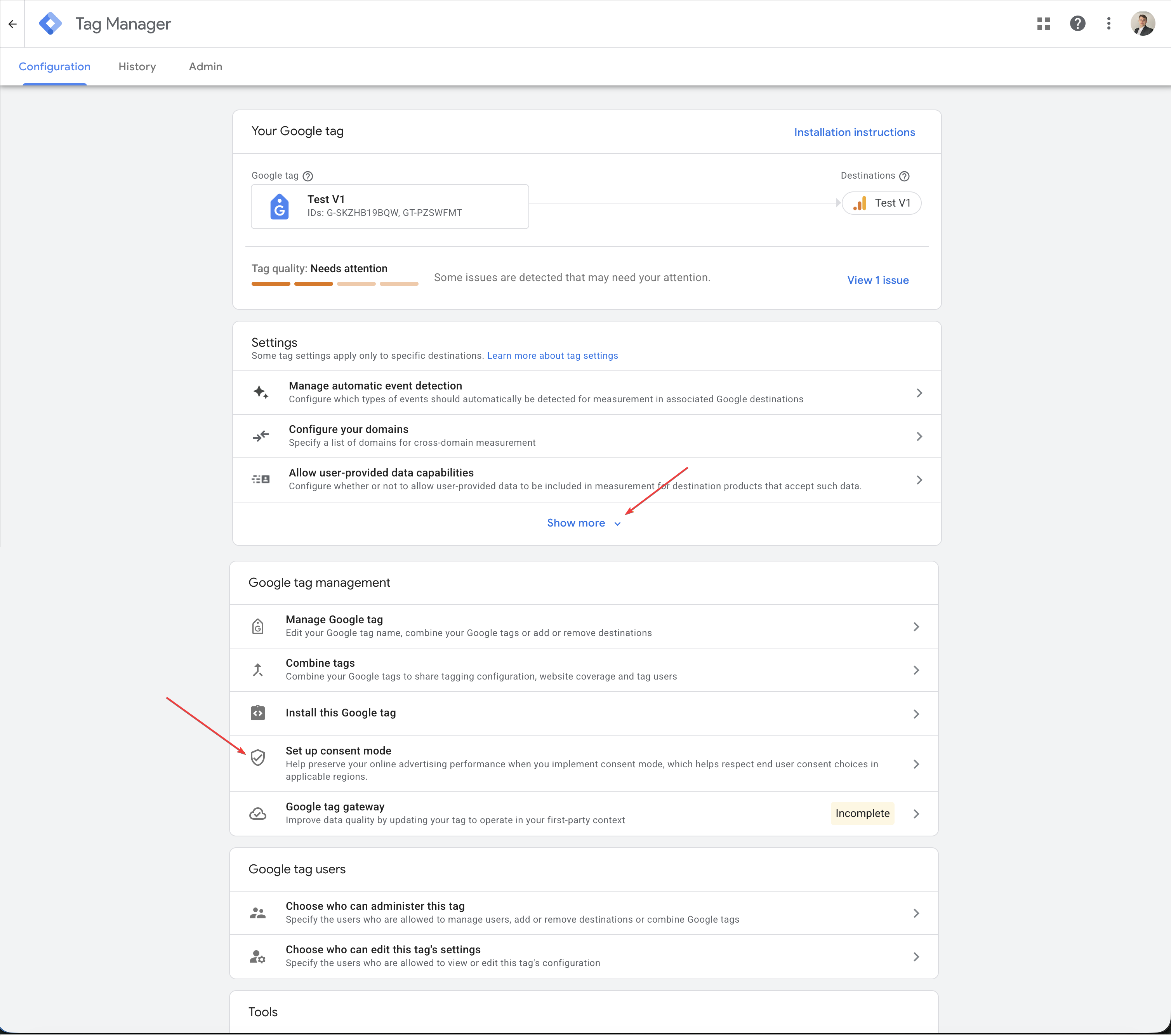
Under Google tag management, click "Set up consent mode" to launch the wizard.
Note: If you see a Google tag gateway: Incomplete status on the Admin page, this is a separate first-party tagging concern and does not block consent mode setup. You can proceed with the wizard regardless.
Step 3 — Select Your Consent Banner Type
The first screen of the wizard asks: "Which type of consent banner do you have?"
Select "I don't have a consent banner", then click Next. This is the correct option even if you have a basic cookie notice — if it's not yet connected to a certified CMP, you effectively don't have a compliant banner for Google's purposes.
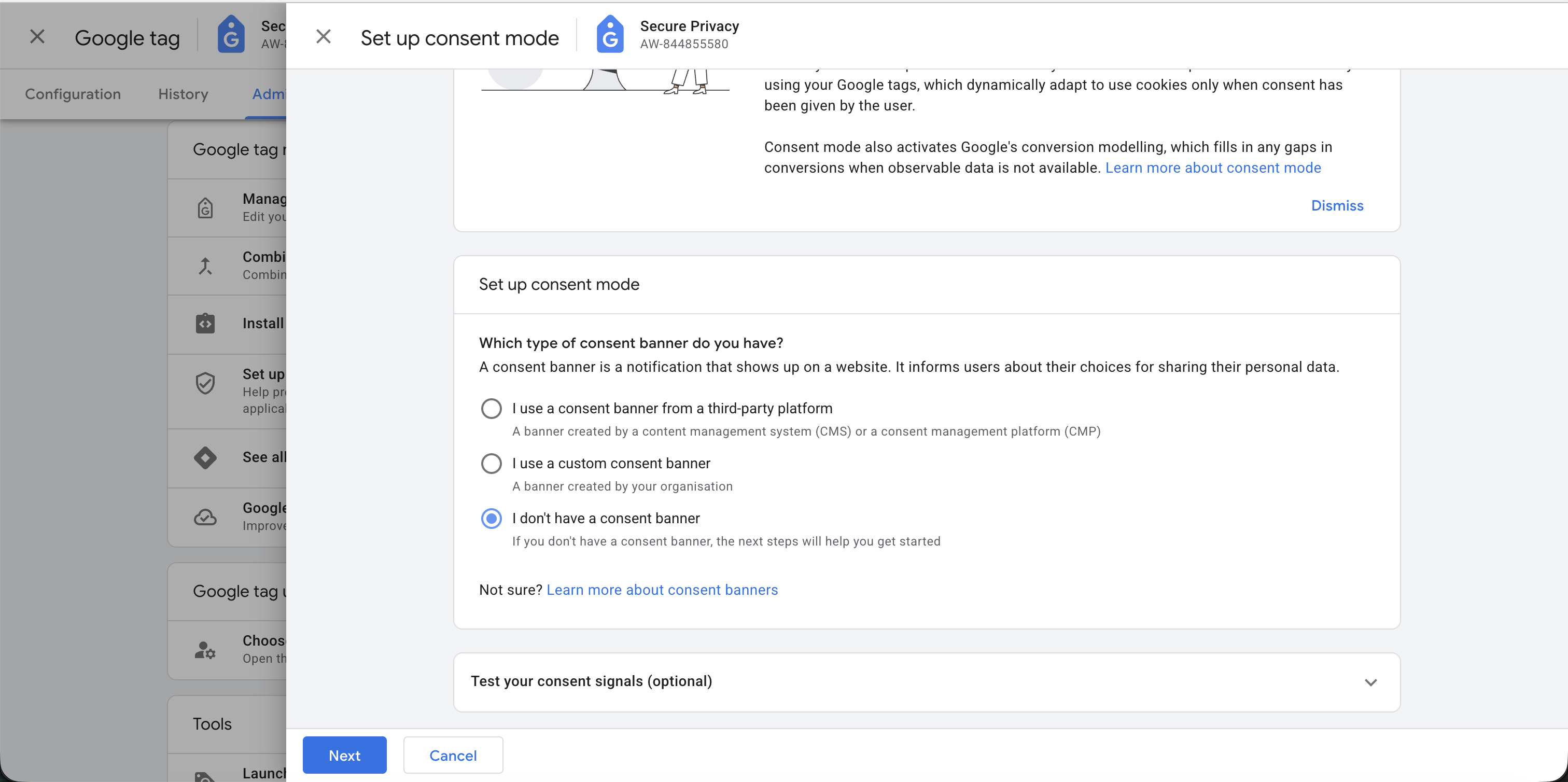
Select "I don't have a consent banner" and click Next.
Step 4 — Select Your Platform
The next screen is titled "Set a third-party banner" and explains how CMPs work with Google Consent Mode. Click the "Select your platform" button to open the platform picker.
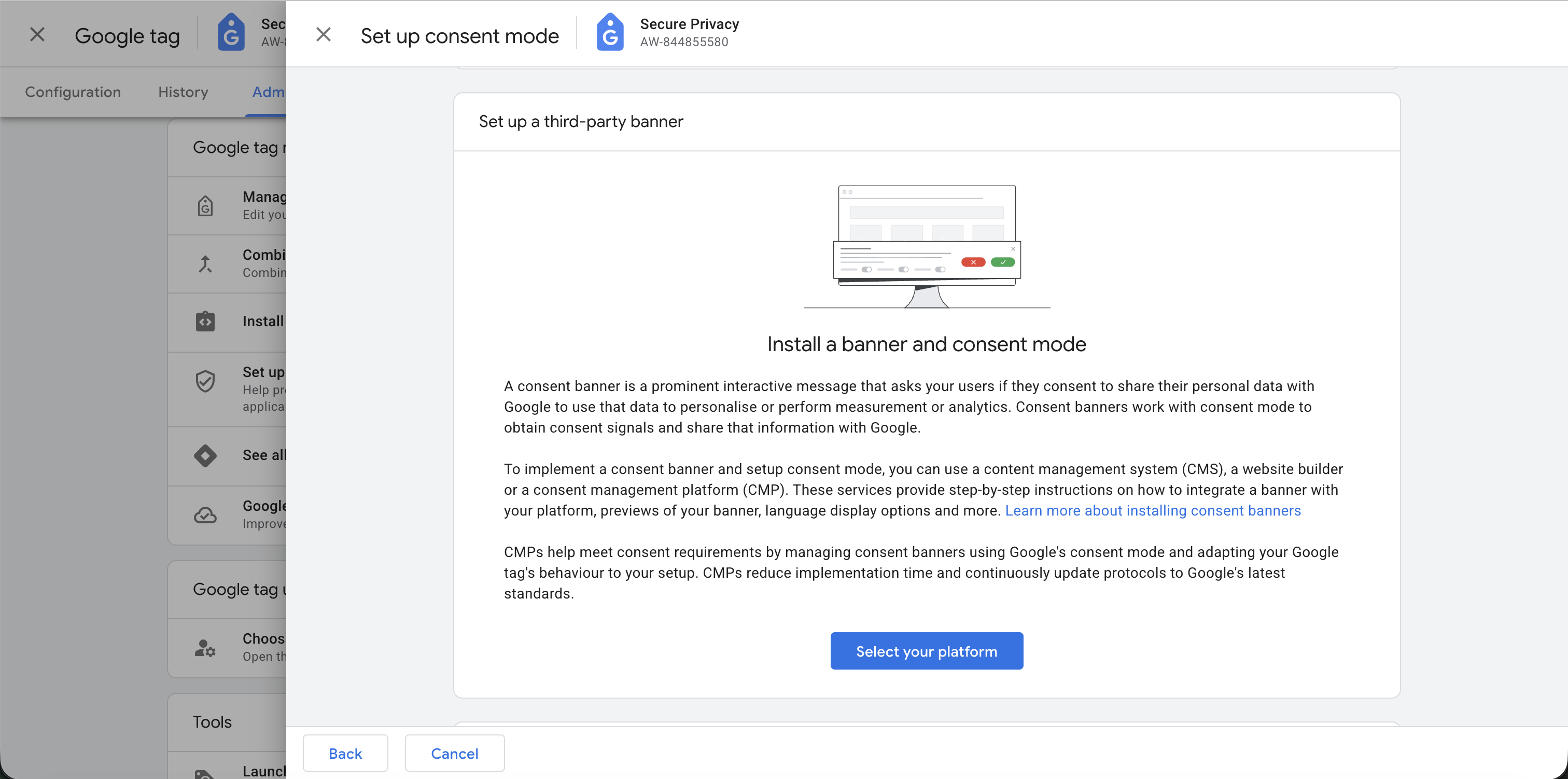
Click "Select your platform" to open the CMP platform picker.
Step 5 — Choose Secure Privacy
A side panel will appear titled "Select a third-party platform (to create your banner)". Under the Fully integrated platforms section, find and select Secure Privacy — it is listed with "Free tier available".
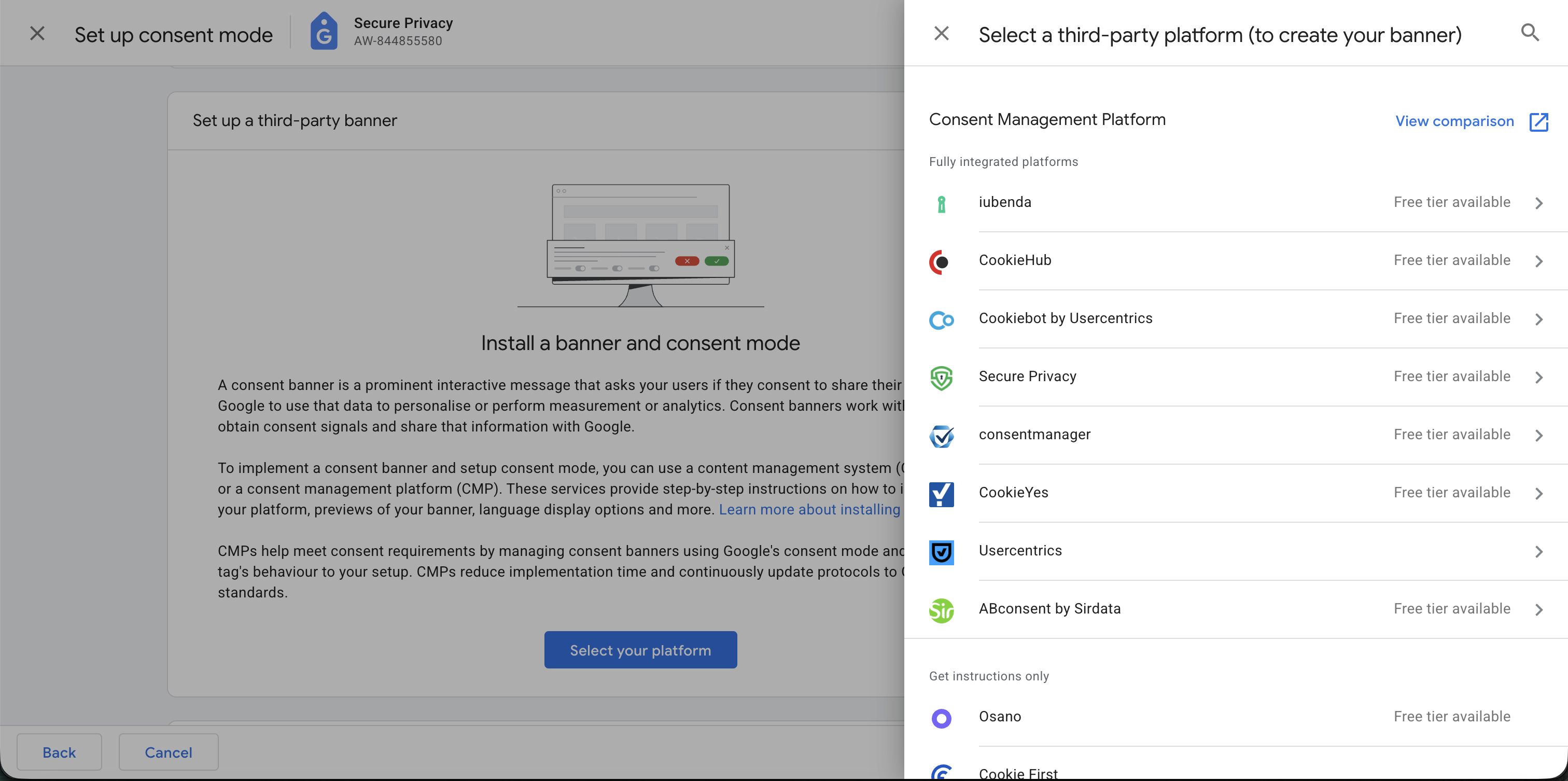
Under Fully integrated platforms, select Secure Privacy.
Follow the remaining on-screen prompts. If you don't yet have a Secure Privacy account, you can create one here — no need to leave the Google interface.
Why "fully integrated" matters: Secure Privacy's fully integrated status means Google has a direct,
verified integration path. No manual gtag('consent', 'default', ...) configuration is required on your
end — Secure Privacy handles consent signal communication to your Google tag automatically.
Step 6 — Confirm Setup
After completing the prompts, you'll see a setup confirmation screen showing your Secure Privacy CMP account connected to the Google tag, along with options to publish your consent banner via Google Tag Manager or manually.
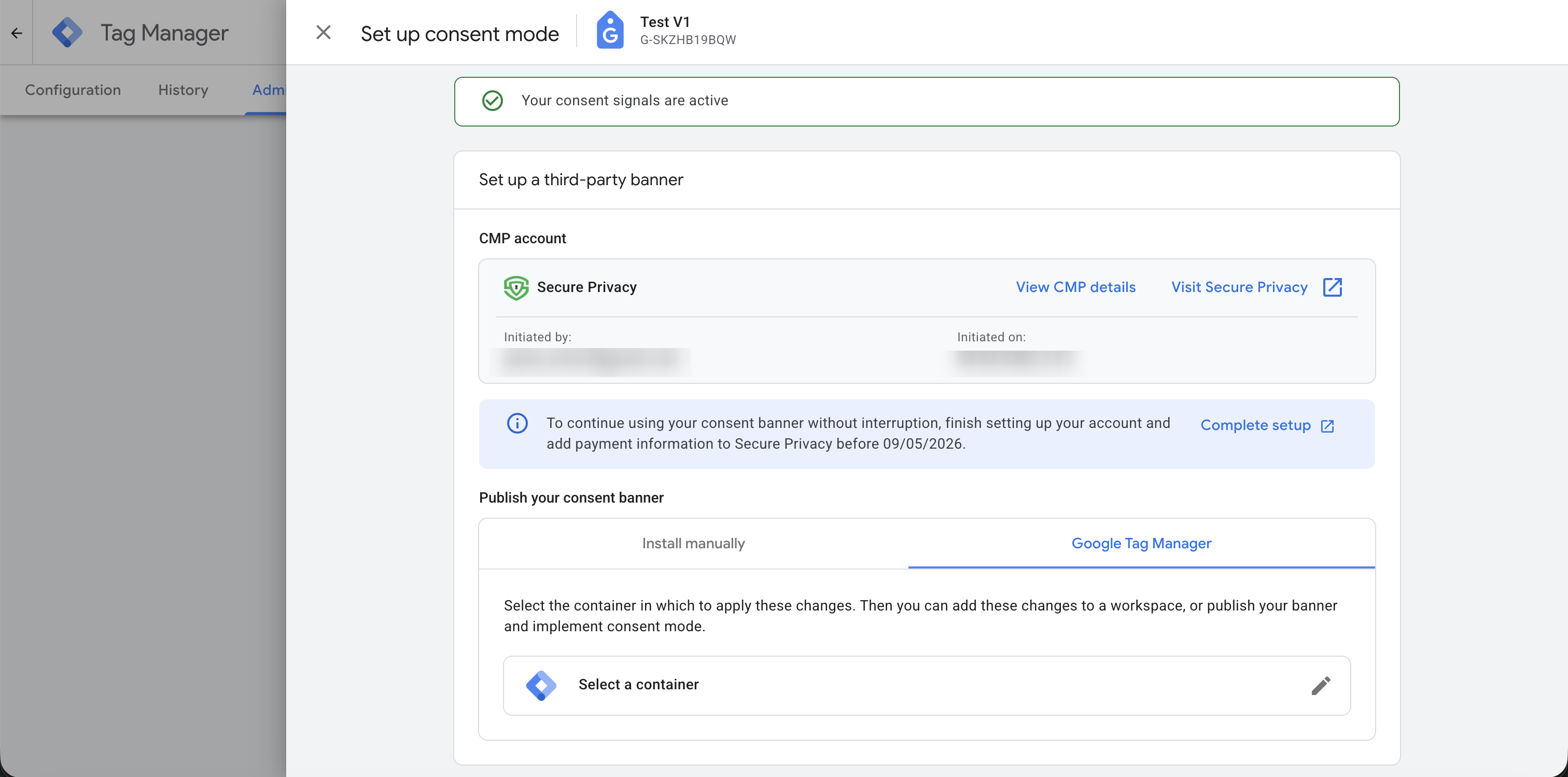
Setup confirmation — your consent signals are now active.
To publish your banner, select a GTM container from the list and apply the changes to a workspace, or use the Install manually option if you manage your tag code directly.
What Happens After Setup
Test your consent signals
After completing setup, return to the first screen of the consent mode wizard and expand the "Test your consent signals" section. This built-in tool confirms whether consent state is being communicated correctly from Secure Privacy to your Google tag. Look for a green "Your consent signals are active" confirmation.
When will Google Ads show consent mode as active?
The consent mode status in your Google Ads account typically updates within 48 hours, but may take up to two weeks to fully reflect in your account's consent settings panel.
When will conversion modeling start?
Google Ads conversion modeling for consent-denied users requires at least 700 ad clicks over a 7-day period per country and domain grouping. Modeled conversions begin appearing in your Conversions columns after the threshold is reached. Google Analytics 4 behavioral modeling requires at least 1,000 denied-consent events per day for at least 7 days.
What about users who already had consent granted?
For users who interacted with your site before consent mode was in place, there is no retroactive data recovery. Going forward, Advanced consent mode (which Secure Privacy implements) enables advertiser-specific modeling to estimate conversions from non-consenting users based on aggregate signals.
Troubleshooting
Secure Privacy doesn't appear in the platform picker
Make sure you are on the Fully integrated platforms section of the picker, not the "Set instructions only" section lower down the list. If the panel doesn't load, try refreshing the page and re-entering the wizard from the Admin tab.
Consent signals test shows "Not active" after setup
This usually means the banner has not yet been published. Complete the banner publication step — either by selecting a GTM container and publishing the workspace, or by installing the banner code manually on your site. Once the banner is live, re-run the consent signals test.
Google tag gateway shows "Incomplete"
This is a separate first-party tagging configuration and does not affect consent mode. It refers to whether your Google tag is operating in a first-party context. You can address it independently through the Google tag gateway settings without any impact on your consent mode integration.
GA4 shows a spike in "(not set)" for traffic source
This is a known issue that occurs when session_start and page_view events fire before
consent is established. Make sure your Secure Privacy banner is loading before any Google tags fire on your
pages. If you're using GTM, ensure the consent initialization tag fires on the earliest possible trigger (Consent
Initialization trigger type).
GOOGLE GOLD CMP PARTNER · SOC 2 TYPE II · IAB TCF v2.3
Get compliant with Google Consent Mode v2 — without the complexity
Secure Privacy is a fully integrated Google Tag platform partner. Set up your consent banner directly inside Google Ads or GTM and restore conversion tracking for EEA audiences.
Get Started for Free Schedule a Demo
30-day free trial · No credit card required
Frequently Asked Questions
Do I need a consent banner to run Google Ads in the EEA?
Yes. Since March 2024, Google requires all advertisers with EEA or UK traffic to implement Google Consent Mode v2 via a certified CMP. Without it, Google will not populate remarketing audiences and conversion tracking is restricted for those users. Enforcement with active account restrictions began in July 2025.
What is Google Tag Consent Mode and why do I need it?
Google Tag Consent Mode is a framework that tells Google's tags (Google Ads, GA4, Floodlight) how to behave based on a visitor's cookie consent choices. It enables conversion modelling so Google can estimate conversions from users who did not consent, recovering a portion of the attribution data that would otherwise be lost entirely.
Is Secure Privacy a Google-certified CMP?
Yes. Secure Privacy is a Google Gold CMP Partner and appears in Google's own platform picker as a fully integrated platform. This is the highest tier of Google CMP certification and means the integration is verified and maintained directly with Google.
Do I need to write any gtag code to set this up?
No. Because Secure Privacy is listed as a fully integrated platform inside the Google Tag consent mode wizard, the
integration is handled automatically. Secure Privacy manages consent signals to your Google tag without any manual
gtag code.
Can I do this setup inside Google Tag Manager instead of Google Ads?
Yes. The same wizard is available inside Google Tag Manager. Navigate to your Google tags list, click into your tag, open the Admin tab, and follow the same steps described in this guide.
What happens if the Google tag gateway shows as Incomplete?
This is a separate first-party tagging concern and does not block consent mode setup. You can complete the consent mode integration regardless, and address the gateway configuration separately at a later stage.
How do I verify that consent signals are working after setup?
Use the "Test your consent signals" section available on the first screen of the consent mode
wizard. It will confirm whether consent state is being communicated correctly to the Google tag. You can also use
Google Tag Assistant to inspect consent state values (gcs parameter) in real time.