
The Preference Center in Secure Privacy's Template settings lets you configure how the privacy preference center appears to your website visitors — including enabling or disabling it, editing tab names and descriptions, customizing cookie category labels, and updating button and UI strings across multiple languages. This guide walks through every available configuration option.
Who Is This For?
Website administrators enabling and configuring the Preference Center for their Secure Privacy template
Compliance teams customizing tab names, category descriptions, and privacy policy labels to match organizational requirements
Developers and designers localizing Preference Center content across multiple languages
How to Access Preference Center Settings
Log in to your Secure Privacy account.
Click Templates in the navigation.
Select the template you want to customize and click to preview or edit it.
Open the Preference Center section within the template.
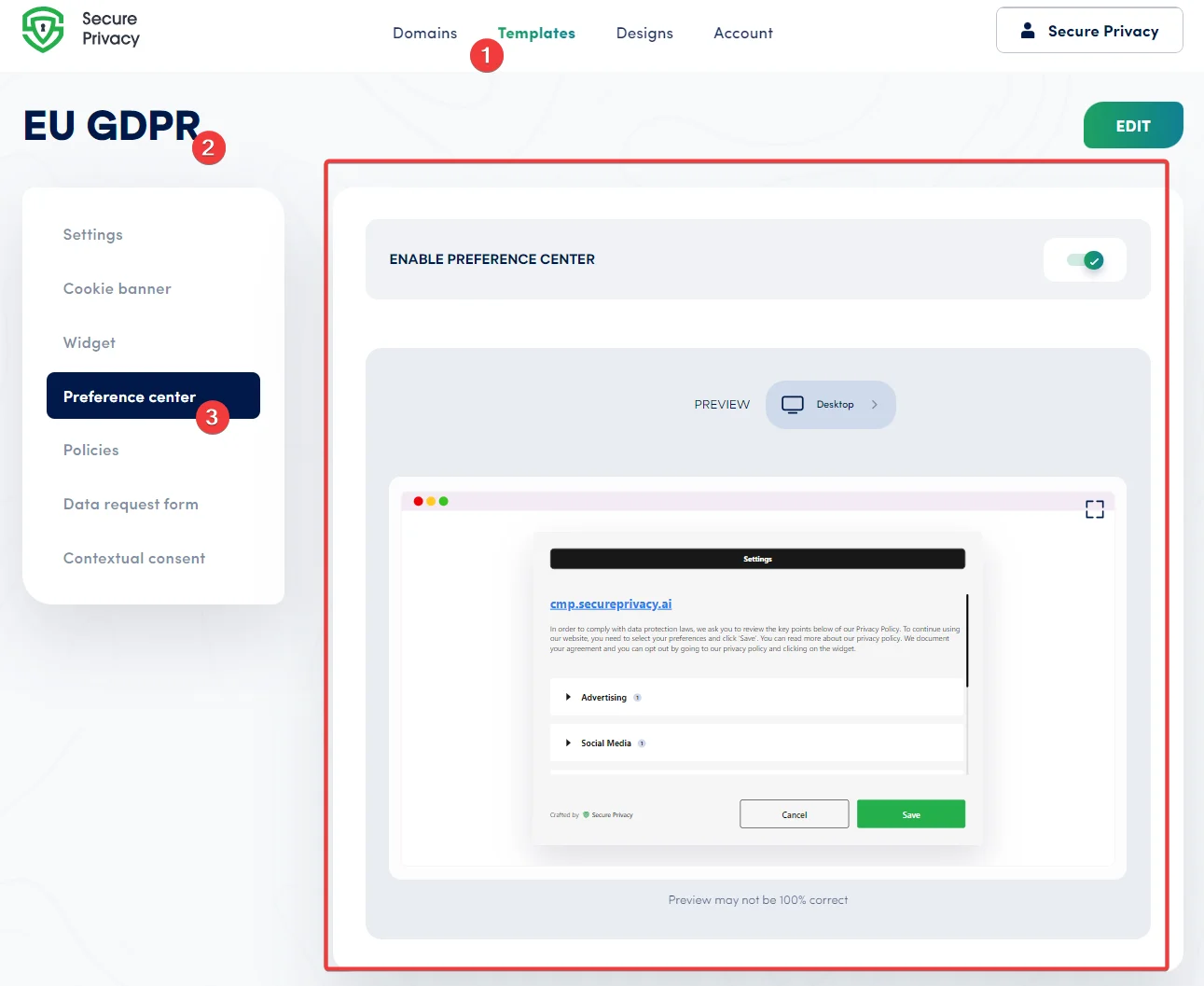
Preference Center Configuration Options
Enable Preference Center
Each pre-existing template comes with the Preference Center pre-enabled. Use the Enable Preference Center toggle to activate or deactivate it for your visitors. When enabled, visitors can access the preference center to manage their individual cookie consent choices by category.
Preview
The template provides previews for desktop, tablet, and mobile viewport sizes. Use the preview to review the appearance of the Preference Center before publishing. Switch to full screen for a more accurate view — note that the preview is approximate and may not be 100% identical to the live experience on all browsers and devices.
Click the Edit button to switch into editor mode and begin making changes to the template content.
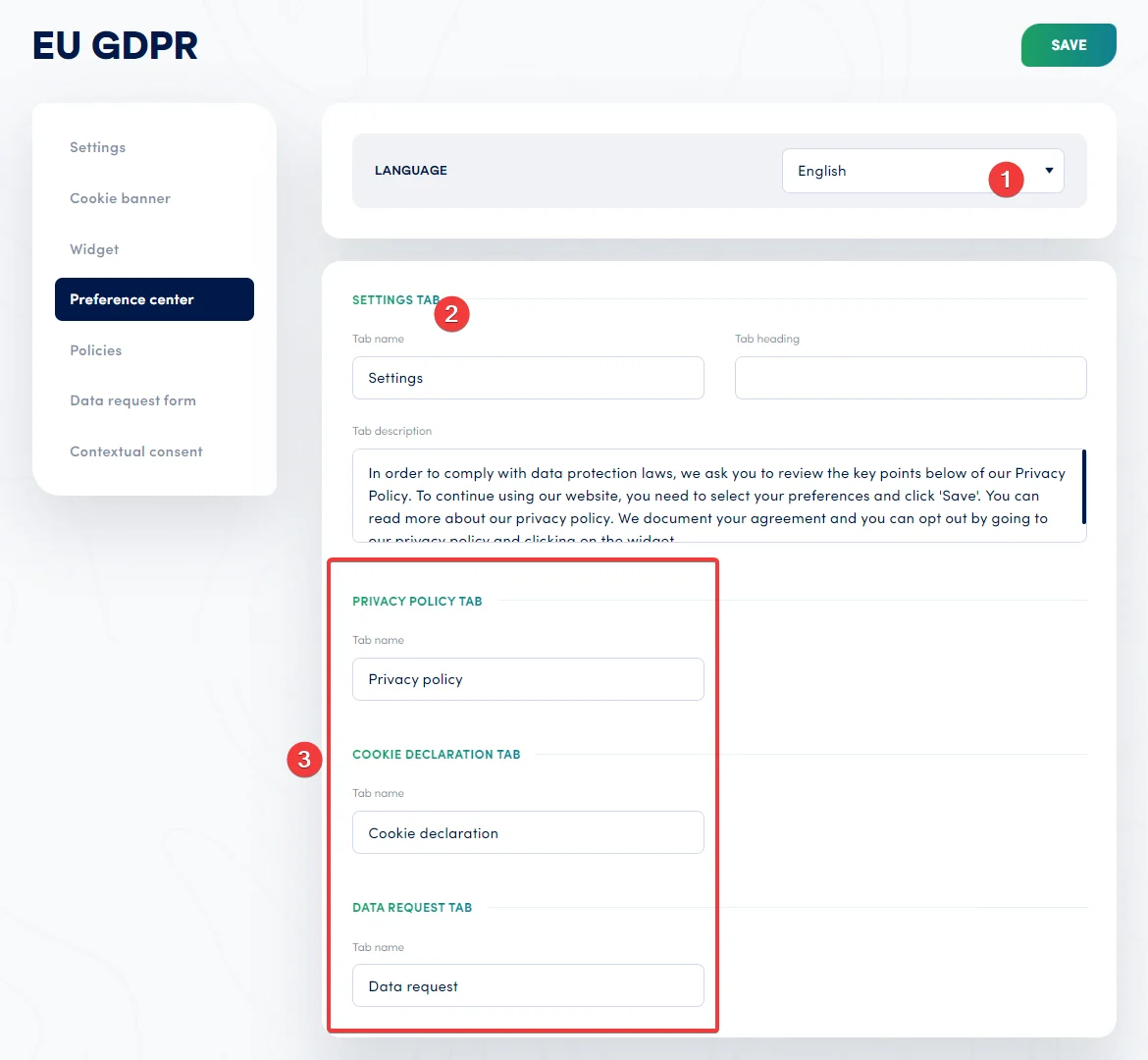
Language
Every template is pre-configured and pre-translated for a wide range of languages, ensuring accessibility across diverse audiences. Use the language selector in the editor to switch between languages and edit content for each one. Additional languages can be added or removed under Template > Settings.
Settings Tab — Tab Name, Heading, and Description
In the Settings sub-section, configure the Tab name, Tab heading, and Tab description that appear on your Preference Center page. These fields let you add organization-specific identifiers and wording to the settings tab for each assigned language.
Privacy Policy, Cookie Declaration, and Data Request Tabs
Customize the tab names for the Privacy Policy, Cookie Declaration, and Data Request sections to match your organization's terminology and policies. These labels can be set independently for each language assigned to the template.
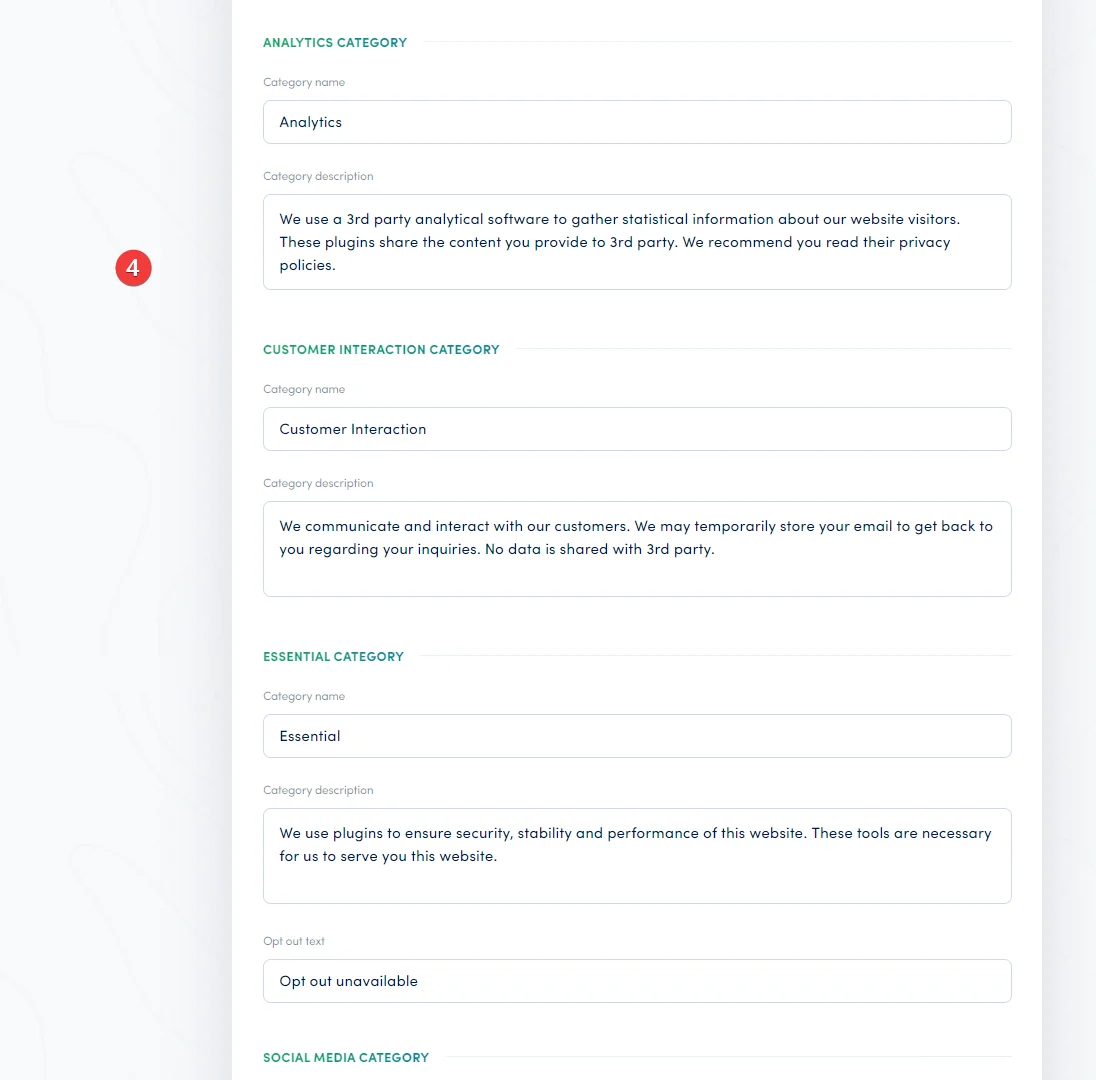
Advanced Categories
The Advanced Categories section allows you to customize the name and description for each cookie consent category displayed in the Preference Center — including Advertising, Analytics, Customer Interaction, and others. Clear, accurate category descriptions help visitors make informed consent decisions.
All category text is pre-translated for the template's assigned languages, but each text field can be edited to better reflect your organization's terminology and communication style.
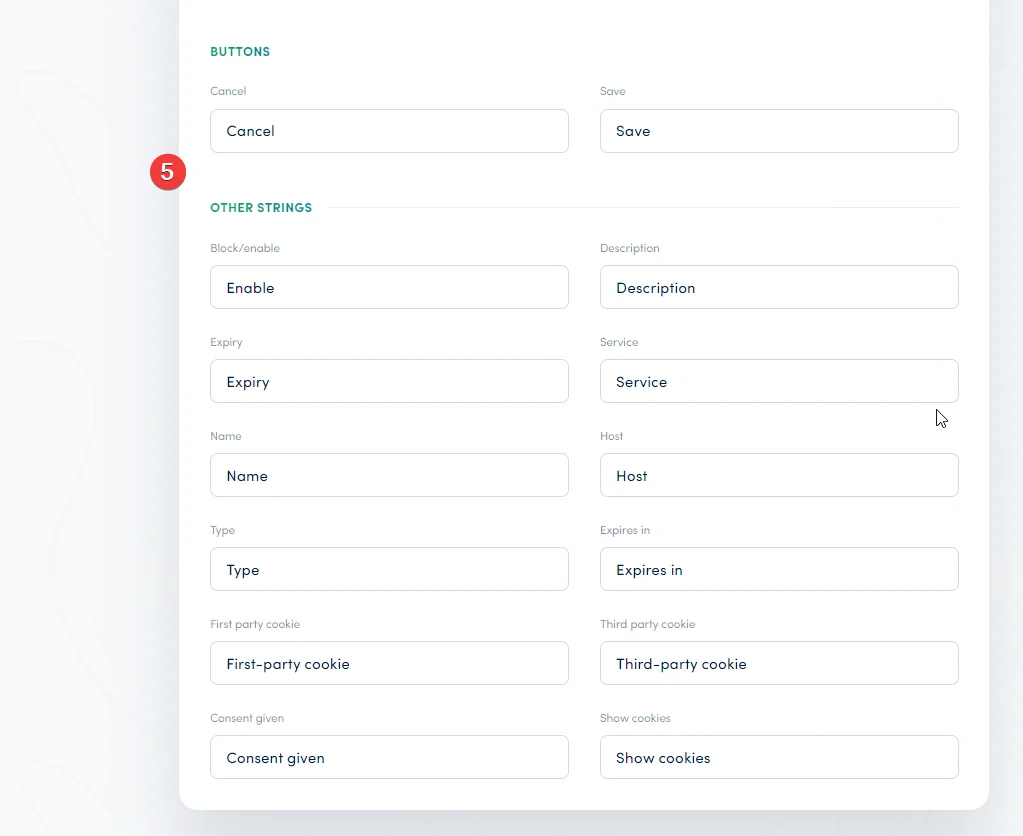
Buttons and Other UI Strings
Additional strings throughout the Preference Center can also be customized — including button labels such as Save and Cancel, and table column headers such as Block/Enable, Description, Expiry, Service, Name, Host, and Type. Editing these strings lets you align the interface language with your organization's tone and terminology.
Frequently Asked Questions
Can I customize the Preference Center differently for each language?
Yes. All text fields in the Preference Center editor — including tab names, category descriptions, and button labels — are editable per language. Use the language selector in the editor to switch between assigned languages and customize each one independently.
Can I disable the Preference Center for specific templates?
Yes. Each template has its own Enable Preference Center toggle. You can disable the Preference Center for templates where it is not required without affecting other templates or domains.
Where do I add or remove languages from the Preference Center?
Language options are managed at the template level under Template > Settings. Adding a language there makes it available throughout the Preference Center editor for that template — including all tab names, category descriptions, and UI strings.