
When team structures change — a new compliance lead takes over, a contractor hands back the reins, or your organization restructures — you need a clean, reliable way to transfer account ownership without disrupting your live cookie consent banners or privacy settings. Manually recreating an account from scratch or sharing login credentials are messy workarounds that create security gaps and accountability headaches.
Secure Privacy solves this with a dedicated Account Transfer feature. As the current account owner, you can hand full control to any verified admin on your account in just a few clicks — no data loss, no downtime, and with email confirmation sent to both parties so there's a clear record of the handover.
By the end of this guide, you will have successfully transferred your Secure Privacy account ownership to a new account holder, with both parties notified and full administrative control in place.
Who Is This Guide For?
This article is for the current account owner of a Secure Privacy account who needs to:
Change the primary account holder — for example, after a staff change or role reassignment
Transfer account responsibility to a colleague, partner, or client
Hand over billing and privacy management to a new team member within your organization
Note: Only the current account owner can initiate a transfer. Admins and other user roles will not see the Account Transfer option.
Before You Begin
You are logged in as the current account owner
The intended new owner has already been added to the account as an admin
The new admin has verified their Secure Privacy account via email — unverified users will not appear in the transfer dropdown
Step 1 — Log In as Account Owner and Open Account Settings
Log in to your Secure Privacy account using the credentials of the current account owner. Once logged in, navigate to the Account page from the top navigation bar.
Step 2 — Locate the Account Transfer Section
On the Account Settings page, scroll down until you reach the Account Transfer section.
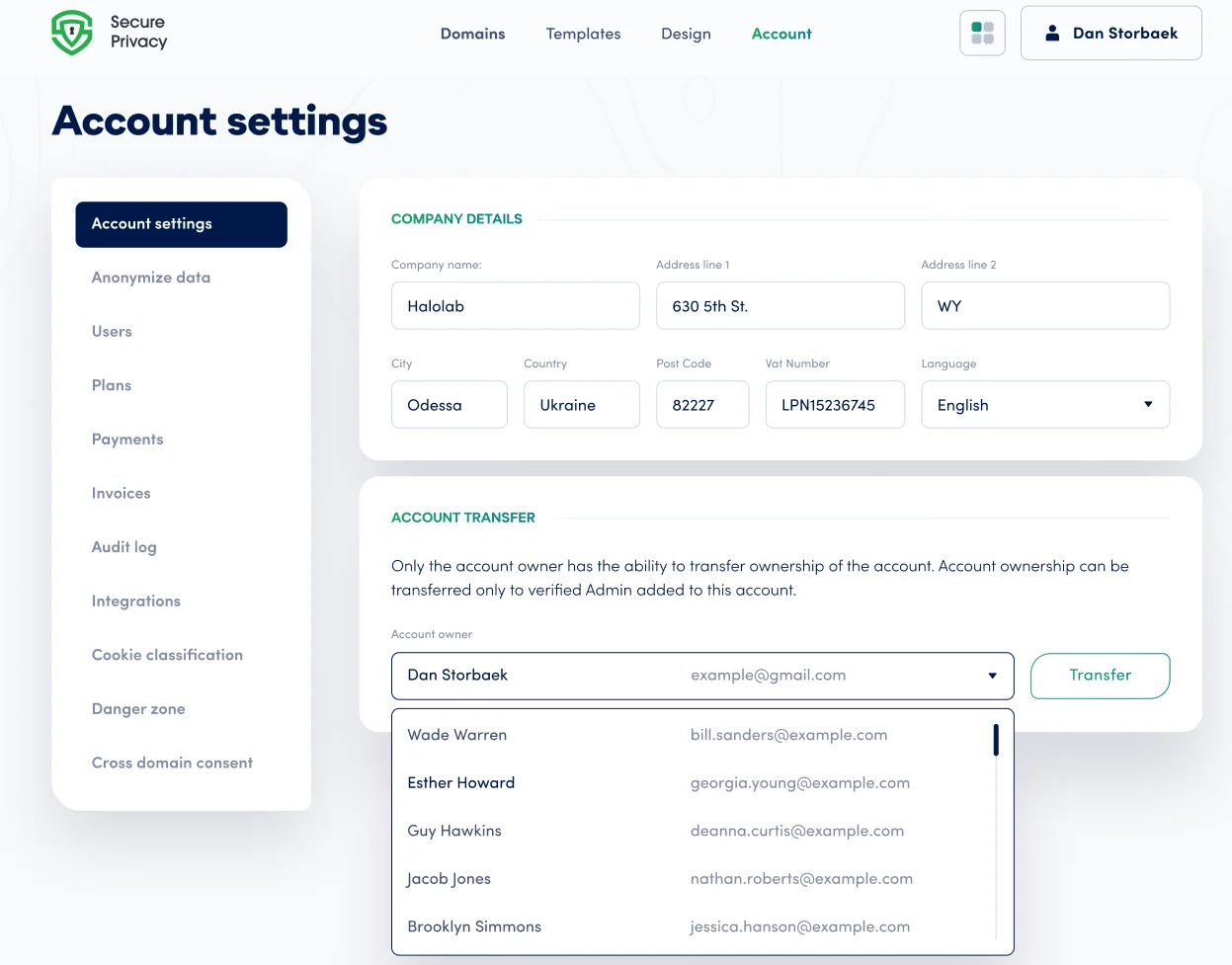
The Account Transfer section in Secure Privacy Account Settings — visible to the account owner only.
Step 3 — Select the New Account Owner and Confirm the Transfer
In the Account Owner dropdown menu, select the verified admin you want to transfer ownership to. Only users who have been added as an admin and have verified their account will appear in this list.
Once you have selected the new owner, click the Transfer button to initiate the ownership transfer. Both the current and new account owners will receive email notifications confirming the outcome of the transfer.
Important Considerations Before You Transfer
The transfer process may take some time depending on the size and complexity of your account.
The new account owner will assume full control and responsibility for the account, including privacy settings, account management, and billing decisions.
Only the current account owner can initiate a transfer — use this feature in accordance with your organization's internal policies.
Ensure you fully trust the new owner and have verified their identity and credentials before proceeding.
What Happens After the Transfer?
Once the transfer is confirmed:
The new owner receives full administrative access, including the ability to manage domains, cookie consent configurations, billing, and team members.
The previous account owner is automatically downgraded to an admin role — they retain access to the account but no longer hold owner-level permissions.
Both parties receive a confirmation email as a record of the handover.
Troubleshooting: Common Account Transfer Issues
The new admin does not appear in the dropdown
The intended owner must be added to the account as an admin and must have completed email verification. Ask them to check their inbox for the Secure Privacy verification email and complete the process before you retry.
The Account Transfer section is not visible
Only the current account owner can see and use this feature. If you do not see it, you are likely logged in as an admin rather than the account owner. Log out and log back in with the owner's credentials.
The transfer is taking longer than expected
Large or complex accounts may take a few minutes to complete the handover. Wait for the confirmation email before assuming there is an issue. If neither party receives confirmation within 15 minutes, contact support.
Frequently Asked Questions
Can I transfer my Secure Privacy account to someone who is not yet an admin?
No. The new owner must first be added to your account as an admin and must have verified their account before they can be selected in the Account Transfer dropdown. Add them via your team settings and ask them to complete email verification, then return to the Account Transfer section.
What happens to the old account owner after the transfer?
After the transfer is complete, the previous account owner is automatically reassigned to an admin role. They retain access to the account and its settings but no longer hold owner-level permissions such as initiating further ownership transfers or managing billing at the owner level.
Will transferring account ownership affect my live cookie consent banners?
No. The Account Transfer process only changes who holds administrative ownership of the account. All existing cookie consent configurations, domains, and privacy settings remain intact and continue to function without interruption during and after the transfer.
Can an account transfer be reversed or undone?
Yes — but only the new account owner can initiate a reverse transfer, since they now hold owner-level permissions. If you need to reverse a transfer, the new owner can follow the same steps above and re-assign ownership back to the original owner, provided the original owner is still a verified admin on the account.
Need Further Help?
If you encounter any issues during the account ownership transfer or have questions about managing your Secure Privacy account, reach out to the support team at [email protected].