
You open your browser's developer tools, decline tracking on a website, and check the Storage or Application panel — and the cookies are still sitting there. That feels wrong. You said no. Shouldn't they be gone?
This is one of the most common sources of confusion around GDPR cookie consent, and it trips up developers and privacy-conscious users alike. The assumption is that consent = cookie deletion. In reality, that is not how tracking works — and understanding the difference is the key to knowing whether your consent solution is actually protecting your users.
Many cookie banners on the market lean into this misunderstanding and attempt to delete cookies on opt-out. The problem? It is technically and physically impossible for a web page to delete cookies it does not own. Browsers enforce this as a hard security boundary — a page on example.com cannot reach into storage belonging to analytics-vendor.com. Any tool claiming otherwise is either deleting only its own first-party cookies (and missing the rest) or giving you a false sense of compliance.
The correct mechanism for stopping tracking is script blocking: preventing the third-party JavaScript from loading and running in the first place. Secure Privacy works exactly this way. When a visitor declines a consent category, the associated tracking scripts are never injected — so no data is collected, no data is sent, and no GDPR violation occurs. The cookie files that may already exist locally are inert: there is no code running to read them, package them, or transmit them anywhere.
By the end of this article you will understand why cookies persist after a user opts out, why that is fine when script-blocking is in place, how to verify in the Network tab that tracking has genuinely stopped, and the one extra step users should take after declining consent to guarantee a clean state.
Who Is This Article For?
This guide is useful for:
Website owners and developers who want to verify that their Secure Privacy implementation is blocking tracking correctly after a user opts out.
Privacy officers and compliance teams who need to understand why cookie files remaining in storage does not constitute a GDPR violation when scripts are blocked.
End users who declined tracking consent on a website and want to confirm their data is not being sent to third parties.
QA testers checking consent behaviour across browser sessions.
The Two Browser Security Boundaries You Cannot Cross
Before diving into the verification steps, it helps to understand the two hard limits that browsers enforce. Both exist for your users' security — and both explain exactly why cookie-deletion-based "consent" is a fundamentally broken approach.
1. Cross-Origin Cookie Ownership
Every cookie belongs to the origin (domain) that set it. A script running on yoursite.com cannot read, modify, or delete a cookie that was set by googletagmanager.com, facebook.com, or any other third-party domain. This is the Same-Origin Policy — a foundational browser security rule. If this boundary could be crossed, any website could silently wipe authentication tokens or session data set by your bank.
The practical consequence: no cookie consent solution — not one — can reliably delete third-party tracking cookies, because the browser will not allow it. What some tools delete is only the first-party cookie proxies they themselves placed. The real third-party tracking cookies remain untouched in storage.
2. In-Memory JavaScript Cannot Be Evicted by Other Scripts
When a JavaScript file is loaded by the browser, it is compiled and placed into the browser's memory space. A separate script — even one from the same page — cannot reach into that memory and unload or overwrite it. Attempting to do so would be a serious security vulnerability. This is why a consent banner that appears after a tracking script has already loaded cannot "undo" what that script did: the code is already in memory and may have already fired its data-collection routines.
The practical consequence: even with correct script-blocking in place, if a user declines consent on a page where a tracking script was loaded during a previous session, the safest action is to refresh or navigate to a new page. This clears the memory space entirely, and on the fresh page load, the blocked scripts will not be injected at all.
How Script-Blocking Actually Stops Tracking (Even When Cookies Remain)
Think of cookies as a paper notepad left on a desk. Tracking does not happen because the notepad exists — it happens because a person (the JavaScript code) picks it up, reads it, and sends the information somewhere. If you prevent that person from entering the room, the notepad becomes irrelevant. The data sits there, locally, never read, never transmitted.
This is exactly what Secure Privacy does when a user declines a consent category:
The associated third-party script tags are not injected into the page.
No JavaScript from that vendor runs in the browser.
No data — including the contents of any locally stored cookies — is read or transmitted.
From a data privacy and GDPR compliance standpoint, no tracking is occurring.
The cookies that remain in the browser's storage are a local artefact with no active reader. They were written by previous sessions (or by the browser itself as part of browser functionality) and will eventually expire naturally. Their presence is not evidence of ongoing tracking — it is simply the browser's normal storage behaviour.
Compliance note: GDPR and ePrivacy regulations prohibit the collection and processing of personal data without consent. A cookie file sitting in local storage, unread and untransmitted, does not constitute processing. What constitutes processing is the script reading it and sending it to a remote server — and that is precisely what script-blocking prevents.
The Correct Way to Verify That Tracking Is Stopped After Declining Consent
Follow these steps to confirm that Secure Privacy is correctly blocking tracking scripts after a user declines consent. The Network tab in your browser's developer tools is the definitive source of truth.
Step 1 — Open the Browser's Developer Tools and Go to the Network Tab
On any modern browser (Chrome, Firefox, Edge, or Safari), press F12 or right-click anywhere on the page and select Inspect. Navigate to the Network tab. This panel records every HTTP request the browser makes — including requests from tracking scripts sending data to third-party servers. Keep this tab open throughout the test.
Step 2 — Load the Page Fresh and Note Which Scripts Are Present
Reload the page with the Network tab open. Before interacting with the consent banner, observe which third-party requests appear. You may see calls to Google Analytics, Meta Pixel, LinkedIn Insight, or other tracking vendors. This is your baseline: what the page loads before consent is given or declined.
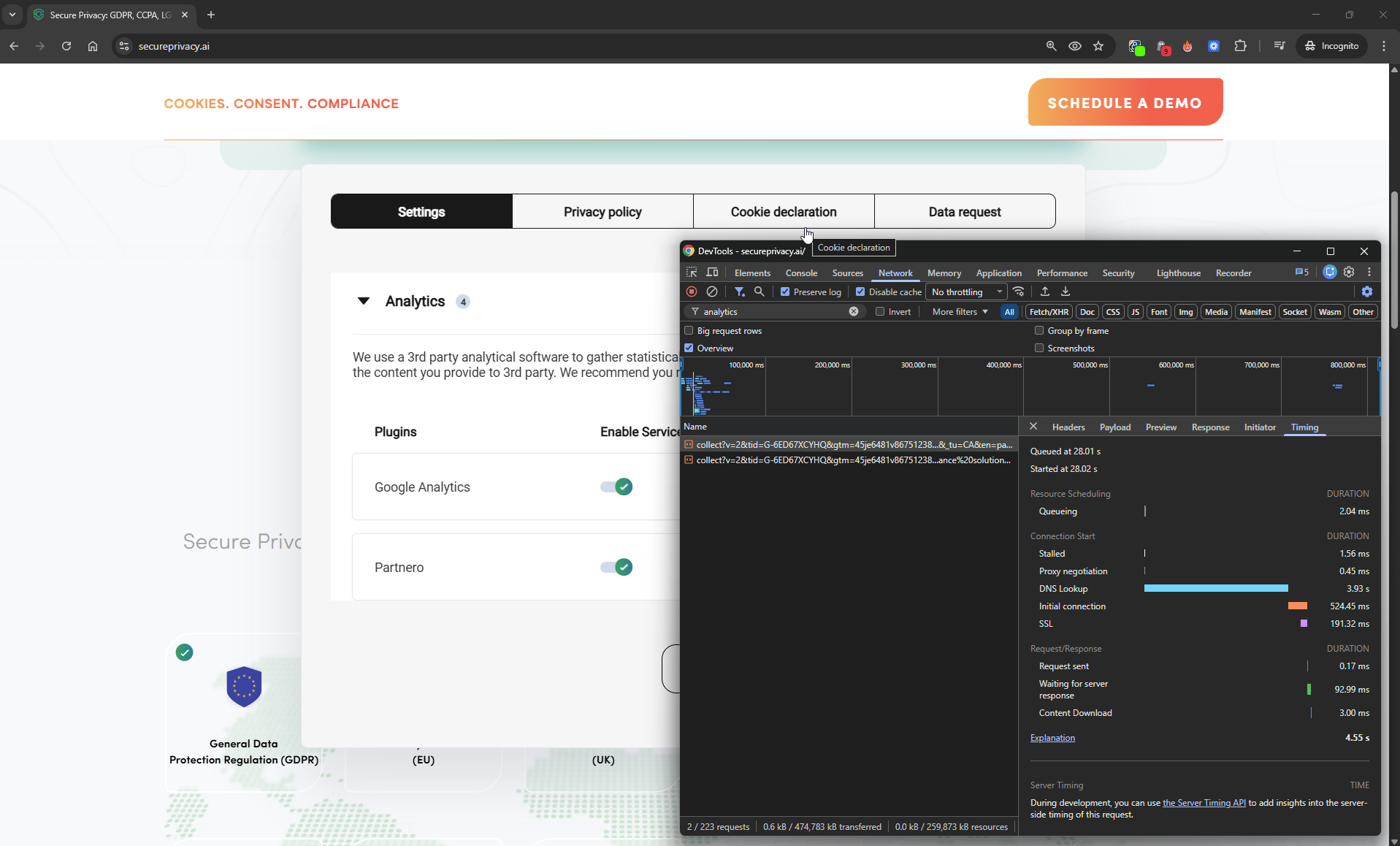
Before declining — tracking requests to third-party vendors are visible in the Network tab, confirming scripts are active and data is being sent.
Step 3 — Decline the Relevant Consent Categories
Interact with the Secure Privacy consent banner and decline the tracking or analytics categories you want to verify. Click Save preferences or the equivalent confirmation button to register your opt-out choice.
Step 4 — Refresh the Page or Navigate to Another Page
This is a critical step. As explained above, any JavaScript already loaded into the browser's memory during this session cannot be forcibly evicted by another script. By refreshing or navigating to a new page, you clear the memory space entirely. On the fresh load, Secure Privacy will evaluate the stored consent decision and will not inject the declined scripts.
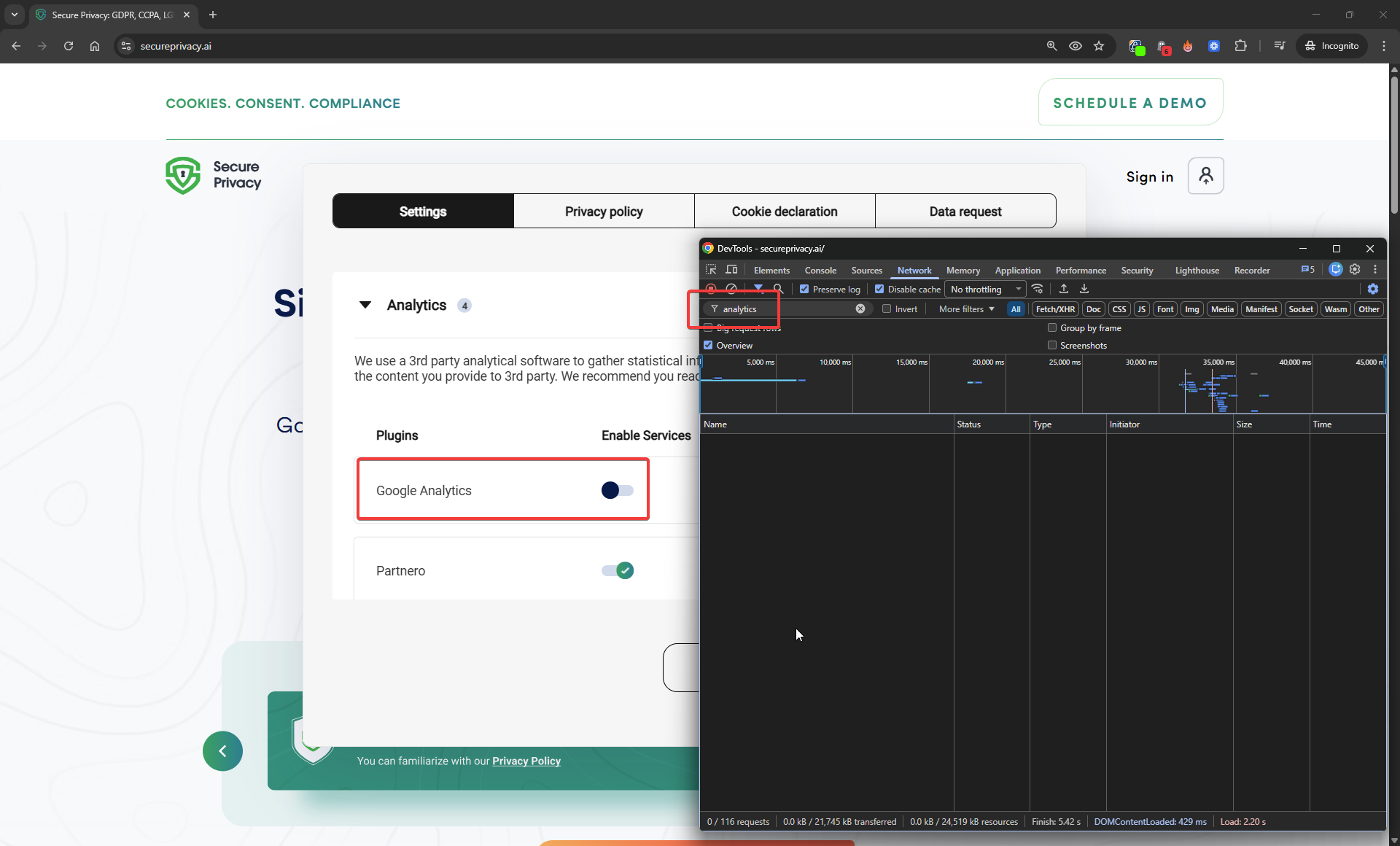
After declining consent and refreshing — the Network tab returns no results for the tracking vendor domain. The script is not loaded; no data is collected or transmitted.
Step 5 — Verify in the Network Tab That Blocked Scripts Are Absent
With the Network tab still open, examine the requests on the freshly loaded page. The tracking scripts associated with the declined categories should no longer appear in the request list. If a script is not loaded, it cannot collect data or send anything to a remote server — tracking has stopped. You can use the Filter field in the Network tab to search for specific vendor domains (e.g., google-analytics.com, facebook.net) to confirm their absence.
Step 6 — Ignore Cookie Files in the Storage / Application Panel
If you switch to the Application (Chrome/Edge) or Storage (Firefox) panel, you may still see cookies from previous sessions. As explained in this article, these are local artefacts. Because the scripts that would read and transmit them are not running, these cookies are inert. Their presence is expected and does not indicate tracking is occurring. The Network tab is the only reliable indicator of active tracking.
What Happens to the Remaining Cookie Data?
Cookie files left in local storage after a user opts out will remain there until one of the following occurs:
The cookie reaches its natural expiry date and the browser removes it automatically.
The user manually clears their browser's cookies and site data.
The browser itself removes it as part of storage quota management or privacy mode behaviour.
None of these scenarios involve your website transmitting data. The consent choice stored by Secure Privacy ensures that, for every subsequent page load, the tracking scripts remain blocked. The leftover cookies are permanently without an active reader for as long as the user's opt-out consent decision is in place.
Troubleshooting: Scripts Still Appearing After Opt-Out?
If you decline consent, refresh the page, and tracking scripts are still appearing in the Network tab, work through the following checks before contacting support.
Check: Did you refresh or navigate after declining?
The decline takes effect on the next page load. If you checked the Network tab immediately after clicking "Decline" without refreshing, you will still see the scripts from the current session's memory. Refresh and test again.
Check: Is the script being loaded by another un-gated script?
Some tag managers (e.g., Google Tag Manager) load tracking scripts dynamically. If GTM itself is not gated by consent, it may inject sub-scripts regardless of Secure Privacy's settings. Ensure your GTM container is itself wrapped in a consent check, or use Secure Privacy's native GTM integration to manage this correctly.
Check: Are you testing in a private/incognito window?
Private windows do not share cookie storage with regular windows, which means any previously stored consent decision will not carry over. The consent banner may appear fresh, potentially with default consent state. Test in a regular browser window where your opt-out decision has been saved.
If none of the above resolves the issue, contact Secure Privacy support[?] with a screen recording of the Network tab behaviour and your site URL so we can investigate your specific implementation.
Frequently Asked Questions
Why are cookies still showing after I declined consent?
Cookies are small files stored by the browser, and browsers enforce a security rule that prevents one website from deleting files that belong to another. So cookies set by third-party tracking vendors in previous sessions will remain in your browser's storage even after you decline consent. What changes after you decline is that the scripts which read those cookies and send data to remote servers are blocked. With no active script, the cookie files are harmless local data that will expire naturally over time.
Does declining cookie consent actually stop tracking?
Yes — when implemented correctly via script-blocking (as Secure Privacy does). Tracking happens because JavaScript code runs in your browser, reads identifiers stored in cookies or memory, and transmits that data to a third-party server. When the script is blocked, that entire chain is broken. The cookie files that remain are never read or transmitted, so no tracking occurs. You can confirm this by checking the Network tab in your browser's developer tools after declining and refreshing: the tracking vendor's domain should not appear in any outbound requests.
Why do I need to refresh the page after declining consent?
JavaScript that was already loaded into the browser's memory during the current page session cannot be removed by another script — this is a browser security boundary. If a tracking script loaded before you declined consent, it may still be sitting in memory for the rest of that page session. Refreshing the page (or navigating to a new page) clears the memory entirely. On the next load, Secure Privacy reads your saved consent decision and does not inject the declined scripts, guaranteeing a clean, tracking-free session.
How can I check whether tracking scripts are really blocked?
Use the Network tab in your browser's developer tools (press F12, then click Network). After declining consent and refreshing the page, check whether requests to tracking vendor domains (such as google-analytics.com, facebook.net, or similar) appear in the request list. If those domains are absent, the scripts are blocked and no data is being transmitted. The Storage or Application panel showing residual cookie files is not a reliable indicator — always use the Network tab.
Is it a GDPR violation if cookies remain in storage after opt-out?
No. GDPR and ePrivacy regulations regulate the collection and processing of personal data. A cookie file sitting in a user's local browser storage, unread by any script and never transmitted to any server, does not constitute processing. The violation would occur if a script were actively reading that cookie and sending its value to a third party — which is exactly what script-blocking prevents. Cookie files left over from previous sessions, with no active reader, are outside the scope of GDPR processing requirements.
Can a cookie consent banner delete third-party cookies?
No. Browsers enforce the Same-Origin Policy, which prevents any script from deleting or modifying cookies set by a different domain. A consent banner running on your site cannot delete cookies that belong to Google, Meta, or any other third-party vendor. Tools that claim to "delete" cookies on opt-out are typically only deleting first-party cookies they themselves set, while leaving third-party tracking cookies intact — giving a false sense of compliance. The correct approach is to block the tracking scripts from loading in the first place, which is how Secure Privacy operates.