
The Secure Privacy Policy Editor now supports inserting and customizing tables directly within your privacy and cookie policies. Tables provide a structured, easy-to-scan format for presenting cookie categories, data handling practices, retention periods, and other policy details that benefit from tabular organization.
Who Is This For?
Privacy officers and compliance teams adding structured data tables to privacy or cookie policies in Secure Privacy
Website administrators using the Policy Editor to improve the readability and clarity of their published policies
Legal teams formatting cookie category information, data recipient lists, or retention schedules in a structured table format
Why Use Tables in Your Privacy Policy?
Tables are particularly useful for presenting compliance-related information that would otherwise require long, dense paragraphs. Common uses include:
Organizing cookie categories with their purpose, duration, and provider details
Presenting data handling or processing activities in a structured format
Listing data recipients, retention periods, or lawful bases for processing
Improving the overall readability and scannability of your published policy documentation
How to Insert a Table in the Policy Editor
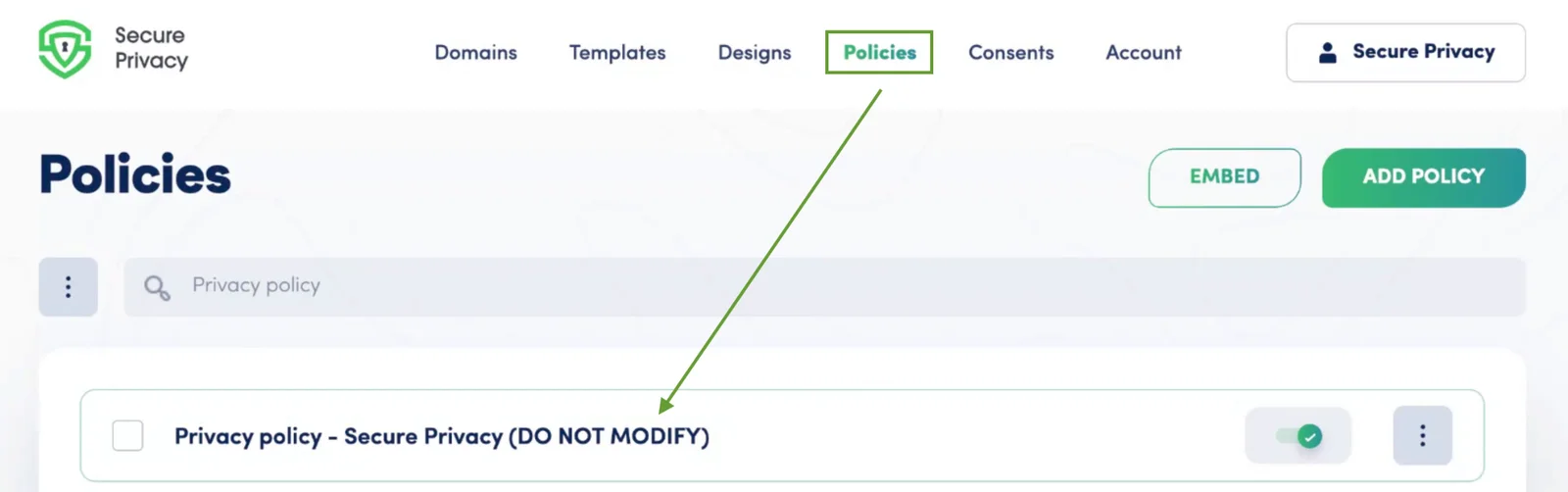
Navigate to the Policy Editor for the policy you want to edit in your Secure Privacy account.
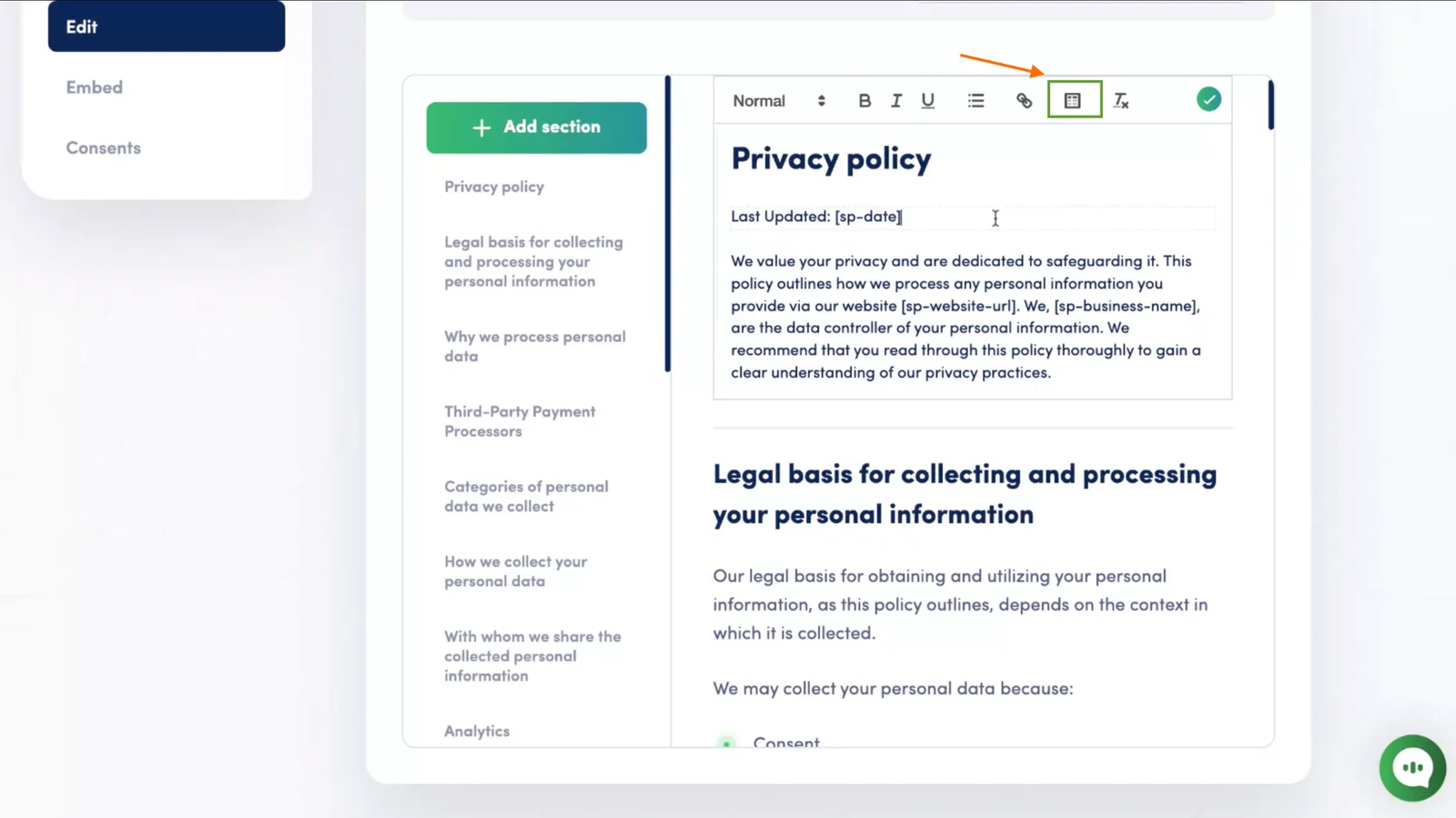
In the editor toolbar, click the table icon to open the table size selector.
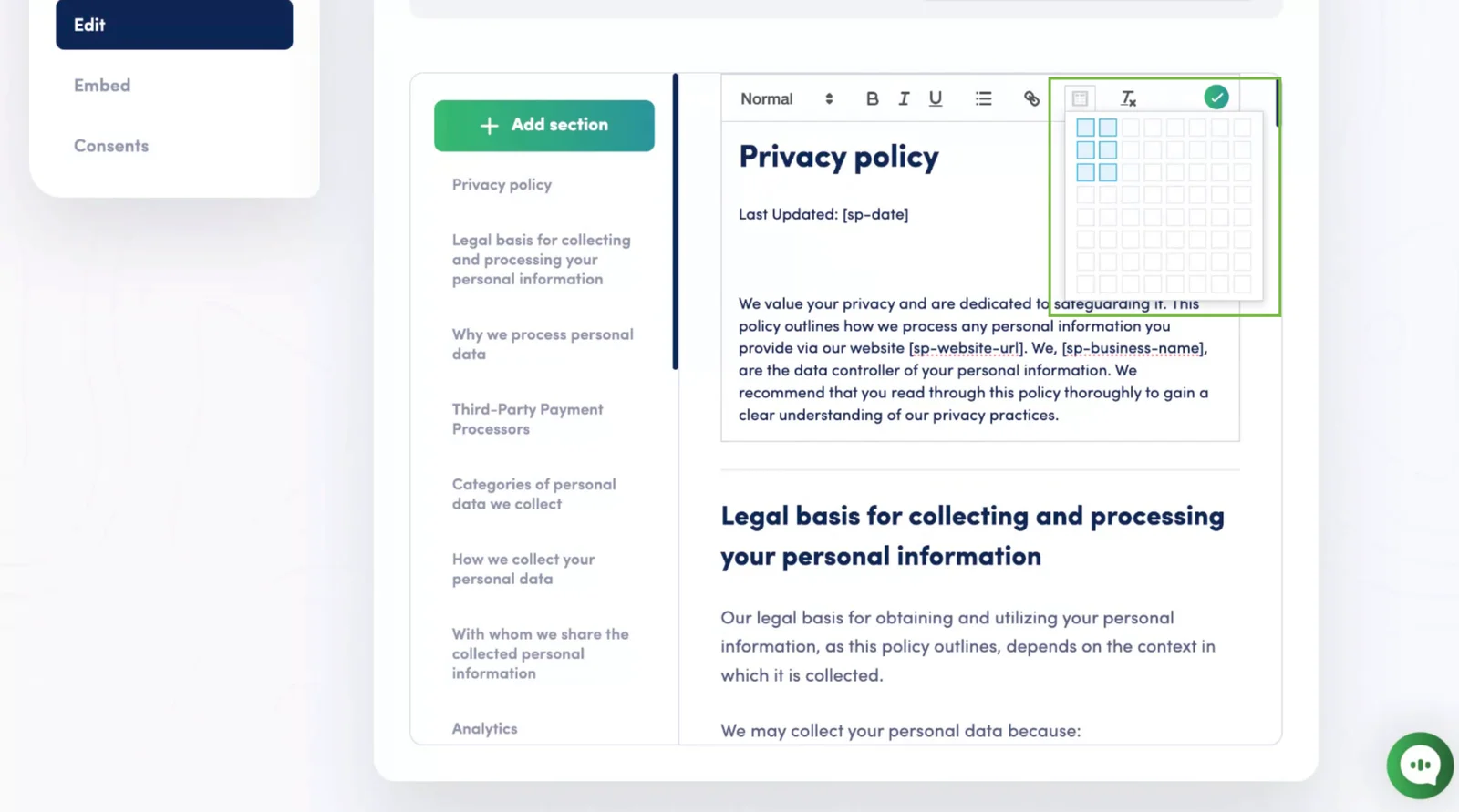
Hover over the grid to select the number of rows and columns for your table, then click to confirm the size and insert the table.
Editing and Customizing Tables
Once the table is inserted:
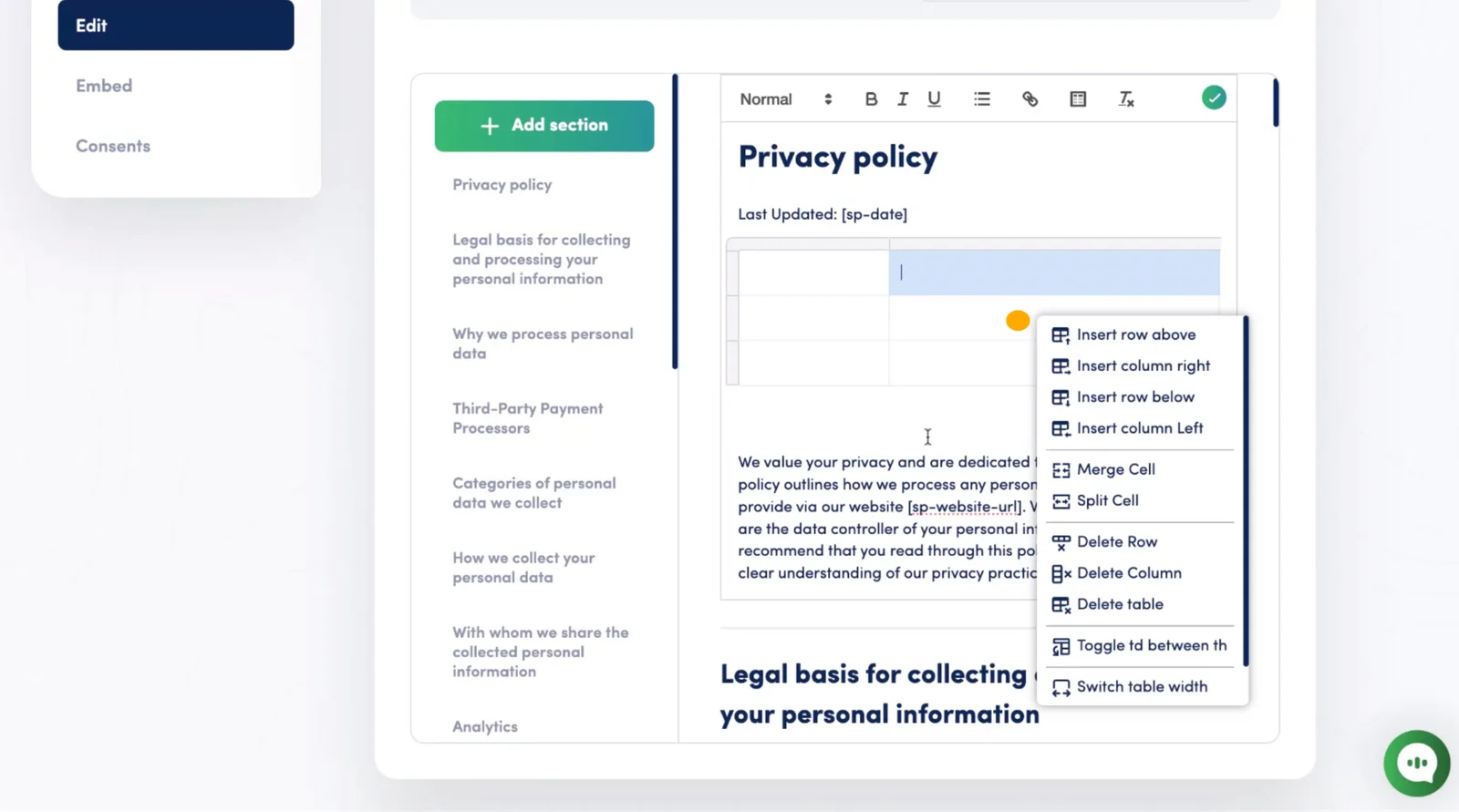
Add content: Click inside any cell to start typing your content.
Edit table structure: Right-click on any cell to access options for inserting or deleting rows and columns, merging cells, or adjusting table properties.
Frequently Asked Questions
Can I add tables to both privacy policies and cookie declarations?
Yes. The table insertion feature is available in the Policy Editor for any policy type in Secure Privacy — including privacy policies, cookie declarations, and any other custom policy documents you manage through the editor.
Can I resize or merge table cells after inserting the table?
Yes. Right-click on any cell after the table is inserted to access table editing options — including inserting and deleting rows or columns, merging cells, and adjusting table properties such as width and alignment.
Will tables in my policy update automatically when I rescan my website?
No. Manually inserted tables in the Policy Editor are custom content that you control directly. They are not affected by or overwritten by website rescans. System-generated sections — such as auto-populated cookie lists — are separate from manually added table content.