
The Adobe Experience Cloud ID Service sets cookies automatically in user browsers — without waiting for consent. To meet GDPR cookie consent requirements, you must configure the extension to block these cookies until a user explicitly opts in. This guide walks you through exactly how to enable opt-in within Adobe Experience Platform Data Collection (formerly Adobe Launch / Adobe Tags) to ensure GDPR-compliant cookie behavior.
Why You Need to Block Adobe Experience Cloud ID Service Cookies for GDPR
By default, the Adobe Experience Cloud ID Service places tracking cookies on every visitor's browser — regardless of consent.
Under GDPR, non-essential cookies must not fire before a user gives explicit, informed consent.
Enabling the opt-in feature prevents the ID Service from setting cookies until consent is collected by your Consent Management Platform (CMP).
How to Block Adobe Experience Cloud ID Service Cookies (Step-by-Step)
Open the Adobe Experience Platform Data Collection interface (Adobe Launch / Adobe Tags).
Select Extensions from the left-hand menu.
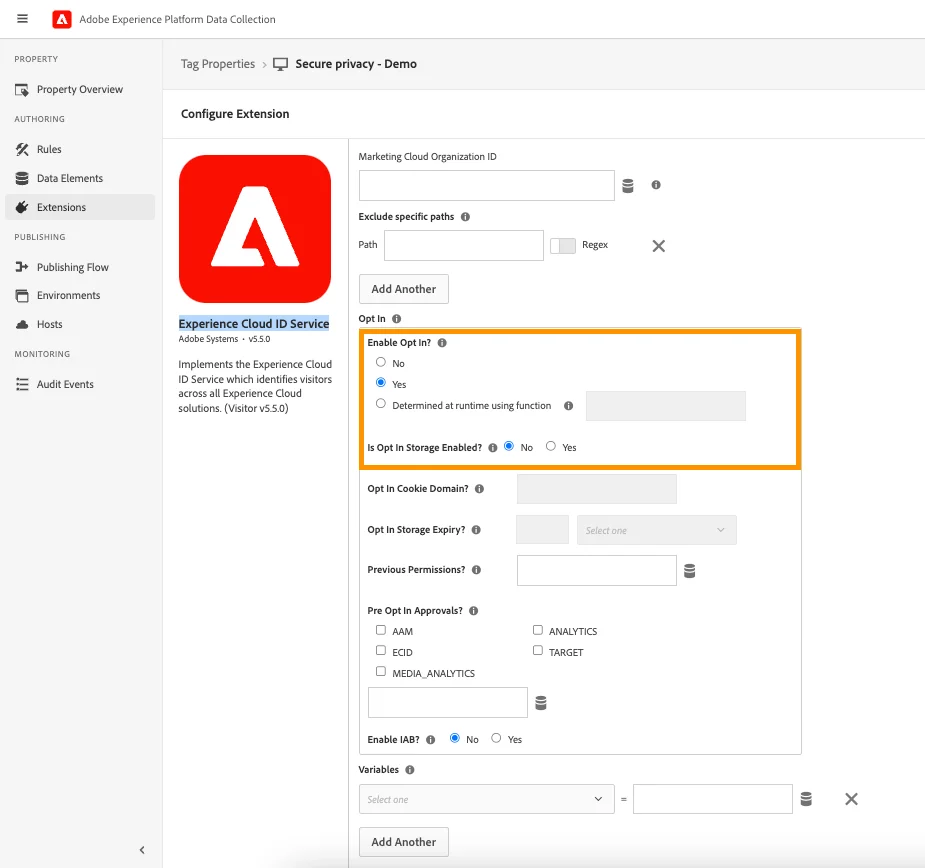
Locate and open the Experience Cloud ID Service extension settings.
Scroll to the Opt In section and set Enable Opt In? to Yes.
Save and publish your changes. Cookies will now be blocked until the user provides GDPR-compliant consent.
Best Practices for GDPR-Compliant Adobe Cookie Blocking
Confirm that Enable Opt In? is set to Yes and the extension is published to your live environment.
Test across multiple browsers to verify that Adobe cookies do not fire before consent is granted.
Integrate this setting with a certified Consent Management Platform (CMP) — such as Secure Privacy — to ensure full GDPR compliance.
Keep the Experience Cloud ID Service extension updated to the latest version to avoid known consent-handling bugs.
Who Should Use This Guide?
Website compliance officers responsible for GDPR and ePrivacy readiness.
Privacy-focused developers configuring Adobe tags and consent flows.
Digital marketers managing Adobe Experience Cloud services who need to ensure cookie consent compliance.
Frequently Asked Questions (FAQ)
Why are Adobe Experience Cloud cookies still loading after enabling opt-in?
First, clear your browser cache and hard-reload the page. Then confirm you have published the latest library version in Adobe Data Collection. If the issue persists, check that no other tag rules are triggering the ID Service before consent fires.
The opt-in setting is not working on some pages — what should I check?
Review the path exclusions inside the extension configuration. If certain pages are excluded from your tag container, the opt-in logic may not run. Ensure your consent event is firing correctly on those pages.
Does enabling opt-in affect Adobe Analytics or Adobe Target as well?
Yes. When opt-in is enabled at the ID Service level, it can gate downstream Adobe solutions (Analytics, Target, Audience Manager) from setting cookies until consent is received, depending on how your solution integrations are configured.