
Privacy laws like GDPR, UK GDPR, and CCPA require websites to display a cookie consent banner and obtain visitor consent before any tracking scripts fire. Getting that banner live, however, usually means hunting through theme files or asking a developer to splice a script tag into your site's <head> — a slow, error-prone process that breaks every time the site is rebuilt.
Many teams try workarounds: hard-coding scripts directly into templates, relying on a basic free plugin, or skipping consent management altogether and hoping for the best. None of these hold up to regulatory scrutiny or scale with a modern tag-managed stack.
Google Tag Manager already sits on your site and controls when every tag fires. Deploying Secure Privacy through GTM means you get a fully compliant, GDPR-ready cookie consent banner live in minutes — no code changes, no developer required, and with the guarantee that no other tags run before your visitors have consented.
By the end of this guide, your Secure Privacy consent banner will be active on your website, firing correctly before all other GTM tags, and ready to be customised from your Secure Privacy dashboard.
Who Is This Guide For?
This guide is for website owners, marketing managers, and developers who already use Google Tag Manager and want to add a GDPR-compliant cookie consent banner without touching their site's source code. It applies to any website platform — WordPress, Shopify, Webflow, custom HTML, and others — as long as the GTM container snippet is already installed.
Prerequisites
Before following this guide, make sure the following are in place:
A Secure Privacy account with at least one domain configured
A Google Tag Manager account with a container created for your website
The GTM container snippet already added to every page of your site
If you haven't set up GTM yet, follow the official Google Tag Manager setup guide before continuing.
How to Implement Secure Privacy in Google Tag Manager
Step 1 — Retrieve Your Secure Privacy Script URL
Log in to your Secure Privacy account and navigate to your domain's installation settings. Copy your unique Secure Privacy script source URL — you will paste this into GTM in the next step. Keep this tab open for reference.
Step 2 — Create a Custom HTML Tag in GTM
In Google Tag Manager, open your website container and click New Tag. When prompted to choose a tag type, select Custom HTML. Paste your Secure Privacy script (including the full <script> tag and your script source URL) into the HTML field.
Step 3 — Set the Consent Initialization Trigger and Save
Under Triggering, select Consent Initialization as the trigger type. This ensures the Secure Privacy consent banner fires at the very start of the page load — before any other GTM tags execute, which is a requirement under GDPR. Give your tag a descriptive name at the top of the configuration panel — for example, "Secure Privacy Script" — then click Save.
Your completed tag configuration should look similar to the example below:
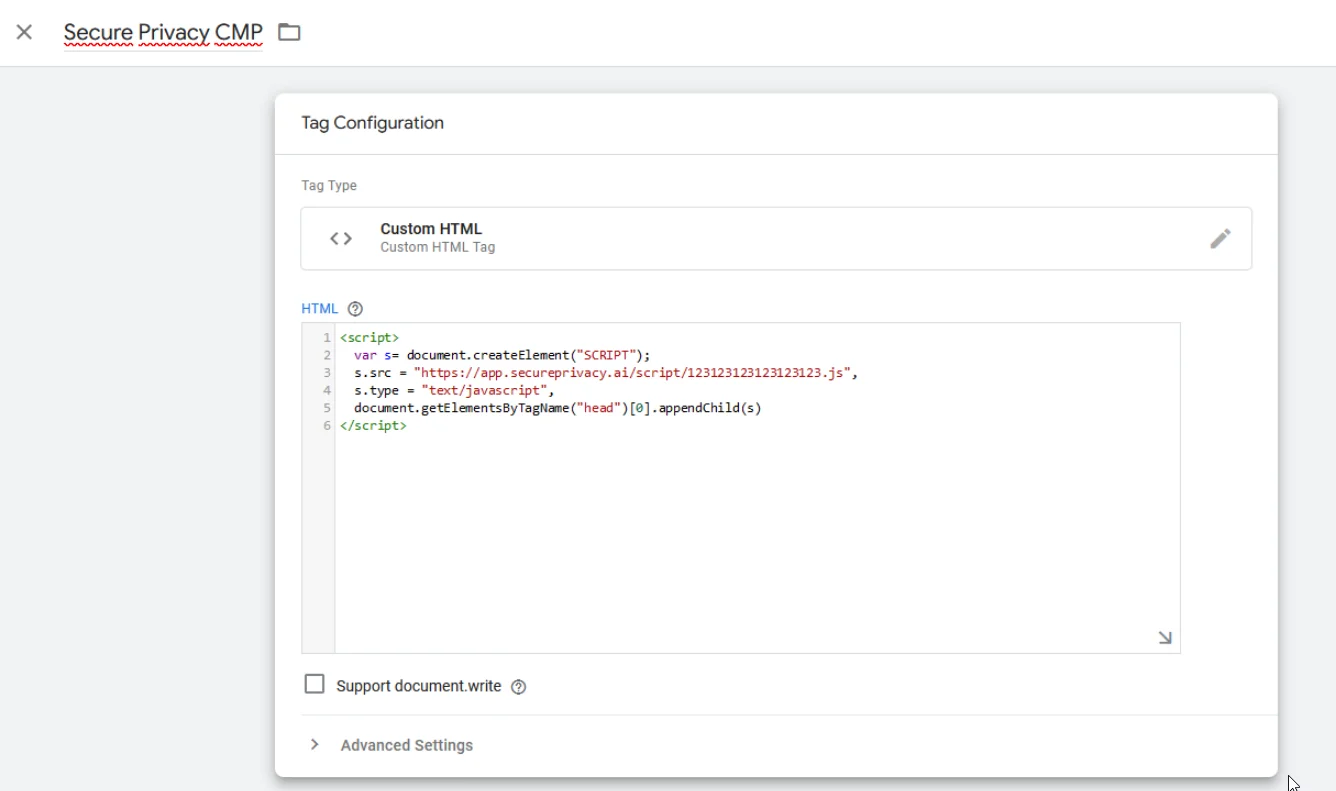
GTM tag configuration: Custom HTML tag with Consent Initialization trigger — ensuring the cookie consent banner loads before any other tags.
Step 4 — Publish Your GTM Container
Click Submit in the top-right corner of GTM, add a version description if desired, then click Publish. This pushes your updated container live to your website. Your Secure Privacy cookie consent banner is now active.
What Happens Next
Once published, visit your website in a fresh browser session (or in incognito mode) to confirm the cookie consent banner is displaying correctly. If it appears as expected, your deployment is complete.
Your GTM tag handles delivery only — it places the Secure Privacy script on your pages. All consent configuration — including cookie categories, banner text, supported languages, geo-targeting rules, and visual appearance — is managed entirely within your Secure Privacy account dashboard. Any changes you make there are reflected on your site automatically, with no need to update your GTM container again.
Troubleshooting
The cookie banner is not appearing on my site
First, confirm that the GTM container has been published (not just saved). Unpublished changes are not pushed live. Also verify the GTM container snippet is correctly installed on the page you are testing — use the GTM Preview mode to check whether your Secure Privacy tag is firing. If the tag shows as "Blocked," check that Consent Initialization is selected as the trigger type, not a standard Page View trigger.
The banner appears but my other tags are still firing without consent
For Secure Privacy to block other GTM tags pending consent, those tags must be configured to respect GTM's built-in consent checks. Ensure your analytics and advertising tags have the appropriate consent type requirements set within their GTM tag configuration (e.g., analytics_storage for Google Analytics). Refer to your Secure Privacy dashboard documentation for GTM consent mode integration guidance.
Frequently Asked Questions
Do I need a cookie consent banner on my website?
If your website collects data from visitors in the EU, UK, California, or many other jurisdictions, yes. Privacy laws such as GDPR, UK GDPR, and CCPA require informed consent before placing non-essential cookies. A cookie consent banner is the standard mechanism for meeting this obligation.
Can I deploy a cookie consent banner through Google Tag Manager?
Yes. GTM supports a dedicated Consent Initialization trigger that fires before all other tags, making it the recommended way to deploy a consent management platform like Secure Privacy without editing your site's source code.
What is the Consent Initialization trigger in GTM?
The Consent Initialization trigger fires at the very start of the page load — before any other GTM tags run. This ensures your cookie consent banner is shown to visitors before any tracking or analytics scripts execute, which is a legal requirement under GDPR and similar regulations.
Will adding Secure Privacy through GTM slow down my website?
No. Deploying via GTM is a lightweight, asynchronous implementation. The Secure Privacy script loads efficiently, and using Consent Initialization means other tags are appropriately held until consent is obtained — which improves your compliance posture without hurting page performance.
Do I still need to configure consent settings after deploying via GTM?
GTM handles delivery of the Secure Privacy script to your site. Cookie categories, banner appearance, consent language, and geo-targeting rules are all configured inside your Secure Privacy account dashboard — separately from GTM.