
Who is this for? This guide is for web developers, tag managers, and marketing teams who use Tealium iQ Tag Management and need to implement a GDPR-compliant cookie consent banner via Secure Privacy.
This guide explains how to integrate the Secure Privacy cookie consent banner script with Tealium iQ Tag Management, enabling centralized cookie management and GDPR-compliant consent control across your website.
Before you begin: You will need your unique Secure Privacy installation script. Log in to your Secure Privacy account at secureprivacy.ai and copy the script from the Domains → Installation page.
How to Add the Secure Privacy Cookie Consent Script in Tealium iQ
Follow these steps to deploy the Secure Privacy cookie consent banner as an Advanced JavaScript Code extension in Tealium iQ Tag Management:
-
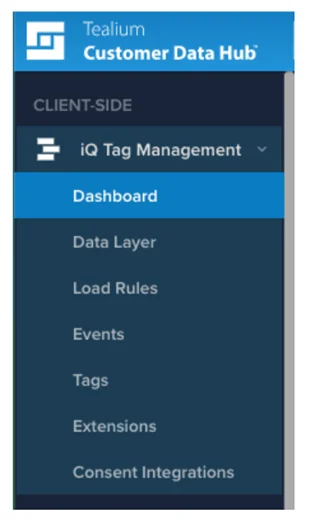
In the Tealium iQ Tag Management menu, select "Extensions."
-
Click "Add Extension."

-
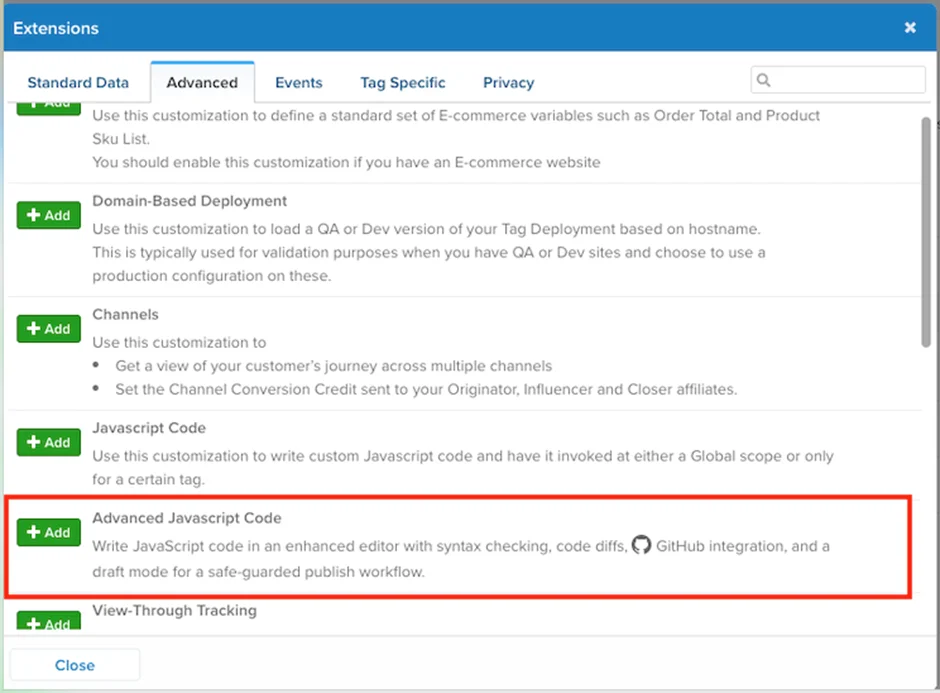
Select the "Advanced" tab and choose "Advanced JavaScript Code" as the extension type.
-
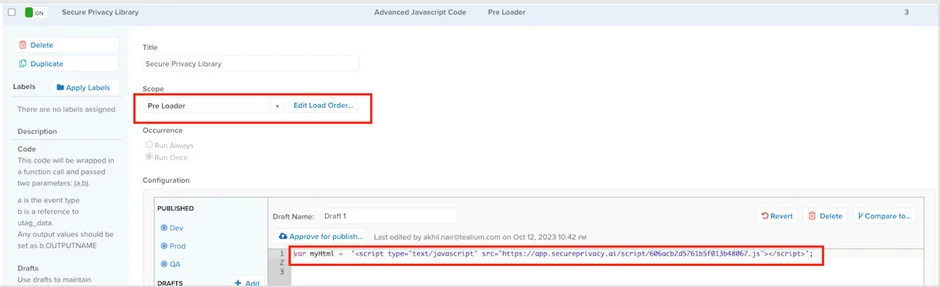
Configure the extension with the following settings:
- Title: Enter "Secure Privacy" as the extension name.
- Scope: Select "Pre Loader" to ensure the Secure Privacy cookie consent script fires before any other tags or cookies load — essential for GDPR compliance.
- Configuration: Paste your Secure Privacy installation script into the JavaScript code field.
-
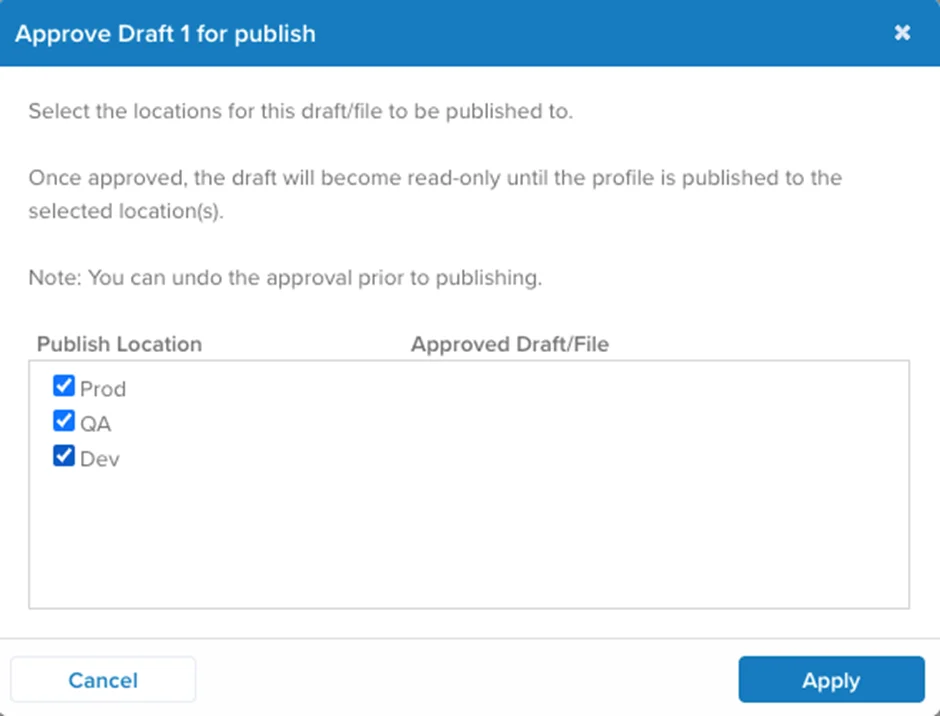
Once the script is configured, click "Approve for Publish."
-
Select all environments to which the script should be deployed (e.g., dev, QA, production).
-
Click "Publish" to deploy the Secure Privacy cookie consent script across all selected environments.

The Secure Privacy cookie consent script is now live on your website via Tealium iQ Tag Management.
After Installation: Rescan Your Website for Cookie Compliance
Once the Tealium iQ integration is complete, run a new scan in your Secure Privacy account to detect all cookies on your updated website. Navigate to Report → Scan Reports in the left sidebar and click "Rescan" to keep your Cookie Declaration accurate and your site fully GDPR-compliant.
Frequently Asked Questions
Why must the Secure Privacy script be set to "Pre Loader" scope in Tealium iQ?
Setting the scope to Pre Loader ensures the cookie consent banner loads before any other tags or tracking scripts fire. This is a core requirement for GDPR compliance — users must be able to give or withhold consent before any cookies are set.
Does this integration work across all Tealium iQ environments (dev, QA, production)?
Yes. During the publish step, you can select individual or all environments. It is recommended to deploy to all environments so cookie consent behaviour is consistent and compliant at every stage of your development workflow.