
Secure Privacy integrates with all major Content Management Systems — making it straightforward to implement cookie consent and privacy compliance on your website regardless of your platform. This guide explains how to access the Integrations section in your Secure Privacy account and links to the platform-specific installation guide for each supported CMS.
Who Is This For?
Website administrators and developers installing Secure Privacy on a CMS-powered website
Compliance teams verifying that Secure Privacy is correctly integrated with their existing CMS or tag management platform
Agencies and developers managing Secure Privacy installations across multiple client websites on different platforms
Step 1: Log In and Access the Integrations Section
Log in to your Secure Privacy account.
Navigate to the Account page using the top navigation bar.
Select the Integrations tab — this lists all CMS platforms currently supported for Secure Privacy integration.
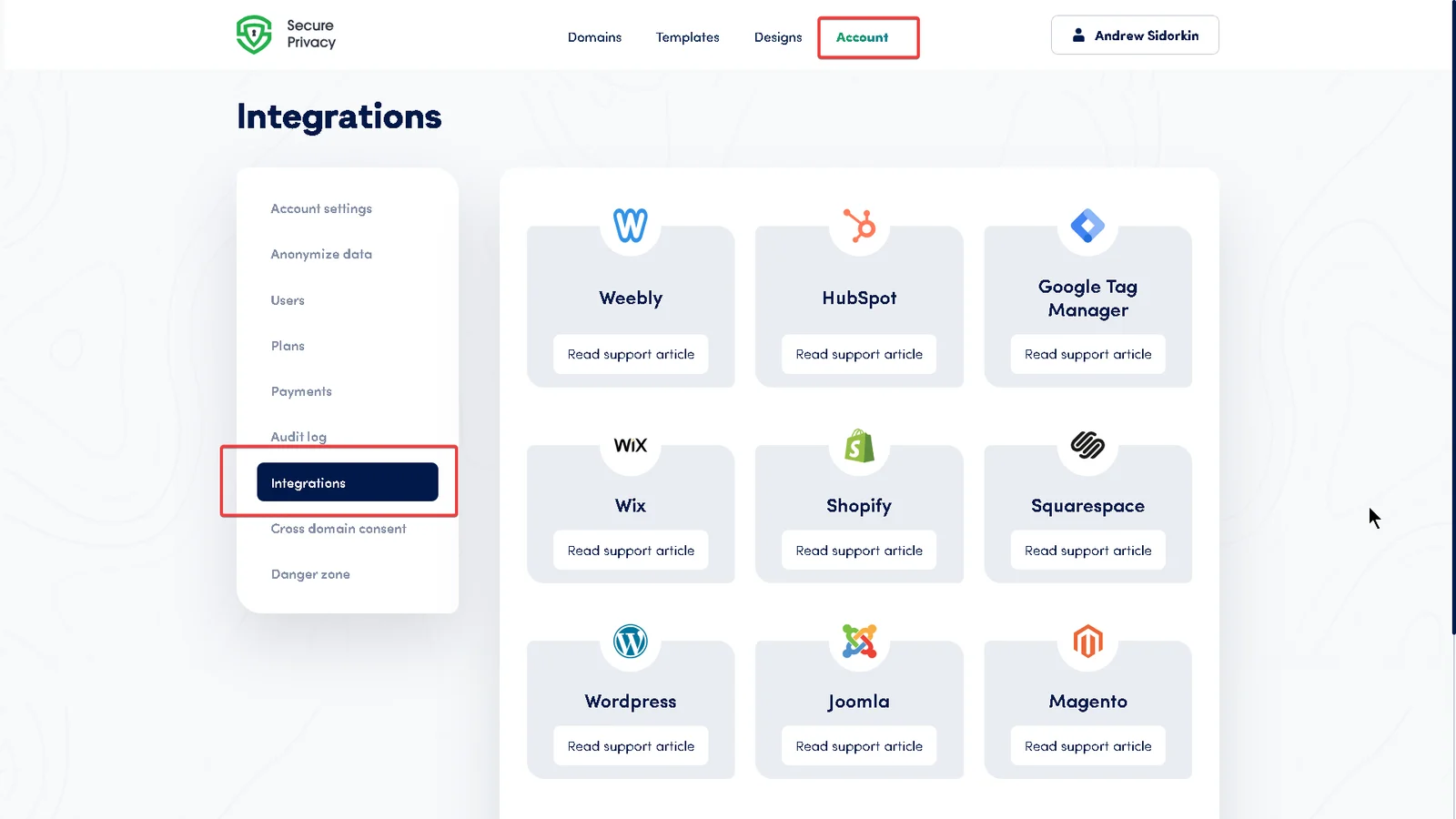
Step 2: Select Your CMS Platform
Choose your platform from the list below and follow the platform-specific installation guide. You can also click Read support article next to your CMS within the Integrations tab to access the same guide directly from your dashboard.
Install Secure Privacy on Weebly
Integrate Secure Privacy with HubSpot
Install Secure Privacy with Google Tag Manager (GTM)
Install Secure Privacy on Wix
Install Secure Privacy on Shopify
Install Secure Privacy on Squarespace
Install Secure Privacy on WordPress
Install Secure Privacy on Joomla
Install Secure Privacy on Magento
Install Secure Privacy with Adobe Dynamic Tag Manager
Install Secure Privacy on Drupal
Set Up and Verify Google Consent Mode with Secure Privacy
Step 3: Follow the Platform-Specific Installation Guide
Click your platform's link from the list above — or select Read support article next to your CMS in the Integrations tab.
Follow the step-by-step installation and configuration instructions, including any platform-specific requirements for embedding the Secure Privacy script and verifying the installation.
After installation, navigate to the Scan Report tab in your Secure Privacy dashboard and click Rescan Website to confirm the script is detected and your cookie compliance status is up to date.
Frequently Asked Questions
What if my CMS is not listed in the Integrations tab?
If your platform is not listed, you can still install Secure Privacy manually by placing the installation script in the <head> section of your website's HTML. See the Secure Privacy Setup and Installation Checklist for the general installation steps applicable to any platform.
Do I need a separate installation for each domain?
Yes. Each domain requires its own Secure Privacy script and configuration. Repeat the integration steps for each domain in your account. If you manage multiple domains, the installation script for each can be found under Domain > Installation in your dashboard.
How do I verify the integration is working after installation?
After installing the Secure Privacy script, visit your website and check that the cookie consent banner appears. Then navigate to Scan Report > Rescan Website in your Secure Privacy dashboard to confirm the script is detected on your domain. You can also use your browser's developer tools to check that the Secure Privacy script is loading in the page source.
See Also
Secure Privacy Setup and Installation Checklist
Implementing Google Consent Mode Advanced Using GTM
Secure Privacy Pricing Plans Overview