
Privacy regulations like CCPA/CPRA now require websites to honor browser-level opt-out signals — and failing to do so exposes your business to compliance risk even when your cookie banner appears fully functional. Visitors are increasingly using tools like Global Privacy Control (GPC) and Do Not Track (DNT) to communicate their privacy preferences automatically, without clicking through every consent popup they encounter across the web.
Manual workarounds — custom scripts, server-side flag checks, or assembling disparate plugins — are brittle, difficult to audit, and rarely keep pace with evolving regulatory expectations. They also don't scale across the full range of browsers and privacy signal standards now in use.
Secure Privacy's cookie consent platform detects and honors GPC and DNT signals automatically. The moment a visitor with GPC enabled lands on your site, non-essential cookies are blocked — no additional configuration, no code changes, no ongoing maintenance. This guide explains how GPC and DNT work, how to configure browser signal support in Secure Privacy, and how to verify that signals are correctly detected and respected on your website.
Who Is This For?
Website owners and privacy officers who need to demonstrate CCPA/CPRA opt-out compliance through browser-level signals
Developers verifying that GPC and Do Not Track signals are correctly detected and honored by Secure Privacy's cookie banner
Compliance teams looking to configure browser signal indicators and audit their cookie consent setup across regions
What Is Global Privacy Control?
Global Privacy Control (GPC) is an open technical standard developed in 2020 by a coalition of privacy advocates, browser vendors, and technology companies — including the Electronic Frontier Foundation, Mozilla, DuckDuckGo, and Automattic — as a practical mechanism for consumers to express privacy preferences at scale. Rather than requiring a user to opt out of data collection on each website individually, GPC transmits a Sec-GPC: 1 HTTP request header and sets the navigator.globalPrivacyControl JavaScript property to true across every site a visitor browses.
GPC is legally recognized as a valid opt-out signal under CCPA/CPRA in California. The California Attorney General and California Privacy Protection Agency (CPPA) have confirmed that businesses must honor GPC signals as equivalent to a formal "Do Not Sell or Share My Personal Information" request. Several European data protection authorities are also evaluating browser-based signals as a mechanism for expressing consent preferences under ePrivacy and GDPR frameworks.
Browsers and extensions with native or extension-based GPC support include Firefox, Brave, DuckDuckGo Privacy Browser, and the Global Privacy Control Inspector extension for Chrome.
What Is Do Not Track (DNT)?
Do Not Track (DNT) is an earlier browser privacy signal, introduced between 2009 and 2011, that requests websites and third-party services refrain from tracking a user's browsing behavior. DNT is transmitted via the DNT: 1 HTTP request header when a user enables it through their browser's privacy settings.
Unlike GPC, DNT carries no binding legal recognition — compliance has always been voluntary, and most major advertising networks chose not to honor it. As a result, DNT is now considered a legacy privacy signal: widely supported across browsers but lacking the regulatory weight that GPC carries under CCPA/CPRA. Nonetheless, respecting DNT remains a meaningful privacy-first gesture and is included in Secure Privacy's browser signal support for comprehensive coverage across all visitor privacy preferences.
How Secure Privacy Implements Browser Privacy Signals
Secure Privacy's cookie consent platform detects incoming GPC and DNT signals from visitor browsers in real time. When a GPC signal is detected, the banner restricts all cookies to essential-only — blocking non-essential tracking, analytics, and advertising cookies — without requiring any manual interaction from the visitor. DNT signals are similarly detected and can be surfaced to visitors through the configurable browser signals indicator on your consent banner.
This automated detection ensures user privacy preferences are honored immediately, consistently, and across every page of your website — with zero custom code required on your part.
Benefits of Browser Signal Support in Secure Privacy
Automatic CCPA/CPRA opt-out compliance
GPC support directly addresses the CCPA/CPRA requirement to honor browser-level opt-out signals — reducing compliance risk without manual configuration or ongoing legal interpretation on your part.
Immediate privacy protection for GPC-enabled visitors
Visitors with GPC active receive automatic privacy protection the moment they arrive — non-essential tracking is restricted before a single cookie loads, with no banner interaction required on their end.
Fully automated signal detection — no custom code
GPC and DNT detection is built into Secure Privacy's cookie consent script. There are no third-party integrations to maintain, no server-side logic to write, and no risk of detection breaking during future browser updates.
Visible privacy signal indicators on your banner
Secure Privacy's browser signals indicator displays detected GPC and DNT status directly on your cookie consent banner, giving privacy-conscious visitors transparent confirmation that their browser-level preferences are being respected.
Demonstrated commitment to user privacy
Automatically honoring GPC and DNT signals demonstrates to visitors and regulators that your website takes privacy rights seriously — reducing friction for privacy-conscious users and building long-term trust in your brand.
How to Configure Browser Signals in Secure Privacy
Browser signal support — covering both Global Privacy Control (GPC) and Do Not Track (DNT) — is managed from the Browser Signals settings panel in your Secure Privacy account. Both signals are enabled by default; the panel gives you full control over each signal and lets you configure how detected signals are displayed to visitors on your consent banner.
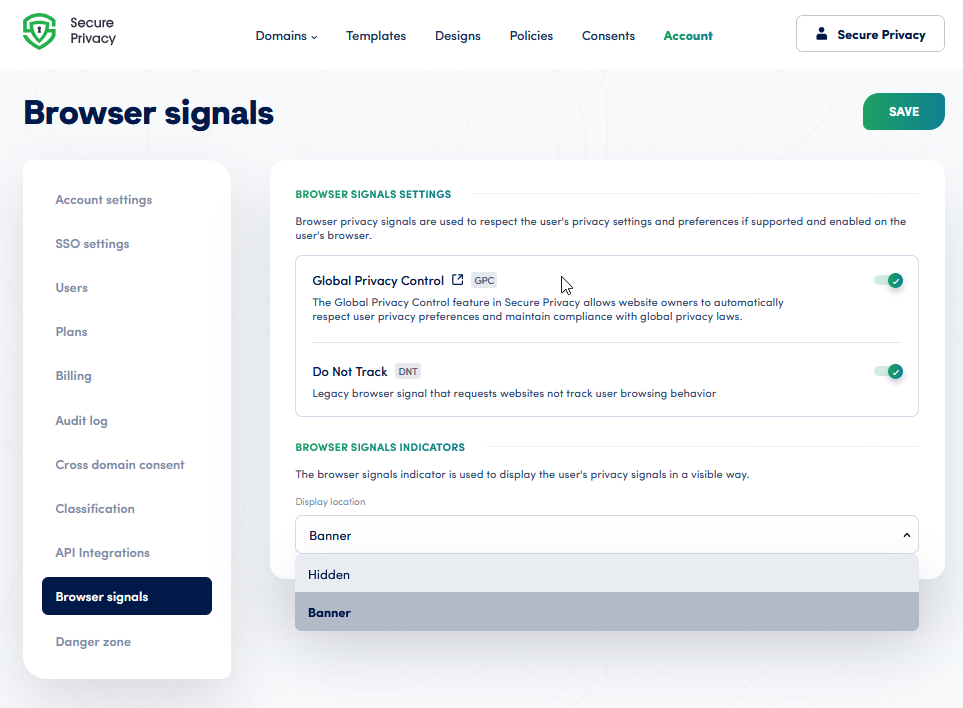
The Browser Signals settings panel in Secure Privacy — toggle GPC and DNT support independently and configure how the privacy signal indicator appears on your cookie banner.
Browser Signals Settings
The Browser Signals Settings section controls which privacy signals your cookie banner detects and honors:
Global Privacy Control (GPC)
When enabled, the Secure Privacy cookie banner automatically detects the Sec-GPC: 1 header sent by GPC-enabled browsers and restricts all cookies to essential-only. This setting fulfills the CCPA/CPRA obligation to honor browser-level opt-out signals and is enabled by default for all Secure Privacy accounts. No additional configuration is required after the Secure Privacy script is installed on your website.
Do Not Track (DNT)
When enabled, Secure Privacy detects the DNT: 1 header sent by visitors who have enabled Do Not Track in their browser. DNT is treated as a legacy privacy signal — its detected status is surfaced through the browser signals indicator on your banner. Enabling DNT support demonstrates a privacy-first approach for visitors using older privacy tools and browsers that do not yet support GPC natively.
Browser Signals Indicator
The Browser Signals Indicator displays the detected status of GPC and DNT in a visible location on your cookie consent banner, giving visitors immediate, transparent confirmation that their browser-level privacy preferences have been detected. You can configure the display location:
Banner — The indicator appears as a small overlay directly on the consent banner, showing real-time GPC and DNT status for the current visitor.
Hidden — The indicator is not shown to visitors, but GPC and DNT signal detection and enforcement remain fully active in the background.
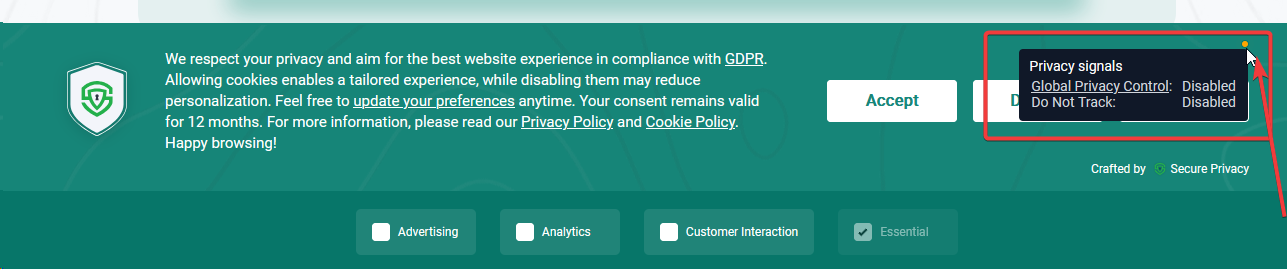
The browser signals indicator on a Secure Privacy cookie banner — showing detected GPC (Disabled) and Do Not Track (Disabled) status for the current visitor session when signals are not active.
How to Verify GPC Is Working on Your Website
After enabling browser signal support in Secure Privacy, use the Global Privacy Control Inspector browser extension to confirm that GPC signals are active in your browser, being detected by your server, and correctly supported by your cookie consent banner. This is the recommended testing method for verifying GPC compliance on any website.
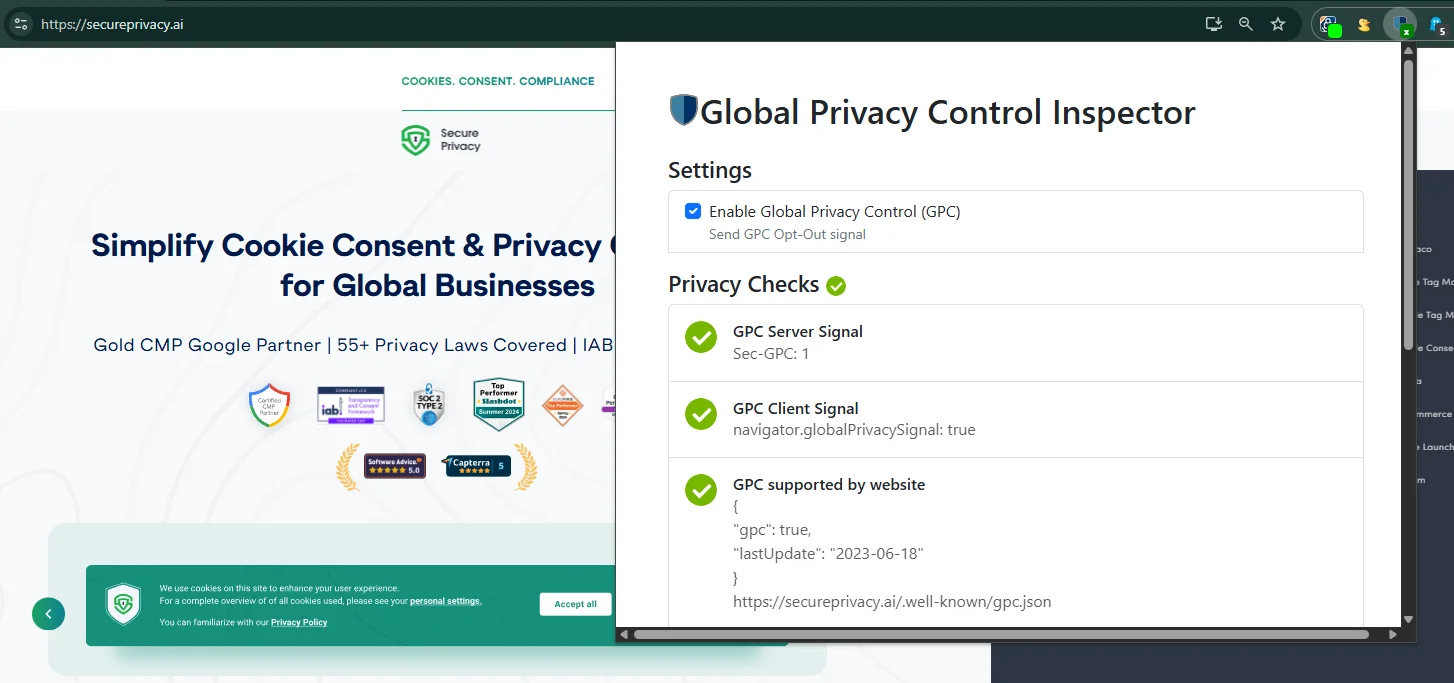
The Global Privacy Control Inspector extension confirms three-layer GPC status: enabled in the browser, detected by the server, and supported by the website's cookie consent solution.
Step 1 — Install the Global Privacy Control Inspector Extension
Search for Global Privacy Control Inspector in the Chrome Web Store or your browser's extension marketplace and install it. The extension is available for Chrome and Chromium-based browsers. Once installed, the GPC Inspector icon will appear in your browser toolbar.
Step 2 — Enable GPC in Your Browser
To simulate a visitor with GPC active, ensure GPC is enabled in your browser. Browsers with native GPC support include Brave and Firefox (via privacy settings) and the DuckDuckGo Privacy Browser, which activates GPC by default. For Chrome, the DuckDuckGo Privacy Essentials extension will enable GPC. The GPC Inspector will confirm whether GPC is currently active in your session.
Step 3 — Navigate to Your Website
With the extension installed and GPC enabled, open a new tab and navigate to your website. Load a page where the Secure Privacy cookie banner script is active — typically your homepage or any page included in your standard page template.
Step 4 — Open the GPC Inspector Panel
Click the Global Privacy Control Inspector icon in your browser toolbar. The extension panel will open and display three key status indicators for the current page: whether GPC is enabled in your browser, whether the server detects the GPC signal in the request, and whether the website supports GPC in its consent implementation.
Step 5 — Verify All Three Indicators Are Active
A correctly configured site will show all three GPC Inspector indicators as active — GPC enabled in the browser, detected by the server, and supported by the website. The first two indicators depend on the visitor's browser. The third — site support — is entirely on the website owner's side, and requires two things: the Secure Privacy script correctly installed and the GPC toggle enabled, and a machine-readable declaration file hosted at a specific location on your domain.
The GPC Well-Known File
The GPC specification requires websites that support GPC to publish a publicly accessible JSON file at the following fixed path on their domain:
https://yourdomain.com/.well-known/gpc.jsonThis file tells browsers, extensions like the GPC Inspector, and automated compliance scanners that your website formally declares it will honor GPC signals. Without it, the third indicator ("supported by website") will remain inactive — even if Secure Privacy is correctly installed and GPC detection is fully functional.
File Template
Create a plain text file named gpc.json with the following content:
{
  "gpc": true,
  "lastUpdate": "YYYY-MM-DD"
}
"gpc": true— declares that this site supports and honors the Global Privacy Control signal."lastUpdate"— the ISO 8601 date (YYYY-MM-DD) on which this declaration was last reviewed or updated. Replace with today's date and update it whenever your GPC policy changes.
Where to Place the File
The file must be reachable at exactly /.well-known/gpc.json from your domain root — for example, https://www.yourdomain.com/.well-known/gpc.json. How you deploy it depends on your hosting setup:
Static sites / file hosting — Create a
.well-known/folder at the root of your web server's public directory and placegpc.jsoninside it. Ensure the folder and file are publicly readable.WordPress — Upload the file via FTP/SFTP to
/public_html/.well-known/gpc.json, or use a plugin that manages/.well-known/routes.Shopify / hosted platforms — Use a URL redirect or a custom app to serve the file at the required path, as some hosted platforms restrict direct file system access.
Nginx — Add a location block to serve the
.well-knowndirectory:location /.well-known/ { root /var/www/html; }Apache — Place the file in your document root under
.well-known/. If.htaccessblocks dotfiles, add an exception:Files ~ "^\.well-known"> Allow from all </Files>
Required Serving Conditions
The file must return HTTP status 200 — not a redirect, not a 404.
It must be served with
Content-Type: application/json.It must be accessible without authentication — the GPC Inspector and compliance crawlers fetch it as an unauthenticated GET request.
If your site runs on multiple subdomains, each subdomain that processes personal data should host its own
/.well-known/gpc.jsonfile.
Once the file is live, reload your website in the browser with the GPC Inspector open. The third indicator should update to show your site as actively declaring GPC support. If it remains inactive, paste your file URL directly into a browser tab to confirm it returns valid JSON with a 200 status.
Step 6 — Check the Consent Banner Indicator (Optional)
If you have configured the Browser Signals Indicator to display on your cookie banner, verify that the banner shows the correct GPC and DNT signal status for this visit. With GPC enabled in your browser, the banner indicator should reflect that GPC is active and your site is honoring the preference. If the indicator is set to Hidden, signal detection is still active — it simply will not be displayed to visitors.
Tip: For aggregate data on how frequently visitors to your site send GPC signals, review your consent records in the Secure Privacy consent dashboard. Consent interactions triggered by GPC signals are logged alongside standard cookie banner interactions, giving you a full picture of opt-out signal volume across your audience.
Frequently Asked Questions
Is GPC legally required under GDPR?
GPC is not explicitly mandated by GDPR, but it is legally recognized as a valid opt-out signal under CCPA/CPRA in California. Several EU data protection authorities are evaluating browser-based privacy signals as a mechanism for expressing consent preferences under ePrivacy and GDPR frameworks. Automatically respecting GPC is a privacy-first best practice regardless of your specific regulatory obligations.
Does GPC replace the cookie consent banner for all visitors?
No. GPC is an additional layer of privacy protection, not a replacement for the cookie consent banner. It restricts cookies automatically for visitors who have sent a GPC signal, but the standard Secure Privacy consent banner remains active for all visitors who have not. Both mechanisms work together to provide full consent management coverage across your entire audience.
What is the difference between Global Privacy Control and Do Not Track?
Global Privacy Control (GPC) is a newer, legally recognized opt-out standard with binding regulatory status under CCPA/CPRA in California — businesses are legally required to honor it. Do Not Track (DNT) is a legacy browser signal introduced around 2009 that requests websites refrain from tracking browsing behavior, but compliance has always been voluntary and DNT carries no binding legal recognition. Both signals are detected and surfaced by Secure Privacy, but GPC carries significantly stronger compliance weight.
Which browsers support Global Privacy Control natively?
Browsers with native GPC support include Brave, Firefox (via privacy settings), and DuckDuckGo Privacy Browser. Chrome and other Chromium-based browsers can support GPC through the Global Privacy Control Inspector extension or the DuckDuckGo Privacy Essentials extension. GPC browser adoption continues to grow as regulatory recognition expands globally.
Do I need to configure anything to enable GPC in Secure Privacy?
No additional setup is required. GPC detection is enabled by default for all Secure Privacy accounts. Your cookie banner will automatically detect and respond to GPC signals from visitor browsers as soon as the Secure Privacy script is installed on your website. You can review and manage browser signal settings — including GPC, DNT, and the banner indicator — from the Browser Signals panel in your account settings.
How do I know if visitors are sending GPC signals to my website?
Use the Global Privacy Control Inspector browser extension to test GPC detection from your own browser session. For aggregate data on GPC signal frequency across all your site visitors, review your consent records in the Secure Privacy consent dashboard — consent interactions triggered by GPC signals are logged alongside standard cookie banner interactions.
Need Help?
Contact Secure Privacy support at [email protected] for questions about GPC, Do Not Track, browser signal configuration, or any other Secure Privacy feature.