
When a visitor wants to delete their data, access what you've collected, or opt out of data processing, where do they go? Most websites bury a compliance email address in the footer — if they provide anything at all. That forces data subjects through slow, manual back-and-forth, leaves organizations scrambling to meet GDPR's 30-day response deadline, and creates a paper trail that's nearly impossible to audit.
Generic web forms and standalone DSAR ticketing tools exist, but they require separate setup, sit outside your consent stack, and rarely cover the full breadth of rights mandated by GDPR, CCPA/CPRA, India DPDPA, and similar frameworks.
Secure Privacy's Self-Service Privacy Rights Portal solves this with a single, branded DSAR hub — hosted at dsar.secureprivacy.ai and automatically scoped to your organization — that covers every data subject right in one place. You can surface it to visitors with two clicks from your cookie banner or privacy policy, without touching a single line of code.
By the end of this guide, data subjects will know how to submit any privacy request through the portal, and organizations will know exactly how to link the portal from their cookie banner and policies inside Secure Privacy CMP.
Who Is This For?
This article serves two audiences:
Individuals (data subjects) — website visitors who need to exercise a privacy right (delete, access, correct, opt out, appeal, etc.) with an organization that uses Secure Privacy.
Organizations and website owners — businesses using Secure Privacy CMP who want to make the Self-Service Privacy Rights Portal accessible to visitors via the cookie banner or a privacy/cookie policy link.
Portal Overview
The Self-Service Privacy Rights Portal is an enterprise-ready, multi-language interface for submitting and managing personal data requests. Key features include:
Language selection — visitors choose their preferred language before or during a session.
Action-card layout — each request type is a first-class card so users find and start the right request immediately.
Secure, auditable submissions — requests are tracked with full transparency for both the data subject and the organization.
Broad regulatory coverage — supports GDPR, UK GDPR, CCPA/CPRA, India DPDPA, and similar frameworks, including statutory response timelines and appeal paths.
Available Privacy Request Types
The portal exposes every major data subject right as a dedicated action card:
Delete My Information — invoke the right to erasure (GDPR Art. 17 / CCPA deletion right).
Access My Information — request a copy of collected personal data (right of access).
Correct My Information — request correction of inaccurate or incomplete data (GDPR Art. 16).
Opt Out of Sale or Sharing of My Information — exercise CCPA/CPRA opt-out rights.
Restrict Processing of My Information — limit how data is processed (GDPR Art. 18).
Object to Processing of My Information — object to data processing (GDPR Art. 21).
Agent / Authorized Representative Request — submit a request on behalf of another individual.
Consent Record / Proof of Consent — obtain a record of consent given.
Appeals — appeal a denied or partially fulfilled data request.
How to Submit a Privacy Rights Request (Data Subjects)
This section is for individuals submitting a GDPR, CCPA, or other privacy request to an organization. How you reach the portal depends on the organization — many sites link it from the cookie banner or their Privacy Policy / Cookie Policy. You may also receive a direct URL.
Prerequisites
A link or direct URL to the organization's Self-Service Privacy Rights Portal (provided in the cookie banner, privacy policy, or directly by the organization).
Any identity-verification information the organization requires (e.g. email address or account details) as described on the portal.
Step 1 — Open the Self-Service Privacy Rights Portal
Click the link in the organization's cookie banner or privacy policy, or open the direct URL provided to you. The portal loads at dsar.secureprivacy.ai with an encoded parameter that ties the session to the organization.
Step 2 — Select your preferred language
If a language selector is shown at the top of the portal, choose your preferred language before proceeding.
Step 3 — Choose the request type
From the grid of action cards, select the request type that matches your need — for example, Delete My Information (right to erasure), Access My Information (data subject access request), or Opt Out of Sale or Sharing (CCPA opt-out).
Step 4 — Complete and submit the request
Follow the on-screen prompts to provide the required details, then submit. Note the reference number or confirmation message shown — you will need it to track your request.
Step 5 — Appeal if needed
If your request is denied or only partially fulfilled, return to the portal and use the Appeals card to challenge the decision.
How to Link the Privacy Rights Portal on Your Website (Organizations)
The steps below assume your organization already uses Secure Privacy and the CMP script is installed on your website. Use Option 1 to surface the portal from the cookie banner, or Option 2 to add it to your Privacy Policy or Cookie Policy.
Option 1 — Link from the Cookie Banner (Templates → Cookie Banner → Edit)
Use this path to add a Self-Service Privacy Rights Portal link directly inside your cookie banner text — the highest-visibility placement for GDPR and CCPA compliance notices.
Step 1 — Open Templates and select your template
In the Secure Privacy CMP, click Templates in the top navigation, then click the template that applies to your domain (for example, India DPDPA (Copy)).
Step 2 — Open the Cookie banner section
In the left sidebar, click Cookie banner. At the top right of the cookie text area, click Edit.
Step 3 — Select text and open the Link to control
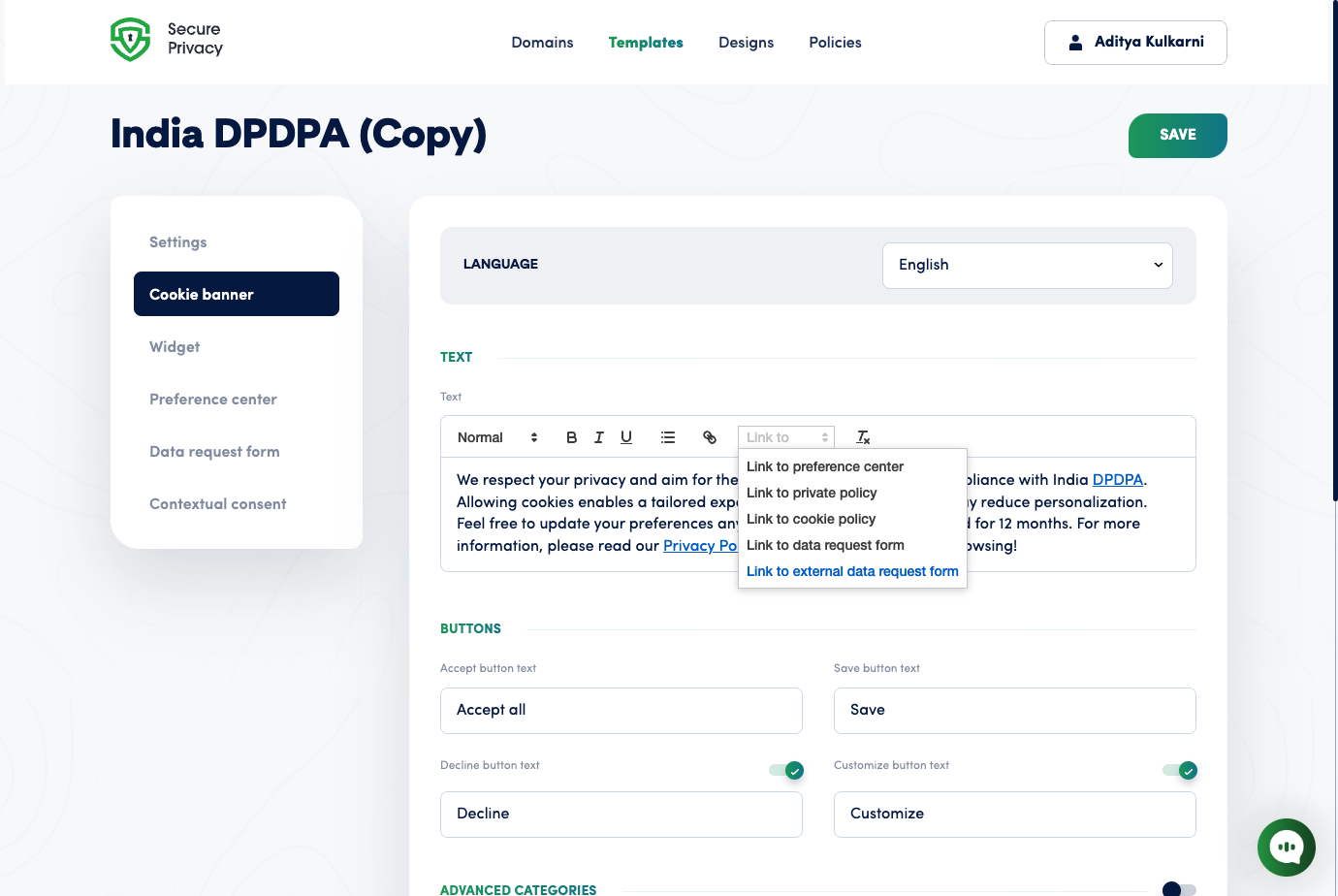
In the editor, highlight the word or phrase where you want to add the privacy rights portal link. Then open the Link to dropdown in the cookie banner text toolbar.
Step 4 — Choose "Link to external data request form"
Select Link to external data request form from the dropdown. This points the selected text at your Self-Service Privacy Rights Portal hosted on dsar.secureprivacy.ai. Other available link targets (preference center, privacy policy, cookie policy, in-product data request form) are for different destinations — use the external option for the DSAR portal.
Cookie banner editor — Link to dropdown with Link to external data request form selected (Self-Service Privacy Rights Portal).
In the example shown in this documentation, the word preferences in the sentence "Feel free to update your preferences anytime." was linked to the external data request form. Visitors who click that word are taken directly to the privacy rights portal. The linked text appears as a styled hyperlink in both the editor and the live banner.
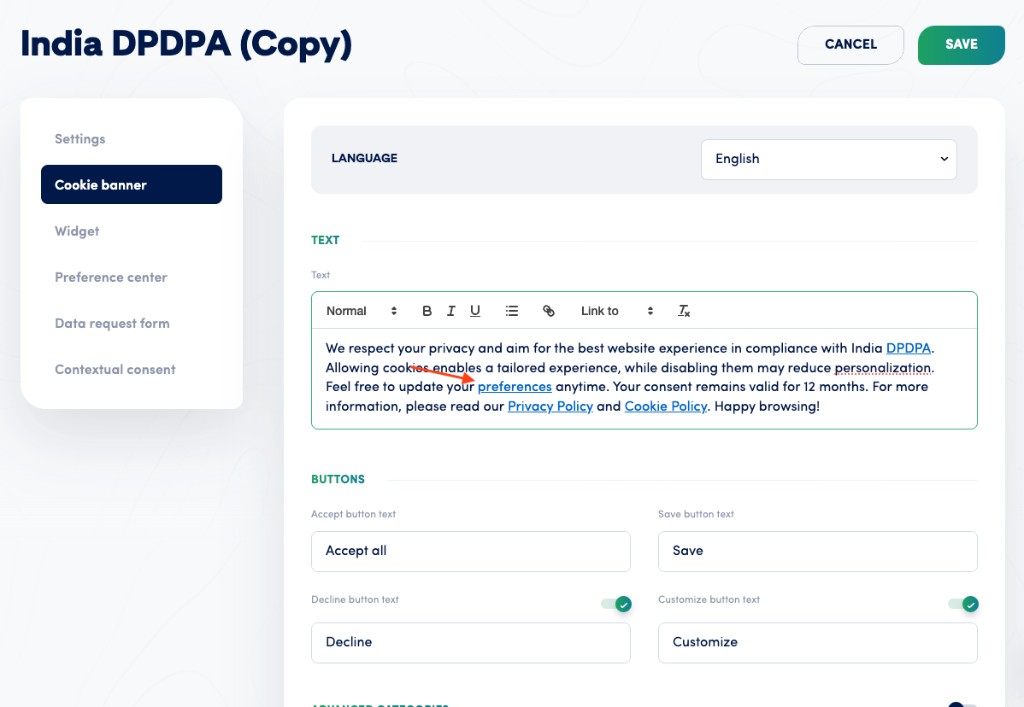
Cookie banner text after linking — preferences now points to the Self-Service Privacy Rights Portal (external data request form).
Step 5 — Save the template
Click the green SAVE button at the top right of the template editor. Your cookie banner changes are not live on the website until you save. Click CANCEL only if you want to discard all unsaved changes.
Step 6 — Verify the template is assigned to your domain
Open Domains in the top navigation, select the domain where the CMP script is installed, and confirm that the active template for that domain is the same template you just edited. If your domain uses a different template, either reassign the domain to this template or repeat the cookie banner steps on the correct template.
Multiple regions: If you use multiple templates by region or regulation, repeat this verification for every template that should surface the Self-Service Privacy Rights Portal link.
What Visitors See After Clicking the Banner Link
When a visitor clicks the linked text in the cookie banner, the browser opens the Self-Service Privacy Rights Portal at dsar.secureprivacy.ai with an encoded data= parameter that scopes the session to your domain and return URL. Visitors do not need to type or know this URL — it is opened automatically.
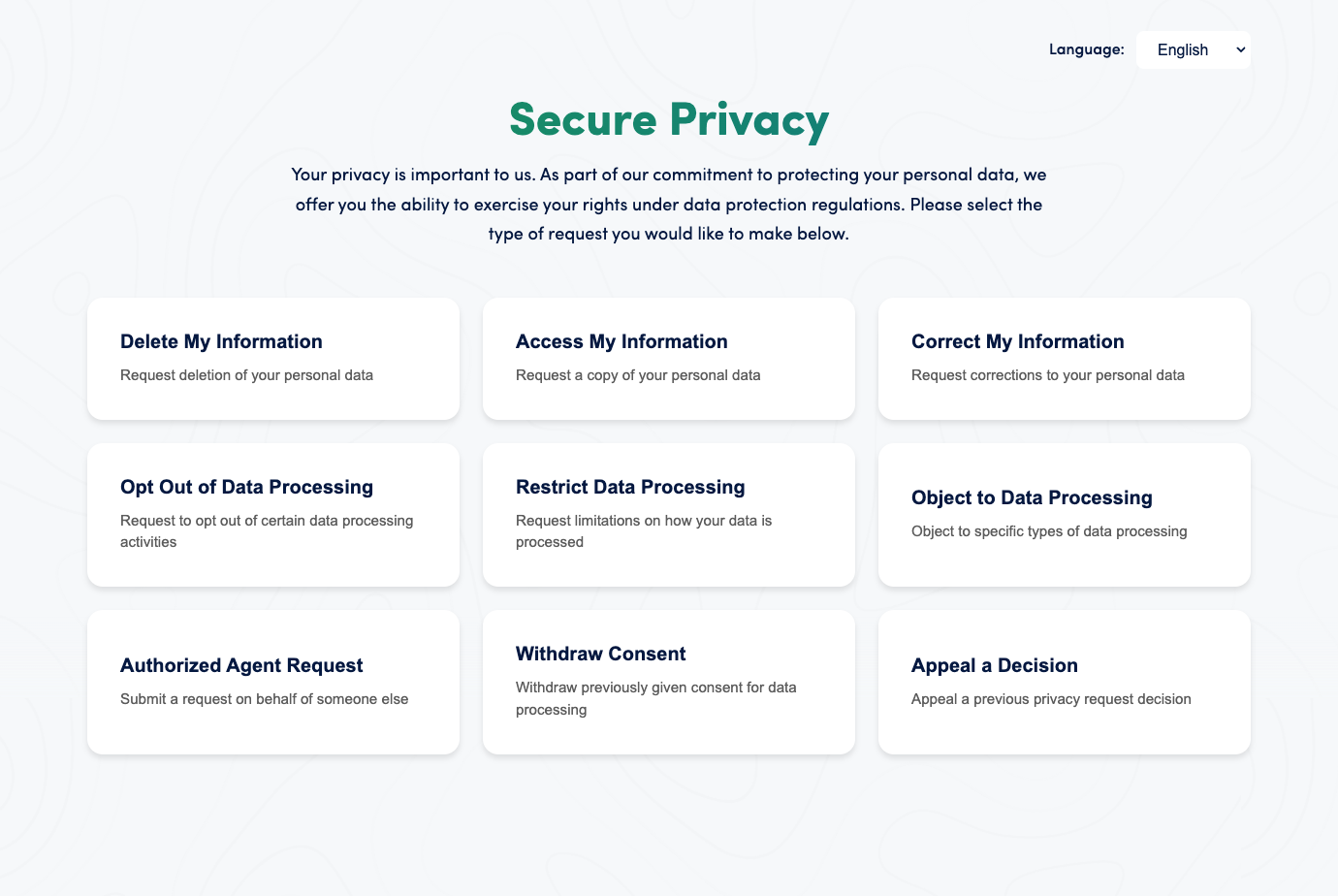
The portal displays a language selector and a grid of privacy rights action cards: Delete My Information, Access My Information, Correct My Information, Opt Out of Data Processing, Restrict Data Processing, Object to Data Processing, Authorized Agent Request, Withdraw Consent, and Appeal a Decision.
Live Self-Service Privacy Rights Portal (dsar.secureprivacy.ai) opened from the cookie banner link — language selector and full grid of GDPR and CCPA data subject rights cards.
Option 2 — Link from Privacy Policy or Cookie Policy (Policies → Edit)
Use this path to add a Self-Service Privacy Rights Portal link inside your Privacy Policy or Cookie Policy text — useful for fulfilling the GDPR requirement to inform data subjects how to exercise their rights within policy documents.
Step 1 — Open Policies and select the relevant policy
In the Secure Privacy CMP, click Policies in the top navigation. Click the Privacy Policy or Cookie Policy that applies to the domain where you want the portal link to appear.
Step 2 — Click Edit and select your link text
Click Edit to open the policy editor. Highlight the word or phrase you want to hyperlink to the portal (for example, "submit a data request" or "exercise your rights").
Step 3 — Choose "Link to external data request form"
Open the Link to control in the toolbar and select Link to external data request form. The behavior is identical to the cookie banner editor: the selected text becomes a hyperlink to your Self-Service Privacy Rights Portal on dsar.secureprivacy.ai.
Step 4 — Save or publish the policy
Save or publish the policy per your Secure Privacy CMP workflow. The updated policy text and portal link will be live wherever that policy is displayed.
Visitors who follow the link from your policy see the same Self-Service Privacy Rights Portal experience as visitors who follow the cookie banner link — language selector and full request-type card grid on dsar.secureprivacy.ai.
Admin Configuration Notes
Configure and publish the Self-Service Privacy Rights Portal for your domain(s) from the Secure Privacy CMP dashboard.
Link the portal URL from both your privacy policy and your consent/preference center so data subjects can always find it, regardless of how they browse your site.
Configure request types, identity verification, and response workflows to align with your privacy program and legal obligations under GDPR, CCPA/CPRA, India DPDPA, and other applicable laws.
If you use geotargeted templates (different consent banners per region), verify the portal link is added to each active template — not just the default.
Troubleshooting
The portal link is not appearing in the live cookie banner
Confirm you clicked SAVE after editing. Then check Domains → [your domain] and verify the active template is the one you edited. If a different template is assigned, either switch the domain to the edited template or add the link to the correct template.
Visitors are landing on the wrong portal or seeing an error
Ensure you selected Link to external data request form — not "Link to data request form" (which points to the in-product form, not the hosted DSAR portal). If visitors still encounter an error, confirm the Self-Service Privacy Rights Portal is fully configured and published for your domain in the CMP dashboard.
The link is showing in the editor but not on the live website
Clear your browser cache and check whether a cookie caching layer or CDN is serving a stale version of the banner script. Allow up to a few minutes for changes to propagate after saving.
Frequently Asked Questions
What is a Self-Service Privacy Rights Portal?
A Self-Service Privacy Rights Portal is a secure, branded interface that lets individuals submit and track privacy requests — data access, deletion, correction, opt-out, and more — under GDPR, CCPA/CPRA, India DPDPA, and similar regulations. Secure Privacy hosts the portal at dsar.secureprivacy.ai, automatically scoped to your organization.
How do I submit a GDPR data subject access request (DSAR)?
Open the portal link in the organization's cookie banner or privacy policy. Choose Access My Information from the action-card grid, complete the form, and submit. Note the reference number provided for tracking.
How do I request deletion of my personal data?
Use the Delete My Information card in the portal. This invokes your right to erasure under GDPR Article 17. If the request is denied, use Appeals to challenge the decision.
How do I add a DSAR link to my cookie banner in Secure Privacy?
Go to Templates, open the template for your domain, click Cookie banner → Edit, highlight your chosen text, open the Link to dropdown, select Link to external data request form, and click SAVE. Then verify the template is assigned to your domain under Domains.
What privacy regulations does the Secure Privacy DSAR portal support?
The portal supports GDPR, UK GDPR, CCPA/CPRA, India DPDPA, and similar frameworks, covering the full range of data subject rights: access, deletion, correction, opt-out, restriction, objection, consent records, authorized agent requests, and appeals.
Can I link the privacy rights portal from my Privacy Policy instead of the cookie banner?
Yes. In the Secure Privacy CMP, go to Policies, open the relevant policy, click Edit, highlight your link text, select Link to external data request form, and save. Visitors who click that link see the same portal experience as those who follow the cookie banner link.
Related Articles
Consent Dashboard: Viewing and Managing Cookie Consent Records
Cookie Banner Customization: Templates, Text, and Design Settings[?]
Domain Settings: Assigning Templates and Managing Active Configurations
GDPR Data Subject Rights: What They Are and How Secure Privacy Handles Them
CCPA/CPRA Opt-Out of Sale: Configuring the "Do Not Sell or Share" Link[?]