
This guide explains how to implement Google Consent Mode Basic using Secure Privacy — preventing Google Ads and Analytics tags from loading or collecting data from visitors who have not given consent. If you want to compare Basic and Advanced modes before proceeding, see the Basic vs. Advanced Google Consent Mode comparison guide.
Who Is This For?
Website administrators implementing Google Consent Mode via Secure Privacy
Developers configuring consent-based Google tag behavior for GDPR or CCPA compliance
Compliance officers ensuring Google Ads and Analytics do not collect data before visitor consent is obtained
What Google Consent Mode Basic Does
Google Consent Mode Basic is the simpler of two available approaches. When enabled in Secure Privacy, it:
Blocks Google Ads and Analytics plugins from loading entirely until the visitor gives consent
Prevents Google tags from collecting any data from visitors who have not consented — fulfilling the core Google Consent Mode requirement
Uses Secure Privacy's standard cookie blocking method — no aggregated or modeled data is sent to Google before consent in this mode
How to Enable Google Consent Mode Basic in Secure Privacy
Log in to your Secure Privacy dashboard and navigate to your domain settings.
Locate the Framework or Consent Mode settings for your domain.
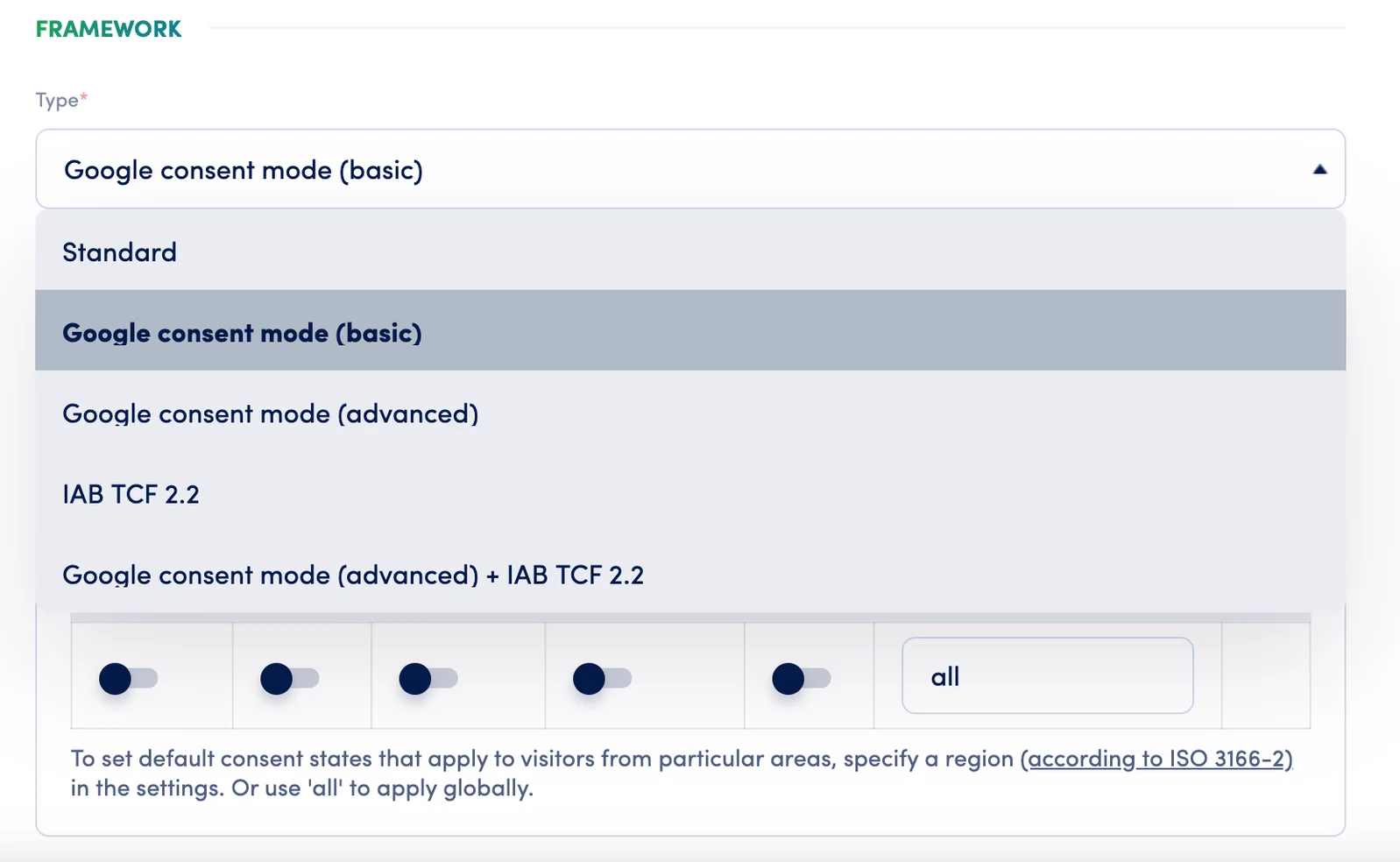
Select the Google Consent Mode (Basic) framework category from the available options.
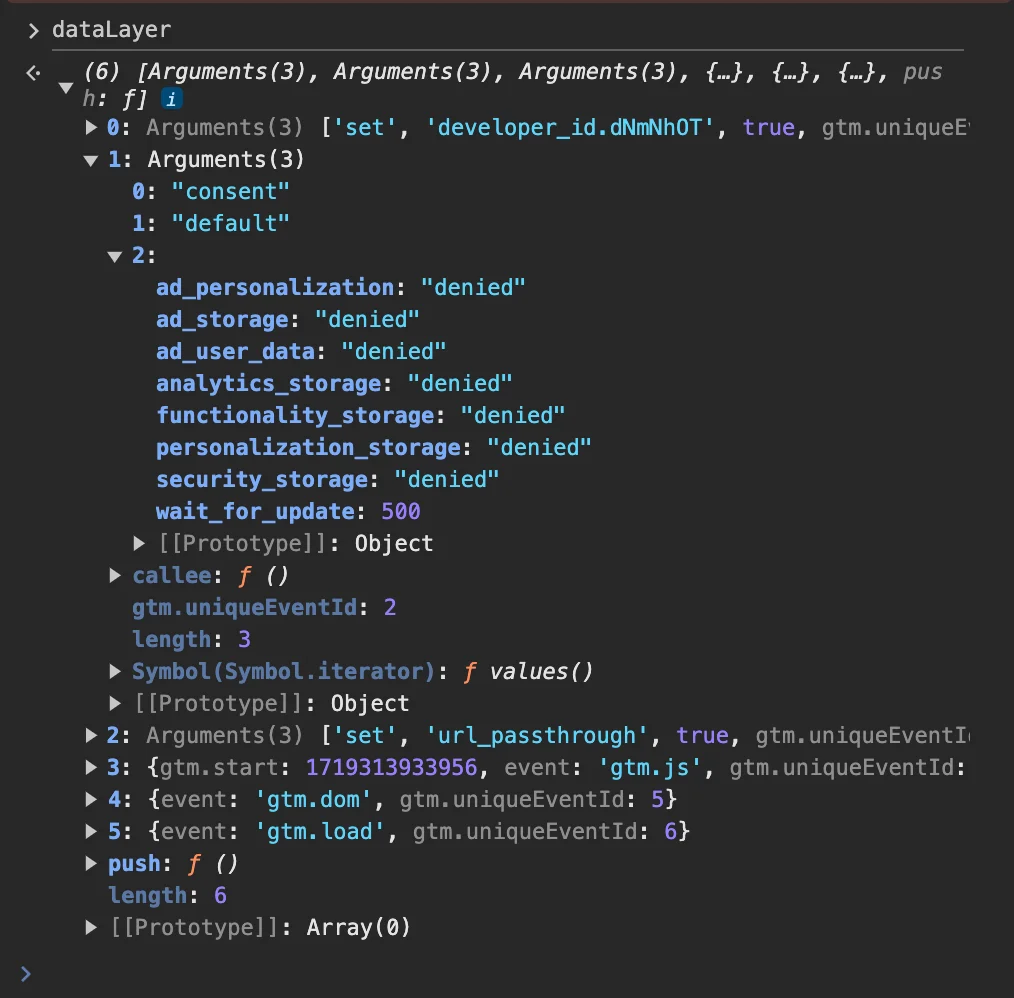
Default consent status and dataLayer configuration
Once Basic mode is enabled, the default consent status you have configured in your domain settings is applied automatically. This status — along with your developer ID and other required configuration details — is pushed to the dataLayer window object on each page load, ensuring Google tags receive the correct consent signal from the first interaction.
Frequently Asked Questions
How do I choose between Basic and Advanced Google Consent Mode?
Basic mode completely blocks Google tags until consent is given — no data is collected or modeled. Advanced mode allows Google tags to fire without cookies before consent, sending anonymized, aggregated signals to enable conversion modeling. Review the Basic vs. Advanced Google Consent Mode comparison guide to determine which is appropriate for your compliance requirements and marketing measurement needs.
Does Basic mode block all Google data collection automatically?
Yes. When Google Consent Mode Basic is enabled in Secure Privacy, Google Ads and Analytics plugins are blocked from loading entirely until the visitor grants consent. No data — including aggregated or anonymized signals — is sent to Google before consent in Basic mode.
Need Further Assistance?
Contact the Secure Privacy support team at [email protected] for general questions. For urgent or systemic Google Consent Mode issues, contact Andrew Sidorkin directly. The team aims to respond to escalations within one business day.
For policy questions directed to Google, contact the Google EU User Consent Policy team at [email protected].