
Summary: Secure Privacy gives you full, page-level control over where the Trust Widget (privacy icon) appears on your website. By customizing widget visibility, you can improve transparency on pages that handle sensitive data, reduce visual clutter on pages where it isn't needed, and maintain a clean, consistent site design — all from your Secure Privacy domain settings.
Who Is This Guide For?
- Website administrators managing privacy compliance and consent settings across their domain
- Developers configuring page-level widget display behavior
- Marketers optimizing Trust Widget placement for user experience, conversions, and brand consistency
Why Customize Trust Widget Placement on Your Website?
Enhanced User Experience: Display the privacy icon only on pages where it adds value, avoiding unnecessary visual clutter across your site.
Improved Transparency: Place the Trust Widget on pages that handle sensitive data—like forms, checkout, or policy pages—to signal your commitment to user privacy.
Branding Control: Keep your site design consistent by precisely choosing which pages show the widget and where it appears.
How to Customize Trust Widget Visibility in Secure Privacy
-
Access Domain Settings:
Log in to your Secure Privacy dashboard and navigate to the Domains section from the main navigation. -
Select Your Domain:
Click on the domain you want to configure Trust Widget visibility for. -
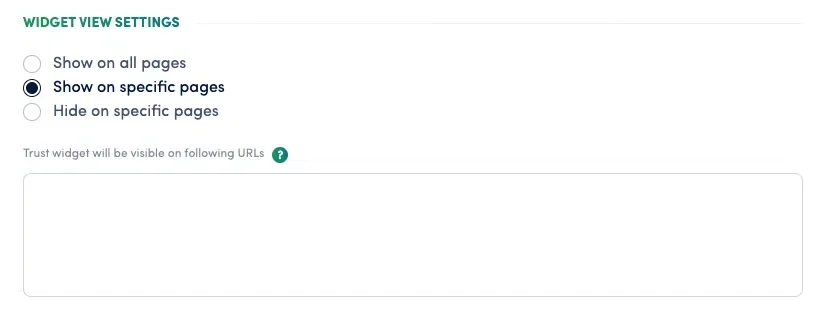
Scroll to Widget View Settings:
On the domain settings page, scroll down to find the Widget View Settings section near the bottom. -
Choose Your Visibility Option:
Select one of the following display modes:- Show on all pages — The Trust Widget appears across your entire site
- Show on specific pages only — Select individual pages from your existing pages list where the widget should appear
- Hide on specific pages — Show the widget everywhere except the pages you select
Best Pages to Display the Trust Widget: Example Use Cases
Privacy and Cookie Policy Pages: Reinforce your transparency commitments right where users are reading about your data practices.
Contact or Data Collection Forms: Build confidence on pages where users are asked to submit personal information.
Checkout Pages: Display the Trust Widget during transactions to reduce purchase anxiety and increase conversion confidence.
Campaign Landing Pages: Place the privacy icon on data collection landing pages to increase trust and improve opt-in rates.
Best Practices for Trust Widget Placement
Balance Visibility and UX: Ensure the widget is noticeable on relevant pages without adding visual noise to pages where it isn't needed.
Review Placement Regularly: Update widget visibility settings as your site structure, content, and user navigation patterns evolve.
Test Across Devices and Browsers: After changing settings, verify the widget displays and functions correctly on desktop, tablet, and mobile across multiple browsers.
Common Trust Widget Issues & Fixes
Widget not displaying on a page: Confirm that visibility is enabled for that specific page in Widget View Settings, then clear your browser cache and reload.
Widget overlapping page content: Adjust your page layout or review the widget position settings in your Secure Privacy design configuration.
Changes not applying after saving: Log out and back into your dashboard, or hard-refresh the domain settings page. If the issue persists, contact [email protected].
Frequently Asked Questions (FAQ)
What is the Secure Privacy Trust Widget?
The Trust Widget (also called the privacy icon or cookie widget) is a small, persistent button that Secure Privacy displays on your website. It allows users to access your Preference Center at any time to review or change their consent choices. It also signals to visitors that your site is privacy-compliant and transparent about data use.
Can I show the Trust Widget on some pages but not others?
Yes. Secure Privacy's Widget View Settings let you choose to show the widget on all pages, only on specific pages you select, or everywhere except specific pages you exclude. This page-level control is available per domain in your dashboard.
Where do I find Widget View Settings in Secure Privacy?
Go to your Secure Privacy dashboard, navigate to the Domains section, select your domain, and scroll to the bottom of the domain settings page to find the Widget View Settings panel.
Will hiding the Trust Widget on certain pages affect my GDPR or CCPA compliance?
Hiding the widget on low-risk pages (such as blog posts or informational pages) is generally acceptable, provided users still have easy access to your Preference Center on key pages. It is best practice to display the widget on pages that collect personal data, such as contact forms, checkout pages, and account registration pages.
Can I change the appearance of the Trust Widget as well as its placement?
Yes. Widget appearance — including size, color, position, and label text — is managed separately under Design > Widget in your Secure Privacy dashboard. See the related articles below for full customization options.
Conclusion
Secure Privacy's Trust Widget visibility controls give you the flexibility to deliver a tailored privacy experience across your site. By strategically placing the privacy icon on the pages that matter most, you build user trust, stay aligned with GDPR and CCPA best practices, and keep your site design clean and intentional.