
Most websites collect cookies — but simply having a cookie banner is no longer enough. Visitors and regulators increasingly expect ongoing, accessible transparency about how your site uses cookies, not just a one-time pop-up they clicked through six months ago. Without a visible, persistent way for visitors to review and manage their cookie preferences, you leave trust on the table and expose yourself to compliance gaps under GDPR, CCPA, and similar privacy regulations.
Many site owners try to solve this with static cookie policy pages buried in footers, or generic third-party widgets that clash with their brand and offer no real consent management. These approaches are time-consuming to maintain, inconsistent across devices, and do nothing to signal to visitors that privacy is a priority.
The Secure Privacy cookie widget — also called the trust badge — is a purpose-built solution that sits persistently on your website, giving visitors on-demand access to your cookie usage details and consent controls. It's pre-configured inside every Secure Privacy template, supports multiple languages, and embeds in minutes via a simple shortcode.
By the end of this guide, you'll know how to enable, preview, customize, and embed the Secure Privacy cookie widget on your website — so every visitor can see exactly how you handle their data, at any time.
Who Is This Guide For?
This guide is for website owners, developers, and privacy officers who:
Want to display a cookie trust badge that builds visitor confidence
Need a GDPR-compliant cookie widget that stays accessible after the initial consent banner is dismissed
Are setting up or customizing a Secure Privacy template for the first time
Manage a multilingual website and need cookie notices in multiple languages
Before You Begin
An active Secure Privacy account[?]
At least one template already created (see How to create a Secure Privacy template[?])
Access to your website's page template or CMS to paste the embed shortcode
How to Access the Cookie Widget Settings
Step 1 — Log in and open Templates
Log in to your Secure Privacy account and click "Templates" in the main navigation menu.
Step 2 — Select your template
Browse your available templates and select the one you want to configure. Each template holds its own independent cookie widget settings.
Step 3 — Open the Widget section
Within your chosen template, click the "Widget" section in the left-hand navigation panel to open the cookie widget configuration page.
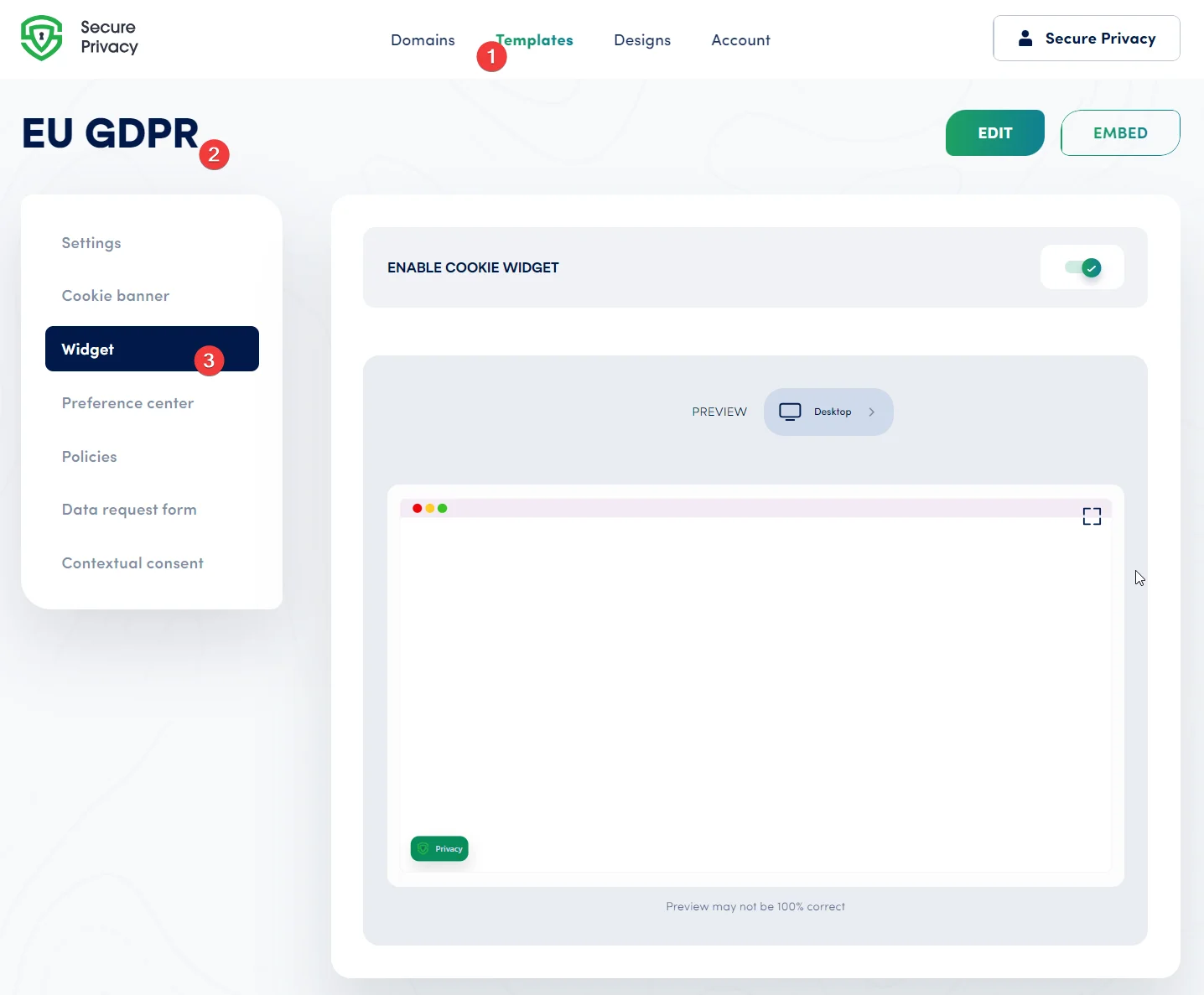
Navigate to Templates → [Your Template] → Widget to open the cookie widget settings.
Enable or Disable the Cookie Trust Badge
Every Secure Privacy template comes with the cookie widget preconfigured and ready to activate. Use the toggle to enable or disable the trust badge based on your compliance requirements.
When enabled, the trust badge displays persistently on your website — giving visitors a clear, accessible entry point to review your cookie usage and privacy stance at any time. This ongoing transparency supports GDPR compliance requirements and improves visitor confidence.
Preview the Cookie Widget Across Devices
Before publishing, use the built-in Preview option to see exactly how your cookie trust badge will appear on desktop, tablet, and mobile screens. Click full-screen mode for a larger, more detailed view.
Note: The preview is a close approximation. Minor rendering differences may appear on your live website depending on your theme and CSS.
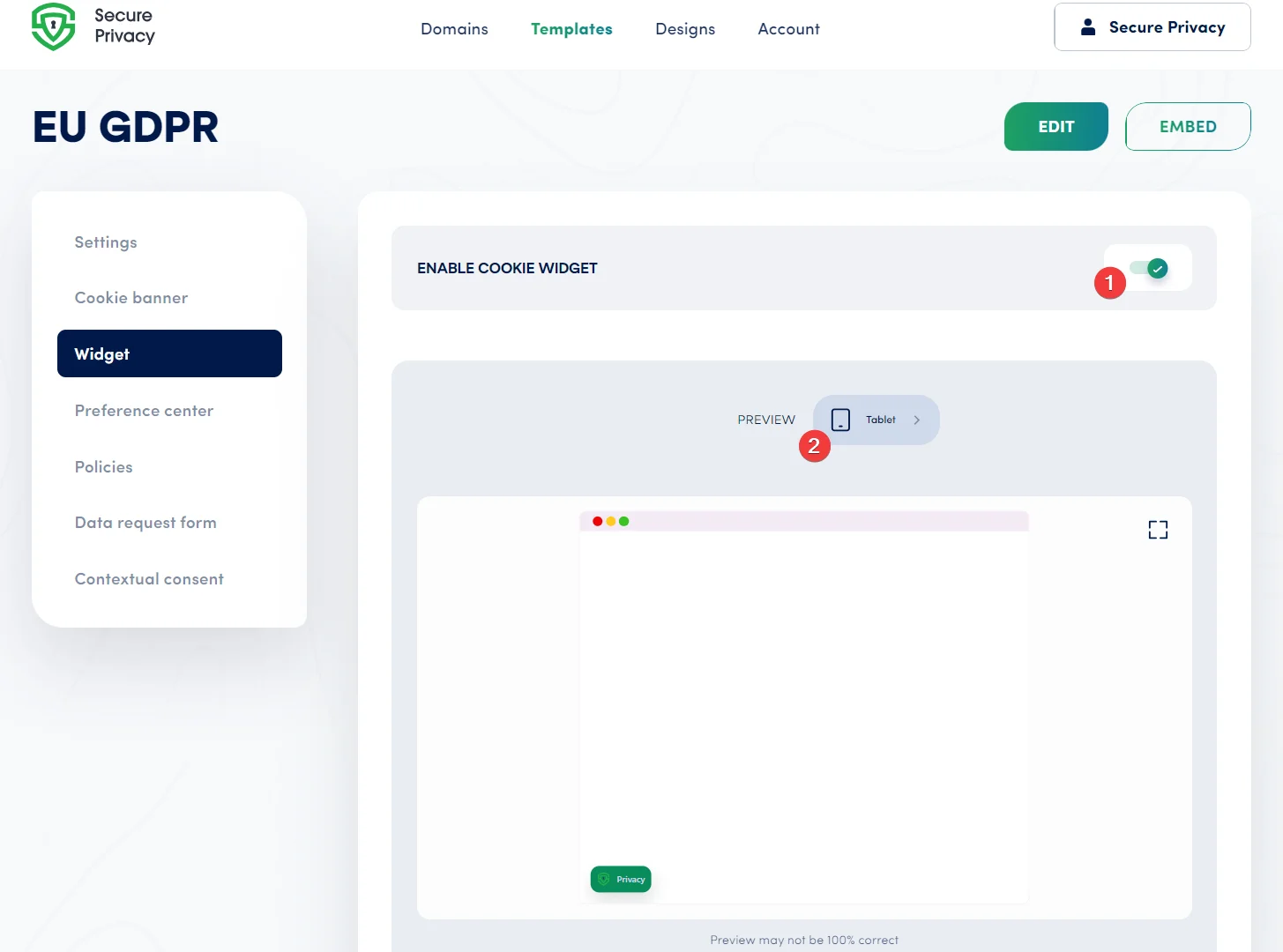
Switch between desktop, tablet, and mobile views to verify how your cookie widget renders on each device.
After previewing, switch to Edit mode to make changes to the widget text, language, or styling so it aligns with your website's tone and your visitors' expectations.
Configure Cookie Widget Languages
The Secure Privacy cookie widget is preconfigured and pre-translated for each template's default language settings. To serve a multilingual audience, you can add or remove languages under Template → Settings.
This ensures your cookie trust badge displays in the visitor's language — a requirement under GDPR for websites operating across multiple EU jurisdictions.
Click "Save" after making any language changes.
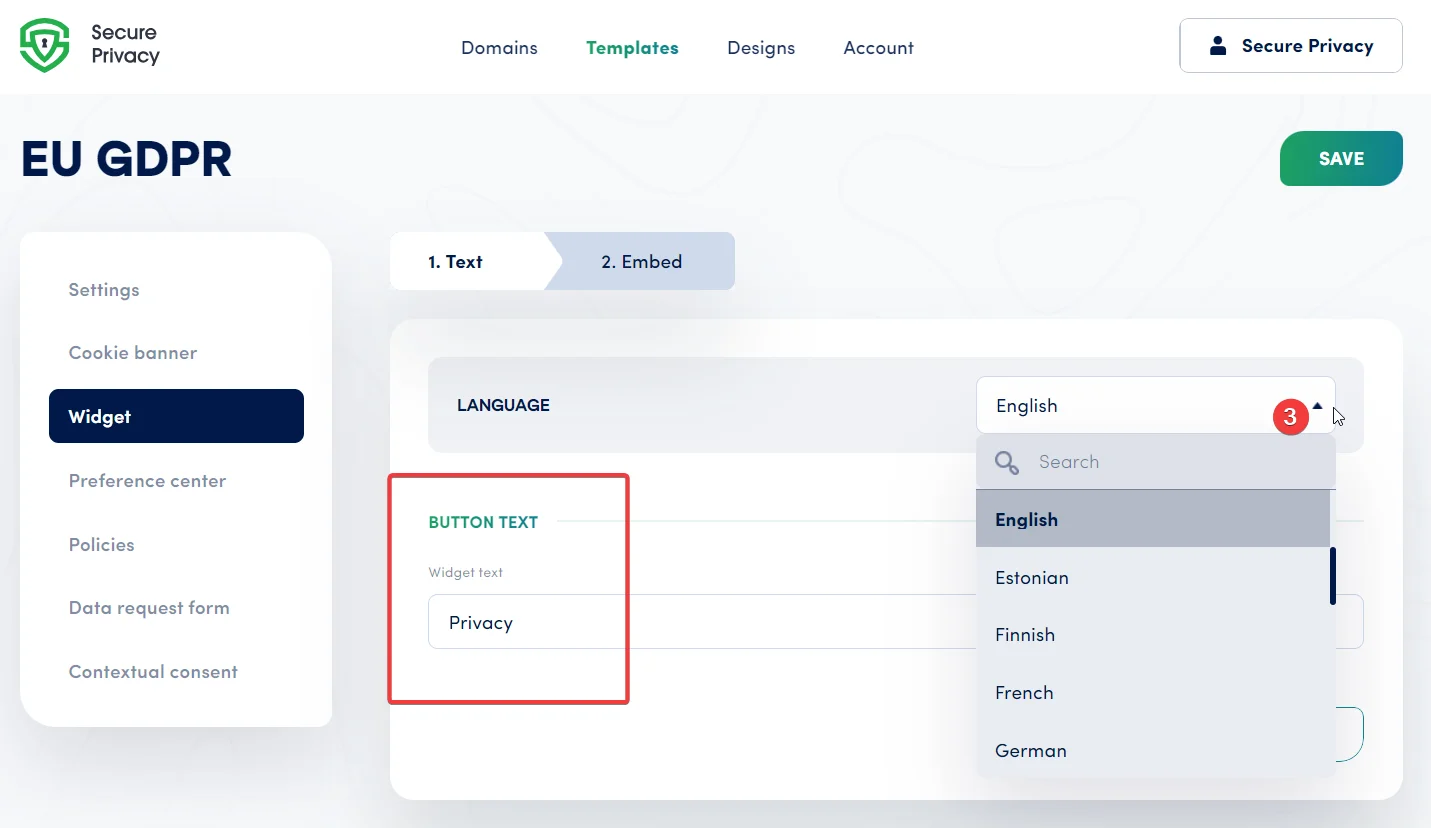
Add or remove languages in Edit mode to ensure your cookie widget is accessible to all your visitors.
Embed the Cookie Widget on Your Website
To display the cookie trust badge on your site, copy the provided shortcode and paste it into your page template. The embed shortcode is unique to your template and automatically reflects any changes you make in the widget settings.
Step 1 — Copy the shortcode
In the Embed section of the Widget page, click "Copy to clipboard" to copy your unique cookie widget shortcode.
Step 2 — Paste into your page template
Open your website's page template or CMS and paste the shortcode at the location where you want the trust badge to appear — typically in a persistent element such as the footer or a floating overlay.
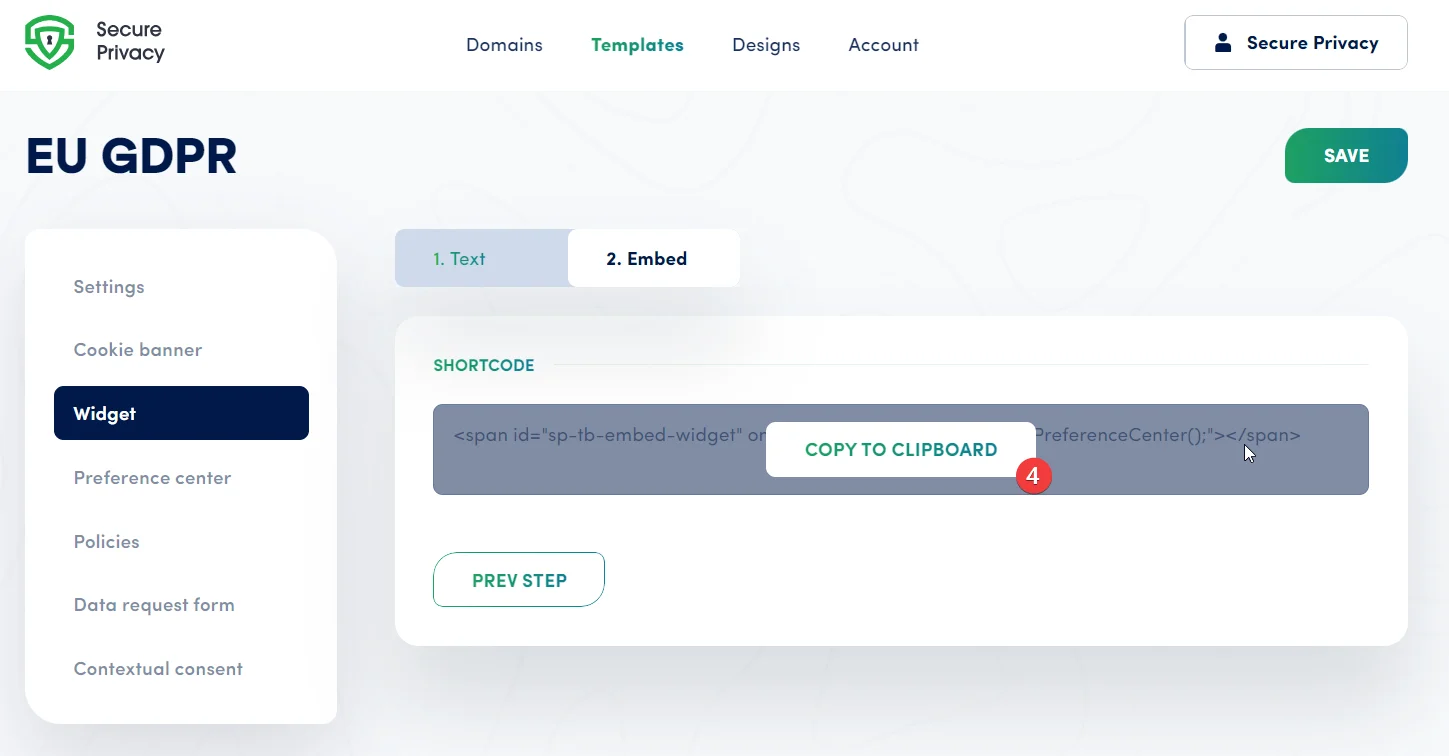
Copy the embed shortcode from the Widget page and paste it into your site's template to activate the trust badge.
Troubleshooting: Cookie Widget Not Showing?
If the trust badge isn't appearing on your website after embedding, check the following:
Widget is disabled: Confirm the toggle on the Widget page is set to enabled.
Shortcode not saved: Make sure you saved your page template after pasting the shortcode.
Script not published: Ensure the Secure Privacy script tag is live on the page where you placed the shortcode. Check under Account → Script.
Cache not cleared: If you use a caching plugin or CDN, purge the cache after embedding.
Wrong template selected: Verify the shortcode you copied belongs to the template associated with that website.
Frequently Asked Questions
What is a cookie trust badge and do I need one on my website?
A cookie trust badge is a persistent, visible widget that lets visitors access information about your site's cookie usage at any time — not just on their first visit. Under GDPR and similar privacy regulations, users have the right to withdraw or review their consent at any point, so a trust badge is not just good practice; it supports ongoing compliance by keeping cookie controls accessible.
What is the difference between the cookie banner and the cookie widget in Secure Privacy?
The cookie banner appears once (or on each new session) to collect initial consent. The cookie widget — or trust badge — is a persistent element that stays on your site so visitors can review or change their cookie preferences at any time after the banner has been dismissed.
Can I show the cookie widget in multiple languages?
Yes. The Secure Privacy cookie widget supports multiple languages. You can add or remove languages under Template → Settings. The widget will automatically display in the appropriate language based on your configuration.
How do I embed the Secure Privacy cookie widget on my website?
Go to Templates → [Your Template] → Widget → Embed, click "Copy to clipboard" to copy the shortcode, then paste it into your website's page template at the position where you want the trust badge to appear.
Will the cookie widget look the same on mobile as it does on desktop?
The widget is designed to be responsive. You can preview it across desktop, tablet, and mobile views within the Secure Privacy template editor. Note that the preview is an approximation — minor differences may occur depending on your site's CSS and theme.