
Sometimes you need a clean slate. Maybe your cookie consent banners have accumulated months of design tweaks that no longer reflect your brand, your templates are out of sync across domains, or you simply want to restore your Secure Privacy account to its original defaults before reconfiguring from scratch. Other times, your needs have changed entirely and you're ready to close your account for good.
Either way, both actions live in the same place: the Danger Zone tab inside your Secure Privacy account settings. These aren't everyday features — they're designed for significant, account-wide changes that can't always be undone. Knowing exactly what each option does, what it affects, and what you can't reverse is the difference between a smooth reset and an unwanted surprise.
By the end of this guide, you'll know how to reset your cookie consent templates and designs back to their defaults, or permanently delete your Secure Privacy account — step by step, with nothing missed.
⚠️ Before proceeding: Carefully review your settings and data before using any Danger Zone feature. These actions can significantly impact your account and some cannot be undone. Ensure the action you are taking aligns with your requirements.
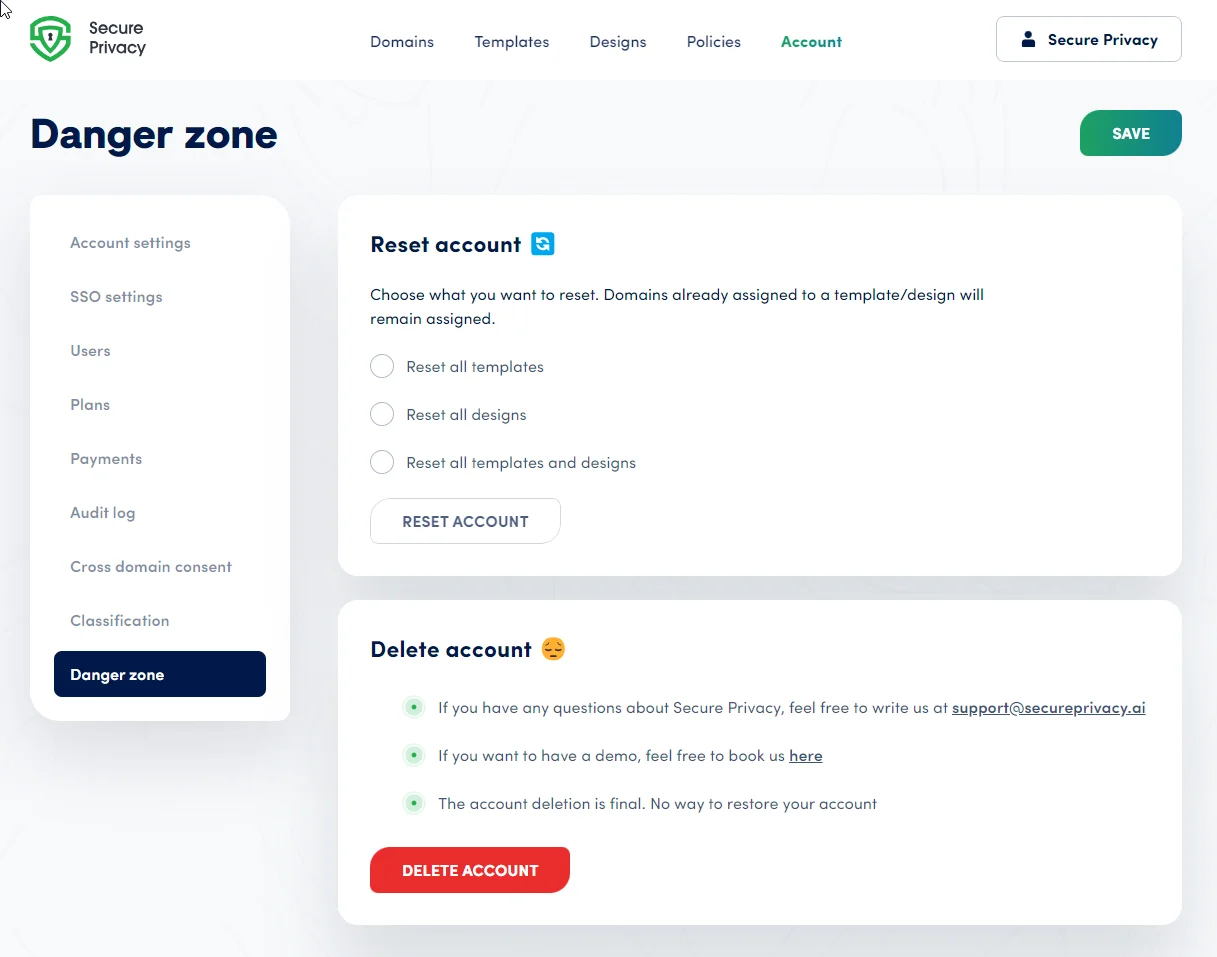
The Danger Zone tab in Secure Privacy Account Settings, showing Reset Account and Delete Account options.
Before You Reset or Delete Your Secure Privacy Account
Both actions in the Danger Zone affect your entire account — not a single domain or banner. Before proceeding, consider the following:
Do you have a backup or record of your current template and design configurations?
Are there active domains relying on your current consent banner setup?
Have you explored support options if a specific issue — such as a bug, a billing concern, or a configuration problem — prompted this decision?
If you have questions before acting, the Secure Privacy support team is available at [email protected] or you can book a 45-minute support call to discuss your situation.
How to Reset Your Secure Privacy Account Templates and Designs
Resetting your account reverts selected settings — your cookie consent templates, banner designs, or both — back to their factory defaults. This is useful when you want to start fresh with your consent management configuration without creating a new account. Note that this action cannot be selectively undone, so review your options carefully before confirming.
Step 1 — Log in to your Secure Privacy account
Go to the Secure Privacy dashboard and sign in with your credentials.
Step 2 — Navigate to the Account page
Click "Account" in the top navigation bar to open your account settings.
Step 3 — Open the Danger Zone tab
Select the "Danger Zone" tab within Account Settings.
Step 4 — Choose a reset option
Under the "Reset Account" section, select one of the following options based on what you need to restore:
Reset all templates — Removes all customizations made to your account templates and restores them to their default state.
Reset all designs — Reverts all cookie consent banner designs in your account to their default settings.
Reset all templates and designs — Resets both templates and designs simultaneously.
Important Notes Before Resetting
Resetting will overwrite the selected scope of settings across your entire Secure Privacy account — not just a single domain.
Domains already assigned to a template will remain assigned to the newly reset (default) version of that template.
Consider the impact on all active domains and live cookie consent banners before selecting a reset option.
How to Permanently Delete Your Secure Privacy Account
⚠️ Account deletion is permanent and cannot be reversed. Once your Secure Privacy account is deleted, all data, settings, consent logs, and configurations associated with your account will be permanently removed. There is no recovery option after confirmation.
If you have questions or concerns before deleting your account — including questions about pricing, technical issues, or alternative plans — reach out first:
Email the Secure Privacy team at [email protected]
Step 1 — Log in to your Secure Privacy account
Go to the Secure Privacy dashboard and sign in with your credentials.
Step 2 — Navigate to the Account page
Click "Account" in the top navigation bar to open your account settings.
Step 3 — Open the Danger Zone tab
Select the "Danger Zone" tab within Account Settings.
Step 4 — Click "Delete Account"
Click the "Delete Account" button to begin the deletion process.
Step 5 — Select a reason for leaving
When prompted, choose a reason for deleting your account. The available options are:
I encountered bugs and problems.
I do not know how to use the product.
The product is too expensive.
Other (please specify).
Your feedback helps Secure Privacy improve its product and address issues for future users.
Step 6 — Confirm the deletion
Confirm the deletion to permanently close your account. This action is irreversible.
Need Help Before You Act?
If you're unsure whether a reset or deletion is the right move, the Secure Privacy support team is happy to help you explore your options — whether that's troubleshooting a technical issue, discussing your plan configuration, or walking through what a reset would mean for your active domains.
Frequently Asked Questions
Can I undo a Secure Privacy account reset?
No. Once you confirm a reset, the selected templates or designs are immediately overwritten with their defaults. There is no built-in undo or restore option, so export or note down any configurations you want to keep before proceeding.
Will resetting my templates affect my live cookie consent banners?
Yes. Resetting templates affects your entire account. Any domain currently assigned to a template will continue to use that template — but the template itself will now reflect the default settings, not your previous customizations. Review all active domains before confirming a reset.
Is Secure Privacy account deletion permanent?
Yes, account deletion is permanent and irreversible. All data, consent records, domain configurations, templates, and designs associated with your account are permanently removed upon confirmation. If you think you may want to return, consider reaching out to the support team first to explore alternatives.
What happens to my GDPR consent records when I delete my account?
All data associated with your account — including consent logs and records — is permanently deleted when you close your account. If you need to retain consent records for compliance purposes, download or export them before initiating deletion. Contact [email protected] for guidance on data export options.
What should I do if Secure Privacy is too expensive for my needs?
Before deleting your account due to pricing concerns, consider reaching out to the Secure Privacy team. You can email [email protected] or book a call to discuss plan options that may better suit your budget or website scale.
Related Articles
Adding and Managing Domains in Secure Privacy[?]