
If you run multiple websites, keeping cookie consent settings consistent across every domain is one of the most frustrating parts of GDPR and ePrivacy compliance. You configure cookies correctly on one site — then realize your tracking pixels are uncategorized on another, or that an iframe from a marketing service is loading without consent on a third. Doing this domain-by-domain is slow, error-prone, and almost impossible to audit at scale.
Most consent management platforms force exactly that workflow: log in, find the domain, open Classification, make a change, repeat across every property. As your portfolio grows, so does your compliance risk.
Secure Privacy solves this with Account-Level Classification — a single control panel where you define how cookies, tracking pixels, iframes, and third-party services are categorized and blocked, once, and those settings propagate across every domain in your account automatically, overriding individual domain configurations.
By the end of this guide you'll have centralized, consistent consent management configured across your entire account — no per-domain repetition required.
Who Is This For?
This guide is for Secure Privacy users who manage two or more domains and want to enforce consistent cookie consent, pixel blocking, iframe management, or service categorization across all of them from one place. It is especially relevant if you:
Run a portfolio of websites and need uniform GDPR consent management.
Use the same third-party services (Google Analytics, Meta Pixel, etc.) across multiple domains.
Want to ensure that a change to a service category or cookie description is reflected everywhere instantly.
What Is Account-Level Classification?
The Classification page in Secure Privacy provides account-wide control over how cookies, pixels, iframes, and services are configured across all your domains. Any configuration made at the account level will override domain-level settings, giving you centralized, consistent control over data collection and processing across your entire account.
Account → Classification → Cookies
Step 1 — Open the Cookies Tab and Add a Cookie
Navigate to Account → Classification → Cookies and click "Add Cookie" to configure the following fields:
Cookie name
The exact name of the cookie to be classified.
Host
The domain host associated with this cookie.
Category
The consent category for this cookie. Note: category can only be assigned from the Services tab — see below.
Service name
The service this cookie belongs to (e.g., Google Analytics, Facebook Pixel).
Expiry
The expiry duration of the cookie.
Description
A cookie description that can be entered in multiple available languages for localized consent banners.
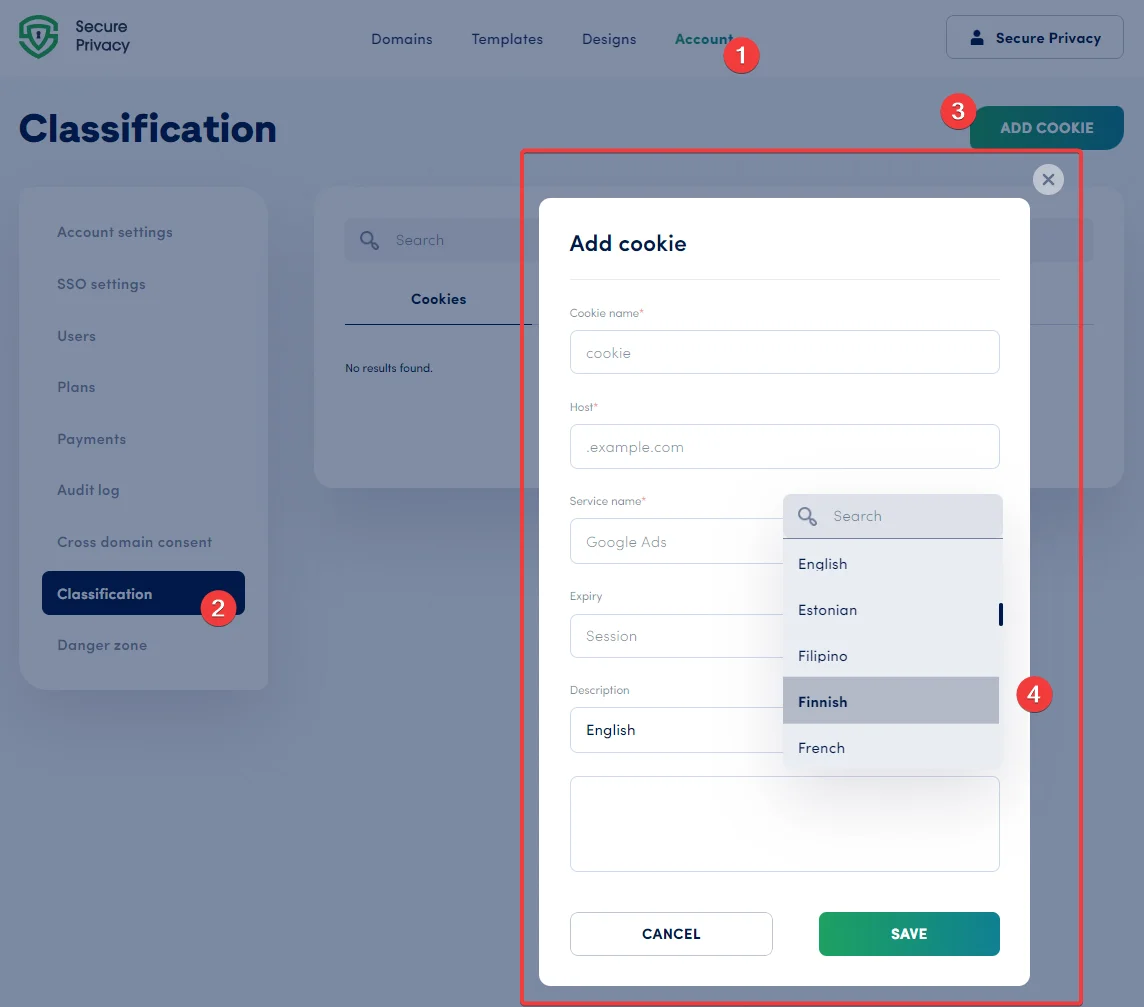
The Add Cookie form in Account → Classification → Cookies.
Cookie configurations added here are applied account-wide, overriding the corresponding settings on all individual Domain → Classification pages.
Account → Classification → Pixels
Step 2 — Open the Pixels Tab and Add a Pixel
Navigate to Account → Classification → Pixels and click "Add Pixel" to configure the following fields:
Source URL
The source URL of the tracking pixel to be blocked or managed (e.g., a Meta Pixel or TikTok Pixel endpoint).
Service name
The service this pixel is associated with.
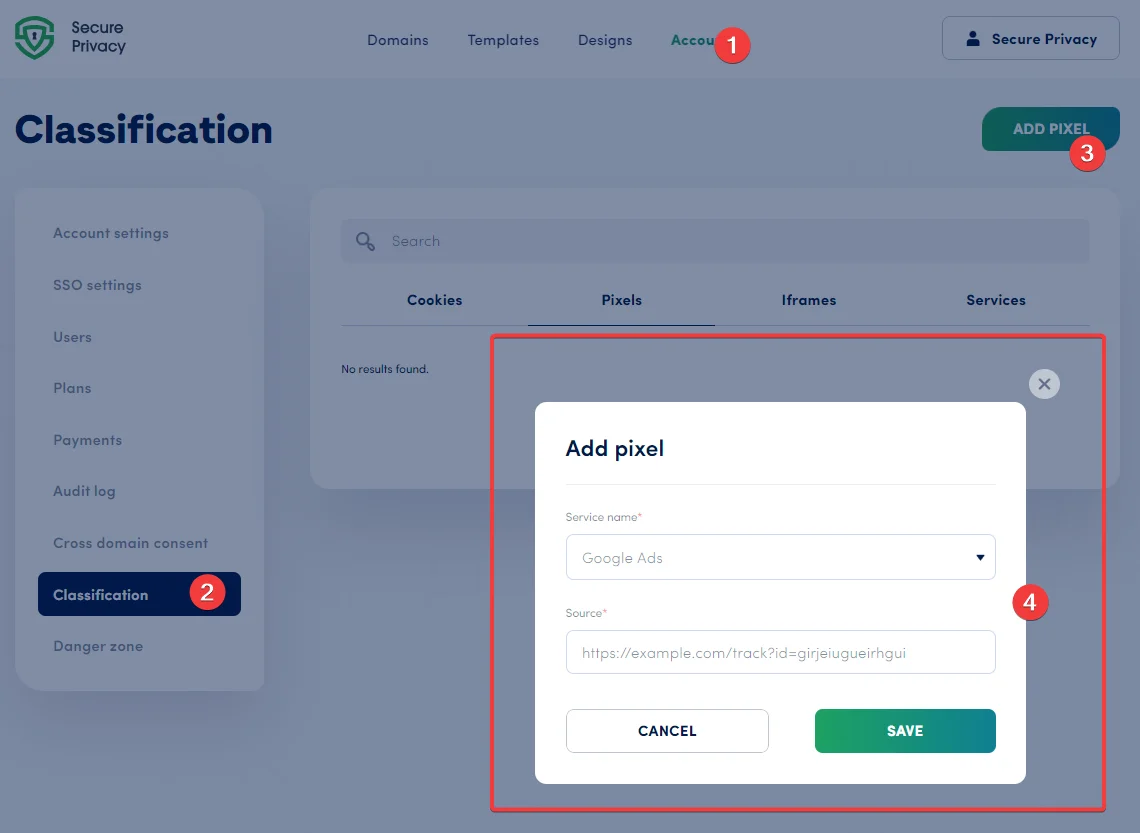
The Add Pixel form in Account → Classification → Pixels.
Account-level pixel configurations ensure consistent pixel blocking and management behavior across all domains in your account — so no tracking pixel fires without consent on any property.
Account → Classification → Iframes
Step 3 — Open the Iframes Tab and Add an Iframe
Navigate to Account → Classification → Iframes and click "Add Iframe" to configure the following fields:
Level
Select whether this iframe configuration applies at the domain or account level.
Source
The source URL of the iframe to be managed or blocked (e.g., a YouTube embed or Google Maps widget).
Service name
The service this iframe is associated with.
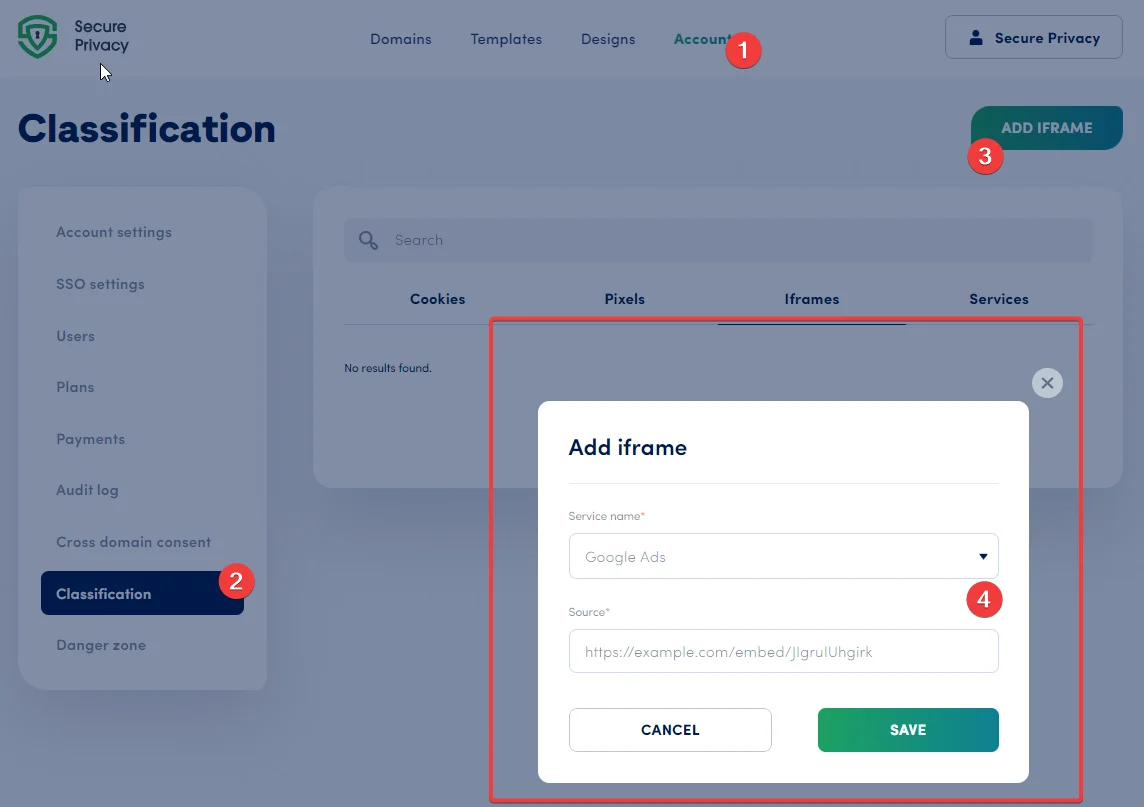
The Add Iframe form in Account → Classification → Iframes.
Iframe configurations applied at the account level ensure uniform iframe consent behavior across all your domains, regardless of individual domain-level settings.
Account → Classification → Services
Step 4 — Open the Services Tab and Edit a Service
Navigate to Account → Classification → Services. To edit a service, click the "..." (three-dot) menu next to the service and select "Edit" to configure the following fields:
Service name
The name of the third-party service (e.g., Google Analytics, Facebook Ads, HubSpot).
Category
The consent category this service belongs to (e.g., Analytics, Marketing). This is the only place where a category can be assigned to cookies associated with this service.
Script source
The script source URL(s) used to identify and block this service. Multiple sources must be comma-separated.
Privacy policy
A link to the third-party service's privacy policy, displayed in the consent banner where applicable.
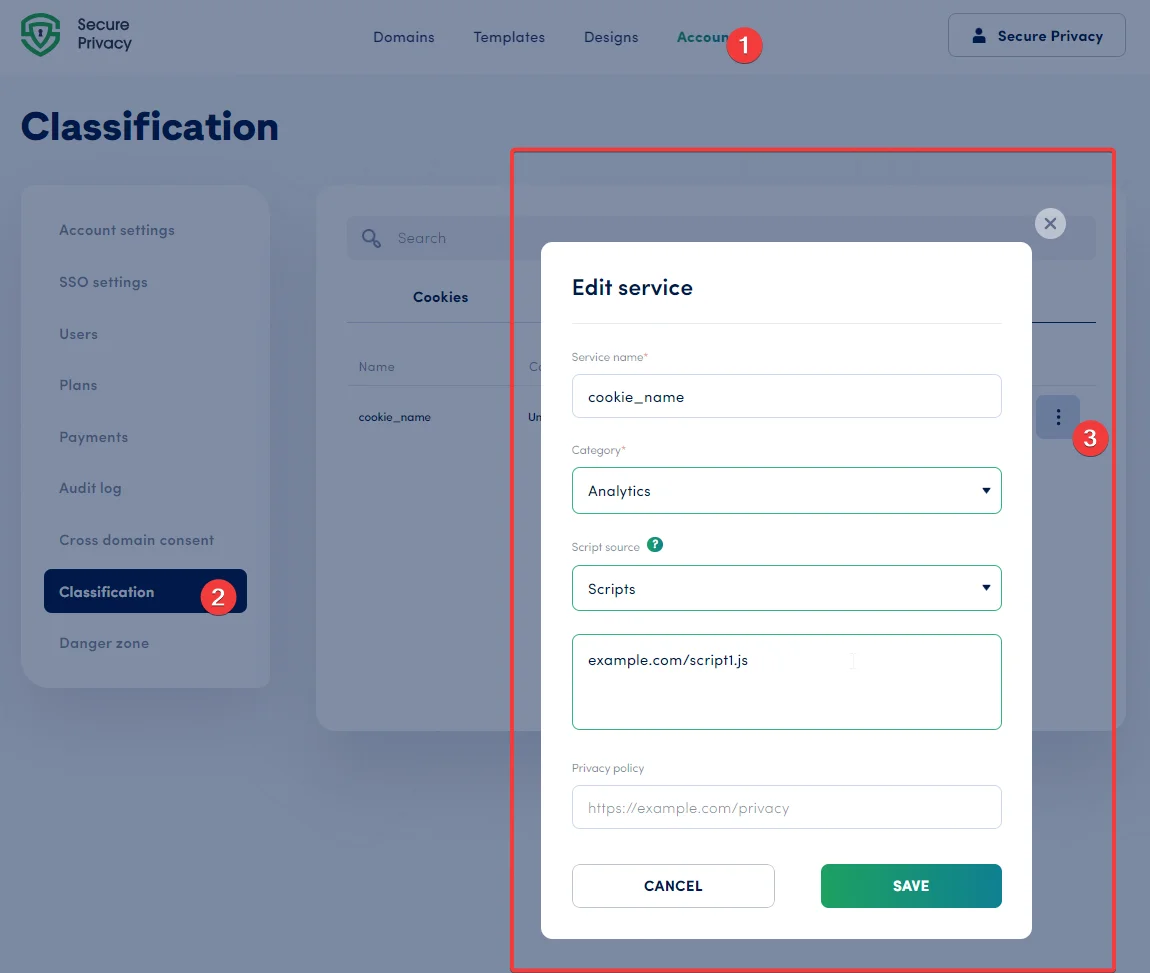
The Edit Service form in Account → Classification → Services.
Configuring services at the account level ensures coordinated, consistent service management and consent categorization across all your domains — including correct category assignment for every cookie associated with each service.
Key Reminder: Account-Level Settings Override Domain-Level Settings
All configurations made on the Account → Classification page take precedence over domain-level classification settings. Use this feature to enforce consistent cookie, pixel, iframe, and service configurations across your entire account without needing to adjust each domain individually. This is the most efficient way to maintain GDPR-compliant consent management at scale — one change here propagates everywhere.
Frequently Asked Questions
Can I manage cookie consent settings across all my websites from one place?
Yes. Secure Privacy's Account-Level Classification lets you define cookie, pixel, iframe, and service settings once at the account level. Those settings are automatically applied to every domain in your account, overriding any conflicting domain-level configurations.
What happens if I also have classification settings configured at the domain level?
Account-level settings always take precedence. If you have a cookie or service configured at both the account and domain level, the account-level configuration will override the domain-level one.
Where do I assign a consent category (Analytics, Marketing, etc.) to a cookie?
Categories are assigned through the Services tab (Account → Classification → Services), not the Cookies tab directly. You associate each cookie with a service, and the service carries the consent category. This is the only place where category assignment is configured.
Does account-level classification block tracking pixels and iframes across all domains automatically?
Yes. Pixels and iframes added under Account → Classification → Pixels and Iframes are applied across every domain in your account. Any pixel or iframe listed there will be blocked until the visitor provides the appropriate consent, consistently on every site.
Can I add cookie descriptions in multiple languages for international compliance?
Yes. The Description field in the Add Cookie form supports multiple languages. You can enter localized descriptions for each language supported by your consent banner, ensuring visitors see cookie information in their own language.
Related Articles
Domain-Level Classification: Cookies, Pixels & Iframes[?]